
Quick Answer
If your laptop keyboard is not working, the problem is usually caused by outdated keyboard drivers, accidental keyboard lock, incorrect Windows settings, dust or debris under the keys, liquid damage, a faulty keyboard ribbon cable, BIOS issues, or hardware failure. Start by restarting your laptop, cleaning the keyboard, updating the keyboard driver, checking accessibility settings, and testing an external keyboard. If only certain keys stop working or the keyboard remains unresponsive, the internal keyboard may require professional repair or replacement.
Why Is My Laptop Keyboard Not Working?
A laptop keyboard that suddenly stops working can quickly turn a productive day into a frustrating one. Whether you’re replying to emails, attending online meetings, completing university assignments, or simply browsing the web, losing the ability to type makes even basic tasks difficult.
Fortunately, a faulty keyboard doesn’t always mean the keyboard itself has failed. In many cases, the issue is caused by something much simpler, such as outdated drivers, incorrect keyboard settings, dust trapped beneath the keys, or a temporary software glitch after a Windows or macOS update. These problems can often be fixed at home in just a few minutes.
However, not every keyboard problem is software-related. Liquid spills, accidental drops, worn-out keys, damaged ribbon cables, motherboard faults, and failed keyboard controllers can all prevent your laptop from recognising key presses. Ignoring these issues may allow the damage to worsen over time.
This complete UK guide explains the most common reasons a laptop keyboard stops working, how to troubleshoot the problem step by step, and when it’s time to seek professional laptop keyboard repair. Whether you own a MacBook, HP, Dell, Lenovo, ASUS, Acer, Microsoft Surface, MSI, Samsung, or another Windows laptop, these solutions will help you identify the cause and restore normal keyboard functionality.
Common Signs Your Laptop Keyboard Has a Problem
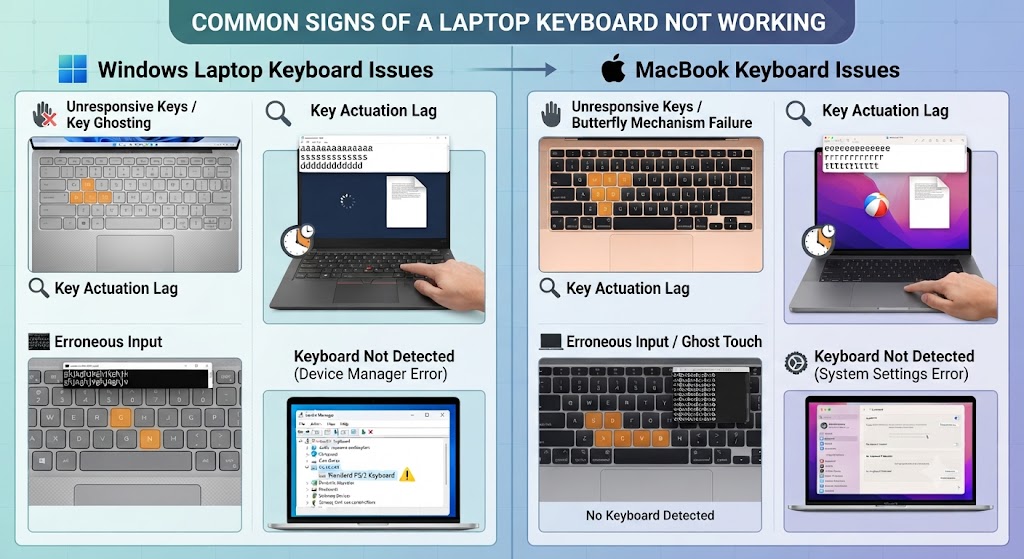
Keyboard problems don’t always appear in the same way. Sometimes the entire keyboard stops responding, while in other cases only a few keys fail to work.
Some of the most common warning signs include:
- The keyboard doesn’t respond at all.
- Only certain keys have stopped working.
- Keys type the wrong characters.
- Letters repeat automatically while typing.
- The keyboard works only after restarting.
- Function (Fn) keys stop responding.
- The keyboard suddenly stops after a Windows update.
- The laptop types random characters by itself.
- Keys feel stuck or require extra pressure.
- The built-in keyboard doesn’t work, but a USB keyboard does.
If you’re experiencing any of these symptoms, identifying the underlying cause early can help prevent further damage and avoid unnecessary repair costs.
Before Trying Advanced Fixes, Check These First
Many keyboard issues can be solved in just a few minutes. Before assuming the keyboard needs replacing, work through these basic checks.
| Check | Why It Matters | Difficulty |
|---|---|---|
| Restart the laptop | Clears temporary software glitches | Easy |
| Test an external keyboard | Confirms whether the issue is hardware or software | Easy |
| Clean the keyboard | Removes dust and debris blocking key movement | Easy |
| Check for Sticky Keys or Filter Keys | Accessibility settings may affect typing | Easy |
| Update Windows or macOS | Installs keyboard-related fixes | Easy |
| Inspect for liquid damage | Prevents further internal corrosion | Easy |
These simple checks resolve many keyboard problems without requiring professional repairs.
The 10 Most Common Reasons Your Laptop Keyboard Is Not Working
1. Outdated or Corrupted Keyboard Drivers
One of the most common reasons a laptop keyboard stops responding is a corrupted or outdated keyboard driver. Windows uses these drivers to communicate with the keyboard hardware. After a major Windows update, unexpected shutdown, or software conflict, the driver may become damaged, causing the keyboard to stop working correctly.
Common Symptoms
- Entire keyboard stops responding.
- Some shortcut keys stop working.
- Keyboard works after restarting.
- Device Manager shows a warning icon.
- Keyboard stops working after a Windows update.
How to Fix It
- Open Device Manager.
- Expand the Keyboards section.
- Right-click your keyboard.
- Select Update Driver.
- Restart your laptop after installation.
If updating doesn’t solve the issue, uninstall the keyboard driver and restart your laptop. Windows will automatically reinstall a fresh copy during boot.
2. Dust, Dirt or Debris Under the Keys
Dust and small particles can build up underneath laptop keys over time, especially if you regularly eat or work in dusty environments. This debris can prevent keys from making proper contact with the keyboard mechanism.
Signs of Dirt-Related Keyboard Problems
- Individual keys stop responding.
- Keys feel sticky.
- Keys require extra force.
- Certain letters only work occasionally.
- Keyboard feels uneven while typing.
How to Fix It
- Turn off the laptop.
- Hold it at a slight angle.
- Use compressed air to remove debris.
- Wipe the keyboard with a soft microfibre cloth.
- Avoid inserting sharp objects beneath the keys.
If liquid or sticky residue is trapped underneath the keyboard, professional cleaning may be required to prevent permanent damage.
3. Sticky Keys or Accessibility Settings
Windows includes accessibility features such as Sticky Keys, Filter Keys, and Toggle Keys to help users with different typing needs. Occasionally, these settings can be enabled accidentally, making the keyboard feel slow, unresponsive, or behave unexpectedly.
Common Symptoms
- Keys respond with a noticeable delay.
- Some keys need to be pressed repeatedly.
- Keyboard shortcuts behave differently.
- Modifier keys such as Shift, Ctrl, or Alt remain active unexpectedly.
How to Fix It
- Open Settings > Accessibility > Keyboard.
- Turn off Sticky Keys.
- Disable Filter Keys.
- Restart your laptop and test the keyboard again.
Many users mistakenly assume the keyboard is faulty when these settings are the real cause.
4. Keyboard Is Locked or Disabled
Many modern laptops include keyboard lock features that can accidentally disable the built-in keyboard. This often happens after pressing a combination of function (Fn) keys, installing manufacturer software, or connecting an external keyboard.
Some business laptops and gaming laptops also allow the keyboard to be disabled through BIOS settings or manufacturer utilities.
Common Symptoms
- The entire keyboard suddenly stops working.
- External USB keyboard works normally.
- No keys respond after pressing a shortcut.
- Keyboard stopped working after changing BIOS settings.
- Keyboard works again after restarting but later stops.
How to Fix It
- Restart your laptop.
- Disconnect all external keyboards.
- Press the correct Fn + Function Key combination (varies by manufacturer).
- Check BIOS settings to ensure the internal keyboard is enabled.
- Review keyboard settings in your laptop manufacturer’s software.
If the keyboard remains disabled after these steps, the issue may be driver-related or caused by hardware failure.
5. Liquid Damage
Liquid spills are one of the leading causes of laptop keyboard failure. Even a small amount of water, coffee, tea, or soft drink can seep beneath the keys and damage the keyboard membrane or internal circuitry.
The keyboard may continue working temporarily before corrosion gradually causes more keys to fail.
Common Symptoms
- Several keys stop working after a spill.
- Random letters appear while typing.
- Keys become sticky.
- Keyboard works intermittently.
- Laptop shuts down unexpectedly.
What You Should Do Immediately
- Turn the laptop off immediately.
- Disconnect the charger.
- Remove the battery if possible.
- Turn the laptop upside down to drain liquid.
- Do not use a hair dryer.
- Leave the laptop powered off until professionally inspected.
Quick action greatly improves the chances of preventing permanent motherboard damage.
6. Loose or Damaged Keyboard Ribbon Cable
Inside every laptop, a thin ribbon cable connects the keyboard to the motherboard. A loose connection, accidental drop, or previous repair can cause this cable to disconnect or become damaged.
Common Symptoms
- Entire keyboard stops working.
- Keyboard works only after pressure is applied.
- Some rows of keys stop responding.
- Keyboard fails after replacing the screen or battery.
- External keyboard works perfectly.
How to Fix It
Repairing a ribbon cable requires opening the laptop, so it’s generally not recommended for inexperienced users. A technician will typically:
- Remove the laptop cover.
- Inspect the ribbon cable.
- Reseat the connector.
- Replace the cable if damaged.
- Test keyboard communication.
Fortunately, ribbon cable repairs are often much cheaper than replacing the motherboard.
7. BIOS or Firmware Problems
Your laptop’s BIOS manages communication between the operating system and hardware components, including the keyboard. If the BIOS becomes outdated or corrupted, the keyboard may stop responding before Windows even loads.
Although uncommon, BIOS-related keyboard issues can occur after failed firmware updates or incorrect BIOS settings.
Common Symptoms
- Keyboard doesn’t work in Windows.
- Keyboard also fails inside BIOS.
- Keyboard stopped working after a BIOS update.
- Laptop freezes during startup.
- Function keys stop responding.
How to Fix It
- Enter BIOS using an external keyboard if necessary.
- Restore BIOS to default settings.
- Install the latest BIOS update from the manufacturer’s website.
- Restart and test the keyboard.
If you’re unsure about updating the BIOS, professional assistance is recommended because an interrupted BIOS update can make the laptop unusable.
8. Malware or Software Conflicts
Although less common than hardware faults, malware or incompatible software can interfere with keyboard functionality. Some background applications may block keyboard input, remap keys, or cause typing delays. Third-party keyboard customisation software, gaming utilities, and macro applications can also create conflicts.
Common Symptoms
- Keyboard freezes only in Windows.
- Keyboard works in Safe Mode.
- Certain applications don’t recognise key presses.
- Random shortcuts activate automatically.
- Typing becomes inconsistent after installing new software.
How to Fix It
- Boot Windows in Safe Mode.
- Run a full antivirus scan.
- Remove recently installed keyboard software.
- Update Windows.
- Restore the system to an earlier restore point if the issue started after a software installation.
If the keyboard works normally in Safe Mode, the problem is usually software-related rather than a hardware fault.
9. Motherboard or Keyboard Controller Failure
If you’ve ruled out software issues, drivers, and the keyboard itself, the fault may lie with the motherboard or embedded keyboard controller.
The keyboard controller processes every key press before sending it to the operating system. Damage caused by liquid spills, electrical surges, overheating, or failed components can prevent the keyboard from functioning entirely.
Common Symptoms
- Built-in keyboard completely unresponsive.
- External keyboard works but internal keyboard doesn’t.
- Keyboard stops working after liquid damage.
- Multiple hardware components fail together.
- Laptop fails hardware diagnostics.
Common Causes
| Cause | Effect |
|---|---|
| Liquid damage | Corrodes motherboard circuits |
| Power surge | Damages keyboard controller |
| Overheating | Weakens electronic components |
| Short circuit | Interrupts keyboard communication |
| Previous poor-quality repair | Damages motherboard connections |
How to Fix It
Motherboard repairs require specialist tools and advanced microsoldering skills. Professional technicians typically:
- Perform full motherboard diagnostics.
- Test keyboard communication circuits.
- Repair damaged traces.
- Replace faulty controller chips.
- Verify keyboard functionality after repair.
Board-level repairs are often significantly cheaper than replacing the entire laptop.
10. Keyboard Has Physically Failed
Like any hardware component, laptop keyboards eventually wear out. Years of daily use can cause key switches, membranes, or internal circuits to fail. Older laptops, heavily used office devices, and gaming laptops often experience physical keyboard wear after millions of keystrokes.
Signs the Keyboard Has Failed
- Multiple keys no longer respond.
- Keys feel loose or broken.
- Keys have fallen off.
- Typing registers incorrect characters.
- Cleaning and driver updates don’t help.
Repair or Replace?
In many cases, replacing the keyboard is the fastest and most cost-effective solution. Modern replacement keyboards are designed specifically for each laptop model and restore full functionality when installed correctly.
How to Troubleshoot a Laptop Keyboard Step by Step
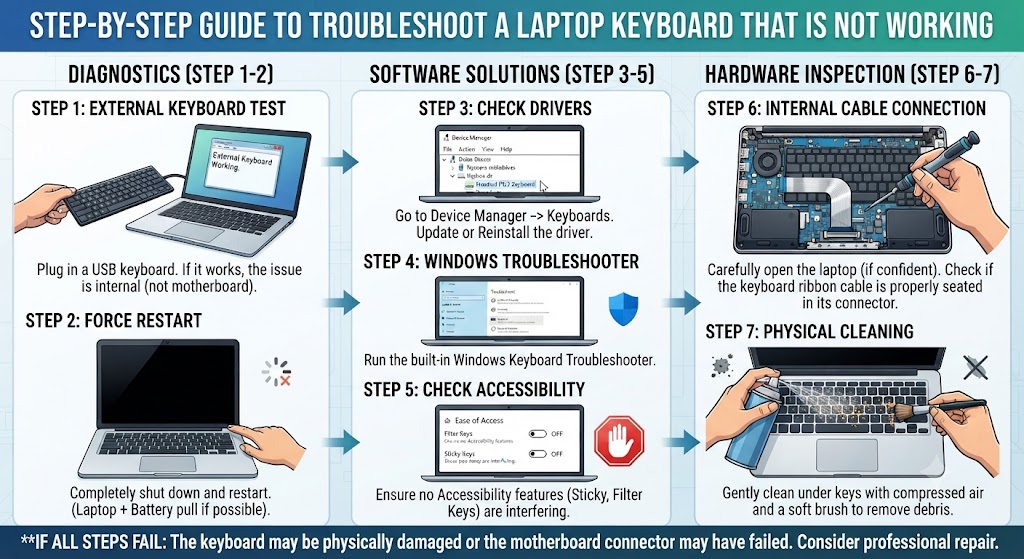
Rather than trying random fixes, follow this structured troubleshooting process.
| Step | Action | Purpose |
|---|---|---|
| 1 | Restart the laptop | Clears temporary software glitches |
| 2 | Test an external keyboard | Identifies hardware vs software issues |
| 3 | Clean the keyboard | Removes dust and debris |
| 4 | Disable Sticky Keys and Filter Keys | Eliminates accessibility conflicts |
| 5 | Update Windows or macOS | Installs keyboard-related fixes |
| 6 | Update or reinstall keyboard drivers | Fixes driver corruption |
| 7 | Run built-in keyboard diagnostics | Detects hardware faults |
| 8 | Check BIOS settings | Confirms keyboard is enabled |
| 9 | Inspect for liquid or physical damage | Identifies hardware problems |
| 10 | Contact a professional repair specialist | Diagnoses motherboard or keyboard failure |
Working through these steps in order helps identify the exact cause while avoiding unnecessary repairs or replacement parts.
How to Fix a Laptop Keyboard That Is Not Working on Windows
If you’re using a Windows laptop, the operating system provides several built-in tools that can help diagnose and fix keyboard issues. Whether the problem is caused by software, drivers, or system settings, working through these solutions can often restore your keyboard without replacing any hardware.
Follow these steps in order, testing the keyboard after each one.
1. Restart Your Laptop
It may sound simple, but restarting your laptop clears temporary software glitches, reloads keyboard drivers, and refreshes system services.
Many keyboard problems disappear after a clean restart.
2. Update Windows
Microsoft regularly releases updates that include bug fixes for hardware compatibility and device drivers.
Steps
- Open Settings
- Select Windows Update
- Click Check for Updates
- Install any available updates
- Restart your laptop
Keeping Windows updated helps prevent compatibility issues that can affect keyboard functionality.
3. Reinstall the Keyboard Driver
Corrupted keyboard drivers are one of the most common software-related causes of keyboard failure.
Steps
- Right-click the Start Menu
- Open Device Manager
- Expand Keyboards
- Right-click your keyboard
- Select Uninstall Device
- Restart your laptop
Windows will automatically reinstall the correct driver during startup.
4. Run the Keyboard Troubleshooter
Some Windows versions include built-in troubleshooters that automatically detect keyboard problems. The troubleshooter checks for:
- Driver issues
- Configuration errors
- Accessibility settings
- Missing system files
Although it won’t fix every problem, it’s worth trying before moving on to more advanced solutions.
5. Check Accessibility Settings
Accessibility features are useful for many users but can accidentally interfere with normal typing.
Open:
Settings → Accessibility → Keyboard
Disable:
- Sticky Keys
- Filter Keys
- Toggle Keys
Restart your laptop and test the keyboard again.
6. Scan for Malware
Malicious software can interfere with keyboard input or disable certain functions. Run a complete scan using:
- Microsoft Defender
- Malwarebytes
- Another trusted antivirus program
If malware is detected, remove it before testing the keyboard again.
7. Perform a System Restore
If the keyboard stopped working after installing software or a Windows update, restoring your system to an earlier point may resolve the issue. System Restore doesn’t delete personal files but removes recently installed drivers and applications that could be causing conflicts.
How to Fix a MacBook Keyboard That Is Not Working
MacBooks have a different keyboard architecture from Windows laptops. In addition to hardware faults, macOS settings, firmware issues, and battery-related power management can sometimes prevent the keyboard from working correctly.
Common Causes
- macOS software bugs
- Keyboard settings
- Liquid damage
- Dust beneath keys
- Faulty keyboard ribbon cable
- Logic board failure
- Battery swelling placing pressure on the keyboard
- Physical keyboard wear
Try These Fixes
Restart Your MacBook
Many temporary software issues disappear after a restart.
Update macOS
Install the latest macOS version to ensure compatibility with keyboard drivers and firmware.
Clean the Keyboard
Apple recommends using compressed air to remove debris trapped beneath the keys.
Reset the SMC (Intel MacBooks)
Resetting the System Management Controller may resolve power-related keyboard issues.
Reset NVRAM
Resetting NVRAM can restore certain hardware settings affecting keyboard functionality.
Test an External Keyboard
If an external keyboard works normally, the internal keyboard is likely suffering from a hardware fault.
Check for Battery Swelling
A swollen battery can press against the keyboard from underneath, causing certain keys to stop responding. If the trackpad also feels difficult to click, stop using the laptop and arrange professional inspection immediately.
External Keyboard Not Working?
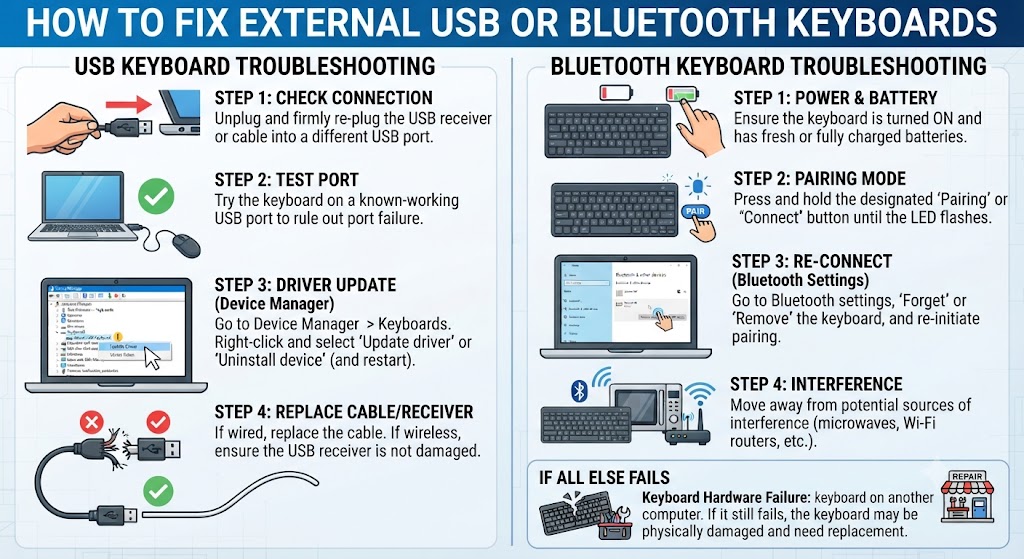
Sometimes the issue isn’t with the built-in keyboard at all. External USB and Bluetooth keyboards can also stop working.
1. USB Keyboard Problems
Common causes include:
- Faulty USB port
- Damaged USB cable
- Driver corruption
- Power management settings
- Outdated Windows drivers
Try These Fixes
- Connect to another USB port.
- Test another USB keyboard.
- Update USB drivers.
- Restart the laptop.
- Disable USB selective suspend.
2. Bluetooth Keyboard Problems
Wireless keyboards introduce additional causes.
Check
- Bluetooth is enabled.
- Keyboard battery isn’t flat.
- Device is paired correctly.
- Remove and reconnect the keyboard.
- Restart Bluetooth services.
Brand-Specific Laptop Keyboard Problems
Although keyboard issues are similar across most laptops, every manufacturer has its own common faults.
| Brand | Common Keyboard Issue | Recommended Solution |
|---|---|---|
| HP | Keyboard ribbon cable, BIOS issues | Update BIOS and inspect keyboard connection |
| Dell | Driver corruption, liquid damage | Reinstall drivers and run Dell diagnostics |
| Lenovo | Keyboard shortcuts disabled | Check Lenovo Vantage keyboard settings |
| ASUS | Armoury Crate software conflicts | Update drivers and ASUS utilities |
| Acer | Loose keyboard connector | Inspect ribbon cable |
| Microsoft Surface | Surface keyboard connector issues | Clean connector and reinstall drivers |
| Apple MacBook | Liquid damage, worn keyboard, battery swelling | Run Apple diagnostics and inspect hardware |
No matter which laptop brand you own, diagnosing the root cause is always more important than replacing parts unnecessarily.
Repair or Replace Your Laptop Keyboard?
Not every keyboard problem requires a replacement.
The table below explains the best option depending on the fault.
| Problem | Keyboard Replacement | Professional Repair |
|---|---|---|
| Broken keys | Yes | Sometimes |
| Dust or debris | No | Cleaning only |
| Driver issue | No | Usually unnecessary |
| Liquid damage | Sometimes | Recommended |
| Ribbon cable disconnected | No | Yes |
| Motherboard fault | No | Yes |
| Keyboard controller failure | No | Yes |
| Worn-out keyboard | Yes | Usually the best solution |
Replacing the keyboard only solves the problem if the keyboard itself has failed. If the motherboard, ribbon cable, or controller is damaged, professional repair will be required.
When Should You Contact a Professional?
While many keyboard problems can be fixed at home, some situations require specialist equipment and experience. Seek professional laptop repair if:
- The keyboard stopped working after liquid damage.
- Several keys remain unresponsive after troubleshooting.
- The keyboard works only intermittently.
- The ribbon cable is damaged.
- The motherboard or keyboard controller has failed.
- The laptop has been dropped.
- The keyboard replacement requires complete laptop disassembly.
- You notice signs of battery swelling.
- Multiple hardware components fail together.
Ignoring these symptoms can lead to more expensive repairs later.
Why Choose iExpert Repairs?

At iExpert Repairs, we diagnose and repair laptop keyboard problems for customers across the UK. Whether your keyboard has stopped working due to accidental damage, liquid spills, software issues, worn-out keys, or motherboard faults, our experienced technicians can identify the exact cause and provide a reliable repair using premium OEM-grade replacement parts.
Our Laptop Keyboard Repair Services Include
- Laptop keyboard replacement
- Individual key replacement
- Liquid damage diagnostics
- Keyboard ribbon cable repair
- Motherboard and keyboard controller repair
- BIOS troubleshooting
- Internal cleaning
- Driver and software repairs
- Full hardware diagnostics
- Performance optimisation
We repair all major laptop brands, including Apple MacBook, HP, Dell, Lenovo, ASUS, Acer, Microsoft Surface, Samsung, MSI, and gaming laptops.
Why Customers Choose iExpert Repairs?
- Certified laptop repair specialists
- 10+ years of repair experience
- Premium OEM-grade replacement parts
- Free diagnostic assessment
- Same-day repairs for many common faults
- Nationwide UK mail-in repair service
- Secure tracked return delivery
- Transparent pricing with no hidden costs
- 12-month warranty on repairs
- Flexible Fix Now, Pay Later with Klarna
FAQs About Laptop Keyboard Not Working
1. Why is my laptop keyboard not working?
If your laptop keyboard is not working, the issue could be caused by software glitches, outdated or corrupted keyboard drivers, accidental keyboard lock settings, dust and debris beneath the keys, liquid damage, a loose keyboard ribbon cable, or internal hardware failure. Start by restarting your laptop, checking whether the keyboard works in the BIOS, updating or reinstalling the keyboard driver, and running the Windows Keyboard Troubleshooter.
2. How do I fix a laptop keyboard that won’t type?
Begin by restarting your laptop and disconnecting any external keyboards or accessories. Check whether the keyboard works before Windows loads by entering the BIOS. If it works there, update or reinstall the keyboard driver through Device Manager and install the latest Windows updates.
3. Can a Windows update cause my laptop keyboard to stop working?
Yes. Although uncommon, a Windows update can sometimes install incompatible drivers or modify keyboard settings, causing certain keys – or even the entire keyboard – to stop working. In most cases, reinstalling the keyboard driver, installing the latest updates, or restoring Windows to a previous restore point resolves the issue.
4. Why are only some keys on my laptop keyboard not working?
If only a few keys have stopped working, the problem is usually caused by dust buildup, worn key switches, physical damage, liquid spills, or debris trapped underneath the affected keys. In some situations, incorrect keyboard language settings can also make certain keys appear to type the wrong characters.
5. How can I tell if my laptop keyboard problem is hardware or software?
One of the easiest ways to identify the cause is by testing the keyboard in your laptop’s BIOS or UEFI settings. If the keyboard works normally there but stops working after Windows loads, the issue is usually software-related, such as corrupted drivers or incorrect settings.
6. Can dust or dirt stop a laptop keyboard from working?
Yes. Dust, crumbs, pet hair, and other debris can build up beneath laptop keys over time and prevent them from registering correctly. This is especially common on laptops used daily in dusty environments or while eating.
7. What should I do if I spill liquid on my laptop keyboard?
If liquid is spilled on your laptop keyboard, immediately power off the device, disconnect the charger, and avoid pressing any keys. Turn the laptop upside down to allow excess liquid to drain and leave it switched off until it has been thoroughly inspected or dried.
8. Why is my laptop keyboard typing the wrong characters?
If your keyboard types different letters, numbers, or symbols than expected, the issue is often caused by an incorrect keyboard language, Num Lock settings, accessibility features, or corrupted keyboard drivers. Start by checking the keyboard layout in your operating system and ensure the correct language is selected.
9. Can an external keyboard help identify the problem?
Yes. Connecting an external USB or Bluetooth keyboard is one of the quickest ways to diagnose the issue. If the external keyboard works normally while the built-in laptop keyboard doesn’t, the problem is usually limited to the internal keyboard or its connection.
10. When should I replace my laptop keyboard instead of repairing it?
A laptop keyboard should usually be replaced if multiple keys have permanently stopped working, liquid damage has caused corrosion, the keyboard is physically broken, or repeated repairs no longer solve the problem.
Final Thoughts
A laptop keyboard that stops working doesn’t always mean you need to replace your device. In many cases, the problem is caused by something relatively simple, such as outdated keyboard drivers, incorrect Windows settings, dust and debris beneath the keys, or a loose internal connection. By identifying the root cause early and following the troubleshooting steps in this guide, you can often restore your keyboard without the need for expensive repairs.
However, if your keyboard has suffered liquid damage, multiple keys have stopped responding, the keyboard only works intermittently, or you suspect internal hardware failure, it’s important to seek professional assistance. Continuing to use a laptop with a damaged keyboard can sometimes lead to further issues, especially if moisture or motherboard damage is involved. A professional diagnosis ensures the fault is correctly identified before unnecessary parts are replaced.
At iExpert Repairs, our certified technicians specialise in diagnosing and repairing laptop keyboard faults for all major brands, including Apple MacBook, HP, Dell, Lenovo, ASUS, Acer, Microsoft Surface, Samsung, MSI, and gaming laptops. Whether you need a keyboard replacement, ribbon cable repair, motherboard diagnostics, or liquid damage treatment, we use premium OEM-grade replacement parts and professional diagnostic equipment to restore your laptop safely and efficiently.
Why Thousands of UK Customers Choose iExpert Repairs
Choosing the right repair centre can save both time and money. At iExpert Repairs, we focus on delivering professional laptop repairs backed by experience, transparency, and quality workmanship.
Customers trust us because we offer:
- Certified Laptop Repair Specialists
- 10+ Years of Industry Experience
- 2,500+ Successful Laptop Repairs
- Premium OEM-Grade Replacement Parts
- Free Diagnostic Assessment
- Same-Day Repairs Available
- Nationwide UK Mail-In Repair Service
- Secure Tracked Return Delivery
- 12-Month Warranty
- Transparent Pricing
- Excellent Customer Reviews
- Fix Now, Pay Later with Klarna


