
Introduction
A slow laptop can interrupt work, online meetings, studying, gaming, and everyday browsing. Tasks that once opened instantly may begin taking several minutes, applications may freeze unexpectedly, and even simple activities like opening a web browser can become frustrating. Fortunately, a sluggish laptop does not always mean it needs replacing.
Performance problems usually develop gradually due to software clutter, limited storage, ageing hardware, malware, or overheating. Identifying the underlying cause is the first step towards restoring speed and improving overall reliability. Many issues can be resolved with simple maintenance, while others may require professional diagnosis or hardware upgrades.
This guide explains the most common reasons laptops become slow, provides practical troubleshooting steps, and highlights situations where expert assistance is the better option. Whether you own a Dell, HP, Lenovo, MacBook, ASUS, Acer, Microsoft Surface, or another model, these recommendations apply to most modern laptops used across the UK.
If your device continues performing poorly after following these steps, our Laptop Repair specialists at iExpert Repairs can diagnose hardware faults, replace failing components, and restore your laptop to peak performance using premium-quality parts backed by a comprehensive warranty.
Why Trust This Guide?
Unlike general online tutorials, this guide is based on real-world laptop repair experience from certified technicians at iExpert Repairs. Every recommendation reflects practical repair procedures used daily in our UK repair centre.
- Over 2,500 laptops repaired
- Certified repair technicians
- Premium OEM-grade replacement parts
- 12-month warranty on qualifying repairs
- Repairs for all major laptop brands
- Nationwide UK mail-in repair service
- Regularly reviewed and updated using current repair standards
Why Is My Laptop So Slow?
Laptop performance naturally declines over time as software becomes more demanding and storage fills with files, updates, and temporary data. However, age alone is rarely the only reason behind noticeable slowdowns. In many cases, several smaller issues combine to create significant performance problems.
Running dozens of startup programs, outdated drivers, insufficient memory, malware infections, overheating, and failing storage devices all reduce system responsiveness. Even a laptop with good specifications can feel slow when these problems are left unresolved.
Understanding what’s causing the slowdown allows you to apply the correct solution instead of wasting time on unnecessary fixes. Some problems can be solved within minutes, while others require component replacement or professional repair.
Quick Answer: How Can You Speed Up a Slow Laptop?
Most slow laptops can be improved by following these essential maintenance steps:
| Solution | Difficulty | Performance Improvement |
|---|---|---|
| Restart the laptop | Easy | Moderate |
| Close unnecessary programs | Easy | Moderate |
| Disable startup apps | Easy | High |
| Free up storage space | Easy | High |
| Delete temporary files | Easy | Moderate |
| Scan for malware | Easy | High |
| Install system updates | Easy | Moderate |
| Update device drivers | Medium | Moderate |
| Replace HDD with SSD | Advanced | Excellent |
| Upgrade RAM | Advanced | Excellent |
If your laptop remains slow after completing these steps, the issue could involve hardware failure, overheating, motherboard faults, or a failing storage drive. In these situations, booking a professional Laptop Repair service is usually the fastest and most cost-effective solution.
Common Signs Your Laptop Is Running Slowly
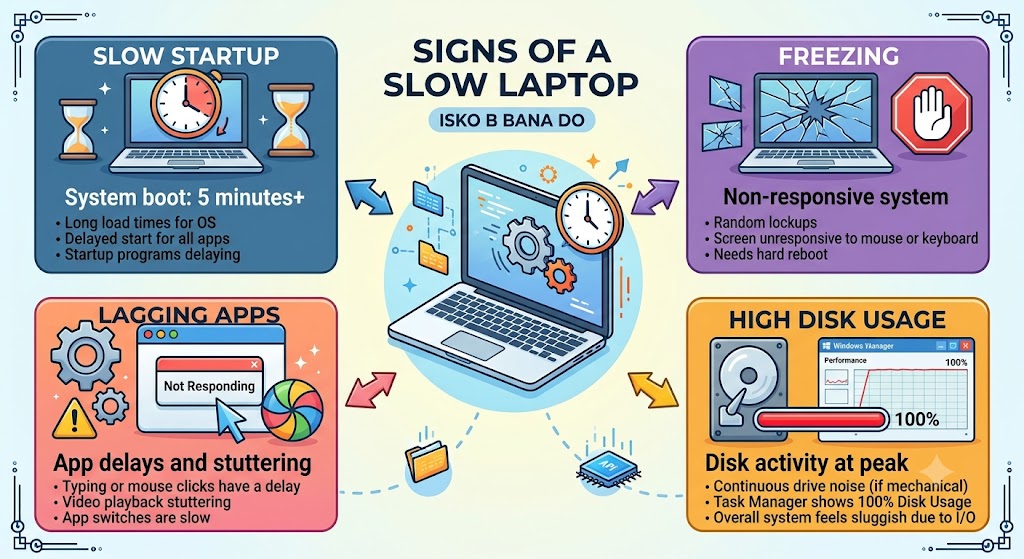
A slow laptop rarely develops only one symptom. Most users notice several performance issues occurring together before realising the device requires attention.
Typical warning signs include:
- Long boot times before Windows or macOS loads.
- Applications taking several minutes to open.
- Frequent freezing while multitasking.
- Delayed keyboard or mouse response.
- Web browsers becoming unresponsive with multiple tabs.
- Loud cooling fans running continuously.
- Random system crashes or blue screen errors.
- High disk usage even when the laptop appears idle.
- Videos buffering despite a stable internet connection.
- Slow file transfers and delayed software installations.
If several of these symptoms appear together, the problem is likely more than routine ageing and should be investigated before permanent hardware damage occurs.
What Causes a Laptop to Slow Down?
There isn’t a single reason every laptop becomes slow. Performance issues usually result from a combination of software inefficiencies, hardware wear, and inadequate maintenance.
1. Too Many Startup Programs
Many applications automatically launch every time the laptop starts. Although each program may consume only a small amount of memory, dozens running together can significantly increase boot times and reduce available system resources.
Over time, unnecessary startup applications continue operating in the background without the user realising it, affecting overall responsiveness throughout the day.
2. Low Available Storage
When the internal drive approaches full capacity, the operating system has less room to manage temporary files and virtual memory efficiently. This causes slower loading times, reduced application performance, and delayed file operations.
Keeping at least 15-20% of your storage free helps maintain smooth performance and prevents unnecessary slowdowns.
3. Malware or Virus Infections
Malicious software often runs silently in the background while consuming processor power, memory, and internet bandwidth. Besides reducing performance, malware may compromise personal information and system security.
A complete antivirus scan should always be performed if your laptop suddenly becomes unusually slow without an obvious explanation.
4. Ageing Hard Drive
Traditional mechanical hard drives naturally become slower over time due to wear and repeated read/write operations. A failing HDD often causes long loading times, clicking noises, and frequent freezing.
Replacing an older hard drive with a modern SSD is one of the most effective ways to improve laptop performance.
5. Insufficient RAM
Running multiple browser tabs, office applications, video editing software, or games requires adequate memory. When RAM is limited, the operating system relies heavily on storage as virtual memory, which dramatically reduces speed.
Adding more RAM can significantly improve multitasking and everyday productivity on compatible laptops.
6. Overheating Components
Dust accumulation, blocked vents, ageing thermal paste, or failing cooling fans can cause internal temperatures to rise beyond safe operating limits. To protect critical components, the processor automatically reduces its speed, making the laptop feel noticeably slower.
If your laptop becomes hot, noisy, or slows down after a short period of use, overheating could be the primary cause. Related issues are explained further in our guide on Why Is My Phone Overheating? Causes & Fixes Explained, where similar cooling principles apply to electronic devices.
7. Outdated Software and Drivers
Operating system updates and hardware drivers include important performance improvements, security patches, and compatibility fixes. Delaying these updates may result in slower performance, software conflicts, and reduced stability.
Keeping Windows, macOS, graphics drivers, and chipset software up to date helps your laptop perform more efficiently while reducing unexpected system errors.
How to Fix a Slow Laptop: Step-by-Step Solutions
The following troubleshooting methods are arranged from the simplest fixes to more advanced performance improvements. Completing each step systematically helps identify the exact cause while avoiding unnecessary repairs or hardware replacements.
1. Restart Your Laptop
Many people leave their laptops running for days or even weeks without performing a proper restart. During this time, background processes, temporary files, and memory usage continue to build up, reducing overall performance.
Restarting your laptop clears temporary system memory, closes unnecessary background tasks, and allows Windows or macOS to reload essential services correctly. It’s often the quickest way to resolve minor lag, freezing, and application slowdowns.
If your laptop still feels sluggish after restarting, continue with the following troubleshooting steps.
2. Close Unnecessary Background Programs
Applications running in the background consume valuable RAM, processor power, and battery life, even when you’re not actively using them. Video conferencing software, cloud storage apps, browsers with multiple tabs, and unnecessary utilities are common examples.
Open Task Manager (Windows) or Activity Monitor (Mac) to identify programs consuming excessive CPU or memory. Closing unused applications immediately frees up system resources and improves responsiveness, especially on laptops with limited RAM.
Regularly checking background processes also helps identify software that may be causing abnormal resource usage.
3. Disable Startup Applications
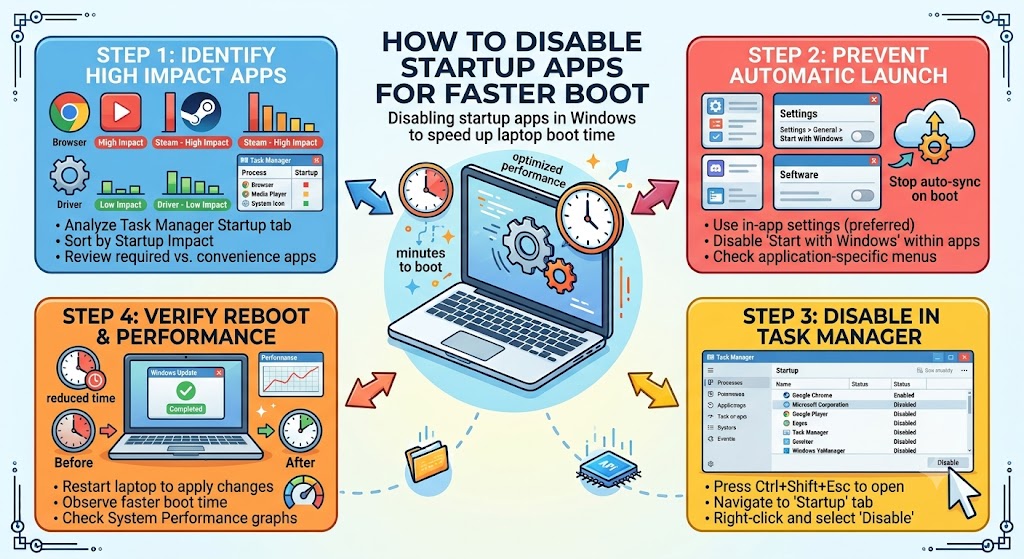
Many programs automatically launch every time your laptop starts. Although convenient for some applications, too many startup items can dramatically increase boot times and leave your laptop feeling slow before you even begin working.
Review your startup applications and disable anything that isn’t essential. Focus on software you rarely use rather than security applications or system services.
Reducing startup programs not only shortens boot times but also improves overall performance throughout the day.
4. Free Up Storage Space
Low storage space is one of the most common reasons laptops become slow. Operating systems require free space for updates, temporary files, virtual memory, and application caching. When storage is almost full, overall performance begins to decline.
Delete large downloads, duplicate files, old videos, and applications you no longer need. If possible, move important files to cloud storage or an external drive to free additional capacity.
Aim to keep at least 15-20% of your storage drive free for optimal performance.
5. Delete Temporary Files
Temporary files accumulate every time you browse the internet, install software, or update your operating system. Over time, these files can occupy several gigabytes of storage without providing any ongoing benefit.
Using Windows Disk Cleanup, Storage Sense, or macOS storage management tools helps remove unnecessary temporary files safely. Performing this simple maintenance every few months keeps your laptop running more efficiently and prevents unnecessary storage clutter.
6. Scan for Malware and Viruses
Malware often operates silently in the background, consuming processor resources while slowing down the entire system. Some malicious software also installs unwanted applications, displays intrusive advertisements, or attempts to steal personal information.
Run a complete scan using a trusted antivirus solution and remove any detected threats. Keeping your antivirus software updated also provides better protection against newly discovered security risks.
If your laptop suddenly becomes slow without any obvious explanation, malware should always be ruled out early in the troubleshooting process.
7. Update Windows or macOS
Operating system updates include important security improvements, performance enhancements, and bug fixes. Delaying these updates can lead to compatibility issues, reduced stability, and slower overall performance.
Check for available Windows or macOS updates and install any pending releases. Once installation is complete, restart your laptop to ensure all improvements are applied correctly.
Keeping your operating system current helps maintain long-term reliability while improving compatibility with modern applications.
8. Update Device Drivers
Hardware drivers allow Windows and macOS to communicate correctly with components such as graphics cards, storage devices, Wi-Fi adapters, and processors. Outdated drivers may cause slow performance, crashes, or unexpected system errors.
Visit your laptop manufacturer’s support page or use Windows Update to install the latest certified drivers. Updating graphics, chipset, and storage drivers often improves both performance and system stability.
Avoid downloading drivers from unknown websites, as unofficial versions may introduce additional problems.
9. Uninstall Unused Software
Many laptops contain applications that are rarely used but continue consuming storage space and system resources. Older programs may also run background services that affect overall performance.
Review your installed software regularly and remove applications you no longer need. This not only frees storage but also reduces background activity and simplifies future system maintenance.
If you are unsure whether a program is essential, research it before uninstalling to avoid removing important system components.
10. Optimise Your Web Browser
Web browsers are among the most resource-intensive applications on modern laptops. Running dozens of tabs, installing unnecessary extensions, or allowing excessive cached data to accumulate can noticeably reduce performance.
Close unused tabs, remove browser extensions you no longer require, and clear cached files periodically. Using fewer browser extensions also improves startup speed and reduces memory usage.
If browser performance remains poor after optimisation, resetting browser settings or trying an alternative browser may help.
11. Check Your Hard Drive Health
Your laptop’s storage drive plays a major role in overall performance. If the hard drive begins to fail, you may notice slow boot times, delayed file access, frequent freezing, or unusual clicking noises. Ignoring these warning signs can eventually lead to data loss and complete drive failure.
Windows users can check drive health using built-in diagnostic tools or the Command Prompt, while macOS users can use Disk Utility to verify storage integrity. Running these checks helps identify potential problems before they become more serious.
If your hard drive reports bad sectors or health warnings, replacing it as soon as possible is recommended. At iExpert Repairs, our technicians can diagnose storage issues and safely replace faulty drives while helping protect your important files.
12. Upgrade from HDD to SSD
If your laptop still uses a traditional Hard Disk Drive (HDD), upgrading to a Solid State Drive (SSD) is one of the best ways to improve performance. SSDs have no moving parts, allowing them to load Windows, applications, and files significantly faster than older mechanical drives.
Many users notice dramatic improvements immediately after upgrading, including quicker startup times, faster software launches, and smoother multitasking. An SSD also consumes less power, helping to improve battery efficiency on many laptops.
If you’re unsure which SSD is compatible with your device, our Laptop Repair specialists can recommend and install the right upgrade for your laptop model.
13. Add More RAM
Random Access Memory (RAM) allows your laptop to handle multiple applications simultaneously. If your laptop frequently slows down while multitasking, upgrading the memory may provide a noticeable improvement in everyday performance.
More RAM is especially beneficial for users who edit photos, attend video meetings, browse with multiple tabs open, or run professional software. Instead of relying heavily on virtual memory, the laptop can process tasks more efficiently using physical RAM.
Before upgrading, check your laptop’s maximum supported memory capacity and ensure compatible modules are installed for the best results.
14. Prevent Laptop Overheating
Heat is one of the most common reasons laptops lose performance over time. When internal temperatures rise, the processor automatically reduces its speed to prevent damage, making the entire system feel slower.
Keeping air vents clean, using the laptop on a hard surface, and ensuring cooling fans operate correctly all help maintain safe operating temperatures. Professional internal cleaning and thermal paste replacement can also improve cooling efficiency, particularly on older laptops.
If your device frequently becomes hot, shuts down unexpectedly, or the cooling fan runs constantly, professional servicing may be required to restore normal performance.
15. Run Built-in Performance Troubleshooters
Both Windows and macOS include diagnostic utilities that can identify software conflicts, storage errors, and performance-related issues automatically. Running these built-in tools is a simple way to detect problems that may not be immediately obvious.
Windows users can use System Maintenance, Storage Sense, and Performance Monitor, while macOS users can rely on Activity Monitor and Disk Utility to investigate system health.
Although these utilities cannot fix every problem, they often highlight resource-intensive processes or storage issues that require further attention.
When DIY Fixes Are Not Enough
While many software-related issues can be resolved at home, some performance problems are caused by failing hardware that requires specialist equipment and technical expertise. If your laptop continues running slowly after completing all troubleshooting steps, there may be an underlying component failure.
Professional diagnostics can identify issues such as damaged motherboards, failing SSDs or hard drives, faulty RAM modules, charging circuit faults, overheating processors, and other hardware-related problems that basic troubleshooting cannot resolve.
Attempting advanced repairs without the proper knowledge may result in further damage, making professional assistance the safer and more cost-effective option.
Professional Laptop Repair Services in the UK
If your laptop remains slow despite software optimisation, iExpert Repairs provides comprehensive Laptop Repair services for customers throughout the UK. Our experienced technicians repair all major brands, including MacBook, Dell, HP, Lenovo, ASUS, Acer, Microsoft Surface, Samsung, and many others.
Whether your laptop requires an SSD upgrade, RAM replacement, cooling system repair, motherboard diagnostics, charging port repair, battery replacement, or software recovery, we use premium OEM-grade parts and professional repair procedures to restore reliable performance.
Customers can visit our repair centre or use our secure nationwide mail-in repair service, with every repair backed by a 12-month warranty for complete peace of mind.
Slow Laptop Repair Cost in the UK
The cost of repairing a slow laptop depends on the underlying issue. Software optimisation is generally less expensive than replacing hardware components such as SSDs, RAM, or motherboards.
| Repair Service | Estimated UK Cost |
|---|---|
| Software Optimisation | £40-£80 |
| Virus & Malware Removal | £50-£90 |
| SSD Upgrade | £80-£200+ |
| RAM Upgrade | £60-£180+ |
| Cooling System Cleaning | £50-£100 |
| Laptop Battery Replacement | £70-£180+ |
| Motherboard Diagnostics | Varies by fault |
For an accurate quotation, iExpert Repairs offers professional diagnostics before recommending the most suitable repair solution.
How to Prevent Your Laptop from Becoming Slow Again
Maintaining good performance is much easier than fixing a severely slow laptop. Simple maintenance habits help reduce wear on internal components and keep your operating system running efficiently over the long term.
Follow these best practices:
- Keep Windows or macOS updated.
- Install driver updates regularly.
- Remove unused software every few months.
- Avoid filling your storage drive completely.
- Scan for malware routinely.
- Clean dust from air vents.
- Restart your laptop regularly instead of leaving it running continuously.
- Back up important files before major updates.
- Consider upgrading to an SSD if you still use a traditional hard drive.
Following these maintenance steps can significantly extend the lifespan of your laptop while reducing the likelihood of future performance issues.
FAQs About Fixing a Slow Laptop
1. Why is my laptop running so slow all of a sudden?
A laptop can suddenly become slow due to Windows or macOS updates, malware infections, insufficient storage space, overheating, outdated drivers, or background applications consuming system resources. Running a full system check and following basic troubleshooting steps usually helps identify the root cause.
2. How can I make my laptop faster without spending money?
You can improve your laptop’s performance by restarting it regularly, disabling unnecessary startup programs, deleting temporary files, uninstalling unused software, updating your operating system, scanning for malware, and freeing up storage space. These simple maintenance tasks often provide noticeable performance improvements.
3. Can a full hard drive slow down my laptop?
Yes. When your storage drive is almost full, Windows or macOS has less space to manage temporary files and virtual memory efficiently. Keeping at least 15–20% of your storage free helps maintain smooth performance.
4. Does restarting a laptop improve performance?
Yes. Restarting clears temporary memory, stops unnecessary background processes, and refreshes system resources. If your laptop has been running continuously for several days, a restart can often resolve minor performance issues.
5. How much RAM do I need for a fast laptop?
For everyday tasks such as browsing, office work, and streaming, 8GB of RAM is generally sufficient. If you regularly edit videos, play games, or multitask heavily, upgrading to 16GB or more will provide a smoother experience.
6. Is upgrading to an SSD worth it?
Absolutely. Replacing a traditional HDD with an SSD is one of the most effective ways to speed up a slow laptop. Boot times, application loading, and overall responsiveness improve significantly after upgrading.
7. How do I know if my hard drive is failing?
Common signs include slow boot times, frequent freezing, clicking noises, missing files, failed software installations, and repeated disk errors. If you notice these symptoms, it’s advisable to back up your data and have the drive professionally tested.
8. Can viruses make my laptop slow?
Yes. Malware and viruses consume system resources while running in the background. They may also install unwanted software, display advertisements, or compromise personal data, all of which can affect performance.
9. Why does my laptop freeze while multitasking?
Freezing during multitasking is usually caused by insufficient RAM, excessive CPU usage, outdated software, or background applications consuming too many resources. Upgrading memory and closing unnecessary programs often resolves the issue.
10. Why is my laptop slow when browsing the internet?
A slow browser may be caused by too many open tabs, excessive browser extensions, cached data, malware, or insufficient system memory. Clearing the browser cache and removing unnecessary extensions can improve browsing speed.
11. Can overheating slow down a laptop?
Yes. High temperatures force the processor to reduce its speed to prevent hardware damage, a process known as thermal throttling. Cleaning the cooling system and improving airflow can restore normal performance.
12. Should I repair or replace my slow laptop?
If your laptop is only a few years old, repairing or upgrading it is often more cost-effective than purchasing a new device. SSD upgrades, RAM upgrades, and professional servicing can extend its lifespan considerably.
13. How often should I clean my laptop to keep it running fast?
It’s recommended to clean temporary files every month, remove unused software every few months, and have the internal cooling system professionally cleaned every 12 to 24 months, depending on usage.
14. Do Windows updates slow down laptops?
Immediately after a major update, your laptop may temporarily feel slower while background optimisation completes. Once the process finishes, updates generally improve performance, security, and stability.
15. Can too many startup programs slow down my laptop?
Yes. Every startup application uses memory and processor resources during boot. Disabling unnecessary startup programs helps reduce boot time and improves overall responsiveness.
16. How long does it take to repair a slow laptop?
The repair time depends on the cause. Software optimisation can often be completed on the same day, while SSD upgrades, RAM installations, or hardware repairs may take between 24 and 48 hours.
17. How much does it cost to fix a slow laptop in the UK?
The cost varies depending on the fault. Software optimisation is generally less expensive than replacing hardware components. A professional diagnosis helps determine the most suitable and cost-effective repair.
18. Which laptop brands does iExpert Repairs service?
iExpert Repairs works on a wide range of laptop brands, including MacBook, Dell, HP, Lenovo, ASUS, Acer, Microsoft Surface, Samsung, MSI, Toshiba, and many other Windows and macOS devices.
19. Do you offer a warranty on laptop repairs?
Yes. All qualifying repairs completed by iExpert Repairs are backed by a 12-month warranty, giving customers confidence that replacement parts and workmanship meet high-quality standards.
20. Where can I get professional laptop repair in the UK?
If your laptop remains slow after following the troubleshooting steps in this guide, iExpert Repairs offers professional Laptop Repair services across the UK. Our certified technicians provide expert diagnostics, SSD and RAM upgrades, software optimisation, motherboard repairs, battery replacements, and many other services using premium OEM-grade parts.
Conclusion
A slow laptop doesn’t always mean it’s time to replace your device. In many cases, performance issues are caused by software clutter, insufficient storage, outdated drivers, malware, overheating, or ageing hardware. By following the troubleshooting steps in this guide, you can often restore your laptop’s speed, improve system performance, and extend its lifespan without the expense of purchasing a new device.
If your laptop continues to freeze, crash, overheat, or perform slowly after trying these solutions, the issue may be related to failing hardware such as the SSD, RAM, battery, charging port, cooling system, or motherboard. A professional diagnosis can identify the exact cause and ensure the correct repair is completed before the problem becomes more serious.
At iExpert Repairs, we provide trusted Laptop Repair services across the UK for all major brands, including MacBook, Dell, HP, Lenovo, ASUS, Acer, Microsoft Surface, Samsung, MSI, and Toshiba. From software optimisation and SSD upgrades to RAM upgrades, laptop screen repairs, battery replacements, motherboard diagnostics, and data recovery, our certified technicians use premium OEM-grade parts backed by a 12-month warranty to restore your laptop’s performance.
Back to posts

