
Introduction
An unresponsive phone screen is one of the most frustrating smartphone issues. Whether you use your phone for work, social media, online banking, gaming, or communication, a touch screen that stops responding can make the device nearly unusable. This problem can occur on any smartphone, including iPhones, Samsung Galaxy devices, Google Pixels, Huawei phones, and other Android models.
The good news is that many touch screen issues can be fixed without replacing the entire phone. In this detailed guide, we’ll explain the causes, symptoms, troubleshooting methods, professional repair options, and preventive measures to help you restore your phone’s touch functionality.
What Causes a Phone Touch Screen to Become Unresponsive?
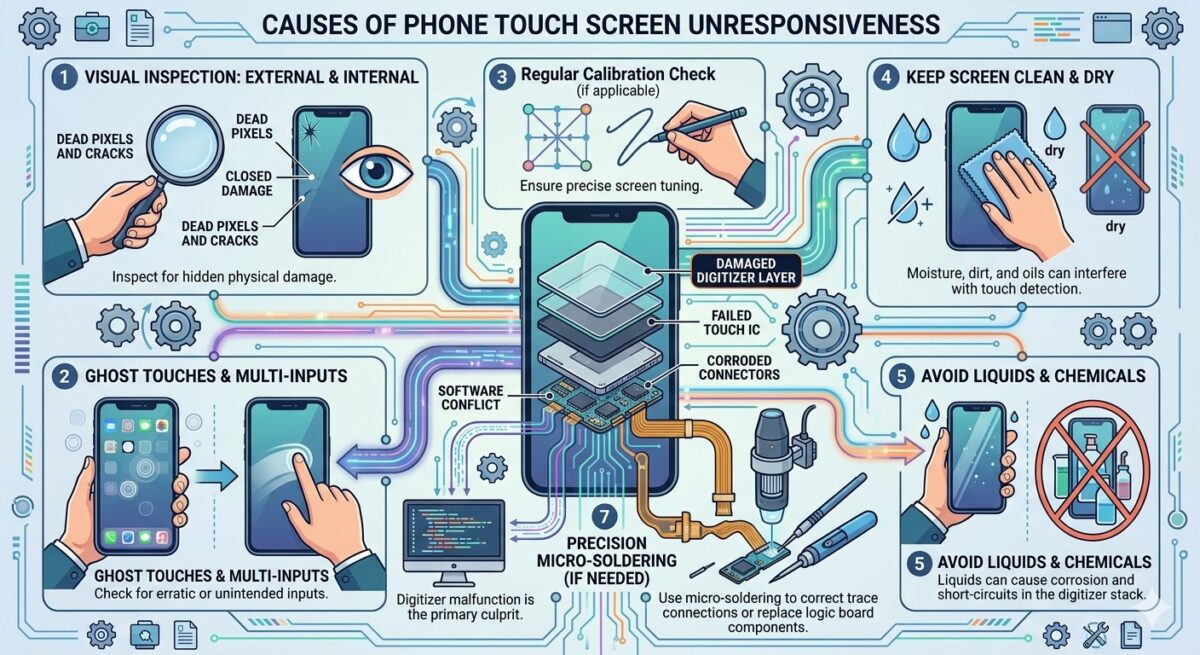
A phone touch screen can become unresponsive due to software glitches, physical damage, water exposure, or faulty hardware components. Issues such as a damaged digitizer, low storage space, outdated software, or a poor-quality screen protector can also affect touch sensitivity. In some cases, a simple restart can fix the problem, while more serious issues may require professional repair. Identifying the root cause is essential for restoring your phone’s touch functionality and preventing further damage.
1. Physical Damage
Dropping a phone can damage the digitizer, the component responsible for detecting touch input. Sometimes the glass appears intact, but internal layers are damaged, causing touch issues.
2. Water Damage
Liquid exposure can short-circuit touch sensors and damage internal components. Even small amounts of moisture may affect touch responsiveness.
3. Software Bugs
Operating system glitches, failed updates, or corrupted apps can temporarily disable touch functionality.
4. Low Storage Space
When a phone’s storage is nearly full, system performance may slow down, leading to delayed or unresponsive touch input.
5. Faulty Screen Protectors
Cheap or poorly installed tempered glass protectors can interfere with touch sensitivity.
6. Battery Problems
A swollen battery can press against the display assembly and affect touch performance.
Signs Your Phone Screen Has Touch Problems
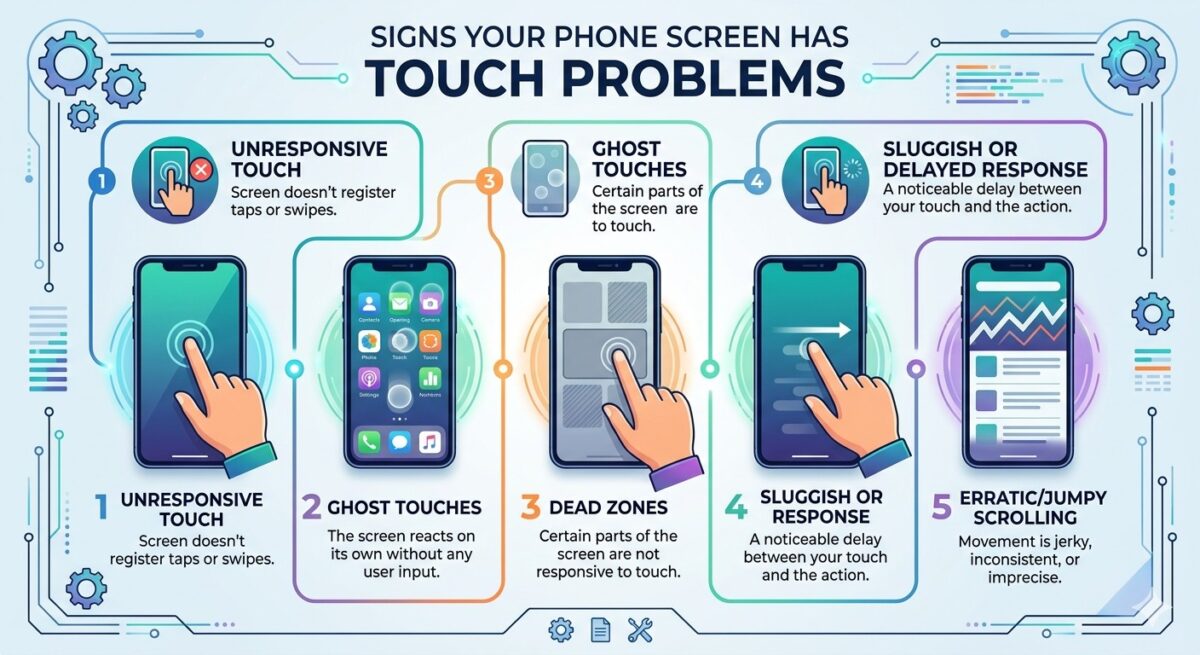
When a phone touch screen starts developing problems, it often shows warning signs before failing completely. You may notice that the screen responds slowly to taps and swipes, certain areas become unresponsive, apps open unexpectedly due to ghost touches, or the display freezes during normal use. These symptoms can indicate software issues, digitizer damage, or other hardware faults. Identifying these touch screen problems early can help prevent further damage and ensure your device receives the right repair solution before the issue becomes more serious.
Common symptoms include:
- Screen ignores taps or swipes
- Touch response is delayed
- Ghost touches (the screen registers touches you didn’t make)
- Only certain areas of the screen work
- The display freezes intermittently
- Multi-touch gestures stop functioning
These signs help determine whether the issue is software-related or hardware-related.
Quick Fixes Before Considering Repairs
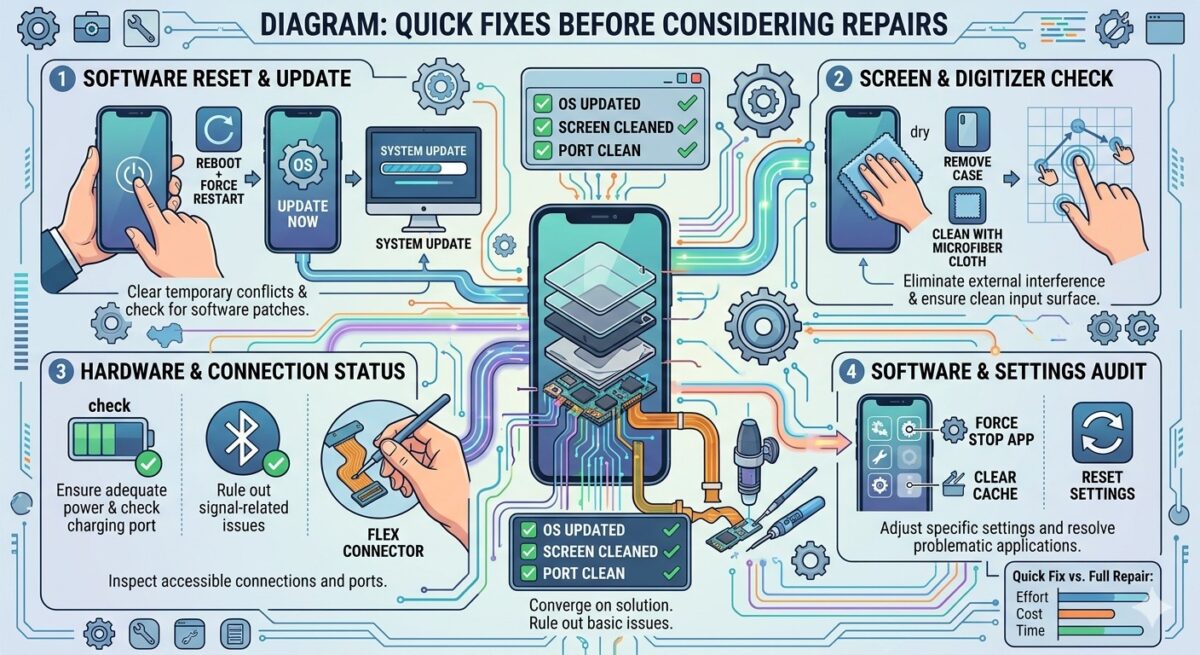
Before spending money on a repair, it’s worth trying a few simple troubleshooting steps that can often resolve minor touch screen issues. Restarting your phone, cleaning the display, removing the screen protector, updating the software, and charging the device can help restore normal touch functionality if the problem is caused by temporary software glitches or touch sensitivity issues. These quick fixes are easy to perform and may save you the time and cost of an unnecessary repair.
Restart Your Device
A restart clears temporary system errors and often restores touch functionality.
Android: Hold the Power button and tap Restart.
iPhone: Perform a force restart according to your model.
Remove the Screen Protector
Remove any screen protector and test the display. If touch responsiveness improves, the protector was likely the cause.
Clean the Display
Use a microfiber cloth and a screen-safe cleaner to remove dirt, grease, and moisture. Avoid harsh chemicals that may damage the display coating.
Charge the Phone
Low battery voltage can sometimes affect touch performance. Charge the device for at least 30 minutes and test it again.
Check for Software Issues
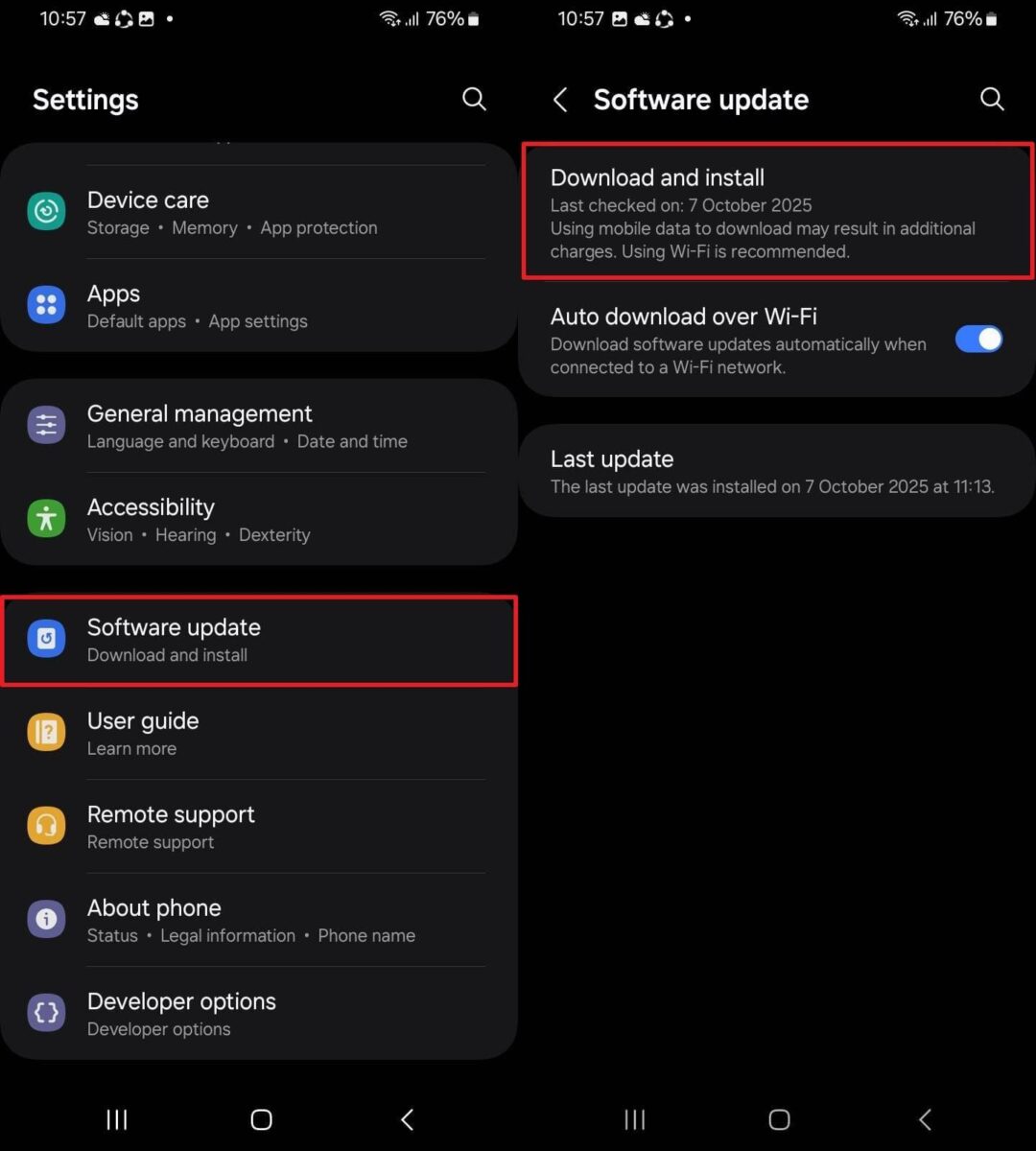
Software-related problems are one of the most common reasons why a phone touch screen becomes unresponsive. System bugs, outdated operating systems, corrupted apps, insufficient storage space, or failed software updates can all affect touch screen performance and cause delayed or inaccurate responses. Before considering a hardware repair, it’s important to check for software issues by updating your device, removing problematic apps, clearing cache files, and testing the phone in Safe Mode. These steps can often resolve touch screen problems and restore normal functionality without the need for professional repair.
Update the Operating System
Manufacturers frequently release updates that fix touch-related bugs.
Android: Settings → Software Update
iPhone: Settings → General → Software Update
Boot Into Safe Mode
Safe Mode disables third-party apps. If the touch screen works normally in Safe Mode, an installed app is likely causing the problem.
Remove Problematic Apps
Uninstall recently installed apps, especially those that use screen overlays, display customisation, or gaming enhancements.
Clear System Cache
Corrupted cache files can affect system performance. Clearing the cache partition may improve touch responsiveness on many Android devices.
How to Test Your Phone Touch Screen?

If your phone screen is not responding properly, testing the touch functionality can help determine whether the issue is related to software or hardware. You can use built-in diagnostic tools, touch screen testing apps, or manufacturer-specific testing features to check for dead zones, ghost touches, and areas with poor touch sensitivity. Running a touch screen test is an effective way to identify the source of the problem and decide whether simple troubleshooting or professional iExpert repair is required.
Touch Diagnostic Apps
These apps map touch input across the display and can identify:
- Dead zones
- Ghost touches
- Sensitivity problems
Manufacturer Diagnostics
Many brands include hidden diagnostic tools that test the display and touch sensors. This is especially useful for Samsung, Google Pixel, Huawei, and Xiaomi devices.
When the Digitizer Is Damaged
When the digitizer is damaged, the phone loses proper touch control and becomes difficult to use. You may tap the screen but it won’t respond correctly or may respond in the wrong places.
This issue usually occurs after a drop, heavy pressure, or internal screen damage. To restore normal function, the digitizer or full display unit often needs replacement. The digitizer is the layer that converts touch into digital signals. If it is damaged, you may experience:
- Intermittent touch response
- Dead areas on the screen
- Ghost touches
- Complete touch failure
Unfortunately, digitizer damage usually requires professional repair or screen replacement.
Water Damage and Touch Screen Failure
Water damage is one of the common reasons behind touch screen failure, as moisture can enter the phone and affect the internal digitizer and display connections. When liquid seeps inside, it may cause short circuits, unresponsive touch areas, flickering screen, or completely stop touch response.
Even a small amount of water can slowly corrode internal components over time, leading to worsening performance. In most cases, proper drying is not enough, and professional repair or part replacement is required to restore normal touch functionality.
Water exposure is one of the most serious causes of touch failure.
Symptoms include:
- Random touches
- Screen flickering
- Black display
- No touch response
What to Do Immediately
- Turn off the phone.
- Remove accessories and the SIM tray if possible.
- Do not charge the device.
- Seek professional diagnostics as soon as possible.
Screen Replacement vs. Touch Repair
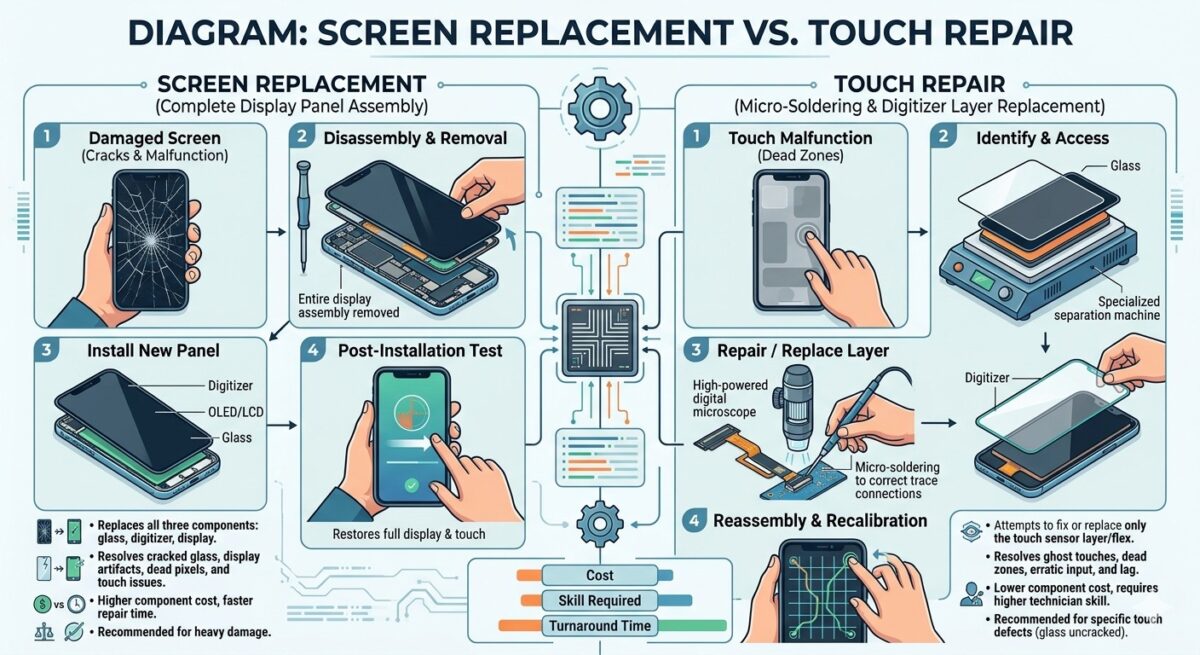
Screen Replacement vs. Touch Repair refers to the difference between fixing only the touch-related issue or replacing the entire display unit. Touch repair usually targets minor problems like faulty connectors, digitizer issues, or software-related glitches, which can sometimes be resolved without changing the full screen.
On the other hand, screen replacement involves changing the complete display assembly, including the glass, LCD/OLED, and digitizer, and is needed when the damage is severe such as cracks, dead pixels, or major touch failure. Choosing between the two depends on the level of damage and cost-effectiveness of the repair.
Touch Repair May Be Enough If:
- Display connectors are loose
- Software is causing the issue
- Touch calibration is incorrect
Screen Replacement Is Necessary If:
- The display is cracked
- The digitizer is damaged
- Internal screen layers are affected
How iExpert Technicians Fix Touch Screen Issues?
iExpert technicians first diagnose the touch screen problem using proper testing tools to identify whether the issue is in the digitizer, display, or internal connections. After inspection, they carefully open the device and check for loose flex cables, damaged parts, or moisture effects that may be causing the fault.
If needed, they clean internal components, re-seat connectors, or replace the faulty digitizer or full screen assembly. Finally, they test the device again to ensure smooth and accurate touch response before completing the repair.
Step 1: Visual Inspection
Technicians check for cracks, frame damage, and water indicators.
Step 2: Internal Diagnostics
They test display connectors, motherboard components, and the touch controller IC.
Step 3: Component Repair
Depending on the diagnosis, repairs may include connector reseating, screen replacement, IC repair, or board-level repair.
Preventing Future Touch Screen Problems
Future touch screen issues can be avoided by taking proper care of your device on a regular basis. Always use a high-quality screen protector and keep your phone away from moisture, heat, and dust. Avoid dropping or applying extra pressure on the screen, as it can damage internal touch components over time. Keeping your software updated and restarting your device occasionally also helps maintain smooth touch performance and prevents common responsiveness problems.
To reduce the risk of future issues:
- Use a high-quality protective case.
- Install a premium tempered glass screen protector.
- Avoid exposing the phone to water.
- Keep software updated.
- Use certified charging accessories.
- Avoid overheating the device.
Why Choose Professional Repair Instead of DIY?
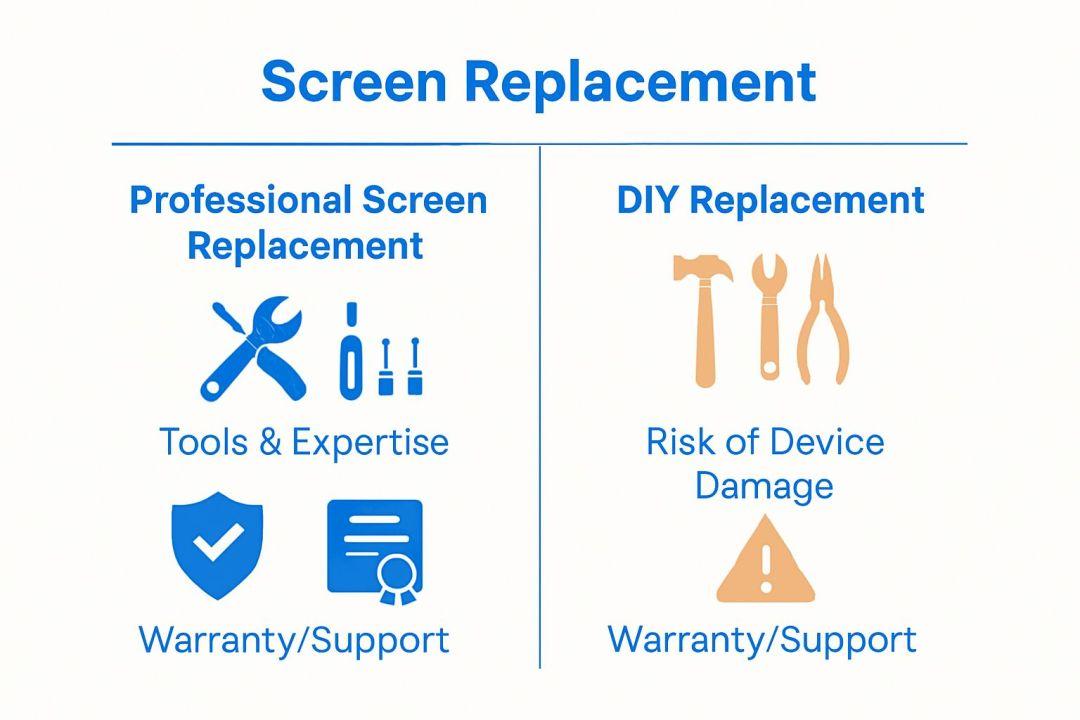
Choosing professional repair instead of DIY is important because trained technicians have the right tools and experience to diagnose the exact problem accurately. DIY fixes can often cause more damage to delicate internal parts, especially the display and touch components.
Professional repair ensures quality parts, safe handling, and a proper long-lasting solution. It also saves time and reduces the risk of costly mistakes that may happen with trial-and-error methods.
DIY repairs can sometimes cause additional damage. Professional repair offers:
- Accurate diagnostics
- High-quality replacement parts
- Warranty coverage
- Faster turnaround times
- Lower long-term repair costs
For expensive smartphones, professional repair is usually the safest option.
FAQs About Phone Touch Screen Not Responding
1. Why is my phone screen not responding to touch?
A phone screen may stop responding to touch due to software glitches, physical damage, water exposure, low storage space, a faulty screen protector, or a damaged digitizer. In many cases, a simple restart or software update can resolve the issue. However, if the phone has been dropped or exposed to liquid, professional diagnostics may be required to identify hardware damage. If your device continues to ignore taps and swipes after basic troubleshooting, consider seeking a professional touch screen repair service.
2. How do I fix a phone touch screen that is not working?
To fix an unresponsive phone touch screen, start by restarting the device, removing the screen protector, cleaning the display, and updating the operating system. You can also boot the phone into Safe Mode to determine whether a third-party app is causing the problem. If these steps do not restore touch functionality, the issue may be related to the digitizer or display assembly, which often requires professional repair.
3. Can a cracked phone screen cause touch problems?
Yes. A cracked screen can damage the digitizer layer located beneath the glass. Even if the display appears normal, cracks may prevent the screen from accurately registering touch input. Common symptoms include dead zones, delayed responses, ghost touches, and complete touch failure. In most cases, a screen replacement is the most reliable solution.
4. Why is my phone experiencing ghost touches?
Ghost touches occur when the screen registers taps, swipes, or gestures that you did not perform. This problem can be caused by water damage, software bugs, faulty charging accessories, damaged digitizers, or low-quality screen protectors. Updating your device, removing accessories, and testing the phone without a screen protector can help identify the cause.
5. Can water damage make a touch screen stop working?
Yes. Water can interfere with the electrical signals used by the touch screen digitizer and may damage internal components. Symptoms often include random touches, screen flickering, display discoloration, or a completely unresponsive screen. If your phone has been exposed to liquid, turn it off immediately and avoid charging it until it has been professionally inspected.
6. How do I know if my phone’s digitizer is damaged?
A damaged digitizer usually causes touch-related issues even when the display itself looks normal. Signs of digitizer failure include unresponsive areas on the screen, ghost touches, inaccurate touch detection, and intermittent touch functionality. Professional diagnostic testing can confirm whether the digitizer or another component is responsible for the problem.
7. Can software updates fix touch screen issues?
Yes. Smartphone manufacturers regularly release software updates that address bugs, improve system stability, and enhance touch sensitivity. If your touch screen problem started after installing a new app or system update, checking for the latest software version may help resolve the issue. Keeping your device updated is an important part of maintaining optimal performance.
8. Should I repair or replace my phone if the touch screen is not working?
The answer depends on the age of the device, repair cost, and extent of the damage. If the phone is relatively new and only the screen or digitizer is damaged, repair is usually more cost-effective than replacement. However, if the device has extensive motherboard damage or multiple hardware issues, replacing the phone may be the better long-term investment.
9. How much does it cost to repair an unresponsive touch screen?
Touch screen repair costs vary depending on the smartphone model, the extent of the damage, and the quality of replacement parts used. Premium smartphones such as iPhones, Samsung Galaxy Ultra devices, and Google Pixel models typically have higher repair costs due to the complexity and price of their displays. A professional diagnostic assessment can provide an accurate repair quote.
10. How can I prevent touch screen problems in the future?
The best way to prevent touch screen issues is to protect your device from physical and environmental damage. Use a high-quality case and tempered glass screen protector, avoid exposing the phone to water, keep software updated, and use certified charging accessories. Regular maintenance and careful handling can significantly extend the lifespan of your smartphone and reduce the risk of costly repairs.
Final Thoughts
An unresponsive phone touch screen can be caused by software glitches, accidental drops, water damage, faulty accessories, or internal hardware failures. In many cases, simple troubleshooting steps such as restarting the device, removing the screen protector, cleaning the display, or installing the latest software update can resolve the issue. However, if the problem continues, it may indicate damage to the digitizer or other internal components that require professional attention.
To avoid expensive repairs and unexpected device failures, it is important to protect your smartphone with a quality case and screen protector, keep your software updated, and avoid exposure to moisture and extreme temperatures. Regular maintenance and early diagnosis can help extend the lifespan of your device while ensuring smooth and reliable performance.
If your phone screen is still not responding after trying the solutions in this guide, professional diagnostics and repair services are recommended. At iExpert Market, you can find alternative solutions for a wide range of devices, along with a selection of professionally tested refurbished phones from leading brands such as Apple, Samsung, and Google. Whether you need a repair or are looking for a cost-effective refurbished smartphone, iExpert Market offers reliable technology solutions designed to keep you connected.
Visit iExpert Market today to explore refurbished phones – Shop Now
Back to posts
