
Why Is My iPad Not Turning On?
If your iPad won’t turn on, don’t panic. In many cases, the problem isn’t as serious as it seems. A completely unresponsive iPad may simply have:
- A deeply discharged battery
- Software crash
- Failed iPadOS update
- Faulty charging cable
- Dirty charging port
However, some iPads refuse to power on because of hardware problems such as:
- Battery failure
- Charging port damage
- Water damage
- Display failure
- Logic board issues
- Power management IC failure
The good news is that many of these issues can be diagnosed-and sometimes fixed-without replacing the entire device.
Quick Answer:Why Is My iPad Not Turning On?
If your iPad is not turning on, first charge it for at least 30-60 minutes using a genuine Apple-compatible charger, then perform a force restart. If the screen remains black or the device won’t respond, check the charging accessories, inspect the charging port, and try Recovery Mode. If none of these fixes work, the issue is likely hardware-related and requires professional diagnosis.
Why Won’t My iPad Turn On?
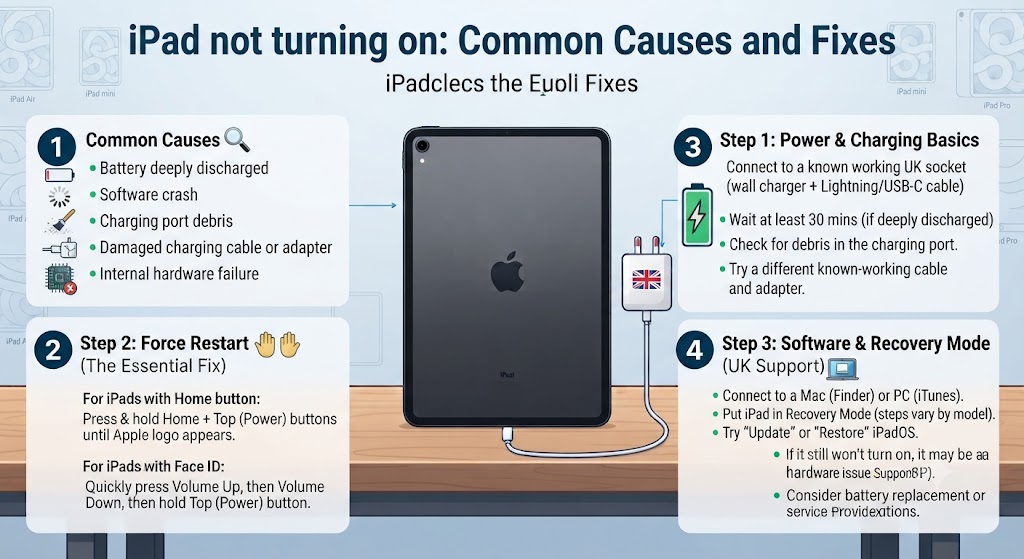
An iPad can fail to power on for several different reasons. Some problems are temporary and easy to fix, while others require component replacement.
The most common causes include:
| Cause | Can You Fix It Yourself? | Professional Repair Needed? |
|---|---|---|
| Battery completely drained | ✅ Yes | ❌ Usually No |
| Frozen iPadOS | ✅ Yes | ❌ No |
| Faulty charger | ✅ Yes | ❌ No |
| Dirty charging port | ✅ Yes | ❌ Usually No |
| Failed software update | ✅ Sometimes | ❌ Sometimes |
| Battery failure | ❌ No | ✅ Yes |
| Charging port damage | ❌ No | ✅ Yes |
| Water damage | ❌ No | ✅ Yes |
| Display failure | ❌ No | ✅ Yes |
| Logic board fault | ❌ No | ✅ Yes |
Understanding the root cause saves both time and money.
Signs Your iPad Has a Power Problem
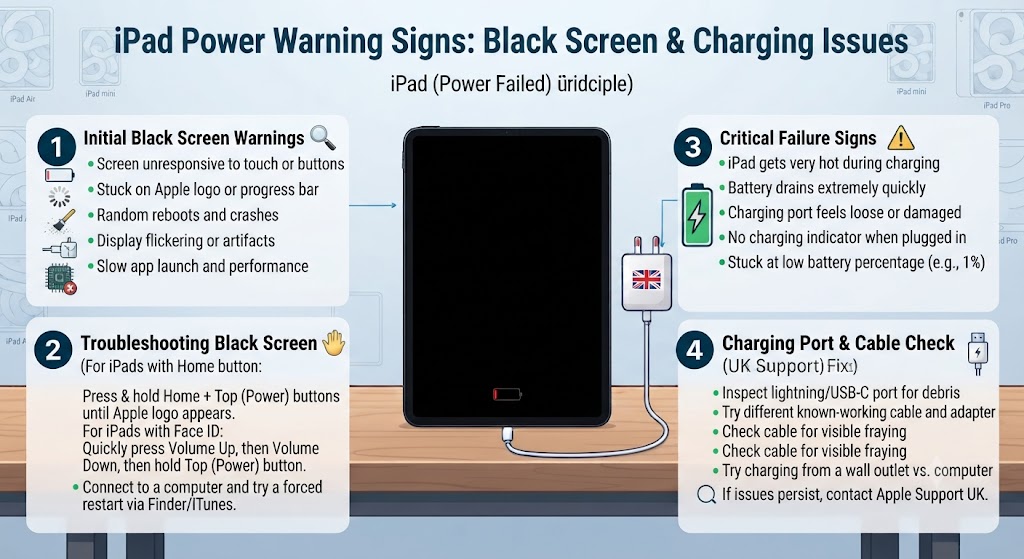
Before attempting repairs, identify exactly how your iPad behaves. Common symptoms include:
- Completely black screen
- Apple logo appears then disappears
- Doesn’t respond to the Power button
- Vibrates but no display
- Shows low battery icon only
- Keeps restarting
- Stuck on Apple logo
- Gets hot while charging
- Charges but won’t boot
- Screen stays black even though the device makes sounds
Each symptom points toward a different underlying problem.
1. The Battery Is Completely Drained
This is by far the most common reason an iPad appears “dead.” If your battery has been fully discharged for an extended period, it may need longer than usual before it can power on.
Many users assume the device is broken when, in reality, it simply hasn’t received enough power to start.
How to Fix It
- Plug your iPad into a reliable charger.
- Use an Apple-certified cable.
- Leave it charging for at least 30-60 minutes.
- Don’t press the Power button repeatedly while charging.
- Try turning it on after one hour.
If the battery icon eventually appears, your iPad was simply deeply discharged.
2. Your Charger or Cable Is Faulty
Sometimes the iPad isn’t the problem at all. Damaged charging cables, worn-out adapters, or counterfeit accessories often fail to deliver sufficient power.
Signs include:
- No charging sound
- No battery icon
- Intermittent charging
- Charger becoming unusually hot
- Cable only works at certain angles
What You Should Do
Try:
- Another Apple-certified cable
- A different wall adapter
- Another power socket
- Charging through a computer USB-C port (if supported)
Avoid very cheap charging accessories, as unstable voltage can damage internal charging circuits over time.
3. The Charging Port Is Dirty
Dust, lint, pocket debris, and dirt commonly build up inside the charging port. Even a small amount of debris can prevent the charging cable from making proper contact.
This is especially common on older Lightning iPads carried in bags or backpacks.
Safe Cleaning Method
Use:
- Soft anti-static brush
- Wooden toothpick
- Compressed air (used carefully)
Never insert:
- Metal pins
- Needles
- Safety pins
- Screwdrivers
Using metal objects may permanently damage the charging connector. If cleaning doesn’t restore charging, the charging port itself may be damaged and require replacement.
4. Your iPad Has Frozen
Sometimes the display is black because iPadOS has completely frozen. Although the screen appears dead, the device may still be running in the background. Fortunately, a force restart often resolves this.
Force Restart Different iPad Models
iPads with Face ID
- Press Volume Up.
- Press Volume Down.
- Hold the Power button.
- Keep holding until the Apple logo appears.
iPads with Home Button
- Hold the Home button.
- Hold the Power button.
- Continue holding both until the Apple logo appears.
Do not release the buttons too early.
5. A Failed iPadOS Update
If your iPad stopped turning on immediately after an update, the operating system may have become corrupted. This can happen because of:
- Interrupted installation
- Low battery during update
- Storage running out
- Software bugs
- Corrupted firmware
Symptoms include:
- Apple logo loop
- Black screen
- Endless restart cycle
Try Recovery Mode
Recovery Mode allows you to reinstall iPadOS without replacing hardware. You’ll need:
- A Mac or Windows PC
- Finder (macOS) or Apple Devices/iTunes (Windows)
- A compatible USB cable
If Recovery Mode successfully reinstalls iPadOS, your iPad should boot normally again.
6. Your Battery Has Reached the End of Its Life
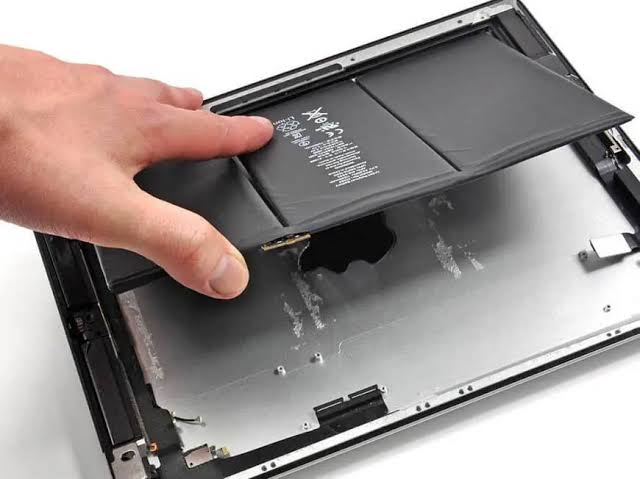
Like all rechargeable batteries, iPad batteries wear out over time.
Most batteries begin showing noticeable degradation after 500–800 charge cycles, depending on usage patterns.
Common warning signs include:
- Rapid battery drain
- Unexpected shutdowns
- Extremely slow charging
- Device only works while plugged in
- Battery swelling
- iPad refuses to turn on
A swollen battery is particularly serious because it can place pressure on the display, damage internal components, and create a potential safety risk.
At this stage, continuing to charge or use the device is not recommended. A professional battery replacement is the safest and most reliable solution.
7. Water Damage Can Prevent Your iPad from Turning On
Accidental liquid exposure is one of the most common reasons an iPad suddenly stops working. Even if your device wasn’t completely submerged, small amounts of water from coffee, tea, rain, or other liquids can seep inside and damage sensitive internal components.
Unlike older electronics, modern iPads contain densely packed circuits. Moisture can quickly cause corrosion, short circuits, and power failures.
Common Signs of Water Damage
Your iPad may have liquid damage if you notice:
- It won’t turn on after getting wet.
- The screen flickers or stays black.
- Random restarts.
- Charging issues after liquid exposure.
- Speakers sound muffled.
- Face ID or Touch ID stops working.
- The device becomes unusually warm.
- Moisture appears inside the camera lens.
Even if the iPad initially works after getting wet, corrosion can continue developing for days or weeks.
What You Should Do Immediately
If your iPad gets wet:
- Turn it off immediately if it’s still powered on.
- Disconnect it from any charger.
- Remove any accessories.
- Dry the exterior with a soft microfiber cloth.
- Leave it in a dry, ventilated area.
Avoid These Common Mistakes
Many online “fixes” can actually make water damage worse. Never:
- Put your iPad in rice.
- Use a hair dryer.
- Place it in an oven.
- Heat it with a radiator.
- Continue charging it.
Rice does not remove moisture trapped inside the device. In many cases, charging a wet iPad causes additional internal damage that could otherwise have been avoided.
If your iPad has suffered liquid damage, professional cleaning and diagnostics offer the best chance of saving it.
8. Your Screen May Be Dead – Not the iPad
A completely black display doesn’t always mean your iPad has stopped working. Sometimes the device is powered on, but the display itself has failed.
Signs of a Display Failure
Your screen may be damaged if:
- You hear notification sounds.
- Siri still responds.
- The device vibrates.
- The charging sound plays.
- You receive calls or messages.
- The computer detects the iPad when connected.
These symptoms usually indicate that the logic board is functioning normally while the display is not. Display failures can occur because of:
- Drop damage.
- Internal LCD cracks.
- Pressure damage.
- Liquid damage.
- Loose display connectors.
- Manufacturing defects.
If your iPad suffered a recent impact, a professional screen replacement may be required.
9. Charging Port Damage
Charging ports naturally wear over time. Daily plugging and unplugging gradually weakens the internal connector, while dust and accidental impacts can also damage the port.
Symptoms of a Damaged Charging Port
- Cable feels loose.
- Charging only works at certain angles.
- Slow charging.
- No charging symbol.
- Computer fails to recognise the iPad.
Sometimes the port only requires professional cleaning. However, if the internal connector is damaged, replacing the charging port assembly is the only permanent fix.
10. Logic Board Problems
If none of the basic troubleshooting steps work, the fault may lie within the logic board. The logic board is essentially the brain of your iPad, controlling power distribution, storage, processing, and communication between all components.
Logic board failures are usually caused by:
- Severe drops.
- Water damage.
- Power surges.
- Failed repairs.
- Component ageing.
Common Symptoms
- Completely dead device.
- No charging response.
- No Apple logo.
- Boot loops.
- Random shutdowns.
- Device becomes hot immediately after connecting the charger.
Logic board repairs require specialist equipment, board-level diagnostics, and microsoldering expertise. DIY attempts often make the damage worse and can significantly increase repair costs.
11. Power Management IC Failure
One of the lesser-known reasons an iPad won’t turn on is a faulty Power Management Integrated Circuit (PMIC). This tiny chip controls how electricity flows throughout the device.
If it fails, your iPad may:
- Refuse to charge.
- Turn off unexpectedly.
- Stay completely unresponsive.
- Restart continuously.
- Become hot without powering on.
PMIC failures usually require advanced board-level repair performed by experienced technicians.
12. Storage or Firmware Corruption
Although less common, corrupted storage or firmware can prevent an iPad from booting. Possible causes include:
- Interrupted software updates.
- Jailbreaking.
- Storage failure.
- Corrupted system files.
- Unexpected shutdowns during installation.
Symptoms include:
- Apple logo freezing.
- Endless restart loops.
- Recovery Mode repeatedly appearing.
- Failure to complete startup.
Professional diagnostics can determine whether software restoration or hardware repair is required.
Advanced Troubleshooting Steps
If your iPad still won’t turn on after trying the basic fixes, work through these additional troubleshooting steps.
1. Try a Different Power Source
Sometimes the issue isn’t your charger – it could be the wall socket itself.
Test:
- Another wall outlet.
- Another USB-C adapter.
- Another Lightning cable.
- Another certified charging brick.
2. Leave It Charging Longer
A completely depleted battery can sometimes require over an hour before showing any signs of life. Leave the device connected for at least:
60-90 minutes – before assuming it’s beyond repair.
3. Connect to a Computer
Connect your iPad to a Mac or Windows PC. If Finder or Apple Devices recognises the device, there’s a good chance the hardware is still functional.
From there, you may be able to:
- Update iPadOS.
- Enter Recovery Mode.
- Restore the software.
Is It Safe to Fix an iPad Yourself?
Many people search YouTube for DIY repair tutorials when their iPad stops turning on. While replacing a phone case is simple, repairing an iPad is a completely different challenge.
Modern iPads use laminated displays, strong industrial adhesives, delicate ribbon cables, and tightly integrated components that require specialist tools. Without the correct equipment, it’s easy to cause additional damage.
Risks of DIY Repairs
Attempting repairs yourself can lead to:
- Cracked displays during removal.
- Torn display flex cables.
- Damaged battery connectors.
- Punctured lithium batteries.
- Logic board damage.
- Lost screws or components.
- Higher repair costs later.
In many cases, a simple battery replacement turns into a much more expensive repair because of accidental damage during disassembly.
When Should You Seek Professional Repair?
If you’ve tried charging, force restarting, and Recovery Mode without success, it’s time for a professional diagnosis. Professional repair is recommended if:
- Your iPad has been dropped.
- It has suffered water damage.
- It doesn’t charge at all.
- The battery is swollen.
- The charging port is damaged.
- The display remains black despite sounds or vibrations.
- Recovery Mode doesn’t work.
- The device repeatedly restarts.
- You suspect a logic board fault.
At iExpert Repairs, our certified technicians diagnose power issues across all iPad models using professional testing equipment and high-quality replacement parts. Whether it’s a battery replacement, charging port repair, screen replacement, or advanced board-level repair, we aim to restore your iPad quickly and reliably.
We also offer:
- Same-day repairs for many common issues.
- UK-wide mail-in repair service.
- 12-month warranty on repairs.
- Fix Now, Pay Later with Klarna – Available at Checkout.
iPad Repair Costs in the UK (Estimated)
Repair costs vary depending on your iPad model, the type of damage, and whether genuine or premium-quality replacement parts are used.
| Repair Type | Estimated UK Price |
|---|---|
| iPad Screen Replacement | £59 – £459 |
| iPad Battery Replacement | £59 – £179 |
| iPad Charging Port Repair | £59 – £149 |
| iPad Water Damage Repair | From £39 |
| Camera Repair | £59 – £149 |
| Speaker Repair | £49 – £129 |
| Logic Board Repair | Quote After Diagnostics |
Is It Worth Repairing an iPad That Won’t Turn On?
In many cases, yes. Professional repair is usually worth it if:
- Your iPad is less than 6-7 years old.
- The screen is still in good condition.
- The problem is limited to the battery or charging port.
- You have important files or photos stored on the device.
- Buying a replacement would cost significantly more.
However, if your iPad has severe logic board damage and the repair cost approaches the price of a newer model, upgrading may be the better long-term choice.
If you decide to upgrade instead of repairing, consider a professionally refurbished iPad from iExpert Market. Every device is fully tested, factory reset, includes a 12-month warranty, and comes with free UK delivery, offering excellent value compared with buying new.
Why Choose iExpert Repairs?
When your iPad won’t turn on, you need more than a quick fix – you need an accurate diagnosis and a repair you can trust. At iExpert Repairs, we provide:
- Certified Apple device technicians
- Same-day repairs for many common issues
- UK-wide mail-in repair service
- Premium-quality replacement parts
- Transparent pricing with no hidden fees
- Free diagnostics (where applicable)
- 12-month warranty on repairs
- Fast turnaround times
- Thousands of successful Apple device repairs
- Fix Now, Pay Later with Klarna – Available at Checkout
Whether your iPad has a failed battery, damaged charging port, faulty display, or advanced logic board issue, our experienced technicians are ready to help restore it quickly and professionally.
Book Your iPad Repair Today
A non-responsive iPad doesn’t always mean it’s beyond repair.
Many power issues are caused by worn batteries, charging faults, software corruption, or damaged components that can be repaired without replacing the entire device. At iExpert Repairs, we specialise in diagnosing and repairing all iPad models – from the original iPad to the latest iPad Pro.
Whether you visit our repair centre or use our UK-wide mail-in repair service, you’ll benefit from:
- Expert diagnostics
- Premium-quality parts
- Same-day repairs (for many issues)
- Competitive UK pricing
- 12-month warranty
- Friendly, knowledgeable support
FAQs: Why Is My iPad Not Turning On?
1. Why is my iPad not turning on even after charging for hours?
If your iPad still won’t turn on after charging for several hours, the issue may be more than a flat battery. Common causes include a faulty charging cable, damaged charging port, failed battery, software corruption, display failure, or an internal hardware fault. First, try a different Apple-certified charger and perform a force restart. If the device remains unresponsive, professional diagnostics are recommended.
2. How do I force restart an iPad that won’t turn on?
The method depends on your iPad model.
For iPads with Face ID:
- Press and quickly release the Volume Up button.
- Press and quickly release the Volume Down button.
- Press and hold the Power button until the Apple logo appears.
For iPads with a Home Button:
- Press and hold both the Home and Power buttons together until the Apple logo appears.
A force restart can resolve temporary software crashes without deleting your data.
3. Why is my iPad showing a black screen but still making sounds?
If your iPad makes notification sounds, vibrates, or Siri responds while the screen stays black, the device is likely powered on but the display has failed. This could be caused by a damaged LCD, faulty display connector, internal screen damage, or liquid exposure. A professional screen diagnostic can confirm the exact issue.
4. Can a completely dead battery stop my iPad from turning on?
Yes. A deeply discharged or worn-out battery can prevent your iPad from powering on altogether. Most iPad batteries begin losing performance after around 500-800 charge cycles. If your iPad only works while plugged in, shuts down unexpectedly, or won’t charge, a battery replacement may be required.
5. Why won’t my iPad charge or turn on?
Several problems can prevent your iPad from charging, including:
- Faulty charging cable
- Defective power adapter
- Dirty charging port
- Damaged charging connector
- Battery failure
- Water damage
- Logic board issues
Trying another certified charger and cleaning the charging port safely are good first steps before seeking professional repair.
6. How long should I charge my iPad before trying to turn it on?
If your battery is completely drained, leave the iPad connected to a reliable charger for 30–60 minutes before attempting to switch it on. Older batteries may require even longer before showing the charging symbol or Apple logo.
7. Can water damage stop an iPad from turning on?
Yes. Even a small amount of liquid can cause internal corrosion and electrical short circuits. Water damage often affects the charging system, display, battery, or logic board. If your iPad gets wet, switch it off immediately, avoid charging it, and have it professionally inspected as soon as possible.
8. Does putting an iPad in rice fix water damage?
No. Rice is a common myth and is not an effective solution for liquid-damaged electronics. It cannot remove moisture trapped inside the device and may even introduce dust into the charging port. Professional internal cleaning is the safest and most effective option.
9. Can a damaged charging port stop my iPad from turning on?
Absolutely. If the charging port is worn, bent, blocked with debris, or internally damaged, your iPad may not receive enough power to charge the battery. Symptoms include loose charging cables, intermittent charging, or no charging response at all.
10. Why is my iPad stuck on the Apple logo?
An iPad stuck on the Apple logo usually indicates a software or firmware issue. This can happen after a failed iPadOS update, corrupted system files, or storage problems. Entering Recovery Mode and reinstalling iPadOS often resolves the issue without affecting the hardware.
11. Can a software update cause my iPad not to turn on?
Yes. Interrupted software updates, insufficient storage, or corrupted firmware can prevent the operating system from loading correctly. In many cases, restoring the device through Recovery Mode resolves the problem.
12. Is it worth repairing an iPad that won’t turn on?
In most cases, yes. Battery replacements, charging port repairs, and display repairs are generally much cheaper than buying a new iPad. Professional diagnostics can determine whether repairing your existing device offers better value than replacing it.
13. How much does it cost to repair an iPad that won’t turn on?
Repair costs depend on the underlying fault and your iPad model. Battery replacements and charging port repairs are usually among the most affordable solutions, while advanced logic board repairs cost more due to their complexity. A professional diagnostic is the best way to receive an accurate repair quote.
14. Can I fix an iPad that won’t turn on myself?
You can safely try basic troubleshooting such as charging the device, force restarting it, checking the charging accessories, and using Recovery Mode. However, opening an iPad without specialist tools can damage the display, battery, or logic board. Hardware repairs should generally be left to experienced technicians.
Final Thoughts
If your iPad is not turning on, don’t assume it’s permanently damaged. In many cases, the issue is caused by something simple, such as a completely drained battery, a faulty charging cable, a dirty charging port, or a temporary iPadOS software glitch. These problems can often be resolved with basic troubleshooting at home.
However, if your iPad still won’t power on after trying the recommended fixes, or if it has suffered accidental damage, liquid exposure, or internal hardware failure, it’s best to stop troubleshooting and seek professional assistance. Continuing to charge or repeatedly attempting to switch on a damaged iPad can sometimes make the problem worse.
A professional diagnostic can quickly identify whether the issue is related to the battery, charging port, display, logic board, or another internal component, helping you avoid unnecessary repairs and expenses.
Why Choose iExpert Repairs?
When your iPad stops working, choosing the right repair service is just as important as fixing the device itself. At iExpert Repairs, we provide trusted iPad repair services across the UK with a focus on quality, transparency, and fast turnaround times.
Here’s what you can expect:
- Certified Apple device technicians
- Same-day repairs for many common iPad issues
- UK-wide secure mail-in repair service
- Premium-quality replacement parts
- Free professional diagnostics (where applicable)
- Transparent pricing with no hidden charges
- 12-month warranty on eligible repairs
- Thousands of successfully repaired Apple devices
- Fix Now, Pay Later with Klarna – Available at Checkout
Whether your iPad needs a screen replacement, battery replacement, ipad charging port repair, ipad water damage restoration, or advanced logic board repair, our experienced technicians are here to help restore your device quickly and professionally.


