
A laptop that suddenly refuses to power on can be incredibly frustrating, especially if you rely on it for work, university, gaming, or running a business. Whether you press the power button and nothing happens, see a black screen, hear beeping sounds, or notice the charging light without the laptop actually starting, the problem can range from a simple battery issue to a more serious hardware failure.
The good news is that not every laptop that won’t turn on needs an expensive repair. In many cases, the issue is caused by something relatively straightforward, such as:
- A completely drained battery
- A faulty charging cable or power adapter
- Loose RAM
- Corrupted Windows updates
- Display problems
- Static electricity build-up
- BIOS issues
- Power button failure
However, if your laptop has suffered liquid damage, a heavy drop, overheating, or motherboard failure, professional diagnosis is usually the safest solution.
In this comprehensive UK guide, we’ll explain the most common reasons your laptop won’t turn on, show you how to troubleshoot the problem safely, and help you decide when it’s time to seek expert repair.
Quick Answer
If your laptop won’t turn on, first check the charger, power outlet, battery, and charging indicator. Perform a hard reset, disconnect external devices, and try powering it on again. If the laptop still shows no signs of life or only displays a black screen, the issue may involve the battery, charging port, RAM, display, motherboard, or operating system. Professional diagnostics are recommended if basic troubleshooting doesn’t resolve the problem.
Quick Checks Before You Panic
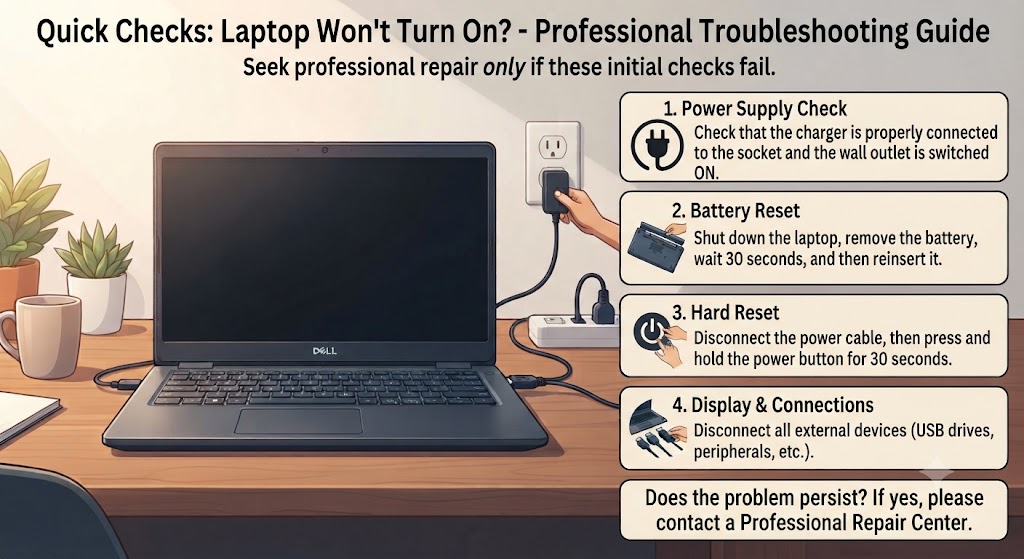
Before assuming the worst, spend a few minutes checking the basics. Many laptops that appear “dead” are actually suffering from minor power issues that can be resolved quickly.
| Quick Check | Why It Matters |
|---|---|
| Check the charger | Damaged chargers are one of the most common causes. |
| Try another wall socket | The electrical outlet may be faulty. |
| Look for charging lights | Indicates whether power is reaching the laptop. |
| Remove USB devices | Faulty peripherals can prevent booting. |
| Perform a hard reset | Clears temporary power glitches. |
| Listen for fan noise | Helps determine whether power is reaching internal components. |
| Watch for keyboard backlight | Indicates partial power. |
Completing these simple checks can often save unnecessary repair costs.
Common Reasons Your Laptop Won’t Turn On
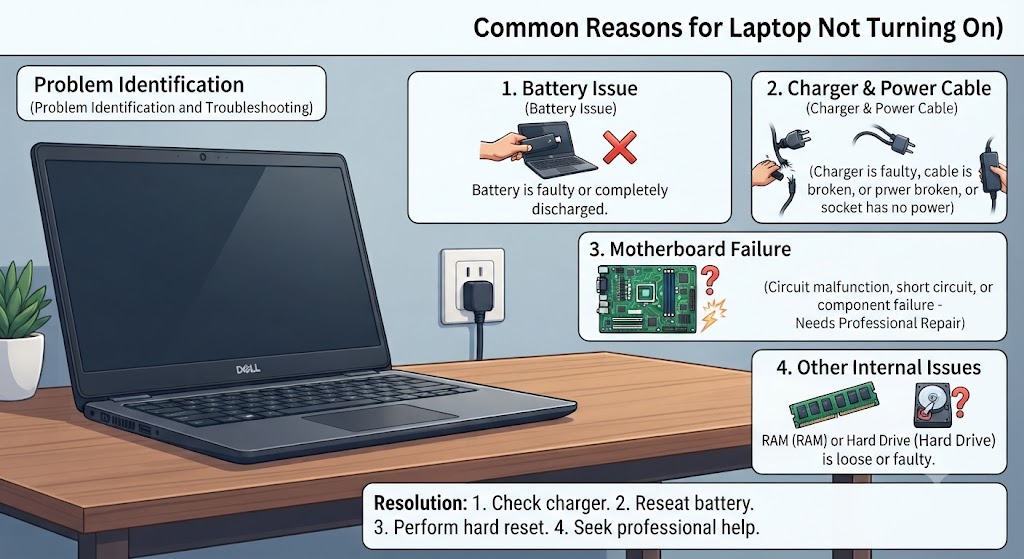
Understanding the possible causes makes troubleshooting much easier.
1. Dead or Faulty Battery
A worn-out battery is one of the most common reasons a laptop won’t power on. Laptop batteries naturally degrade over time, and after several years of daily use they may no longer hold enough charge to start the system. Common symptoms include:
- Laptop only works while plugged in
- Battery percentage never increases
- Battery drains unusually fast
- Laptop shuts down unexpectedly
- No response when using battery power
If your laptop powers on only when connected to the charger, the battery is likely nearing the end of its lifespan.
2. Faulty Charger or Power Adapter
Many users assume the laptop itself has failed when the actual problem is a damaged charger. Signs of a faulty charger include:
- Frayed or exposed cable
- Loose connector
- Charger becomes excessively hot
- Charging light never appears
- Intermittent charging
Testing with another compatible charger is often the quickest way to confirm whether the adapter is at fault.
3. Damaged Charging Port
Even if your charger is working perfectly, the charging port itself may be damaged. This commonly happens due to:
- Frequent plugging and unplugging
- Accidental knocks
- Dust accumulation
- Bent internal connector
- Liquid damage
Typical symptoms include:
- Charging only works at certain angles
- Loose charging connector
- Charging repeatedly disconnects
- Battery refuses to charge
Charging port problems require professional repair because the connector is usually soldered directly onto the motherboard.
4. Faulty Power Button
The power button itself can eventually wear out after years of use. Possible signs include:
- Button feels stuck
- No clicking feedback
- Laptop occasionally powers on
- Button requires excessive pressure
Although uncommon, replacing a faulty power button is usually straightforward once properly diagnosed.
5. Static Electricity Build-Up
Static electricity inside the laptop can sometimes prevent it from powering on. Fortunately, this is one of the easiest issues to fix. A simple hard reset often resolves the problem.
How to Perform a Hard Reset
- Disconnect the charger.
- Remove the battery if it is removable.
- Hold the power button for 30-60 seconds.
- Reconnect the charger.
- Try turning the laptop on again.
This process discharges residual electricity stored inside the motherboard and frequently restores normal operation.
6. Faulty RAM (Memory)
Loose or failing RAM can completely stop a laptop from booting. Typical symptoms include:
- Black screen
- Beeping sounds
- Fans spinning with no display
- Endless restart loop
If you’re comfortable opening the laptop, reseating the RAM modules may solve the issue. Otherwise, it’s best to have the memory professionally tested.
7. Corrupted Windows or macOS Update
Software issues can sometimes make it appear as though the laptop is completely dead.Examples include:
- Failed Windows update
- Corrupted startup files
- BIOS update interruption
- Damaged boot partition
In these situations, the laptop may actually be powering on but failing during the startup process.
8. Display Failure
Sometimes the laptop is running normally, but the screen isn’t displaying anything. Possible causes include:
- Failed LCD panel
- Loose display cable
- Backlight failure
- Graphics chip issues
Signs of a display problem include:
- Power light is on
- Fan is spinning
- Keyboard lights work
- External monitor displays normally
This indicates the laptop itself is functioning, but the display system requires repair.
9. Motherboard Failure
Motherboard faults are among the most serious laptop issues. They may result from:
- Liquid spills
- Power surges
- Component ageing
- Overheating
- Failed charging IC
- Short circuits
Symptoms often include:
- No lights
- No fan movement
- Burning smell
- Complete lack of power
- Device suddenly died during use
Fortunately, many motherboard problems can now be repaired using advanced micro-soldering techniques, avoiding the cost of a full replacement.
10. Overheating Damage
Years of dust build-up, blocked air vents, or failing cooling systems can eventually cause permanent internal damage. Warning signs include:
- Laptop became unusually hot before failing
- Loud cooling fan
- Random shutdowns
- Reduced performance
- Thermal warning messages
Ignoring overheating for extended periods can damage the CPU, GPU, or motherboard.
How to Identify the Type of Power Problem
Different symptoms point to different underlying faults. Identifying what your laptop is doing – or not doing – can significantly narrow down the cause.
| Symptom | Most Likely Cause |
|---|---|
| No lights, no fan, no sound | Charger, battery, charging port, motherboard |
| Power light on, black screen | Display, RAM, graphics, BIOS |
| Fans spin then stop | Overheating, motherboard, RAM |
| Beeping during startup | Memory (RAM) fault |
| Charging light flashes | Battery or charging circuit |
| Turns on then immediately shuts down | Overheating, battery, motherboard |
| Stuck on manufacturer logo | Windows/macOS boot issue or SSD failure |
These symptoms provide useful clues, but a professional diagnostic is often the fastest way to identify the exact cause – especially if the laptop has suffered physical damage or liquid exposure.
Step-by-Step Troubleshooting Guide
If your laptop won’t turn on, it’s important to troubleshoot the issue methodically rather than trying random fixes. Following these steps in order can help identify the problem while reducing the risk of causing further damage.
Step 1: Check the Power Source
Before focusing on the laptop itself, make sure the issue isn’t simply related to the power supply. Check that:
- The wall socket is working correctly.
- The charger is firmly connected at both ends.
- The charging cable isn’t damaged or frayed.
- The power adapter isn’t unusually hot or making buzzing noises.
- The charging LED lights up when connected.
If possible, test the laptop using another compatible charger. A faulty charger is one of the most common and least expensive problems to fix.
Step 2: Disconnect All External Devices
External accessories can sometimes prevent a laptop from completing the boot process.Disconnect everything, including:
- USB flash drives
- External hard drives
- USB hubs
- Printers
- HDMI cables
- SD cards
- External keyboards
- Wireless mouse receivers
Once everything has been removed, try turning the laptop on again.
Step 3: Perform a Hard Reset
Residual electrical charge stored on the motherboard can occasionally prevent a laptop from powering on properly.
For laptops with a removable battery:
- Disconnect the charger.
- Remove the battery.
- Hold the power button for 30–60 seconds.
- Reinsert the battery.
- Connect the charger.
- Power the laptop on.
For laptops with a built-in battery:
- Disconnect the charger.
- Hold the power button for around 30 seconds.
- Reconnect the charger.
- Turn the laptop on.
A hard reset is completely safe and often resolves temporary power-related issues.
Step 4: Check for Charging Indicators
Different manufacturers use different charging lights, but most laptops display some indication that power is reaching the device. Look for:
- Charging LED
- Keyboard backlight
- Power button illumination
- Fan movement
- Drive activity light
These signs help determine whether the problem is related to power delivery or something occurring later in the startup process.
Step 5: Listen Carefully
Even if the display remains black, your laptop may still be trying to start. Listen for:
- Cooling fan spinning
- Hard drive activity
- Startup chime
- Beeping sounds
- Optical drive noises (older models)
Any sound usually indicates that power is reaching the motherboard.
Step 6: Test an External Monitor
If the laptop appears to power on but the built-in screen stays black, connect it to an external monitor or television. If the external display works normally, the issue is likely related to:
- LCD panel
- Display cable
- Backlight
- Graphics output to the internal screen
This can help avoid replacing unnecessary components.
Step 7: Remove Recently Installed Hardware
Did the problem start immediately after installing:
- Additional RAM
- A new SSD
- A replacement battery
- A Wi-Fi card
- Internal upgrades
If so, remove the new hardware and test the laptop again. Improperly installed components are a surprisingly common cause of boot failures.
Laptop Turns On but the Screen Stays Black
One of the most confusing situations is when the laptop appears to start but nothing appears on the display. Typical symptoms include:
- Power light is on.
- Fan is spinning.
- Keyboard lights illuminate.
- You can hear Windows startup sounds.
- The screen remains completely black.
Possible causes include:
- Faulty LCD display
- Loose display cable
- Failed backlight
- Graphics chip issue
- Corrupted graphics driver
- BIOS problem
What You Can Try
- Increase screen brightness.
- Connect an external monitor.
- Restart the laptop.
- Perform a hard reset.
- Boot into Safe Mode if possible.
If the external monitor works normally, the laptop display assembly usually requires repair rather than the entire laptop.
Laptop Has Power but Won’t Boot into Windows
Sometimes the laptop powers on successfully but gets stuck before Windows loads. You might notice:
- Manufacturer logo remains on screen.
- Endless loading circle.
- Automatic repair loop.
- Blue screen errors.
- Black screen after login.
Possible causes include:
- Corrupted Windows files
- Failed SSD or HDD
- Windows update failure
- Driver conflicts
- Malware
- BIOS configuration problems
In many cases, repairing Windows startup files or reinstalling the operating system resolves the issue without replacing hardware.
Laptop Turns On Then Immediately Shuts Off
If your laptop powers on for a few seconds before shutting down, it often indicates a hardware protection mechanism. Common causes include:
- Overheating
- Failed cooling fan
- Short circuit
- Faulty battery
- Motherboard issue
- Defective RAM
Avoid repeatedly forcing the laptop to power on, as this may worsen certain hardware faults.
Laptop Keeps Restarting
Continuous restarting without reaching the desktop may result from either hardware or software problems. Possible reasons include:
- Corrupted Windows update
- Driver conflicts
- RAM errors
- SSD failure
- BIOS corruption
- Motherboard faults
Professional diagnostics can quickly determine whether the issue is software-related or caused by failing hardware.
Laptop Makes Beeping Sounds
Many laptops use beep codes to indicate hardware problems during startup. Although the exact meaning varies between manufacturers, common causes include:
| Beep Pattern | Possible Cause |
|---|---|
| Continuous beeps | RAM problem |
| Multiple short beeps | Motherboard error |
| Long beep followed by short beeps | Graphics issue |
| No beep at all | Power or motherboard failure |
If your laptop repeatedly emits beep codes, avoid guessing the cause. Professional testing is usually the safest option.
Laptop Won’t Turn On After a Windows Update
Windows updates occasionally fail during installation, leaving the operating system unable to boot correctly. Symptoms may include:
- Black screen
- Endless loading animation
- Automatic repair loop
- Frozen manufacturer logo
Possible solutions include:
- Startup Repair
- Safe Mode
- System Restore
- Removing recent updates
- Reinstalling Windows
If important files are stored on the laptop, avoid formatting the drive until your data has been safely backed up.
Laptop Won’t Turn On After Liquid Damage
Water, tea, coffee, juice, and other liquids can cause serious internal damage within minutes. If liquid has been spilled on your laptop:
Do not:
- Keep pressing the power button.
- Plug the charger back in.
- Use a hairdryer.
- Continue charging the battery.
Instead:
- Turn the laptop off immediately.
- Disconnect the charger.
- Remove external accessories.
- Place the laptop in an inverted “tent” position to help any remaining liquid drain.
- Arrange a professional inspection as soon as possible.
Early treatment significantly improves the chances of successful repair.
Laptop Won’t Turn On After Being Dropped
Physical impacts can damage internal components even if the exterior appears undamaged. Common issues include:
- Cracked motherboard
- Loose RAM
- Damaged SSD
- Broken display cable
- Screen damage
- Charging port damage
Visible dents aren’t always a reliable indicator of internal condition, so a professional diagnostic is recommended after any significant drop.
Brand-Specific Troubleshooting
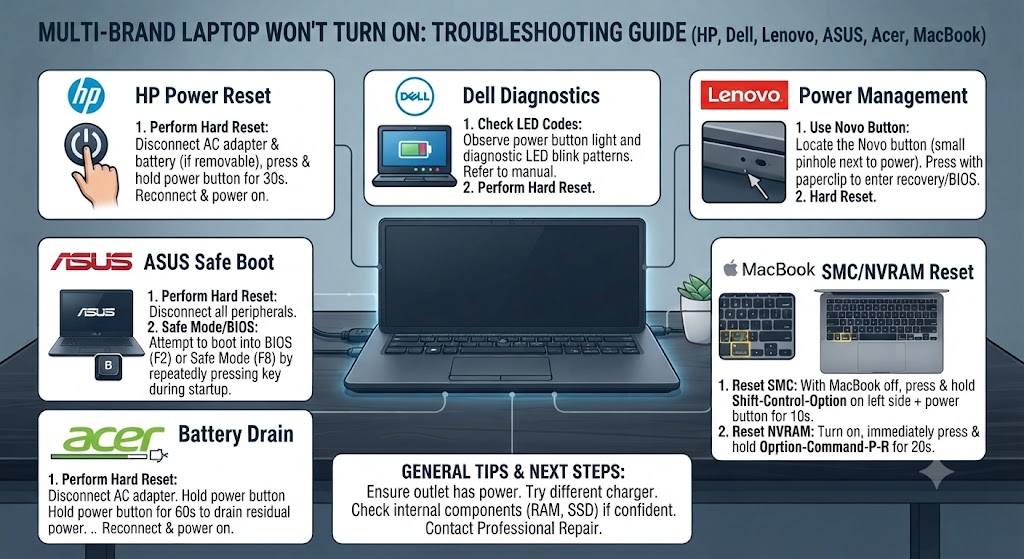
1. HP Laptop Not Turning On
HP laptops commonly experience issues related to:
- Battery failure
- BIOS corruption
- Charging port wear
- Power button faults
If your HP laptop shows no signs of power, start with a hard reset and charger test before investigating hardware issues.
2. Dell Laptop Not Turning On
Dell laptops may fail to start due to:
- Battery degradation
- Failed power adapter
- Motherboard faults
- BIOS update problems
- RAM issues
Many Dell models also include built-in diagnostic LED indicators that can help identify hardware faults.
3. Lenovo Laptop Not Turning On
Lenovo laptops occasionally develop startup problems caused by:
- BIOS configuration
- Power management issues
- Faulty battery
- Charging circuit failure
- Static electricity build-up
A hard reset often resolves temporary power issues on Lenovo devices.
4. ASUS, Acer & Gaming Laptops
Gaming laptops place greater demands on cooling systems and power circuits. If your ASUS, Acer, MSI, or other gaming laptop won’t turn on, possible causes include:
- Overheating damage
- Failed cooling fan
- High-performance GPU failure
- Motherboard issues
- Power delivery faults
Because gaming laptops contain more complex hardware, professional diagnosis is often the quickest route to identifying the problem.
5. MacBook Not Turning On
If your MacBook won’t power on, the issue may involve:
- Battery failure
- USB-C charging problems
- Logic board faults
- Display issues
- macOS startup corruption
Before assuming the worst, try charging the MacBook with a compatible adapter for at least 30 minutes and then perform a force restart. If the MacBook still shows no response, specialist diagnosis is recommended, as Apple devices often require board-level repair techniques.
For the full MacBook-specific walkthrough, including SMC and NVRAM resets, charging light meanings, and what to do after a spill or drop, see our dedicated guide: why is my MacBook not turning on.
When Should You Stop Troubleshooting and Seek Professional Repair?
While many laptop startup problems can be resolved with basic troubleshooting, some faults require specialist equipment and technical expertise. Continuing to experiment with a laptop that has a serious hardware issue can sometimes make the damage worse.
It’s time to seek professional repair if:
- Your laptop shows no signs of power after trying all the basic checks.
- It has been dropped or suffered physical damage.
- Liquid has been spilled on the keyboard or motherboard.
- You notice a burning smell or excessive heat.
- The charging port is loose or damaged.
- The laptop repeatedly shuts down during startup.
- You hear unusual clicking or grinding noises.
- The motherboard or power circuit is suspected to be faulty.
At this stage, a professional diagnostic is the safest and most cost-effective way to identify the exact problem.
Common Laptop Repair Costs in the UK
The cost of repairing a laptop that won’t turn on depends on the underlying fault. Some issues, such as replacing a charger or battery, are relatively inexpensive, while motherboard repairs require more advanced work.
| Repair Type | Typical UK Price |
|---|---|
| Diagnostic Service | £0-£40 (often free if repaired) |
| Laptop Battery Replacement | £60-£180 |
| Charging Port Repair | £70-£180 |
| Laptop Screen Replacement | £80-£350+ |
| Keyboard Replacement | £50-£150 |
| SSD Replacement | £80-£250 |
| Fan Replacement & Internal Cleaning | £60-£140 |
| Motherboard Repair (Board-Level) | £150-£450+ |
| Liquid Damage Repair | £80-£350+ |
Note: Prices vary depending on the laptop brand, model, parts availability, and the complexity of the repair
Repair or Replace Your Laptop?
Many people assume a laptop that won’t turn on needs replacing. In reality, professional repairs are often much more affordable than buying a new device.
| Situation | Best Option |
|---|---|
| Battery failure | Repair |
| Charging port damage | Repair |
| Broken screen | Repair |
| Faulty RAM | Repair |
| SSD failure | Repair |
| Motherboard repair cost exceeds laptop value | Consider replacement |
| Very old laptop with multiple faults | Upgrade may offer better value |
If your current laptop is still in good condition overall, repairing it is usually the more economical choice.
For users considering an upgrade instead of a repair, a professionally tested refurbished MacBook or another high-quality refurbished laptop can provide excellent performance at a significantly lower cost than buying new. The iExpert Market refurbished range is a practical option for students, professionals, and home users looking for reliable devices backed by warranty.
Why Choose iExpert Repairs?
When your laptop won’t turn on, choosing the right repair service is just as important as identifying the fault. At iExpert Repairs, our certified technicians repair laptops from all major brands, including:
- Apple MacBook Repair
- Dell Repair
- HP Repair
- Lenovo Repair
- ASUS
- Acer
- Microsoft Surface
- Samsung
- MSI
- Gaming laptops
Every repair begins with a thorough diagnostic to identify the root cause rather than simply replacing parts unnecessarily.
What You Can Expect
- Certified laptop repair specialists
- Free or low-cost diagnostics (depending on repair)
- Premium OEM-grade replacement parts
- Same-day repairs for many common issues
- Advanced motherboard and micro-soldering repairs
- Secure UK-wide mail-in repair service
- Free tracked return delivery
- Transparent pricing with no hidden fees
- 12-month warranty on repairs
- Fix Now, Pay Later with Klarna available at checkout
Whether you’re in Southend, London, Manchester, Birmingham, Liverpool, Leeds, Glasgow, or anywhere else in the UK, our nationwide repair service makes it easy to get your laptop professionally repaired.
FAQs About Why Your Laptop Is Not Turning On
1. Why is my laptop not turning on even though it’s plugged in?
If your laptop isn’t turning on while plugged in, the problem could be a faulty charger, damaged charging port, worn-out battery, failed power adapter, or a motherboard issue. First, check the wall socket, inspect the charging cable for damage, and test with a compatible charger if possible. If the laptop still shows no signs of power, a professional diagnostic is recommended to identify the exact fault.
2. Why is my laptop screen black but the power light is on?
A black screen with the power light on usually means the laptop is receiving power, but the display isn’t working properly. This can be caused by a faulty LCD screen, loose display cable, graphics chip failure, corrupted graphics drivers, or a motherboard problem. Connecting the laptop to an external monitor can help determine whether the issue is with the display or the internal hardware.
3. Can a dead battery stop a laptop from turning on?
Yes. A completely failed battery can sometimes prevent a laptop from starting, especially if the charging circuit is also damaged. In many cases, the laptop should still power on using the charger alone, but if it doesn’t, the battery, charger, or charging port may require inspection or replacement.
4. Why won’t my laptop turn on after charging overnight?
If your laptop still won’t turn on after charging overnight, the charger may not be supplying power, the charging port could be damaged, or the battery may have failed completely. Internal issues such as motherboard faults or power management problems can also prevent the laptop from starting even after extended charging.
5. What should I do first if my laptop won’t turn on?
Start by checking the charger, wall socket, and charging indicator light. Disconnect all external devices, perform a hard reset by holding the power button for 30-60 seconds, and then try turning the laptop on again. If the problem persists, professional diagnostics can identify whether the fault is hardware or software related.
6. Why won’t my HP laptop turn on?
HP laptops may fail to power on due to battery failure, charging port damage, BIOS corruption, faulty RAM, overheating, or motherboard issues. Performing a hard reset and testing with another compatible charger are good starting points before arranging a repair.
7. Why won’t my Dell laptop turn on?
Dell laptops commonly experience startup issues caused by faulty batteries, damaged chargers, RAM problems, SSD failures, BIOS errors, or motherboard faults. Many Dell models also include diagnostic LED indicators that help identify hardware issues during startup.
8. Why is my Lenovo laptop not turning on?
Lenovo laptops may stop powering on because of battery degradation, charging circuit faults, BIOS issues, power management problems, or static electricity build-up. Performing a hard reset often resolves temporary power-related problems, but persistent issues should be professionally diagnosed.
9. Why is my MacBook not turning on?
A MacBook that won’t turn on may have a depleted battery, faulty USB-C charging system, damaged logic board, failed display, or macOS startup issue. Charge the MacBook for at least 30 minutes using a compatible charger before attempting a force restart. If it remains unresponsive, specialist repair may be required.
10. Why does my laptop turn on but immediately shut down?
If your laptop powers on briefly before shutting down, it may be overheating or experiencing hardware protection due to a faulty battery, cooling fan failure, RAM issue, or motherboard fault. Continuing to force the laptop to start may worsen the problem, so it’s best to have it inspected if the issue continues.
11. Why is my laptop making beeping sounds and not turning on?
Beeping during startup usually indicates a hardware problem. In most cases, the issue is related to faulty or improperly seated RAM, but graphics card failures or motherboard faults can also trigger beep codes. The exact meaning depends on the laptop manufacturer.
12. Can overheating stop a laptop from turning on?
Yes. Severe overheating can damage internal components such as the CPU, GPU, or motherboard, preventing the laptop from powering on. Dust build-up, blocked cooling vents, or a failed fan are common causes of overheating that should be addressed promptly.
13. Why won’t my laptop turn on after a Windows update?
A failed Windows update can corrupt system files or interfere with the boot process, causing the laptop to freeze on the manufacturer’s logo, display a black screen, or enter an automatic repair loop. Startup Repair, Safe Mode, or System Restore may resolve the issue without replacing any hardware.
Final Thoughts
A laptop that won’t turn on can be frustrating, but it doesn’t always mean your device is beyond repair. In many cases, the problem is caused by a faulty charger, worn-out battery, damaged charging port, loose RAM, failed SSD, or a software-related startup issue that can be resolved without replacing the entire laptop. More serious faults, such as motherboard failure or liquid damage, require professional diagnostics to identify the exact cause and prevent further damage.
By following the troubleshooting steps in this guide, you can safely rule out many common causes and determine whether the issue can be fixed at home or requires expert attention. If your laptop still won’t power on after trying the recommended solutions, it’s best to stop troubleshooting and have the device inspected by qualified technicians. Early diagnosis can often reduce repair costs, protect your important data, and extend the lifespan of your laptop.
Whether you own an Apple MacBook, Dell, HP, Lenovo, ASUS, Acer, Microsoft Surface, Samsung, MSI, Toshiba, or another laptop brand, professional repair is often the most cost-effective solution compared to replacing your device. With the right expertise and high-quality replacement parts, many laptops that appear completely dead can be restored to full working condition.
Why Trust iExpert Repairs for Your Laptop Repair?
When searching for laptop repair in the UK, choosing an experienced and reliable repair provider is essential. At iExpert Repairs, we combine technical expertise, advanced diagnostic equipment, and premium-quality replacement parts to deliver repairs you can trust. Rather than replacing components unnecessarily, our technicians accurately diagnose the root cause of the problem and recommend the most effective repair solution.
We repair all major laptop brands, including MacBook, Dell, HP, Lenovo, ASUS, Acer, Microsoft Surface, Samsung, MSI, Toshiba, and gaming laptops. Whether your laptop won’t turn on because of a faulty battery, damaged charging port, motherboard issue, broken screen, overheating, liquid damage, or software failure, our experienced technicians have the knowledge and tools to restore your device safely and efficiently.
Why Customers Across the UK Choose iExpert Repairs
- Certified laptop repair specialists with over 10 years of industry experience
- More than 2,500 successful laptop repairs completed
- Accurate diagnostics to identify the exact fault
- Same-day repairs available for many common laptop issues
- Advanced motherboard and micro-soldering repair specialists
- Premium OEM-grade or equivalent replacement parts
- Transparent pricing with no hidden charges
- Secure UK-wide mail-in repair service
- Free tracked return delivery
- 12-month warranty on qualifying repairs
- Fix Now, Pay Later with Klarna
- Trusted by customers across the UK for professional laptop repairs
Every laptop is thoroughly tested before it’s returned, ensuring it performs reliably and meets our high quality standards. From simple battery replacements to complex motherboard repairs, our goal is to provide long-lasting repair solutions backed by excellent customer service and technical expertise.
Back to posts

