
Introduction
If your phone battery is draining faster than usual, you’re not alone. Rapid battery drain is one of the most common smartphone problems affecting both iPhone and Android users across the UK. Whether your battery drops from 100% to 20% within a few hours, loses charge overnight, or your phone becomes unusually hot during normal use, these symptoms often indicate an underlying software, hardware, or battery health issue. Common causes include background apps, high screen brightness, poor mobile signal, 5G connectivity, location services, software updates, overheating, or a worn-out lithium-ion battery.
At iExpert Repairs, our certified technicians diagnose and repair battery-related faults every day on Apple, Samsung, Google Pixel, Huawei, OnePlus, and many other devices. Drawing on real repair experience, this guide explains why your phone battery drains so fast, how to identify the exact cause, proven battery-saving tips, and when a professional battery replacement is the most reliable and cost-effective solution. By the end, you’ll know how to improve battery life and keep your phone performing at its best.
Why Is My Phone Battery Draining So Fast?
If your phone battery suddenly starts draining much faster than usual, you’re not alone. Battery drain is one of the most common smartphone problems affecting both Android devices and iPhones.
In many cases, the cause is relatively simple. A background app may be consuming excessive power, your screen brightness could be set too high, or recent software updates may have introduced temporary battery optimisation issues. However, rapid battery loss can also indicate a worn-out battery, charging problems, overheating, water damage, or even hardware failure.
The good news is that many battery problems can be resolved without replacing your device.
In this guide, you’ll learn:
- Why your phone battery drains so quickly
- The most common battery-draining habits
- How to identify software and hardware issues
- Step-by-step ways to improve battery life
- When replacing the battery is the best solution
- When to seek professional repair
By the end of this guide, you’ll know exactly why your battery is draining and what you can do to fix it.
Quick Answer
If your phone battery is draining unusually fast, the most common reasons include:
- Battery health has deteriorated with age
- Screen brightness is too high
- Background apps continue running
- Poor mobile signal
- Location services constantly active
- 5G or mobile data usage
- High-performance gaming
- Camera and video recording
- Software bugs after updates
- Phone overheating
- Charging issues
- Faulty battery hardware
If your battery drains from 100% to below 20% within only a few hours of normal use, even after enabling battery-saving settings, the battery itself may have reached the end of its lifespan.
Likewise, if your device struggles to charge or loses power even while plugged in, our Why Is My Phone Not Charging? Guide explains how charging faults can contribute to battery problems.
Common Signs Your Phone Battery Is Draining Too Fast
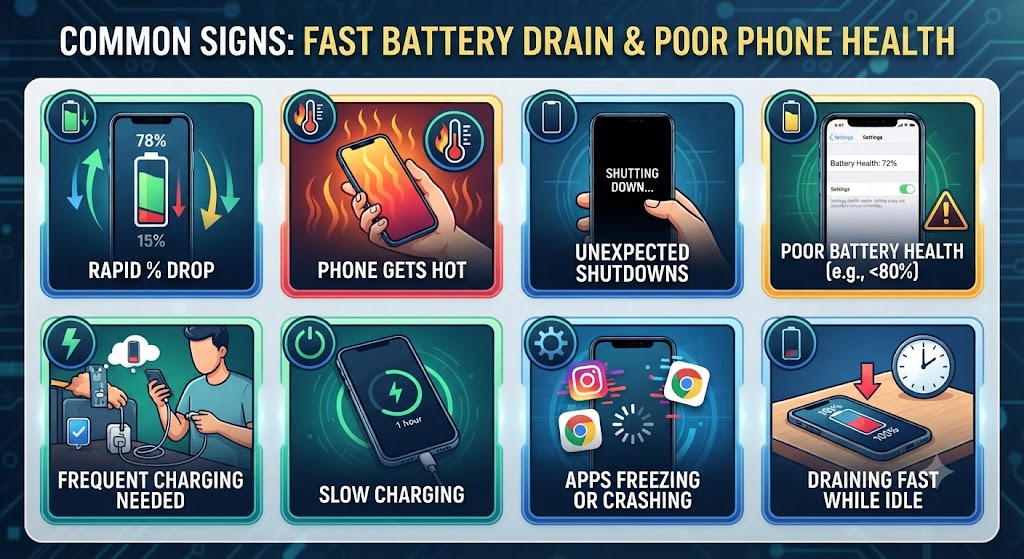
Not every phone loses battery at the same rate. Heavy users naturally consume more power than occasional users, but there are clear warning signs that indicate abnormal battery drain.
Common symptoms include:
- Battery drops several percentage points within minutes.
- Your phone requires charging more than once per day.
- The device becomes unusually warm during light use.
- Battery percentage changes suddenly.
- The phone switches off before reaching 0%.
- Charging takes much longer than before.
- Battery drains overnight despite not being used.
- Battery saver no longer improves battery life.
- The phone loses power while idle.
If you’re experiencing several of these symptoms together, the issue is likely more than normal battery ageing.
What Causes Phone Batteries to Drain So Quickly?
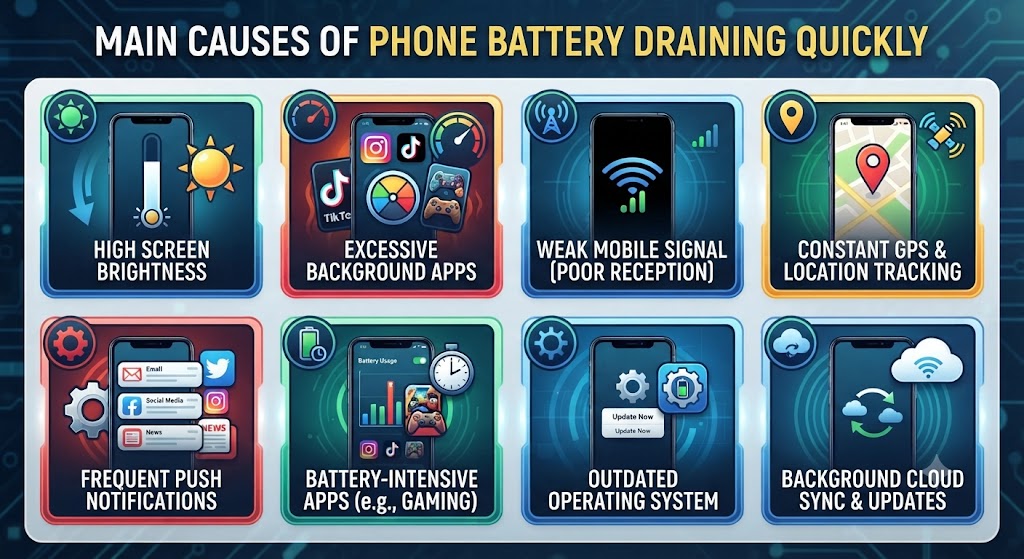
Modern smartphones are incredibly powerful, but that power comes with increased energy demands. Fast processors, high-refresh-rate displays, AI-powered cameras, 5G connectivity, and constantly syncing apps all place additional strain on the battery.
Battery drain usually falls into one of three categories:
1. Software Issues
Apps running in the background, operating system bugs, outdated software, and excessive syncing can consume significant power without you noticing.
2. User Settings
High brightness, Always-On Display, GPS, Bluetooth, mobile hotspot, and continuous notifications all increase battery usage.
3. Hardware Problems
An ageing lithium-ion battery, charging port faults, overheating, water damage, or damaged internal components may prevent the battery from holding charge effectively.
Understanding which category your issue falls into makes troubleshooting much easier.
1. Your Battery Has Naturally Worn Out
The most common reason for rapid battery drain is simply battery ageing. Smartphones use rechargeable lithium-ion batteries that gradually lose their ability to hold charge over time. Every complete charge cycle causes a small amount of wear, and after hundreds of cycles, the battery’s capacity decreases noticeably.
Most smartphone batteries are designed to retain around 80% of their original capacity after approximately 500 complete charge cycles, although actual performance varies depending on usage habits and charging conditions.
Signs of battery wear include:
- Battery percentage drops rapidly
- Frequent charging throughout the day
- Unexpected shutdowns
- Slow charging
- Reduced screen-on time
- Battery becoming warm more often
If your phone is more than two to three years old and you’ve noticed steadily worsening battery life, battery ageing is likely the primary cause.
2. Too Many Apps Are Running in the Background
Many apps continue working even after you’ve closed them. They may:
- Refresh content
- Check emails
- Update your location
- Upload photos
- Sync cloud storage
- Receive notifications
- Download updates
Popular battery-intensive apps include:
- Social media platforms
- Navigation apps
- Fitness trackers
- Streaming services
- Video calling apps
- Messaging applications
- Cloud backup services
Although each app may only use a small amount of power, several apps running together can significantly reduce battery life throughout the day.
Checking your battery usage statistics in Settings can quickly reveal which apps are consuming the most power.
3. Screen Brightness Is Too High
Your display is usually the single biggest consumer of battery power. Keeping brightness at maximum throughout the day dramatically increases energy consumption, particularly on devices with large OLED or AMOLED displays.
Other display features that can contribute to battery drain include:
- High refresh rate (120Hz)
- Always-On Display
- Long screen timeout
- HDR video playback
- Live wallpapers
- Maximum resolution settings
Reducing brightness slightly or enabling Adaptive Brightness can noticeably extend battery life without affecting everyday usability.
4. Poor Mobile Signal Constantly Drains the Battery
Many people overlook weak network coverage as a major cause of battery drain. When your phone struggles to maintain a connection, it continuously searches for stronger mobile towers. This process forces the modem to work harder, increasing power consumption.
You may notice this when:
- Travelling by train
- Working in underground offices
- Visiting rural areas
- Entering buildings with thick concrete walls
- Staying in locations with inconsistent 4G or 5G coverage
Switching to Wi-Fi when available or enabling Airplane Mode in areas with no signal can help conserve battery life.
5. Location Services (GPS) Running All the Time
Location Services are incredibly useful for navigation, food delivery, ride-sharing apps, weather forecasts, and finding nearby places. However, they are also one of the biggest hidden causes of battery drain.
Many apps request location access even when you’re not actively using them. If dozens of apps continuously check your location throughout the day, your phone’s GPS chip never gets much opportunity to rest.
Common apps that frequently use GPS include:
- Google Maps
- Apple Maps
- Uber
- Deliveroo
- Just Eat
- Fitness tracking apps
- Weather apps
- Social media platforms
- Camera apps with location tagging
How to reduce battery drain from GPS
- Allow location access only while using the app
- Turn off Precise Location for apps that don’t need it
- Disable location permissions for unused apps
- Switch off location services when travelling isn’t required
These small adjustments often improve battery life without affecting your everyday experience.
6. 5G Connectivity Can Use More Power
While 5G offers impressive download speeds and lower latency, it can consume more battery than 4G-particularly in areas where coverage is inconsistent.
If your phone constantly switches between 5G and 4G networks, the modem works harder to maintain a stable connection, leading to increased power consumption.
This is especially noticeable when:
- Travelling by car or train
- Working in buildings with weak 5G reception
- Living in areas where 5G coverage is still expanding
What you can do
If battery life is more important than maximum internet speed, consider switching your preferred network mode to 4G/LTE when high-speed connectivity isn’t essential.
Many users notice a meaningful improvement in battery performance after making this simple change.
7. Software Updates May Temporarily Increase Battery Usage
Many people assume a software update has “ruined” their battery. In reality, this is often only temporary.
After installing a major Android or iOS update, your phone may spend several hours – or even a couple of days – performing background tasks such as:
- Re-indexing files
- Optimising apps
- Syncing photos
- Rebuilding search databases
- Updating cloud backups
During this period, increased battery usage is completely normal. However, if poor battery life continues for more than a week after updating, there could be:
- A software bug
- An incompatible app
- Corrupted system files
- Battery health issues
Installing future software patches usually resolves known battery optimisation problems.
8. Your Phone May Be Overheating
Heat is one of the biggest enemies of lithium-ion batteries. When a smartphone becomes too hot, it not only drains power more quickly but can also permanently reduce the battery’s lifespan.
Common causes of overheating include:
- Gaming for long periods
- Recording 4K or 8K video
- Charging while using the phone
- Fast charging
- Direct sunlight
- Poor ventilation
- Background apps consuming excessive CPU resources
If your phone regularly feels hot during normal use, don’t ignore the warning signs.
Overheating and battery drain often occur together because higher temperatures force the processor and battery management system to work harder.
9. Bluetooth, Wi-Fi and NFC Left Enabled
Wireless features consume relatively little power individually, but together they can gradually reduce battery life throughout the day. If your phone is constantly searching for:
- Bluetooth devices
- Wi-Fi networks
- Smart watches
- Wireless earbuds
- NFC payment terminals
- Smart home accessories
…the battery drains faster than necessary.
Battery-saving tips
Switch off wireless features when you aren’t using them, particularly:
- Bluetooth
- NFC
- Personal Hotspot
- Nearby Device Scanning
- Wi-Fi scanning
Modern smartphones manage these features efficiently, but disabling unnecessary connections can still provide noticeable battery improvements.
10. Push Notifications and Constant Syncing
Every notification wakes your phone. Whether it’s an email, social media alert, banking notification or messaging app, each notification briefly activates:
- The processor
- The screen
- Internet connectivity
- Background services
Multiply this by hundreds of notifications every day, and the battery impact becomes significant. Cloud services also sync continuously, including:
- Google Drive
- iCloud
- OneDrive
- Dropbox
- Google Photos
Reducing unnecessary notifications and increasing sync intervals can noticeably extend battery life.
11. Gaming and High-Performance Apps
Mobile games are among the most demanding applications your smartphone can run. Games require:
- Maximum processor performance
- Powerful graphics processing
- High screen brightness
- Fast refresh rates
- Constant internet connectivity
- Audio processing
- Continuous touch input
The same applies to video editing apps, augmented reality applications, and professional photography software. If your battery drains quickly only while gaming, your battery may actually be functioning normally.
To reduce power consumption:
- Lower graphics settings
- Reduce frame rate
- Limit screen brightness
- Close background apps before playing
- Avoid charging while gaming, as this increases heat generation.
12. Malware or Faulty Apps
Although uncommon, malicious software or poorly optimised apps can significantly reduce battery life. Warning signs include:
- Battery draining unusually fast overnight
- Phone becoming hot while idle
- Unexpected adverts
- Random app installations
- Increased mobile data usage
- Slower overall performance
If you suspect an app is responsible:
- Check battery usage statistics.
- Uninstall recently downloaded apps.
- Update all installed apps.
- Run a trusted security scan.
- Restart the device.
Removing a single problematic app can often restore normal battery performance.
13. Charging Problems Can Affect Battery Performance
Sometimes the battery isn’t actually the problem. Instead, your phone may not be charging properly. Common causes include:
- Damaged charging cables
- Faulty charging adapters
- Dirty charging ports
- Loose charging connectors
- Moisture inside the charging port
- Internal charging circuit faults
Many users assume their battery is failing when the real issue is incomplete charging.
14. Water Damage Can Cause Battery Drain
Even if your phone appears to work normally after getting wet, internal moisture can continue causing problems long afterwards. Corrosion on internal components may lead to:
- Increased power consumption
- Charging faults
- Random shutdowns
- Battery overheating
- Short circuits
- Component failure
Water damage doesn’t always cause immediate failure. In many cases, symptoms appear days or even weeks later. If your phone has recently been exposed to water, spills or heavy rain, it’s advisable to have it professionally inspected before the damage worsens.
Our “Water Damaged Phone Repair” explains what steps to take immediately and what to avoid.
15. Your Battery May Need Professional Replacement
Sometimes, no amount of troubleshooting can restore a worn-out battery. If you’ve already:
- Reduced screen brightness
- Updated your software
- Closed background apps
- Checked battery usage
- Reset settings
- Replaced your charger
yet your phone still loses charge rapidly, the battery itself may simply have reached the end of its service life.
Professional battery replacement is often far more cost-effective than replacing the entire phone. At iExpert Repairs, our certified technicians replace batteries for:
- Apple iPhones
- Samsung Galaxy devices
- Google Pixel phones
- Huawei smartphones
- OnePlus models
- Many other Android devices
Every replacement uses high-quality parts and undergoes comprehensive testing to ensure safe charging, reliable performance and long-lasting battery life.
How to Check What’s Draining Your Phone Battery
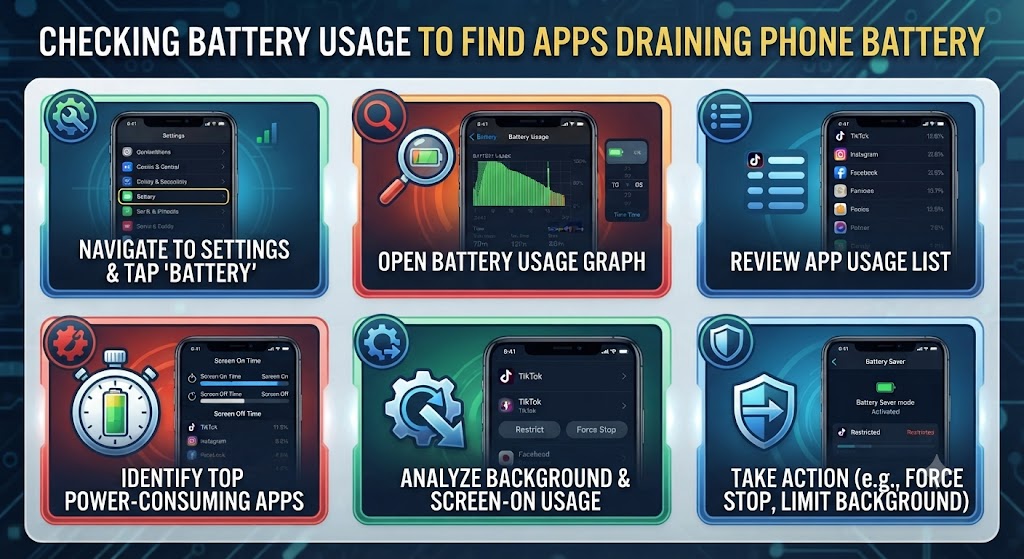
Before replacing your battery or booking a repair, it’s worth identifying exactly what’s using the most power. Both Android and iPhone devices include built-in battery usage tools that show which apps and system features consume the most energy.
On an iPhone
- Open Settings.
- Tap Battery.
- Scroll down to Battery Usage by App.
- Review activity over the last 24 Hours or 10 Days.
Pay attention to apps showing unusually high battery usage, especially if you haven’t used them much.
On an Android Phone
The exact steps vary slightly by manufacturer, but generally:
- Open Settings.
- Select Battery.
- Tap Battery Usage or Battery Activity.
- Review which apps and services are using the most power.
Some manufacturers also display background activity, helping you identify apps that continue running when you’re not using them.
How to Fix Fast Battery Drain
If your phone battery isn’t physically damaged, these troubleshooting steps often resolve the problem.
1. Restart Your Phone
A simple restart clears temporary software glitches, stops frozen background processes, and refreshes system memory. If you haven’t restarted your phone for several days, this should always be your first step.
2. Update Your Operating System
Manufacturers regularly release updates that improve battery optimisation, fix software bugs, and enhance overall performance. Keeping your device updated ensures you’re running the latest battery management improvements.
3. Update All Apps
Outdated apps can become incompatible with newer operating systems, causing excessive background activity and unnecessary battery consumption.
Visit the App Store or Google Play Store and install any available updates.
4. Enable Battery Saver Mode
Both Android and iPhone devices include built-in battery-saving features. Battery Saver typically:
- Reduces background activity
- Limits visual effects
- Slows processor performance slightly
- Delays automatic syncing
- Restricts unnecessary app refreshes
While performance may be slightly reduced, battery life often improves significantly.
5. Lower Screen Brightness
Your display is usually the largest power consumer. Instead of using maximum brightness all day:
- Enable Auto Brightness
- Reduce manual brightness indoors
- Shorten screen timeout
- Use Dark Mode where available
OLED displays benefit particularly well from Dark Mode because black pixels consume less power.
6. Close or Restrict Battery-Hungry Apps
If battery usage statistics show one or two apps consuming far more power than expected:
- Force close the app
- Disable background activity
- Remove unnecessary permissions
- Reinstall the app if problems continue
Apps that constantly refresh data, stream media, or track location are often responsible for excessive battery drain.
7. Reduce Background App Refresh
Many applications continue downloading content even when you’re not actively using them. Disabling background refresh for non-essential apps reduces unnecessary battery consumption.
Consider limiting background activity for:
- Social media
- Shopping apps
- News applications
- Travel apps
- Games
Leave background refresh enabled only for apps that genuinely need real-time updates.
8. Turn Off Features You Don’t Need
Many users leave multiple wireless features enabled throughout the day. If you’re not actively using them, consider switching off:
- Bluetooth
- NFC
- Mobile Hotspot
- AirDrop (when not required)
- Nearby Device Scanning
- Wi-Fi Calling (where appropriate)
These features use relatively little power individually but can collectively contribute to battery drain.
9. Optimise Charging Habits
Healthy charging habits can significantly extend battery lifespan. Good practices include:
- Avoid letting the battery regularly reach 0%
- Try to keep the battery between 20% and 80% when possible
- Use quality chargers and cables
- Avoid charging in direct sunlight
- Remove thick cases if your phone becomes excessively hot while charging
Heat remains one of the biggest contributors to long-term battery degradation.
10. Reset Settings if Necessary
If battery drain started immediately after changing system settings or installing new software, resetting your settings may help. This restores:
- Network settings
- Privacy permissions
- Display preferences
- Battery optimisation settings
Your personal data remains intact, although you’ll need to reconnect Wi-Fi networks afterwards.
iPhone Battery Drain Fixes
Apple devices include several battery management features that many users overlook. If your iPhone battery drains quickly, try the following:
- Enable Optimised Battery Charging
- Disable unnecessary Background App Refresh
- Turn off Live Activities if not needed
- Reduce widget usage
- Limit Location Services
- Disable Always-On Display (supported models)
- Check Battery Health under Settings > Battery > Battery Health & Charging
If your battery health is below 80%, Apple generally considers the battery significantly worn, and replacement may noticeably improve performance.
Android Battery Drain Fixes
Android manufacturers offer slightly different battery optimisation features, but most devices include:
- Adaptive Battery
- Adaptive Brightness
- Battery Saver
- Sleeping Apps
- Deep Sleeping Apps
- Performance Profiles
Using these tools helps reduce unnecessary background activity without affecting essential functions.
If you’re using a Samsung, Google Pixel, Huawei, or OnePlus device, battery optimisation settings may be found in different menus, but the principles remain the same.
When Should You Replace Your Phone Battery?
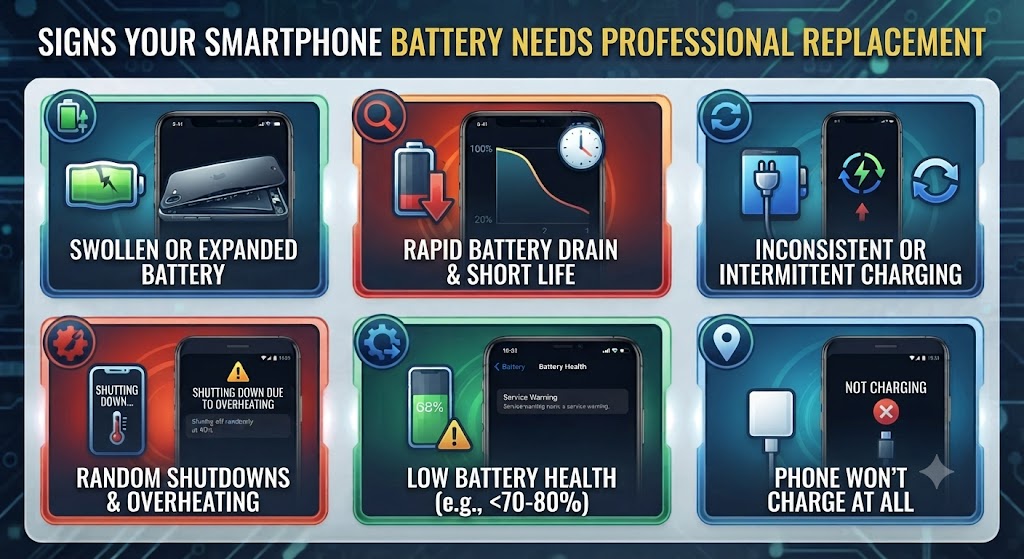
Software fixes won’t solve every battery problem. Battery replacement becomes the better option when you notice:
- Battery percentage dropping rapidly
- Unexpected shutdowns
- Charging several times every day
- Battery swelling
- Phone becoming unusually hot
- Battery health significantly reduced
- Charging no longer lasting a full day despite light use
Most smartphone batteries naturally lose capacity after several years of daily charging. If these symptoms sound familiar, replacing the battery is usually far more affordable than purchasing a new phone.
Professional Battery Diagnostics at iExpert Repairs
At iExpert Repairs, we don’t simply replace batteries – we first identify the underlying cause of the problem. Our certified technicians perform comprehensive diagnostics to determine whether the issue is related to:
- Battery health
- Charging components
- Software faults
- Water damage
- Internal hardware
- Power management systems
We repair a wide range of devices, including:
Whether you visit us in Essex or use our secure UK-wide mail-in repair service, every repair is carried out using premium-quality replacement parts and backed by a 12-month warranty for added peace of mind.
If the diagnostic shows that only the battery needs replacing, we’ll recommend the most cost-effective solution rather than suggesting unnecessary repairs.
How to Make Your Phone Battery Last Longer
Although all rechargeable batteries degrade over time, good charging and usage habits can significantly slow the process and help you get the most out of your device.
Here are some practical ways to maximise battery life.
1. Keep Your Software Up to Date
Software updates don’t just introduce new features – they also include security patches, bug fixes, and battery optimisation improvements.
Installing updates promptly helps your phone run more efficiently and may resolve unexpected battery drain caused by software issues.
2. Avoid Extreme Temperatures
Lithium-ion batteries perform best at moderate temperatures. To protect your battery:
- Avoid leaving your phone in direct sunlight.
- Don’t keep it inside a hot car.
- Avoid charging under pillows or blankets.
- Remove thick protective cases if your device becomes excessively warm while charging.
Excessive heat is one of the leading causes of permanent battery degradation.
3. Use High-Quality Chargers
Low-quality or damaged charging accessories can affect charging efficiency and, in some cases, damage internal components. For the safest charging experience:
- Use the original charger whenever possible.
- Replace damaged charging cables.
- Choose reputable accessories that meet your phone manufacturer’s specifications.
4. Reduce Unnecessary Background Activity
The fewer apps working in the background, the less power your phone consumes.
Review installed applications regularly and uninstall anything you no longer use.This not only improves battery life but can also enhance overall performance and free up storage space.
5. Charge Before the Battery Is Completely Empty
Modern lithium-ion batteries generally last longer when they aren’t repeatedly discharged to 0%. Whenever practical, recharge your phone before the battery becomes critically low.
Frequent deep discharges place additional stress on the battery and may shorten its overall lifespan.
Common Myths About Phone Batteries
There is plenty of outdated advice about smartphone batteries. Here are some of the most common myths.
1. Myth: You Must Fully Drain the Battery Before Charging
False.
Modern smartphones use lithium-ion batteries, which do not require complete discharge before recharging. In fact, regularly allowing the battery to reach 0% may contribute to faster wear over time.
2. Myth: Charging Overnight Always Damages the Battery
Mostly False.
Today’s smartphones include intelligent charging systems that stop charging once the battery reaches full capacity.
However, leaving your phone charging in a hot environment every night may still expose it to unnecessary heat, which can affect long-term battery health.
3. Myth: Closing Every App Saves Battery
Not Always.
Force-closing apps repeatedly can sometimes use more power because the system has to reload them each time they’re opened. Instead, close only apps that are frozen, malfunctioning, or consuming excessive battery according to your battery usage statistics.
4. Myth: Fast Charging Always Ruins Batteries
False.
Modern fast-charging technology is designed with multiple safety protections. Using manufacturer-approved or high-quality compatible chargers is generally safe.
The greater concern is excessive heat rather than fast charging itself.
FAQs About Phone Battery Draining Fast
1. Why is my phone battery draining so fast all of a sudden?
Sudden battery drain is usually caused by a recent software update, a power-hungry app running in the background, poor network signal, increased screen brightness, or a battery that’s beginning to wear out. Checking your battery usage settings can help identify the cause.
2. How do I stop my phone battery from draining so quickly?
Reduce screen brightness, enable Battery Saver mode, close unnecessary background apps, disable unused features like Bluetooth and GPS, update your software, and keep your battery between 20% and 80% when possible.
3. Why does my phone battery drain even when I’m not using it?
Your phone continues running background processes such as app syncing, notifications, location tracking, and software updates even when the screen is off. Faulty apps or poor mobile signal can also increase idle battery drain.
4. Is it normal for my phone battery to lose charge overnight?
A small amount of battery drain overnight is normal. However, losing more than 10-15% while the phone is idle may indicate excessive background activity, poor signal strength, or battery health issues.
5. Why is my iPhone battery draining so fast?
An iPhone may experience rapid battery drain due to background app refresh, high screen brightness, location services, software updates, ageing battery health, or intensive apps such as gaming and video streaming.
6. Why is my Android phone battery draining so fast?
Android phones can lose battery quickly because of background apps, Adaptive Display settings, GPS, 5G connectivity, poor signal, outdated software, or a battery that’s reached the end of its lifespan.
7. Does 5G use more battery than 4G?
Yes. In areas with weak or inconsistent 5G coverage, your phone works harder to maintain a connection, which can lead to faster battery drain compared to using a stable 4G network.
8. Can a software update cause battery drain?
Yes. Major Android and iOS updates may temporarily increase battery usage while the system optimises apps and files. If the issue continues for more than a few days, check for further updates or problematic apps.
9. How can I check what’s draining my phone battery?
Go to your phone’s Battery settings to view battery usage by app. This feature shows which apps and system services consume the most power, helping you identify any unusual battery usage.
10. When should I replace my phone battery?
You should consider replacing your battery if it drains rapidly, causes unexpected shutdowns, overheats, swells, or no longer lasts through a normal day despite following battery-saving tips.
Final Thoughts
A phone battery that drains quickly doesn’t always mean it’s time to replace your device. In many cases, simple changes – such as reducing background app activity, lowering screen brightness, updating your software, or adjusting your charging habits – can significantly improve battery life.
However, if you’ve tried the troubleshooting steps in this guide and your battery still loses charge rapidly, the issue may be more than just a software setting. An ageing battery, charging port fault, overheating, or internal hardware problem can all affect your phone’s ability to hold a charge.
Identifying the real cause early can help you avoid unnecessary frustration and prevent more expensive repairs later. If your phone is also experiencing charging issues, overheating, or unexpected shutdowns, it’s worth addressing the problem before it worsens.
Back to posts

