
Why Is My Phone Not Connecting to Wi-Fi?
Few smartphone problems are more frustrating than seeing your Wi-Fi network appear on the screen but being unable to connect. Whether you’re trying to stream videos, attend an online meeting, browse social media, or download apps, a Wi-Fi connection is something most of us rely on every day.
Sometimes your phone simply refuses to join the network. In other cases, it connects briefly before disconnecting, repeatedly asks for the Wi-Fi password, displays an authentication error, or shows “Saved” without actually connecting.
The good news is that not every Wi-Fi problem means your phone is damaged. Many connectivity issues are caused by incorrect network settings, software bugs, router problems, outdated operating systems, or temporary system glitches. However, if the issue started after dropping your phone, exposing it to water, or following a major impact, there may be damage to the internal Wi-Fi antenna or motherboard.
Understanding the real cause before attempting repairs can save both time and money.
In this guide, we’ll explain:
- Why your phone won’t connect to Wi-Fi
- The most common software and hardware causes
- Step-by-step troubleshooting methods you can try at home
- When professional repair is the safest option
- How iExpert Repairs helps customers across the UK restore reliable Wi-Fi connectivity
Phone Wi-Fi Problem at a Glance
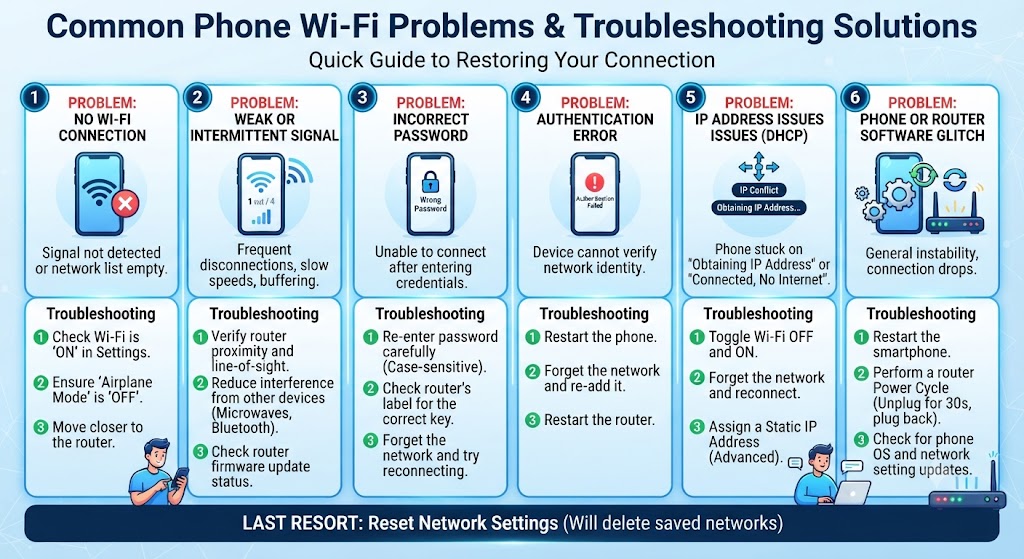
| Issue | Likely Cause | Recommended Solution |
|---|---|---|
| Phone won’t connect to Wi-Fi | Software glitch | Restart your phone |
| Incorrect Wi-Fi password | Wrong credentials | Forget the network and reconnect |
| Wi-Fi connected but no internet | Router or broadband issue | Restart your router and check your internet service |
| Wi-Fi keeps disconnecting | Weak signal or faulty router | Move closer to the router and restart it |
| Authentication error | Corrupted network settings | Reset your network settings |
| Wi-Fi switch is greyed out | Hardware or motherboard fault | Seek professional diagnosis |
| No Wi-Fi networks detected | Damaged Wi-Fi antenna or wireless chip | Have the device inspected by a repair technician |
| Wi-Fi stopped working after a drop | Internal hardware damage | Arrange a professional repair |
| Wi-Fi stopped working after water exposure | Liquid damage | Power off the device and avoid charging it until inspected |
| Wi-Fi still doesn’t work after trying all fixes | Advanced hardware issue | Visit a trusted smartphone repair specialist |
Quick Answer:Why Is My Phone Not Connecting to Wi-Fi?
If your phone isn’t connecting to Wi-Fi, the most common causes include:
- Incorrect Wi-Fi password
- Router or broadband problems
- Temporary software bugs
- Airplane Mode enabled
- Wi-Fi settings corruption
- Outdated Android or iOS software
- VPN or network configuration conflicts
- Faulty third-party apps
- Damaged Wi-Fi antenna
- Water damage
- Motherboard or wireless chip failure
In many cases, restarting your phone, forgetting and reconnecting to the network, restarting your router, or updating your operating system solves the issue. However, if your phone still won’t connect after basic troubleshooting – or the problem started after a drop or liquid exposure – professional diagnosis may be required.
Warning Signs You Shouldn’t Ignore
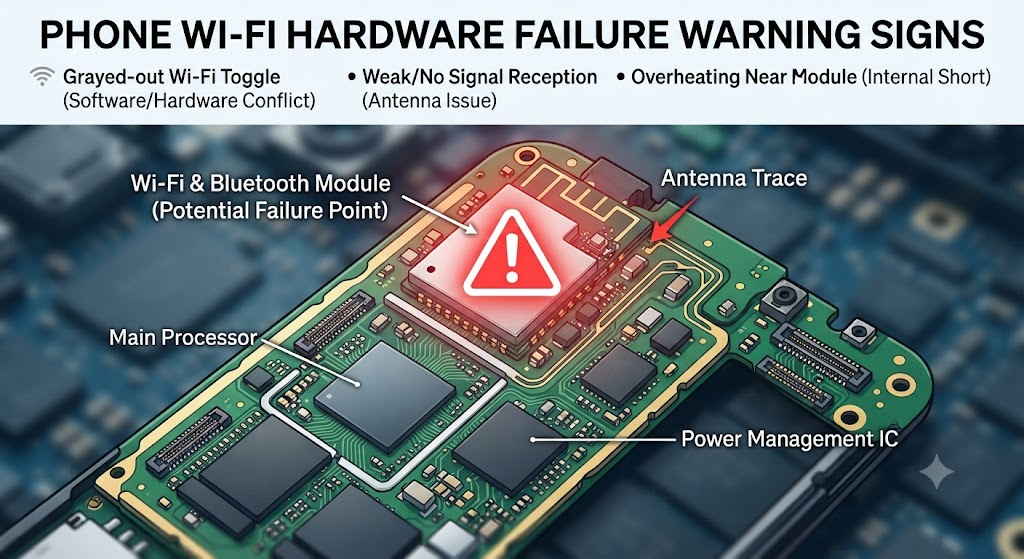
Although many Wi-Fi problems are caused by simple software issues, some symptoms can indicate a more serious hardware fault.
If you notice any of the following, it’s best to stop troubleshooting and arrange a professional inspection:
- Wi-Fi remains greyed out and cannot be switched on.
- Your phone cannot detect any Wi-Fi networks.
- Wi-Fi stopped working immediately after the phone was dropped.
- The problem started after water or liquid exposure.
- Wi-Fi disconnects every few seconds despite multiple networks being tested.
- Bluetooth and Wi-Fi both stopped working at the same time.
- Mobile data works normally, but Wi-Fi never connects.
- The phone becomes unusually hot whenever Wi-Fi is enabled.
Backing up your important data is also recommended, especially if you suspect internal hardware damage.
Introduction
A phone that won’t connect to Wi-Fi can quickly become more than just an inconvenience. Without a stable wireless connection, everyday activities such as browsing the internet, downloading apps, streaming videos, making video calls, updating software, or backing up your photos become difficult or even impossible.
Sometimes the problem is as simple as entering the wrong password or connecting to a faulty router. In other situations, the issue may involve corrupted network settings, software bugs introduced by recent updates, or damaged internal hardware.
The good news is that many Wi-Fi connection problems can be resolved without replacing any components. By understanding what causes these issues and following the correct troubleshooting steps, you can often restore your connection within minutes.
In this complete UK guide, we’ll explain the most common reasons why your phone isn’t connecting to Wi-Fi, how to diagnose whether the issue is software or hardware related, and when it’s time to seek professional repair.
Who Is This Guide For?
This guide is designed for anyone experiencing Wi-Fi connection problems on their smartphone, whether the issue started suddenly or has gradually become worse over time.
It will be especially helpful if your phone:
- Won’t connect to Wi-Fi even with the correct password.
- Keeps disconnecting from your wireless network.
- Shows an “Authentication Error” or “Obtaining IP Address” message.
- Connects to Wi-Fi but has no internet access.
- Can’t detect any available Wi-Fi networks.
- Has Wi-Fi problems after a software update, accidental drop, or water damage.
- Has already been restarted, but the issue still persists.
Whether you use an iPhone, Samsung Galaxy, Google Pixel, Huawei, Xiaomi, OnePlus, Oppo, Motorola, Nokia, or another Android smartphone, the troubleshooting steps in this guide will help you identify the most likely cause and determine whether the problem can be fixed at home or requires professional repair.
What Does It Mean When Your Phone Won’t Connect to Wi-Fi?
When your phone refuses to connect to Wi-Fi, it means your device is unable to establish or maintain communication with a wireless network. The problem doesn’t always look the same.
Some users experience:
- Wi-Fi connected but no internet access
- Authentication failed errors
- Incorrect password messages despite entering the correct password
- Endless “Connecting…” or “Obtaining IP Address” messages
- Wi-Fi disconnecting repeatedly
- Wi-Fi option greyed out
- The phone failing to detect any available networks
- Extremely slow Wi-Fi despite strong signal strength
Because these symptoms can have different causes, identifying when the issue started is often more useful than focusing only on what the error message says.
Can Wi-Fi Connection Problems Get Worse?
Yes. In many cases, Wi-Fi issues begin as an occasional inconvenience before becoming a persistent problem. For example, a phone that disconnects once or twice a day may eventually lose the ability to connect to any network at all if the underlying cause is ignored.
If the issue is related to hardware damage – such as a failing Wi-Fi antenna, liquid damage, or motherboard fault – it may gradually affect other wireless functions as well. Ignoring ongoing Wi-Fi problems can sometimes lead to:
- Complete loss of wireless connectivity
- Bluetooth connection problems
- Frequent software crashes
- Failed system updates
- Poor battery life due to continuous network searching
- Increased mobile data usage
- Difficulty backing up important files
If the problem continues despite basic troubleshooting, arranging a professional diagnosis early can often prevent more expensive repairs later.
What Causes a Phone Not to Connect to Wi-Fi?
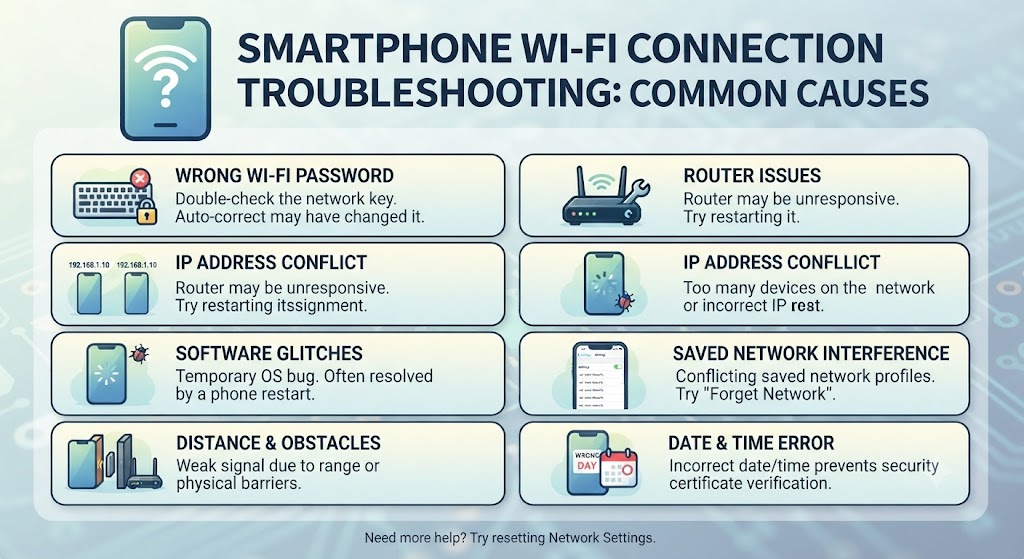
There isn’t one single reason why a smartphone refuses to connect to Wi-Fi. Based on our repair experience at iExpert Repairs, the problem usually falls into one of two categories:
- Software-related issues, which can often be fixed at home.
- Hardware-related faults, which usually require professional repair.
Understanding which category your phone falls into can save you unnecessary expense and help you choose the correct solution.
Software-Related Causes
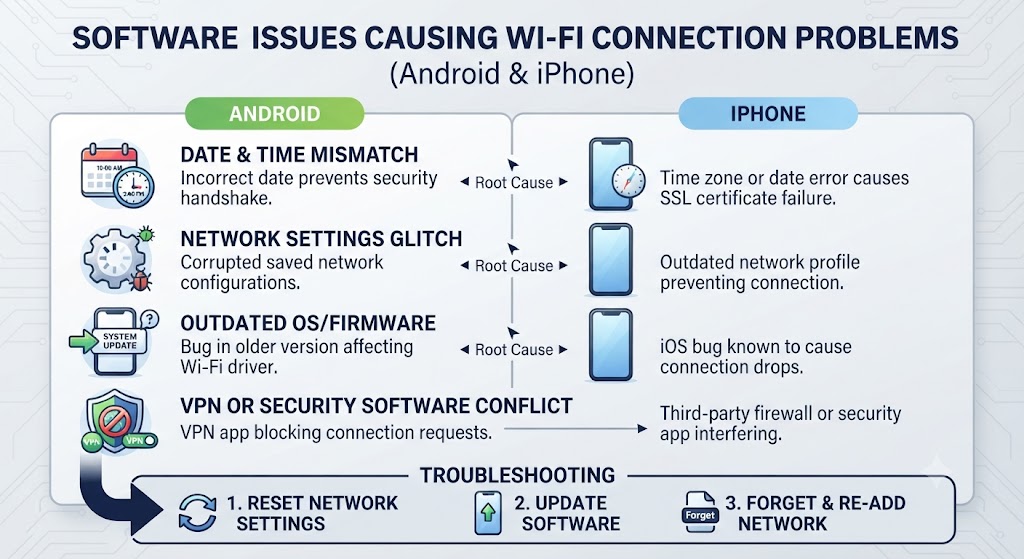
Software issues are among the most common reasons smartphones fail to connect to Wi-Fi. Fortunately, they’re also some of the easiest problems to fix.
1. Incorrect Wi-Fi Password
One of the simplest causes is entering the wrong network password. This often happens after:
- Changing the router password
- Connecting to a new router
- Using saved credentials from an old network
- Typing the password incorrectly
Forgetting the network and reconnecting usually resolves this problem.
2. Temporary Software Glitches
Like any computer, smartphones occasionally experience temporary system errors Background services responsible for managing wireless connections may freeze or stop responding, preventing the phone from connecting to available networks.
In many cases, simply restarting the device restores normal operation.
If your phone is also randomly restarting or freezing, our guide “My Phone Keeps Restarting – How to Fix It?” explains how broader software issues can affect overall device stability.
3. Outdated Operating System
Both Android and iOS manufacturers regularly release updates that improve Wi-Fi stability, security, and compatibility. If your device hasn’t been updated for some time, outdated firmware may be preventing reliable wireless connections.
Installing the latest software update often fixes known connectivity bugs.
4. Corrupted Network Settings
Your phone stores information about every Wi-Fi network you’ve connected to. Over time, these saved configurations can become corrupted, especially after software updates or system changes.
This may cause:
- Authentication errors
- Endless connecting loops
- Saved network problems
- Failed automatic reconnection
Resetting network settings frequently resolves these issues.
5. VPN or Security App Conflicts
Some VPN applications, firewall apps, or security software interfere with your phone’s ability to communicate with wireless networks.
If the problem began shortly after installing one of these apps, temporarily disabling or uninstalling it can help identify the cause.
6. Airplane Mode Is Enabled
Although it may seem obvious, Airplane Mode is one of the most overlooked reasons a phone won’t connect to Wi-Fi.
Some smartphones automatically disable all wireless connections when Airplane Mode is enabled. While modern devices often allow Wi-Fi to be turned back on manually, temporary software glitches can sometimes prevent this from happening correctly.
If your Wi-Fi suddenly stopped working after travelling or using Flight Mode, check your Quick Settings or Control Centre and ensure Airplane Mode is completely disabled.
7. Router Compatibility Issues
Sometimes the problem isn’t your phone at all. Older smartphones may struggle to connect to newer dual-band or Wi-Fi 6 routers, while some routers may temporarily reject new connections because of firmware bugs or overloaded settings.
Common signs include:
- Other devices connect normally, but your phone doesn’t.
- Your phone only connects to certain Wi-Fi networks.
- The connection fails after entering the correct password.
- Wi-Fi works at another location but not at home.
Restarting the router or updating its firmware often resolves compatibility issues.
8. Too Many Devices Connected
Every router has a practical limit on how many devices it can handle simultaneously. If dozens of phones, tablets, laptops, smart TVs, cameras, and gaming consoles are connected at once, your phone may struggle to obtain an IP address or may disconnect repeatedly.
Disconnecting unused devices or restarting the router usually restores normal performance.
9. Faulty Third-Party Apps
Some recently installed apps can interfere with network settings without you realising it. Examples include:
- VPN applications
- Network management tools
- Firewall apps
- Battery optimisation software
- Security applications
If the problem started immediately after installing a particular app, restarting the phone in Safe Mode can help determine whether a third-party application is responsible.
Hardware-Related Causes
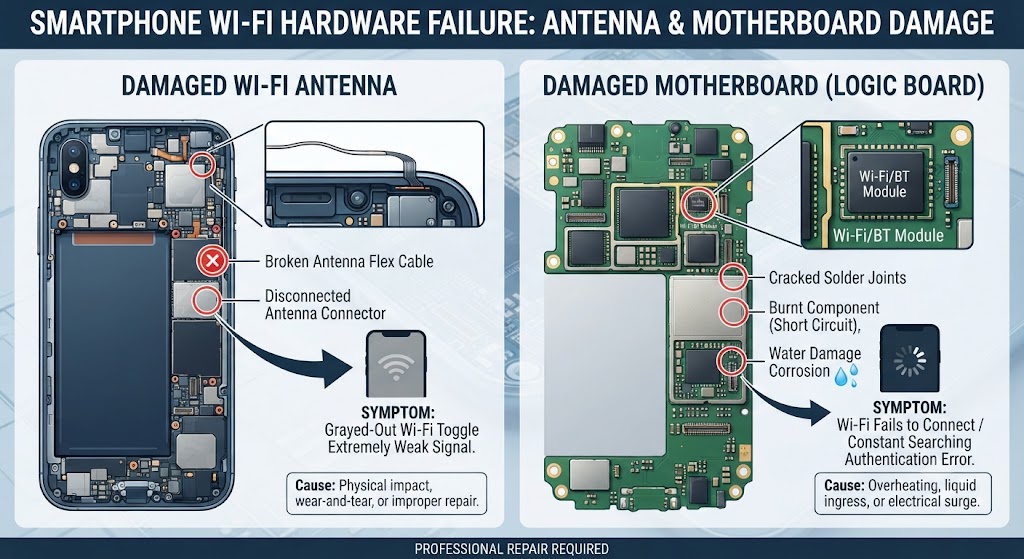
If software troubleshooting doesn’t solve the problem, there may be a physical fault inside the phone. Hardware issues are less common than software problems, but they often require professional diagnosis and repair.
1. Damaged Wi-Fi Antenna
Inside every smartphone is a small Wi-Fi antenna responsible for sending and receiving wireless signals. If your phone has been dropped, bent, or suffered impact damage, the antenna or its connector may become loose or damaged.
Typical symptoms include:
- Very weak Wi-Fi signal
- Constant disconnections
- Only connecting when standing very close to the router
- Unable to detect nearby Wi-Fi networks
Replacing or reconnecting the antenna usually restores reliable wireless performance.
2. Water or Liquid Damage
Even a small amount of moisture inside your phone can affect sensitive wireless components.
Liquid damage may corrode connectors, damage antenna circuits, or short electronic components responsible for Wi-Fi communication.
Signs of water damage include:
- Wi-Fi and Bluetooth failing together
- Random restarts
- Charging issues
- Weak wireless signal
- Phone overheating
If your phone has recently been exposed to water, avoid charging it and have it professionally inspected as soon as possible. For more advice, see our Water Damaged Phone Repair Guide to understand the risks of delayed treatment.
3. Motherboard Problems
The Wi-Fi chip communicates directly with your phone’s motherboard. If the motherboard develops faults due to physical damage, overheating, electrical failure, or manufacturing defects, Wi-Fi may stop functioning altogether.
Common symptoms include:
- Wi-Fi switch permanently greyed out
- Bluetooth also stops working
- No wireless networks detected
- Frequent freezing or unexpected restarts
Motherboard repairs require specialist diagnostic equipment and should only be carried out by experienced technicians.
4. Faulty Wireless IC (Wi-Fi Chip)
The wireless integrated circuit (IC) controls Wi-Fi communication. If this chip fails, your phone may:
- Never connect to Wi-Fi
- Lose connection randomly
- Detect networks but fail authentication
- Continuously search for networks without connecting
Chip-level repairs are complex and require microsoldering equipment, making professional repair the safest option.
5. Internal Connector Damage
Modern smartphones contain several delicate flex cables and connectors linking wireless components together.
After a heavy impact or previous poor-quality repair, these connectors may loosen or become damaged. Unlike software issues, connector faults usually worsen over time and rarely resolve on their own.
Software vs Hardware Wi-Fi Problems
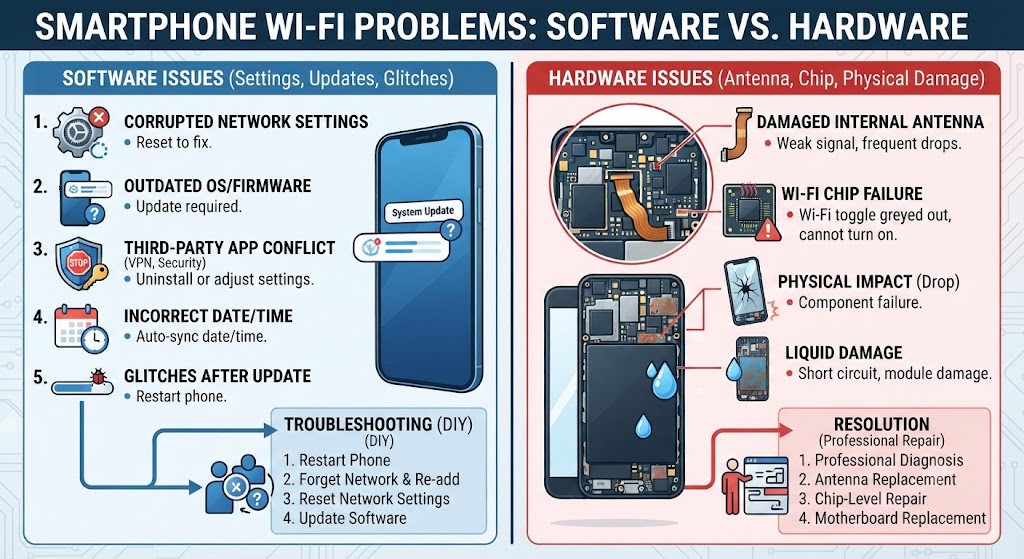
| Software Issue | Hardware Issue |
|---|---|
| Started after a software update | Started after a phone drop |
| Restart temporarily fixes it | Restart makes no difference |
| Wi-Fi works on some networks | Wi-Fi fails on every network |
| Network reset improves performance | Signal remains weak or unavailable |
| Usually inexpensive to fix | May require component replacement |
| Can often be repaired at home | Usually requires professional repair |
As a general rule, if your phone connects normally after restarting or resetting network settings, the issue is likely software-related. However, if Wi-Fi remains unavailable regardless of the network you try, internal hardware damage becomes much more likely.
Is It Safe to Keep Using Mobile Data Instead?
If your phone won’t connect to Wi-Fi, relying on mobile data may seem like an easy solution. While this is usually safe in the short term, it doesn’t address the underlying problem.
Continuing to use mobile data instead of fixing the issue can lead to:
- Higher monthly data charges
- Faster battery drain
- Missed software updates
- Slower downloads in areas with weak mobile coverage
- Difficulty backing up photos and videos to cloud storage
If the problem is caused by failing hardware, delaying repairs could allow the damage to worsen over time.
Can You Fix a Phone That Won’t Connect to Wi-Fi Yourself?
In many cases, yes. If the problem is caused by a software glitch, incorrect Wi-Fi settings, an outdated operating system, or a temporary router issue, you can often restore your Wi-Fi connection without professional help.
Simple solutions such as restarting your phone, rebooting your router, forgetting and reconnecting to the Wi-Fi network, resetting network settings, or installing the latest software update resolve many common connectivity problems.
However, if your phone still won’t connect to Wi-Fi after trying these troubleshooting steps – or the issue started after a drop, water exposure, or physical impact – the problem is more likely to be hardware-related. In these situations, attempting to repair the device yourself could cause further damage, especially if the Wi-Fi antenna, wireless IC, or motherboard is affected.
If you’re unsure whether the issue is software or hardware related, a professional diagnostic inspection is the safest way to identify the exact cause before replacing any parts.
How to Fix a Phone That Won’t Connect to Wi-Fi
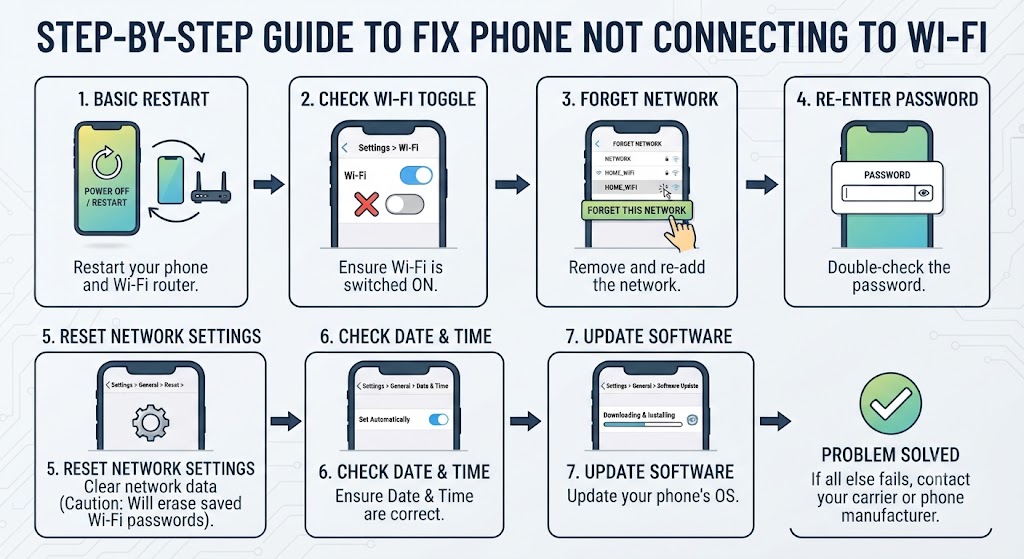
Before assuming your phone needs professional repair, work through these troubleshooting steps in order. Many Wi-Fi issues can be resolved without replacing any hardware.
1. Restart Your Phone
A simple restart clears temporary software glitches that may be preventing your phone from establishing a stable Wi-Fi connection.
Turn your phone off completely, wait around 30 seconds, then switch it back on before trying to reconnect.
2. Restart Your Wi-Fi Router
Sometimes the router – not your phone – is responsible for the connection problem.
Unplug the router from the power source, wait 30-60 seconds, then reconnect it. Once all indicator lights return to normal, try connecting your phone again.
3. Forget the Wi-Fi Network and Reconnect
Saved network settings can occasionally become corrupted. Go to your Wi-Fi settings, select the affected network, tap Forget Network, then reconnect by entering the password again.
This often resolves authentication errors and endless connecting loops.
4. Check the Wi-Fi Password Carefully
An incorrect password remains one of the most common reasons phones fail to connect. Double-check for:
- Uppercase and lowercase letters
- Numbers
- Special characters
- Recently changed router passwords
If possible, compare the password with another device that is already connected successfully.
5. Turn Airplane Mode Off and On
Occasionally, your phone’s wireless services can become temporarily unresponsive.
Turning Airplane Mode on for around 30 seconds before switching it off again forces your phone to restart its wireless connections, including Wi-Fi, Bluetooth, and mobile data. This simple step often resolves minor connectivity glitches without requiring further troubleshooting.
6. Check for Software Updates
Both Android and iPhone manufacturers regularly release updates that improve network stability and fix known Wi-Fi bugs. To check for updates:
Android
Settings → Software Update → Download and Install
iPhone
Settings → General → Software Update
If an update is available, install it and restart your phone before testing the Wi-Fi connection again.
If your phone is also experiencing freezing, random restarts, or other unusual behaviour after an update, you may also find our guide on “Why Does My Phone Keep Restarting?” guide helpful.
7. Reset Network Settings
If your Wi-Fi settings have become corrupted, resetting your network configuration can often solve persistent connection problems.
This will remove:
- Saved Wi-Fi networks
- Bluetooth pairings
- VPN settings
- Mobile network preferences
It will not delete your personal files, photos, or apps. After the reset, reconnect to your Wi-Fi network using your password.
8. Disable VPN or Security Apps
VPN services and security applications occasionally interfere with wireless connections. If you recently installed:
- VPN software
- Firewall apps
- Network monitoring tools
- Battery optimisation applications
temporarily disable them and test your Wi-Fi again. If the connection works normally afterwards, one of these apps is likely causing the issue.
9. Try Another Wi-Fi Network
One of the easiest ways to determine whether the problem lies with your phone or your router is to connect to a different Wi-Fi network.
For example:
- A friend’s house
- Your workplace
- A public hotspot
- Another router in your home
If your phone connects normally elsewhere, the issue is likely related to your original router rather than your smartphone.
10. Remove Your Phone Case
Although uncommon, some poorly designed or heavily reinforced phone cases can interfere with wireless signals. This is especially true for:
- Thick metal cases
- Magnetic cases
- Rugged protective covers
- Cases with built-in accessories
Remove the case and test the Wi-Fi signal again to rule out interference.
11. Boot into Safe Mode (Android)
If your Android phone recently stopped connecting to Wi-Fi after installing new apps, Safe Mode can help identify whether a third-party application is responsible. Safe Mode temporarily disables downloaded apps while leaving the operating system untouched.
If Wi-Fi works normally in Safe Mode, one of your installed apps is likely causing the problem. Restart your phone normally and uninstall any recently installed applications one at a time until the issue disappears.
12. Factory Reset (Last Resort)
If you’ve tried every other troubleshooting method without success, performing a factory reset may resolve deep software corruption.
Before resetting your phone:
- Back up all important photos and files.
- Save passwords where necessary.
- Remove your Google or Apple account if required.
- Ensure your battery has sufficient charge.
A factory reset restores your phone to its original software state. If Wi-Fi still doesn’t work afterwards, the problem is almost certainly hardware-related.
Device-Specific Wi-Fi Fixes
Although most Wi-Fi problems have similar causes, different smartphone manufacturers include unique software features that can affect wireless connectivity.
Below are a few brand-specific troubleshooting tips.
1.iPhone Wi-Fi Problems
If your iPhone won’t connect to Wi-Fi, try the following:
- Restart your iPhone.
- Forget the Wi-Fi network and reconnect.
- Disable Private Wi-Fi Address temporarily for testing.
- Turn Wi-Fi Assist off if mobile data keeps taking priority.
- Update to the latest version of iOS.
- Reset Network Settings.
If Wi-Fi remains greyed out even after resetting the device, internal hardware repair may be required.
2. Samsung Galaxy Wi-Fi Problems
Samsung phones include additional power-saving and intelligent Wi-Fi features that occasionally interfere with connectivity.
Check the following:
- Disable Adaptive Wi-Fi temporarily.
- Turn off Power Saving Mode for testing.
- Update One UI and Android.
- Clear the system cache after major updates.
- Reset Network Settings.
Samsung devices that have suffered physical damage may require antenna replacement or motherboard repair.
3. Google Pixel Wi-Fi Problems
Google Pixel devices generally receive software updates first, but occasional firmware bugs can affect network stability.
Try:
- Installing the latest Pixel update.
- Restarting in Safe Mode.
- Resetting Network Settings.
- Testing another router.
If the issue began immediately after a software update, Google may release a patch in a future update.
4. Huawei Wi-Fi Problems
Huawei smartphones often include aggressive battery management that can interrupt background wireless services. Check:
- Wi-Fi optimisation settings.
- Battery optimisation restrictions.
- EMUI software updates.
- Network reset.
If problems continue across multiple Wi-Fi networks, professional diagnosis is recommended.
5. OnePlus Wi-Fi Problems
OnePlus smartphones generally offer reliable Wi-Fi performance, but software updates, OxygenOS bugs, or network configuration issues can occasionally cause connection problems.
Try the following:
- Restart your OnePlus device.
- Forget the Wi-Fi network and reconnect.
- Disable Smart Wi-Fi or Intelligent Network Switching if enabled.
- Install the latest OxygenOS update.
- Reset Network Settings if the issue continues.
If your OnePlus phone still won’t connect to Wi-Fi after these steps, especially following a drop or liquid exposure, the problem may be related to the internal Wi-Fi antenna or motherboard and should be professionally diagnosed.
6. Xiaomi Wi-Fi Problems
Xiaomi smartphones running MIUI or HyperOS sometimes experience Wi-Fi issues due to aggressive battery management, software bugs, or network optimisation features.
Try these troubleshooting steps:
- Restart your Xiaomi phone and router.
- Forget and reconnect to the Wi-Fi network.
- Disable Battery Saver temporarily.
- Update MIUI or HyperOS to the latest version.
- Reset your phone’s network settings.
If Wi-Fi continues disconnecting across multiple networks, the issue may involve damaged wireless hardware that requires professional repair.
7. Oppo Wi-Fi Problems
Oppo phones include several intelligent connectivity features that may occasionally interfere with wireless performance. If your Oppo phone won’t connect to Wi-Fi:
- Restart the device.
- Forget the saved Wi-Fi network and reconnect.
- Disable Wi-Fi Assistant or Smart Network Switching temporarily.
- Install the latest ColorOS software update.
- Perform a Network Settings Reset.
If the problem began after physical damage or water exposure, a faulty Wi-Fi antenna or wireless IC may be responsible.
8. Motorola Wi-Fi Problems
Motorola smartphones usually provide stable Wi-Fi connectivity, but software glitches, outdated firmware, or hardware faults can sometimes prevent successful connections.
Try these solutions:
- Restart your Motorola phone.
- Restart your Wi-Fi router.
- Install the latest Android security update.
- Reset your network settings.
- Test the phone on another Wi-Fi network.
If your Motorola device cannot detect any Wi-Fi networks or the Wi-Fi switch remains greyed out, professional diagnosis is recommended to check for antenna or motherboard damage.
When Does a Phone That Won’t Connect to Wi-Fi Need Professional Repair?
While many Wi-Fi problems can be fixed by restarting your phone, resetting network settings, or updating the software, some issues require professional attention.
If you’ve already tried the troubleshooting steps in this guide and your phone still refuses to connect to Wi-Fi, there may be an underlying hardware fault that can’t be fixed at home. You should consider professional repair if:
- Wi-Fi remains permanently greyed out.
- Your phone cannot detect any Wi-Fi networks.
- Wi-Fi stopped working immediately after a drop.
- The problem started after water or liquid damage.
- Both Wi-Fi and Bluetooth stopped working together.
- Your phone repeatedly disconnects from every network.
- A factory reset didn’t solve the problem.
- The phone overheats whenever Wi-Fi is enabled.
Ignoring these symptoms may allow the damage to worsen, potentially affecting other internal components over time.
How iExpert Repairs Diagnoses Wi-Fi Problems
At iExpert Repairs, we don’t simply replace parts and hope for the best. Every device undergoes a structured diagnostic process to identify the exact cause of the fault before recommending any repair.
Our Wi-Fi diagnostics typically include:
- Full software health check
- Network settings inspection
- Wi-Fi antenna testing
- Internal connector inspection
- Wireless IC testing
- Motherboard diagnostics
- Liquid damage inspection
- Signal strength analysis
This systematic approach helps us identify whether the issue is software-related or caused by damaged hardware, ensuring customers only pay for the repairs they actually need.
Common Wi-Fi Repairs We Carry Out
Depending on the diagnosis, our technicians regularly perform repairs such as:
- Wi-Fi antenna replacement
- Internal antenna connector repair
- Wireless IC replacement
- Motherboard microsoldering
- Liquid damage cleaning and repair
- Software recovery
- Operating system reinstallation
- Network configuration repair
Every repair is carried out using professional tools and high-quality replacement components to restore reliable wireless connectivity.
How Much Does It Cost to Fix a Phone That Won’t Connect to Wi-Fi in the UK?
The cost of repairing Wi-Fi problems depends entirely on what’s causing the issue.
For example, a simple software fault may only require resetting network settings or reinstalling the operating system. On the other hand, replacing a damaged Wi-Fi antenna or repairing a motherboard requires specialist equipment and additional labour. Several factors affect the final repair cost, including:
- Your phone’s make and model
- Whether the issue is software or hardware related
- Availability of replacement parts
- The extent of any internal damage
- Previous repair attempts
- Whether liquid damage is involved
At iExpert Repairs, we always perform a diagnosis before recommending repairs, ensuring you receive an accurate quote with no unnecessary work.
Phone Not Connecting to Wi-Fi: FAQs
1. Why is my phone not connecting to Wi-Fi even with the correct password?
Even if you’re entering the correct password, your phone may fail to connect because of corrupted network settings, outdated software, router configuration issues, or a hardware problem such as a damaged Wi-Fi antenna. Forgetting the network and reconnecting often resolves the issue.
2. Why does my phone keep disconnecting from Wi-Fi?
Frequent Wi-Fi disconnections are usually caused by weak signal strength, router problems, software bugs, battery optimisation settings, or internal hardware faults. Restarting both your phone and router is a good first step.
3. Why is my phone connected to Wi-Fi but has no internet access?
This usually means your phone is connected to the router, but the router itself doesn’t have an active internet connection. Restarting the router or contacting your broadband provider may solve the problem.
4. Why won’t my Android phone connect to Wi-Fi?
Android phones may fail to connect because of software glitches, incorrect Wi-Fi settings, outdated firmware, VPN conflicts, or damaged wireless hardware. Updating Android and resetting network settings often helps.
5. Why won’t my iPhone connect to Wi-Fi?
An iPhone may refuse to connect due to outdated iOS software, incorrect network settings, router compatibility issues, or internal hardware damage. Restarting the device and resetting network settings usually resolves software-related problems.
6. Can a software update cause Wi-Fi problems?
Yes. Occasionally, a software update may introduce temporary bugs that affect wireless connectivity. Manufacturers usually release follow-up updates to fix these issues.
7. How do I reset Wi-Fi settings on my phone?
Most smartphones allow you to reset network settings through the Settings menu. This removes saved Wi-Fi networks, Bluetooth connections, and VPN settings without deleting your personal data.
8. Why does my phone say “Authentication Error” when connecting to Wi-Fi?
An authentication error usually occurs because of an incorrect password, corrupted saved network settings, router security issues, or incompatible encryption settings.
9. Can a damaged Wi-Fi antenna stop my phone connecting to Wi-Fi?
Yes. If the internal Wi-Fi antenna is damaged after a drop or impact, your phone may detect weak signals, disconnect frequently, or fail to connect altogether.
10. Why is my Wi-Fi switch greyed out?
A greyed-out Wi-Fi button often indicates a hardware fault affecting the wireless chip or motherboard. In some cases, severe software corruption may also cause this issue.
11. Can water damage affect my phone’s Wi-Fi?
Yes. Liquid damage can corrode internal components, including the Wi-Fi antenna, wireless IC, and motherboard, leading to poor or completely lost Wi-Fi connectivity.
12. Why won’t my phone find any Wi-Fi networks?
If your phone cannot detect any nearby Wi-Fi networks, the issue may be caused by disabled Wi-Fi, software failure, antenna damage, or a faulty wireless chip.
13. Should I factory reset my phone if Wi-Fi isn’t working?
A factory reset should only be considered after trying simpler troubleshooting methods, such as restarting your phone, resetting network settings, and updating the operating system.
14. Can Bluetooth problems be related to Wi-Fi issues?
Yes. Many smartphones share wireless components for Wi-Fi and Bluetooth, so a hardware fault can sometimes affect both features at the same time.
15. Why does my phone only connect to certain Wi-Fi networks?
This may happen because of router compatibility issues, outdated software, security settings, or problems with the specific wireless network you’re trying to join.
Final Thoughts
A phone that won’t connect to Wi-Fi can be incredibly frustrating, especially when you rely on a stable internet connection for work, studying, streaming, or staying in touch with family and friends. Fortunately, many Wi-Fi issues are caused by simple software glitches, incorrect network settings, or router problems that can often be fixed without replacing any hardware.
However, if your phone still refuses to connect after restarting the device, resetting network settings, updating the software, and testing multiple Wi-Fi networks, the problem may be caused by internal hardware such as a damaged Wi-Fi antenna, faulty wireless IC, or motherboard fault.
Identifying the real cause early can save both time and money while preventing further damage to your device.
At iExpert Repairs, our experienced technicians diagnose Wi-Fi problems using professional diagnostic equipment to determine whether the issue is software-related or requires hardware repair. From simple software fixes to advanced motherboard repairs, we’re committed to restoring your phone’s wireless connectivity quickly and reliably.
Back to posts

