
Quick Answer
If your iPad screen is not responding to touch, don’t panic. In many cases, the issue is caused by a temporary software glitch, an outdated version of iPadOS, a faulty screen protector, insufficient storage, or a low battery. A simple force restart, software update, or cleaning the display may restore normal touch functionality.
However, if your iPad has been dropped, exposed to water, or has a cracked display, the problem may be caused by a damaged touchscreen digitizer or internal hardware. In these cases, professional diagnosis and repair are usually required.
This guide explains every possible cause, provides step-by-step fixes you can safely try at home, and helps you identify when it’s time to seek expert repair.
Introduction
An iPad with a touch screen that suddenly stops responding can bring your entire day to a halt. Whether you use your device for work, online learning, creative projects, video calls, streaming, or everyday browsing, an unresponsive screen makes even the simplest tasks impossible.
Sometimes the problem affects the entire display, while in other cases only certain areas stop responding. You may notice delayed touch input, random taps (often called ghost touch), frozen apps, or a screen that looks perfectly normal but refuses to react when you tap it.
The good news is that not every unresponsive iPad requires a new screen. Many touchscreen problems are caused by software issues that can be resolved without replacing any hardware. On the other hand, physical damage, liquid exposure, or a failed touchscreen digitizer can prevent the display from recognising touch input and usually require professional repair.
In this complete UK troubleshooting guide, our certified technicians explain exactly why an iPad screen stops responding, how to fix the most common causes, and when repairing the device is the safest and most cost-effective option.
Whether you own an iPad, iPad Mini, iPad Air, or iPad Pro, the troubleshooting steps in this guide apply to most Apple tablet models running recent versions of iPadOS.
We’ll also explain the warning signs that indicate your problem is hardware-related rather than software-related, helping you avoid unnecessary repairs and save both time and money.
Common Signs Your iPad Touch Screen Has Stopped Working
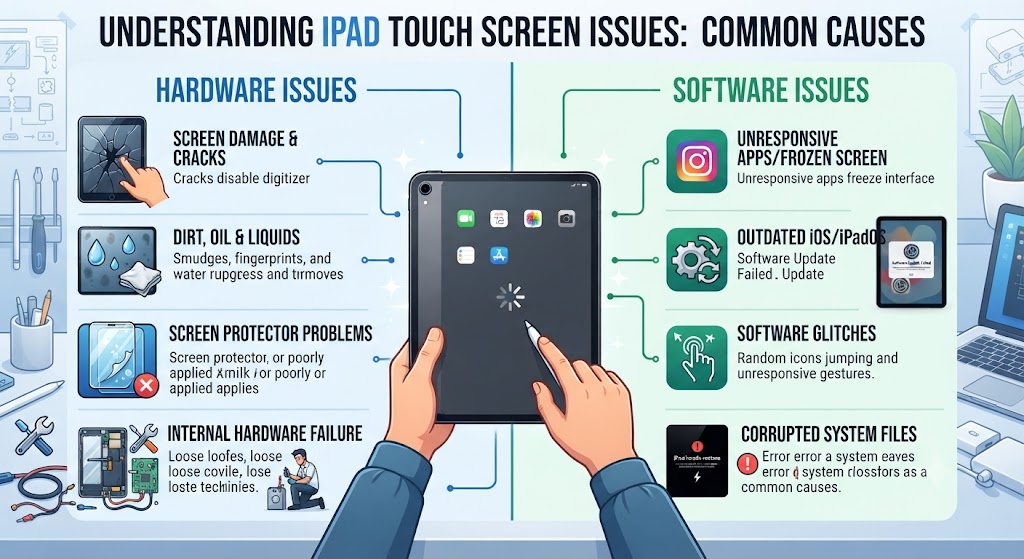
Not every unresponsive iPad behaves the same way. In some cases, the entire touchscreen stops working, while in others only certain areas become unresponsive. Recognising the symptoms can help you determine whether the issue is caused by software, accidental damage, or failing hardware.
Here are the most common signs that indicate your iPad touch screen isn’t working correctly.
1. The Entire Screen Doesn’t Respond to Touch
Your iPad powers on normally, the display looks fine, but tapping, swiping, or typing has no effect. This is often caused by software crashes, severe system glitches, or a failed touchscreen digitizer.
2. Only Part of the Screen Works
Certain areas of the display respond normally while other sections remain completely unresponsive.
This usually indicates physical damage to the touchscreen digitizer, pressure damage, or internal connector issues rather than a software problem.
3. Ghost Touch
Ghost touch occurs when your iPad performs actions without you touching the screen. Apps may open by themselves, random letters may be typed, or icons may move unexpectedly.
This symptom is commonly linked to:
- Screen damage
- Liquid damage
- Faulty replacement screens
- Digitizer failure
- Internal motherboard faults
4. Touch Response Is Slow or Delayed
If every tap takes several seconds to register, the issue may be caused by:
- Low available storage
- Too many background apps
- Outdated iPadOS
- Software bugs
- Battery performance issues
5. Your iPad Freezes Frequently
The screen may become completely frozen while the device remains powered on. Sometimes the Apple logo appears repeatedly, or apps stop responding altogether.
This usually points to software instability, although hardware faults can produce similar symptoms.
6. Touch Stops Working After a Drop
Even if the glass isn’t badly cracked, a drop can damage the touchscreen digitizer underneath the display. Many users assume the screen is fine because images still appear normally, but the touch layer may already be damaged.
7. Touch Stops Working After Water Exposure
Liquid damage doesn’t always cause immediate failure. Moisture can slowly corrode internal components over several hours or days before the touchscreen eventually stops responding.
If your iPad came into contact with water, avoid charging or using it until it has been professionally inspected.
8. Apple Pencil Works but Finger Touch Doesn’t
This is a classic sign that the touchscreen digitizer has failed while the display itself remains functional. Professional diagnostics are usually required to confirm the fault.
What Causes an iPad Screen to Stop Responding?
An unresponsive iPad screen can result from either software issues or hardware damage. Understanding the difference helps you avoid unnecessary repairs and choose the right solution.
Below are the most common causes our technicians encounter during iPad repairs.
1. Temporary Software Glitches
One of the most common causes is a temporary software crash.
Apps occasionally freeze, background processes fail, or iPadOS experiences a minor bug that prevents the touchscreen from responding correctly. Fortunately, these issues are usually temporary and can often be fixed with a force restart or software update.
Common symptoms include:
- Frozen apps
- Delayed touch response
- Entire screen temporarily unresponsive
- Device becomes responsive again after restarting
2. Outdated iPadOS
Running an outdated version of iPadOS can introduce compatibility problems, system instability, and touchscreen bugs. Apple regularly releases updates that fix known software issues, improve stability, and enhance touch responsiveness.
If your touchscreen problem started shortly before or after a software update, installing the latest version may resolve the issue.
Expert Tip: Always back up your iPad before installing major iPadOS updates.
3. Insufficient Storage Space
Many users overlook storage, but an almost full iPad can become sluggish and unresponsive.
When available storage is critically low, iPadOS struggles to manage temporary system files, affecting overall performance – including touch responsiveness.
Signs include:
- Apps crashing
- Keyboard lag
- Delayed gestures
- Slow animations
- Random freezing
Keeping at least 10-15% of your storage free helps maintain smooth performance.
4. Dirty, Wet or Damaged Screen
Touchscreens rely on detecting electrical changes from your fingers. Oil, dust, moisture, sweat, or certain cleaning chemicals can interfere with this process.
Similarly, a cracked or heavily scratched display may prevent accurate touch detection. Before assuming your iPad needs repair, gently clean the display using a dry microfibre cloth and remove any moisture.
5. Faulty Screen Protector
A poor-quality or incorrectly fitted tempered glass protector can reduce touchscreen sensitivity. Air bubbles, excessive thickness, or misalignment may cause:
- Missed taps
- Reduced sensitivity
- Inaccurate gestures
- Delayed typing
If the problem began shortly after fitting a new screen protector, remove it and test the display again before considering repairs.
6. Battery or Charging Problems
A failing battery doesn’t just reduce battery life – it can also affect your iPad’s overall performance and touchscreen responsiveness.
Low voltage, battery degradation, or charging faults may cause:
- Random freezing
- Lagging touch response
- Unexpected shutdowns
- Performance throttling
If your iPad also struggles to charge, charges very slowly, or switches off unexpectedly, the battery or charging system may be contributing to the issue Find out more Why Is My iPad Not Charging? guide.
7. Physical Impact or Accidental Drops
One of the most common reasons an iPad screen stops responding is accidental physical damage. Even if the glass appears intact, the impact from a drop can damage the touchscreen digitizer, loosen internal display connectors, or affect components on the logic board.
Many people assume that because the display still lights up, the screen isn’t damaged. In reality, the LCD and touchscreen digitizer are separate components. Your iPad may continue displaying images perfectly while the touch layer underneath has stopped working.
Signs of impact damage include:
- Touch works only in certain areas.
- The display has dead touch zones.
- Ghost touch occurs after a drop.
- Cracks appear around the screen edges.
- The display flickers or shows coloured lines.
- Touch stops working immediately after the device falls.
If your iPad has visible cracks or touch problems following an impact, professional diagnostics are recommended to prevent the damage from worsening, the guide How Much Does It Cost to Fix an iPad Screen? can help you.
8. Liquid or Water Damage
Although many newer iPads offer better protection against accidental splashes, no iPad is completely waterproof. Water, coffee, soft drinks, rain, or even excessive humidity can seep inside the device and damage sensitive internal components.
One of the biggest risks is corrosion. Liquid damage may not cause immediate failure. Instead, corrosion slowly develops over hours or even days, leading to intermittent touchscreen problems before the screen stops responding altogether.
Common signs of liquid damage include:
- Random or ghost touches.
- Parts of the touchscreen stop working.
- The display flickers unexpectedly.
- Charging issues begin after exposure to liquid.
- The iPad powers on but doesn’t respond to touch.
What should you do?
- Turn the iPad off immediately.
- Do not charge the device.
- Avoid using a hairdryer or placing it on a radiator.
- Do not rely on rice to remove moisture-it won’t stop internal corrosion.
- Arrange a professional inspection as soon as possible.
The sooner liquid damage is treated, the greater the chance of preventing permanent hardware failure
9. Touchscreen Digitizer Failure
The touchscreen digitizer is the layer responsible for detecting every tap, swipe, pinch, and gesture you make. It sits above the display and converts your touch into commands that the iPad can understand.
If the digitizer fails, your screen may still display images perfectly, but it won’t respond correctly – or at all – to touch.
Digitizer failure is commonly caused by:
- Repeated drops.
- Pressure damage.
- Manufacturing defects.
- Liquid exposure.
- Poor-quality previous repairs.
Common symptoms include:
- No touch response anywhere on the screen.
- Certain sections become completely unresponsive.
- Multi-touch gestures stop working.
- Ghost touch occurs randomly.
- Apple Pencil works, but finger touch does not.
Unfortunately, a failed digitizer cannot be repaired through software updates or settings changes. In most cases, replacing the damaged screen assembly is the only permanent solution.
10. Logic Board or Touch Controller Damage
Although less common, the problem may lie deeper inside the iPad.
The logic board contains the touch controller and other integrated circuits that process touchscreen input. If these components become damaged due to a severe impact, liquid ingress, electrical faults, or failed repair attempts, your iPad may stop recognising touch commands altogether.
Possible symptoms include:
- Touch stops working after a major drop.
- The display functions normally, but there is no touch input.
- The device randomly freezes despite multiple resets.
- Touch works briefly before becoming unresponsive again.
Logic board repairs require specialist equipment and should only be carried out by experienced technicians.
Software Problem vs Hardware Problem
One of the most important questions is whether your iPad is suffering from a software issue or a hardware fault. The table below highlights the key differences.
| Software Issue | Hardware Issue |
|---|---|
| Started after an iPadOS update | Started after a drop or impact |
| Screen responds after restarting | Touch never returns after restart |
| No visible physical damage | Cracked or damaged display |
| Apps freeze occasionally | Dead touch zones on the screen |
| Improves after updating iPadOS | Ghost touch continues regardless of updates |
| Usually repairable at home | Usually requires professional repair |
If your iPad only experiences occasional freezes or lag, software troubleshooting is the best place to start. However, if the touchscreen stopped working after accidental damage or liquid exposure, hardware repair is often the safest and most reliable solution.
Expert Tip
Don’t keep force restarting your iPad if the screen stopped responding after a drop or water damage.
Repeated restarts won’t repair damaged hardware and may make data recovery more difficult if the underlying problem worsens. Instead, back up your data if possible and arrange a professional diagnosis as soon as possible.
Before You Pay for a Repair…
The good news is that many touchscreen issues are still caused by simple software glitches, low storage, or outdated system software.
Before replacing your screen, work through the troubleshooting steps below. In many cases, you can restore full touchscreen functionality without spending a penny.
In the next section, we’ll walk you through 12 proven fixes you can safely try at home before booking a repair. These methods are suitable for most iPad, iPad Air, iPad Mini, and iPad Pro models and are arranged from the simplest solutions to more advanced troubleshooting steps.
12 Proven Ways to Fix an Unresponsive iPad Touch Screen
Before assuming your iPad needs a screen replacement, work through the following troubleshooting steps in order. Many touchscreen problems are caused by temporary software glitches, incorrect settings, or minor issues that can be resolved without replacing any hardware.
If your iPad has been dropped, exposed to liquid, or has a visibly cracked display, skip to the When Is It a Hardware Problem? section later in this guide, as hardware damage is less likely to be fixed by software troubleshooting.
1. Force Restart Your iPad

A force restart is one of the quickest and most effective ways to resolve temporary software glitches that prevent the touchscreen from responding.
Unlike a normal restart, a force restart refreshes the operating system without erasing your apps, photos, or personal data.
For iPads without a Home Button
- Press and quickly release the Volume Up button.
- Press and quickly release the Volume Down button.
- Press and hold the Top (Power) button.
- Keep holding until the Apple logo appears.
- Release the button and allow the iPad to restart.
For iPads with a Home Button
- Press and hold the Home button and the Power button together.
- Keep holding both buttons until the Apple logo appears.
- Release the buttons and allow the device to restart.
If the touchscreen starts working normally after restarting, the issue was most likely caused by a temporary software crash.
2. Clean the Screen Properly
Modern iPad touchscreens rely on tiny electrical changes created by your fingertips. Dirt, grease, moisture, sunscreen, or food residue can interfere with touch sensitivity.
To clean your iPad safely:
- Turn the device off.
- Use a clean, dry microfibre cloth.
- Wipe the display gently using circular motions.
- Avoid household cleaners, glass sprays, bleach, or abrasive cloths.
- If needed, slightly dampen the cloth with water – never spray liquid directly onto the screen.
Even a small amount of moisture can affect touchscreen performance, especially around the screen edges.
3. Remove Your Screen Protector or Case
A damaged or poor-quality tempered glass protector can reduce touchscreen sensitivity. Likewise, some heavy-duty protective cases press against the display and interfere with normal touch detection.
If your touchscreen became unreliable after installing a new accessory:
- Remove the screen protector.
- Take the iPad out of its case.
- Test the touchscreen again before purchasing replacement parts.
Many users discover that the accessory – not the iPad – is causing the issue.
4. Charge Your iPad
A critically low battery can cause your iPad to become sluggish, freeze, or stop responding to touch. If your battery is completely drained:
- Connect the iPad to an original Apple or certified charger.
- Leave it charging for at least 30-60 minutes.
- Avoid using the device while it charges.
- Once sufficient power has been restored, restart the iPad.
If your device refuses to charge, charges very slowly, or disconnects repeatedly, the issue may be related to the battery or charging port rather than the touchscreen itself.
5. Update to the Latest Version of iPadOS
Apple regularly releases software updates that improve stability, fix touchscreen bugs, and resolve known performance issues. To check for updates:
- Open Settings.
- Tap General.
- Select Software Update.
- Download and install any available update.
Before updating, make sure:
- Your battery is above 50%.
- You’re connected to Wi-Fi.
- Your data is backed up using iCloud or a computer.
If the issue began after an older software version, updating may restore normal touch functionality.
6. Free Up Storage Space
An iPad with almost no available storage may become slow, unresponsive, or freeze during everyday use. To check your storage:
- Go to Settings > General > iPad Storage.
- Remove apps you no longer use.
- Delete duplicate photos and videos.
- Clear downloaded files.
- Offload unused apps while keeping their data.
Apple recommends maintaining free storage to ensure smooth system performance. If your storage is almost full, freeing up space may noticeably improve touchscreen responsiveness.
Expert Tip
If your iPad becomes responsive after completing one of the fixes above, continue using it for a day or two before assuming the problem has been permanently solved.
If the touchscreen freezes repeatedly or the issue returns shortly afterwards, there may be an underlying hardware fault that requires professional diagnosis.
7. Disconnect External Accessories
External accessories can occasionally interfere with your iPad’s normal operation, especially if they’re faulty or not Apple-certified.
If you’re using:
- A USB-C hub
- External keyboard
- Mouse or trackpad
- Apple Pencil
- External display
- USB storage device
- Card reader
disconnect everything and test the touchscreen again.
A faulty accessory or incompatible adapter can sometimes cause unexpected software conflicts that affect touch responsiveness. After disconnecting all accessories, restart your iPad and check whether the issue has been resolved.
8. Close Frozen Apps
Sometimes the touchscreen appears unresponsive because a single app has crashed rather than the entire operating system. If only one application is frozen:
- Open the App Switcher.
- Swipe up on the frozen app to close it.
- Reopen the application.
- Check whether touch input returns to normal.
If multiple apps regularly freeze, the issue may be caused by insufficient storage, outdated software, or a deeper system problem.
9. Reset All Settings
If none of the previous fixes work, resetting your iPad’s settings may resolve configuration issues without deleting your personal data.
This option resets:
- Wi-Fi settings
- Bluetooth settings
- Keyboard dictionary
- Privacy settings
- Display preferences
- Accessibility settings
It does not remove your:
- Photos
- Videos
- Apps
- Documents
- Messages
To reset all settings:
- Open Settings.
- Tap General.
- Scroll to Transfer or Reset iPad.
- Tap Reset.
- Select Reset All Settings.
- Enter your passcode if prompted.
Your iPad will restart automatically.
10. Restore Your iPad Using Finder or iTunes
If the touchscreen still doesn’t respond, restoring the operating system can eliminate deep software corruption. Before restoring:
- Back up your important files.
- Make sure your computer has the latest version of Finder (Mac) or iTunes (Windows).
Once connected:
- Put the iPad into Recovery Mode.
- Connect it to your computer.
- Select Update first.
- If updating doesn’t work, choose Restore.
Restoring reinstalls iPadOS and removes corrupted system files that may be preventing the touchscreen from functioning properly. Important: A full restore erases all data unless you’ve created a backup beforehand.
11. Use Recovery Mode or DFU Mode
If your iPad remains frozen, Recovery Mode or Device Firmware Update (DFU) Mode may help restore the operating system. These methods are designed for severe software problems such as:
- Endless Apple logo loops
- Failed updates
- Repeated freezing
- Boot failures
- Serious system corruption
Because DFU Mode completely reinstalls the firmware, it should only be attempted if standard troubleshooting has failed. If you’re unsure how to perform these steps safely, it’s best to seek professional assistance.
12. Get Your iPad Professionally Diagnosed
If you’ve completed all the troubleshooting steps in this guide and your touchscreen is still unresponsive, the problem is likely hardware-related.
Professional diagnostics can identify faults such as:
- Failed touchscreen digitizer
- Cracked display assembly
- Loose internal display connectors
- Battery-related power issues
- Charging circuit faults
- Logic board damage
- Liquid corrosion
- Touch controller failure
At this stage, continuing to restart or reset your iPad is unlikely to solve the problem. A professional inspection ensures the correct component is repaired or replaced, helping you avoid unnecessary costs.
When Is It a Hardware Problem Instead of Software?
While software issues are common, certain symptoms almost always indicate physical hardware damage. Your iPad is more likely to need professional repair if:
- The touchscreen stopped working immediately after being dropped.
- The screen has visible cracks or impact damage.
- Only part of the display responds to touch.
- Ghost touch occurs continuously.
- Vertical lines or screen flickering appear.
- The display lifts away from the frame.
- The iPad has been exposed to water or another liquid.
- Force restarting and restoring iPadOS make no difference.
If you notice one or more of these symptoms, replacing the damaged component is usually more effective than continuing software troubleshooting.
Warning Signs You Shouldn’t Ignore
Book a professional repair as soon as possible if:
- Your battery appears swollen.
- The screen is lifting from the frame.
- Liquid entered the device.
- The iPad becomes unusually hot.
- You smell burning or notice smoke.
- The display is flickering alongside touch problems.
- The touchscreen becomes progressively worse each day.
Ignoring these warning signs can lead to additional internal damage and significantly increase repair costs.
Expert Advice
One of the biggest mistakes we see is users replacing the screen without confirming what’s actually causing the problem. For example:
- A failing battery can make an iPad freeze.
- A damaged charging circuit can cause random shutdowns.
- A logic board fault can mimic a faulty touchscreen.
- A loose display connector may stop touch input even though the screen itself is undamaged.
That’s why professional diagnostics should always come before replacing expensive components.
At iExpert Repairs, every iPad undergoes a full diagnostic assessment before any repair is recommended, ensuring you only pay for the repair your device genuinely needs.
How to Force Restart Every iPad Model
A force restart is often the first troubleshooting step recommended when an iPad becomes frozen or stops responding to touch. Unlike a factory reset, it does not erase your apps, photos, documents, or personal data. Instead, it simply forces the operating system to restart and can resolve temporary software glitches.
The steps vary depending on whether your iPad has a Home button or Face ID.
| iPad Model | How to Force Restart |
|---|---|
| iPad Pro (2018 and newer) | Press and quickly release Volume Up, then Volume Down, then press and hold the Top button until the Apple logo appears. |
| iPad Air (4th Generation and newer) | Press and quickly release Volume Up, then Volume Down, then hold the Top button until you see the Apple logo. |
| iPad Mini (6th Generation and newer) | Press Volume Up, then Volume Down, then hold the Top button until the device restarts. |
| iPads with a Home Button | Press and hold the Home button and the Power button together until the Apple logo appears. |
If the touchscreen begins working after a force restart, monitor the device for a few days. If the problem returns, it may indicate an underlying hardware issue rather than a temporary software glitch.
Can You Fix an iPad Touch Screen Yourself?
It depends on what’s causing the problem. If your iPad is experiencing a software-related issue, you can often resolve it by restarting the device, updating iPadOS, freeing up storage, or resetting settings.
However, if the problem is caused by physical damage, liquid exposure, or a failed touchscreen digitizer, DIY repairs become far more challenging and risky.
DIY fixes that are generally safe include:
- Force restarting the iPad.
- Cleaning the display.
- Removing a faulty screen protector.
- Installing the latest iPadOS update.
- Freeing up storage space.
- Resetting system settings.
These troubleshooting steps carry very little risk and are worth trying before seeking professional help.
Why DIY Screen Repairs Can Be Risky
Many online repair videos make replacing an iPad screen look straightforward, but modern iPads are highly complex devices with delicate internal components. Without the correct tools and experience, it’s easy to cause additional damage.
Potential risks include:
- Damaging the touchscreen digitizer during removal.
- Cracking the LCD or Liquid Retina display.
- Tearing fragile flex cables.
- Damaging Face ID or Touch ID components.
- Causing battery punctures, which can be dangerous.
- Breaking internal connectors on the logic board.
- Losing water-resistant seals on supported models.
In many cases, a simple screen repair turns into a much more expensive repair because of accidental damage during DIY attempts.
When Professional Repair Is the Better Option
Professional repair is usually the safest choice if:
- Your iPad has been dropped.
- The display is cracked.
- Touch only works in certain areas.
- Ghost touch keeps occurring.
- The screen flickers or shows lines.
- The battery is swollen.
- The iPad has suffered liquid damage.
- None of the troubleshooting steps in this guide have solved the issue.
At iExpert Repairs, every device is inspected before any repair begins, ensuring that the real fault is identified instead of simply replacing parts unnecessarily.
How Much Does It Cost to Fix an Unresponsive iPad Screen in the UK?
The cost of repairing an iPad depends on several factors, including the model, the extent of the damage, and whether only the touchscreen digitizer or the complete display assembly needs replacing.
Newer devices, such as the iPad Pro and iPad Air, use advanced laminated displays that are generally more expensive to repair than older standard iPad models.
Typical factors that affect repair costs include:
- iPad model and generation.
- Screen size.
- LCD or OLED display technology.
- Extent of physical damage.
- Whether additional components are damaged.
- Quality of replacement parts.
- Warranty included with the repair.
Is It Worth Repairing an Older iPad?
In many cases, yes.
If your iPad still receives software updates and meets your everyday needs, repairing it is often far more affordable than replacing it with a brand-new device.
A screen replacement or battery replacement can significantly extend the lifespan of your tablet, making repair a cost-effective option for students, professionals, and families.
However, replacement may be the better choice if:
- The repair cost is close to the value of the device.
- The logic board has severe damage.
- Multiple components require replacement.
- Your iPad is no longer supported by recent versions of iPadOS.
If you’re considering upgrading, a professionally refurbished iPad can offer excellent value while costing significantly less than buying new.
You can also buy Refurbished iPads from iExpert Market for best price.
Why Choose iExpert Repairs?
Choosing the right repair provider is just as important as diagnosing the problem correctly.
At iExpert Repairs, we specialise in repairing Apple devices for customers across the UK, using premium-quality replacement parts and industry-approved repair procedures.
1. Why customers trust us:
- Certified and experienced repair technicians.
- Same-day repairs available for many models.
- UK-wide secure mail-in repair service.
- Premium-quality replacement parts.
- Comprehensive device diagnostics before every repair.
- Transparent pricing with no hidden charges.
- 12-month warranty on repairs.
- Thousands of successful repairs completed.
- Excellent customer reviews and reputation.
- Friendly advice before and after your repair.
Whether you own an iPad, iPad Air, iPad Mini, or iPad Pro, our team can quickly identify the cause of your touchscreen issue and recommend the most cost-effective solution.
2. Flexible Payment Options
We understand that unexpected repairs aren’t always planned.
That’s why iExpert Repairs offers Fix Now, Pay Later with Klarna, allowing you to spread the cost of eligible repairs into manageable payments.
This means you don’t have to delay repairing your iPad simply because of the upfront cost.
Whether you need a screen replacement, battery replacement, charging port repair, or another hardware repair, flexible payment options make getting your device back to full working order easier than ever.
3. Complete Apple Repair Services
While repairing iPads is one of our specialist services, we also repair a wide range of Apple and Android devices, including:
- iPhone screen and battery repairs.
- Samsung Galaxy repairs.
- Google Pixel repairs.
- Huawei phone repairs.
- Samsung tablet repairs.
- MacBook repairs.
- HP laptop repairs.
- Dell laptop repairs.
- Lenovo laptop repairs.
If you own multiple devices, our technicians can diagnose and repair them all under one roof, helping you save both time and money.
Final Thoughts
An unresponsive iPad screen can be frustrating, but it doesn’t always mean your device needs a new display. In many cases, the problem is caused by a temporary software issue, low storage, an outdated version of iPadOS, or a faulty screen protector – all of which can often be fixed at home.
However, if your iPad stopped responding after being dropped, exposed to water, or shows symptoms such as ghost touch, dead touch zones, screen flickering, or visible cracks, the problem is far more likely to be hardware-related. Continuing to use a damaged device can lead to additional internal damage and potentially higher repair costs.
Working through the troubleshooting steps in this guide will help you identify whether the issue is software or hardware-related. If none of the recommended fixes restore normal touchscreen functionality, a professional diagnosis is the safest and most cost-effective next step.
At iExpert Repairs, we repair thousands of Apple devices every year, including every generation of the iPad, iPad Air, iPad Mini, and iPad Pro. Our experienced technicians use premium-quality replacement parts, advanced diagnostic equipment, and proven repair procedures to restore your device quickly and reliably.
Whether you need a touchscreen repair, battery replacement, charging port repair, or liquid damage restoration, we’re here to help you get your iPad back to full working condition.
FAQs About iPad Screen Not Responding
1. Why is my iPad screen not responding to touch?
The most common causes include software glitches, outdated iPadOS, insufficient storage, a damaged screen protector, battery problems, liquid damage, or a faulty touchscreen digitizer. If restarting your iPad doesn’t resolve the issue, professional diagnostics may be required.
2. How do I force restart my iPad?
For newer iPads without a Home button, press Volume Up, then Volume Down, then hold the Top button until the Apple logo appears. For older iPads with a Home button, press and hold the Home and Power buttons together until the Apple logo appears.
3. Can a cracked iPad screen stop the touchscreen from working?
Yes. Even a small crack can damage the touchscreen digitizer underneath the glass, resulting in dead touch zones, poor responsiveness, or complete touch failure.
4. Why does my iPad display work but the touch screen doesn’t?
This usually indicates a failed touchscreen digitizer rather than a damaged display. The LCD can continue showing images while the touch layer no longer detects your finger movements.
5. Can water damage affect my iPad touchscreen?
Absolutely. Liquid can corrode internal components and damage the touchscreen circuitry, often causing delayed or completely unresponsive touch input.
6. Will a force restart fix an unresponsive iPad?
If the problem is caused by a temporary software crash, a force restart may restore normal operation. However, it won’t repair physical damage, liquid damage, or a failed digitizer.
7. Is it safe to replace an iPad screen yourself?
Basic software troubleshooting is safe, but replacing an iPad screen requires specialist tools and experience. DIY repairs can damage the LCD, flex cables, battery, or logic board, making the repair more expensive.
8. How much does it cost to repair an iPad screen in the UK?
The cost depends on your iPad model, the type of display, and the extent of the damage. Newer models with laminated displays are generally more expensive to repair than older iPads. A professional inspection is the best way to obtain an accurate repair quote.
9. Is it worth repairing an older iPad?
In many cases, yes. If your iPad still performs well and supports your daily needs, repairing the screen or replacing the battery is often far more affordable than buying a brand-new device.
10. How long does an iPad screen repair take?
Many standard repairs can be completed the same day, while more complex repairs or mail-in services may take a little longer depending on the model and availability of replacement parts.
11. Do iExpert Repairs offer a warranty?
Yes. All eligible repairs include a 12-month warranty, giving you added confidence and peace of mind after your repair.
12. Do you repair all iPad models?
Yes. We repair a wide range of Apple tablets, including the latest iPad Pro, iPad Air, iPad Mini, and standard iPad models, as well as many older generations.


