Introduction
Few things are more frustrating than plugging in your iPad only to discover that it isn’t charging. Whether you’re trying to work, attend an online class, watch videos, or simply keep your device ready for everyday use, a charging problem can quickly become a major inconvenience. The good news is that an iPad failing to charge doesn’t always mean there’s a serious hardware fault. In many cases, the issue can be traced back to a damaged charging cable, a blocked charging port, outdated software, or even temporary system glitches.
However, if your iPad still refuses to charge after basic troubleshooting, the problem may involve the battery, charging port, or internal charging circuit. In this guide, we’ll explain the most common reasons why an iPad won’t charge, walk you through practical troubleshooting steps, and help you understand when professional repair is the best option. We’ll also briefly compare similar charging issues found on Android tablets, including Samsung Galaxy Tab devices, to give you a complete picture of tablet charging problems.
Why Is My iPad Not Charging? Quick Answer
If your iPad isn’t charging, the problem is usually caused by a faulty charging cable, damaged power adapter, dirty charging port, software issue, battery wear, overheating, or internal hardware failure. While many charging problems can be fixed at home, persistent issues often require professional diagnosis to prevent further damage.
Common Reasons Why an iPad Won’t Charge
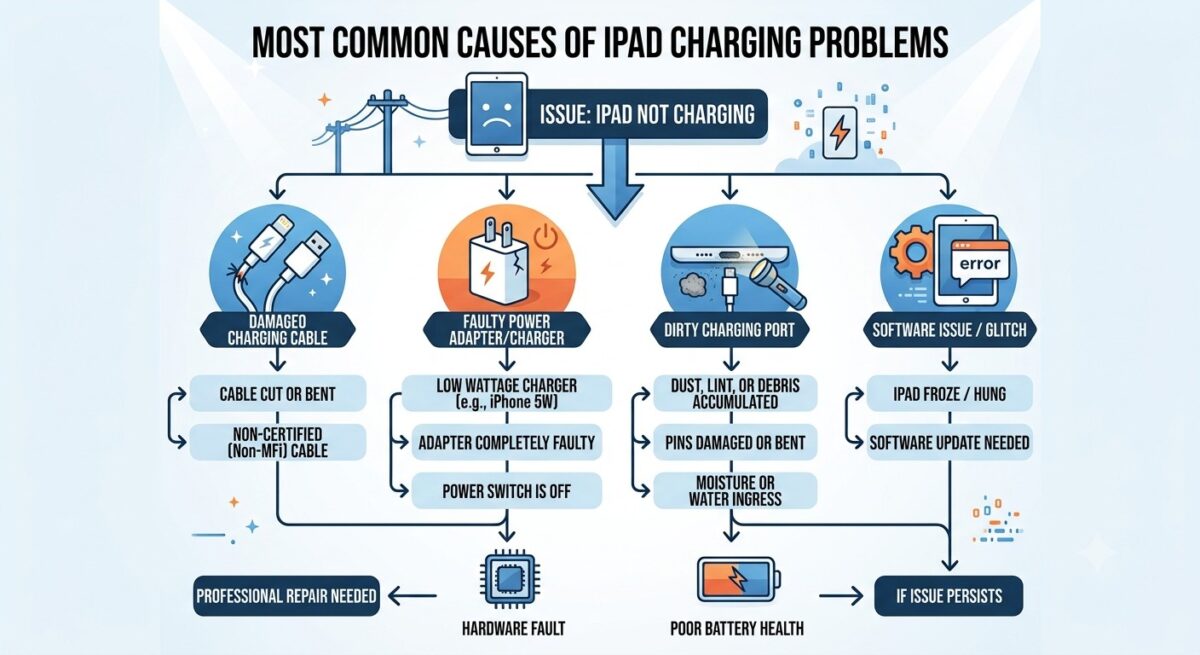
Your iPad relies on several hardware and software components working together to charge correctly. If just one of these components develops a fault, charging may stop completely or become unreliable. Before assuming your battery has failed, it’s important to identify the actual cause, as many charging issues are surprisingly easy to fix.
The most common reasons include:
- Damaged charging cable
- Faulty power adapter
- Dirty charging port
- Software glitches
- Battery deterioration
- Overheating
- Water damage
- Internal charging circuit faults
Understanding these causes will help you troubleshoot your iPad more effectively and avoid replacing parts unnecessarily.
1. Faulty Charging Cable or Adapter
One of the most common reasons an iPad won’t charge is a damaged charging cable or power adapter. Charging accessories experience daily wear and tear, and even small signs of damage can interrupt the flow of power to your device. Frayed cables, bent connectors, loose USB ends, or damaged charging bricks can all prevent your iPad from charging properly.
If your iPad suddenly stops charging, begin by carefully inspecting your charging accessories. Look for exposed wires, cracked insulation, bent Lightning or USB-C connectors, and signs of overheating. If possible, try another Apple-certified or high-quality charger to see whether the problem disappears.
It’s also worth testing a different wall socket, as power outlets can occasionally develop faults too. Avoid using extremely cheap third-party chargers, as they may deliver unstable power and even damage your iPad’s battery over time.
2. Dirty or Damaged Charging Port
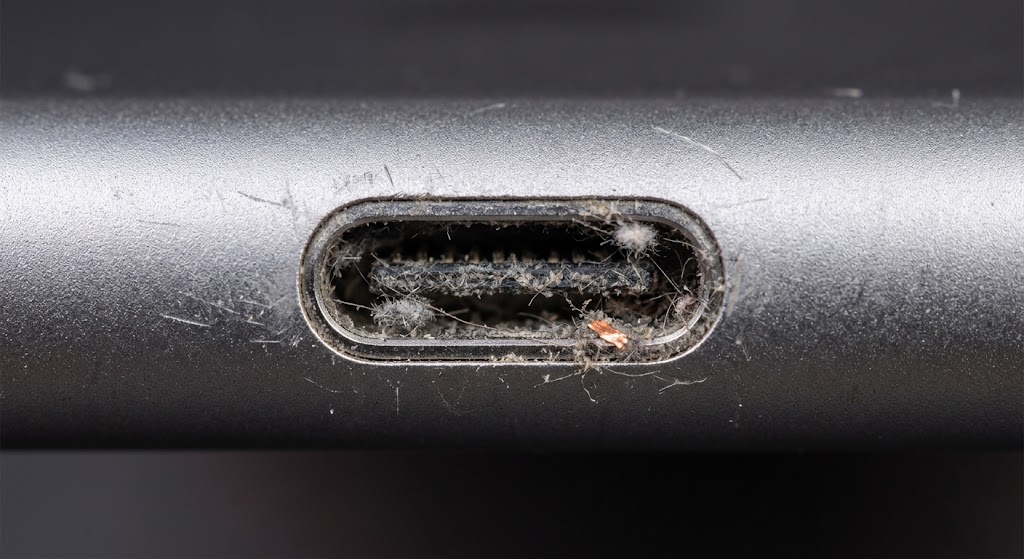
Even if your charging cable is in perfect condition, your iPad may still refuse to charge if the charging port is blocked. Dust, lint, pocket debris, and other small particles gradually collect inside the charging port, preventing the connector from making proper contact with the internal charging pins.
Common signs of a blocked or damaged charging port include:
- The charging cable feels loose.
- Charging starts and stops repeatedly.
- You have to hold the cable at a certain angle.
- The charging icon appears briefly before disappearing.
Use a flashlight to inspect the charging port carefully. If you notice dust or lint, gently remove it using a soft plastic tool or compressed air. Never use sharp metal objects such as needles or pins, as they can permanently damage the delicate connectors inside the port.
If cleaning the port doesn’t solve the problem, the charging connector itself may be worn or physically damaged. In these situations, professional repair is usually the safest option.
3. Software Glitches and iPadOS Bugs
Not every charging issue is caused by faulty hardware. Occasionally, software glitches can prevent your iPad from recognising that it’s connected to a charger. A temporary system error may cause the charging icon to disappear, stop the battery percentage from increasing, or interrupt charging unexpectedly.
Restarting your iPad is often enough to resolve these temporary issues. If the problem continues, check whether you’re running the latest version of iPadOS. Apple regularly releases updates that improve power management, battery performance, and charging reliability.
You should also close unnecessary background applications if your iPad becomes unusually warm while charging. Heavy processing loads can increase battery temperature and make charging appear much slower than normal.
Keeping your software up to date is one of the easiest ways to prevent future charging-related problems.
4. Battery Health and Ageing
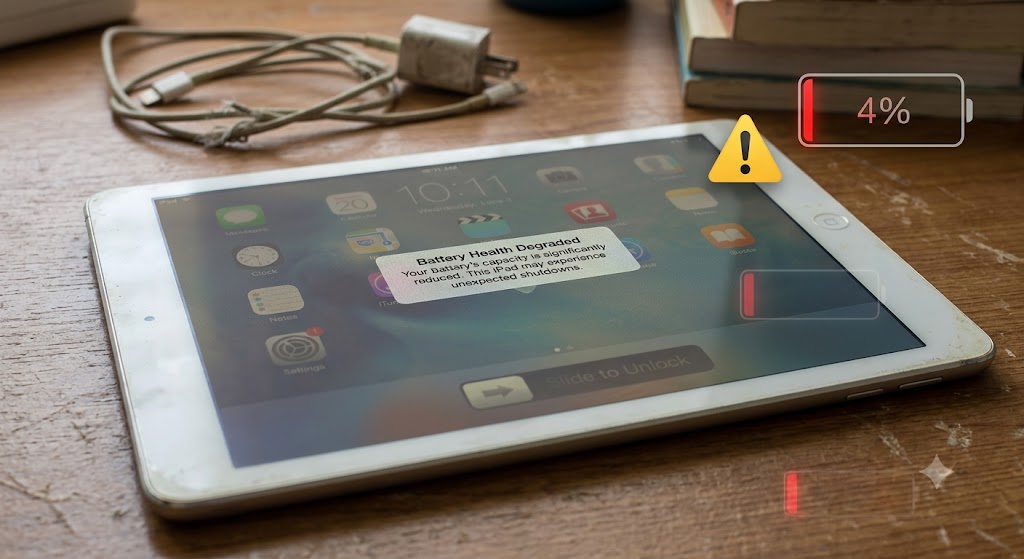
Every rechargeable battery gradually loses its ability to hold a charge as it gets older. While iPad batteries are designed to last for many years, heavy daily use eventually reduces their overall capacity. If your iPad is several years old, battery wear may be contributing to charging problems.
Signs of a worn battery include:
- Charging takes much longer than before.
- Battery drains unusually fast.
- Random shutdowns.
- Device won’t charge beyond a certain percentage.
- iPad switches off despite showing battery remaining.
If you’ve already ruled out charger and charging port issues, a degraded battery becomes much more likely. Replacing the battery is often more affordable than replacing the entire device and can significantly improve battery life and performance.
4. Overheating Can Stop Your iPad Charging
Many users are surprised to learn that overheating can temporarily stop an iPad from charging. Apple includes built-in temperature protection that automatically pauses charging whenever the device becomes too hot. This safety feature protects the battery from long-term damage.
Your iPad may overheat if it’s left in direct sunlight, used for gaming while charging, or kept inside a hot car. Charging under pillows, blankets, or other surfaces that trap heat can also cause temperatures to rise.
If your iPad feels unusually warm, disconnect it from the charger and allow it to cool naturally before trying again. Avoid placing it in a refrigerator or using external cooling methods, as sudden temperature changes can create condensation and lead to additional damage.
5. iPad is Water or Liquid Damage
Liquid damage is another common reason an iPad refuses to charge. Even a small amount of moisture inside the charging port can interfere with electrical connections or trigger built-in safety mechanisms that temporarily disable charging.
Common symptoms of liquid damage include:
- Moisture detection warnings.
- Charging stops after exposure to water.
- Corrosion around the charging connector.
- Intermittent charging behaviour.
If your iPad has recently come into contact with water, disconnect the charger immediately and allow the device to dry completely before attempting to charge it again. Never use a hairdryer or place the device near direct heat, as excessive temperatures can cause further internal damage.
If charging problems continue after drying, professional inspection is strongly recommended because corrosion can spread inside the device over time.
6. Force Restart Your iPad
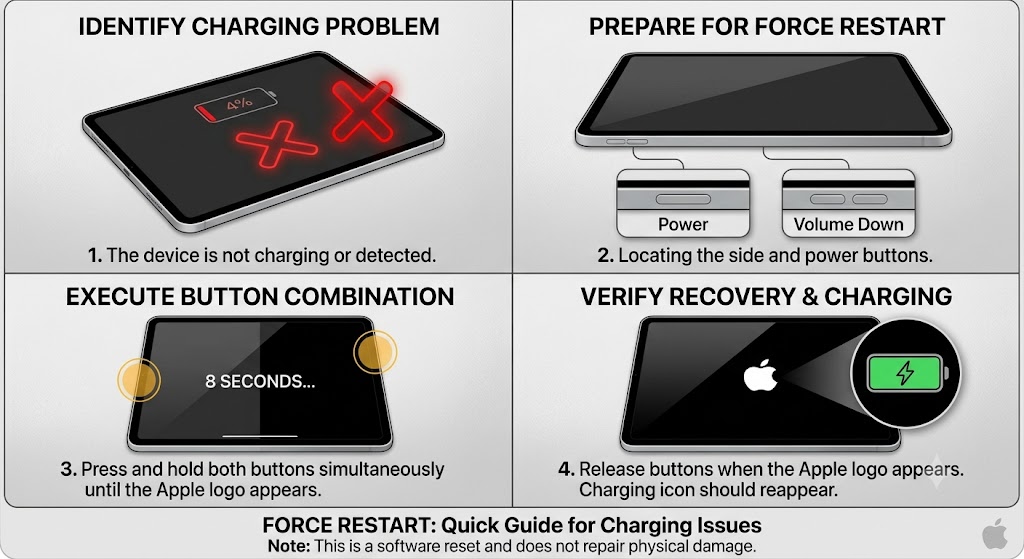
If your iPad has completely frozen or the display remains black, performing a force restart may restore normal charging functionality. This process refreshes the operating system without deleting your personal data and can often resolve temporary software crashes that interfere with charging.
For newer iPads with Face ID, quickly press and release the Volume Up button, then the Volume Down button, and finally press and hold the Top button until the Apple logo appears. On models with a Home button, press and hold both the Home and Power buttons together until the Apple logo is displayed.
If your iPad begins charging normally after restarting, the issue was likely software-related rather than a hardware fault.
How to Fix an iPad That Won’t Charge
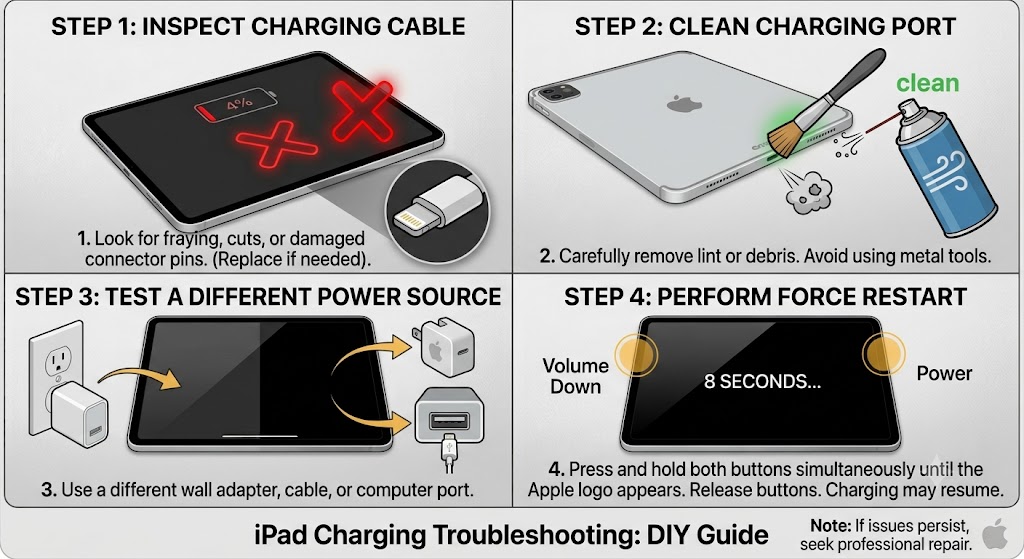
If you’ve identified that your iPad isn’t charging, don’t panic just yet. Many charging issues can be resolved without replacing any parts. By following the troubleshooting methods below, you can often identify whether the problem is caused by your charger, charging port, software, battery, or another hardware component. Start with the simplest fixes before considering professional repair.
1. Check Your Power Source
Sometimes the problem isn’t your iPad at all – it’s the power source you’re using. A faulty wall socket, damaged extension lead, or low-powered USB port can prevent your iPad from receiving enough power to charge correctly.
Try plugging your charger into a different wall outlet rather than charging through a computer’s USB port. If you’re using an extension lead, connect the charger directly to the wall socket. You should also test another Apple-certified charger if available. If your iPad begins charging normally, the issue was likely with the power source rather than the device itself.
2. Use the Correct Charger for Your iPad
Not every charger delivers enough power for every iPad model. Newer USB-C iPads generally require higher-wattage power adapters, while older Lightning models can work with lower-powered chargers. Using an incompatible or underpowered charger may result in slow charging or no charging at all.
Whenever possible, use the original Apple charger or a reputable replacement from a trusted manufacturer. Avoid extremely cheap third-party chargers, as they may provide unstable power output, affecting charging performance and potentially reducing your battery’s lifespan over time.
3. Clean the Charging Port Safely
Dust and lint can build up inside your iPad’s charging port over time, preventing the charging cable from connecting properly. Even a small amount of debris can stop electricity from reaching the battery, making it appear as though the iPad has stopped charging completely.
Inspect the charging port carefully under good lighting. If you notice dust or debris, gently remove it using compressed air or a non-metallic cleaning tool. Never use sharp objects like needles or paper clips, as they can damage the charging pins. If the cable still feels loose after cleaning, the charging port itself may need professional repair.
Common iPad Charging Problems and Their Solutions
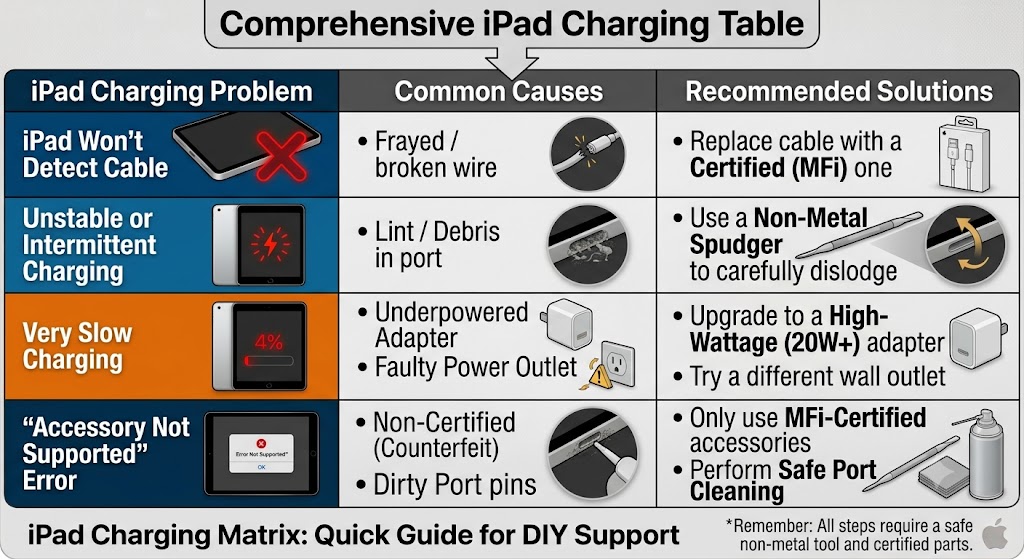
Before moving on to more advanced troubleshooting steps, it’s helpful to understand the most common charging issues iPad users experience. The table below highlights the typical symptoms, their likely causes, and the recommended solutions. Use it as a quick reference to identify what may be preventing your iPad from charging properly.
| Problem | Possible Cause | Recommended Solution |
|---|---|---|
| iPad won’t charge at all | Faulty charger, damaged charging port, or completely discharged battery | Test another charger, clean the charging port, and seek professional repair if the issue persists. |
| Charging is very slow | Low-power adapter, background apps, or overheating | Use the correct Apple-compatible charger, close unnecessary apps, and allow the iPad to cool down. |
| Charging repeatedly stops and starts | Loose charging cable or damaged charging port | Replace the charging cable and inspect the charging port for damage or debris. |
| Charging cable only works at one angle | Bent connector or worn charging port | Have the charging port professionally inspected and repaired if necessary. |
| iPad charges but the battery drains quickly | Battery degradation or ageing | Check the battery’s condition and consider a battery replacement if performance has significantly declined. |
| “Accessory Not Supported” message appears | Non-certified charger or damaged charging cable | Use an Apple-certified charging cable and power adapter to ensure safe and reliable charging. |
The table above covers the most common iPad charging problems, but every device is different. If you’ve checked these symptoms and your iPad still won’t charge, continue with the troubleshooting steps below to identify the exact cause and determine whether a simple fix or professional repair is required.
1. Update iPadOS to the Latest Version
Software problems can occasionally interfere with charging, particularly if your iPad is running an outdated version of iPadOS. Apple frequently releases updates that improve battery management, charging performance, and overall system stability.
If your iPad still has enough battery power, open Settings > General > Software Update and install any available updates. Before updating, make sure your internet connection is stable and avoid interrupting the installation process. Keeping your software up to date helps reduce the risk of future charging-related issues.
If your iPad becomes too hot, it may temporarily stop charging to protect the battery. This built-in safety feature prevents excessive heat from damaging internal components and is completely normal.
Move your iPad to a cooler environment, remove any thick protective case, and stop using demanding apps while it charges. Avoid leaving the device in direct sunlight or inside a hot car. Once it has cooled down, reconnect the charger and check whether charging resumes normally.
2. Test Another Charging Cable
Charging cables naturally wear out over time, especially if they’re frequently bent or tightly wrapped. Even if the cable appears undamaged on the outside, broken internal wires can prevent your iPad from charging consistently.
Try another Apple-certified Lightning or USB-C cable to rule out cable failure. If your iPad charges normally with a different cable, replacing the faulty accessory is a quick and inexpensive solution compared to repairing the device itself.
3. USB-C vs Lightning Charging Problems
Apple now uses both Lightning and USB-C connectors across different iPad models, and each connector type has its own common charging issues. Older Lightning ports are more likely to collect dust and lint, while USB-C ports can become loose or develop damaged internal pins after prolonged use.
Knowing which charging port your iPad uses can help narrow down the cause of the problem more quickly. If multiple chargers fail to work and the connector feels loose, professional inspection is recommended to determine whether the charging port requires replacement.
When Does an iPad Need Professional Repair?
If you’ve already tested multiple chargers, cleaned the charging port, restarted your iPad, and updated iPadOS without success, the issue is likely hardware-related. Continuing to force the charger into a damaged port can sometimes make the problem worse.
A qualified technician can inspect your battery, charging port, charging IC, motherboard, and internal power circuits using specialist diagnostic equipment. This ensures the correct component is repaired or replaced, saving you from unnecessary costs and helping restore your iPad to full working order.
How Much Does It Cost to Repair an iPad Charging Port in the UK?
One of the most common questions iPad owners ask is, “How much does it cost to repair an iPad charging port?” The answer depends on your iPad model, the type of charging connector (Lightning or USB-C), and whether the issue is limited to the charging port or involves additional internal components such as the charging IC or motherboard.
For most iPad models in the UK, a charging port replacement typically costs between £65 and £150. Older iPads with Lightning connectors are generally less expensive to repair, while newer USB-C models, such as the iPad Air, iPad Pro, and recent iPad generations, may cost more due to the complexity of the repair and the higher price of replacement parts. If the fault is caused by liquid damage or motherboard failure rather than the charging port itself, additional repair costs may apply.
Typical iPad Charging Port Repair Costs in the UK
| iPad Repair Type | Typical UK Price |
|---|---|
| Charging Port Cleaning | £20-£40 |
| Lightning Charging Port Replacement | £65-£100 |
| USB-C Charging Port Replacement | £79-£150 |
| iPad Battery Replacement | £60-£130 |
| Charging IC Repair | £120-£220 |
| Motherboard Charging Repair | £150-£300+ |
These prices are intended as a general guide and may vary depending on your iPad model, the availability of replacement parts, and the repair provider you choose. Before booking a repair, it’s always worth requesting a diagnostic assessment so the technician can confirm the exact cause of the charging issue and provide an accurate quotation.
How Long Does an iPad Charging Repair Take?
Many customers also ask, “How long does an iPad charging repair take?” The answer depends on the type of fault, your iPad model, and whether replacement parts are readily available. Fortunately, most common charging repairs can be completed much faster than people expect.
Simple repairs, such as charging port cleaning or battery replacement, are often completed on the same day. However, more complex faults involving the charging IC, motherboard, or liquid damage require additional diagnostic testing and microsoldering, which can increase repair times. Choosing an experienced repair specialist helps ensure your iPad is repaired accurately without unnecessary delays.
Typical iPad Charging Repair Times
| Repair Type | Typical Turnaround Time |
|---|---|
| Charging Port Cleaning | 30-60 minutes |
| Charging Port Replacement | 1-3 hours |
| Battery Replacement | 1-2 hours |
| Charging IC Repair | 1-3 working days |
| Motherboard Repair | 2-5 working days |
| Liquid Damage Diagnosis | 1-3 working days |
| Full Diagnostic Inspection | 30-90 minutes |
While many iPad charging repairs can be completed on the same day, the exact turnaround time depends on the availability of replacement parts and the complexity of the fault. If your device requires motherboard-level repairs or extensive liquid damage treatment, additional time may be needed to ensure the repair is completed safely and thoroughly. A professional diagnostic assessment is the best way to receive an accurate repair estimate and expected completion time.
iPad Charging Problems by Model
Charging faults can affect nearly every iPad model, regardless of its age. Older iPads are more likely to experience battery wear or Lightning port issues, while newer USB-C models can develop connector damage or charging circuit faults through everyday use.
If you’re looking for repair options for a specific device, you can explore dedicated repair services for models including the iPad 10th Gen (2022), iPad 9th Gen (2021), iPad Air 5 (2022), iPad Air 4 (2020), iPad Mini 6, iPad Mini 5, iPad Pro 11-inch, iPad Pro 12.9-inch, and many other iPad generations.
Troubleshooting Checklist Before Booking a Repair
Before booking an iPad repair, it’s worth carrying out a few basic troubleshooting steps. Many charging problems are caused by faulty accessories, software glitches, or minor charging port blockages that can be resolved without replacing any parts. Use the checklist below to ensure you’ve ruled out the most common causes before seeking professional assistance.
| Troubleshooting Step | Why It Matters | Expected Result |
|---|---|---|
| Try a different charging cable | Rules out a faulty or damaged cable. | iPad begins charging normally if the cable was the issue. |
| Test another power adapter | Confirms whether the charger is supplying enough power. | Charging resumes with a working adapter. |
| Plug into a different wall socket | Eliminates problems with the power source. | Confirms the electrical outlet isn’t faulty. |
| Clean the charging port carefully | Removes dust and lint blocking the connector. | Charging connection becomes stable and secure. |
| Restart or force restart your iPad | Fixes temporary software glitches affecting charging. | Charging may resume after the device restarts. |
| Update to the latest version of iPadOS | Resolves known software bugs and charging issues. | Improves charging stability and overall performance. |
| Allow the iPad to cool down | Charging automatically pauses if the device overheats. | Charging resumes once the device reaches a safe temperature. |
| Check for signs of liquid damage | Moisture or corrosion can prevent normal charging. | Helps determine whether professional repair is required. |
If you’ve completed all of the troubleshooting steps above and your iPad still won’t charge, the problem is likely related to the battery, charging port, or internal charging circuitry. In this situation, a professional diagnostic inspection is the safest and most cost-effective way to identify the fault and restore normal charging.
Charging Port vs Battery Problems: How to Identify the Real Cause
If your iPad isn’t charging properly, it can be difficult to tell whether the issue is caused by a faulty charging port or a worn-out battery. Although both problems can prevent your iPad from charging, they often present different symptoms. The comparison table below will help you identify the most likely cause, making it easier to decide whether your device may need a charging port repair or a battery replacement.
| Symptom | Likely Charging Port Issue | Likely Battery Issue |
|---|---|---|
| Charging cable feels loose or wobbly | Yes | No |
| iPad only charges when the cable is held at a certain angle | Yes | No |
| Charging repeatedly disconnects and reconnects | Yes | Rare |
| Visible dirt, lint, or physical damage inside the charging port | Yes | No |
| Battery drains unusually fast after a full charge | No | Yes |
| iPad shuts down unexpectedly despite showing battery life | No | Yes |
| Charging stops at a certain battery percentage | Rare | Common |
| iPad becomes unusually hot while charging | Possible | Possible |
| Device won’t charge even after trying multiple chargers | Possible | Possible |
| Battery percentage jumps or behaves unpredictably | Rare | Common |
Although this comparison can help narrow down the source of the problem, it should only be used as a general guide. In some cases, both the charging port and battery may contribute to charging issues. If you’ve already tested different chargers, cleaned the charging port, restarted your iPad, and updated iPadOS without success, a professional diagnostic inspection is recommended. An experienced technician can accurately identify the faulty component and advise whether your iPad requires a charging port repair, battery replacement, or another hardware repair.
Tips to Prevent Future Charging Problems
While some hardware failures are unavoidable, good charging habits can significantly extend your iPad’s lifespan. Always use high-quality charging accessories, keep the charging port free from dust, and avoid exposing your device to excessive heat or moisture.
You should also unplug the charger carefully instead of pulling on the cable and replace damaged charging accessories as soon as you notice signs of wear. Taking these simple precautions can reduce the risk of future charging problems and help keep your iPad performing reliably for years.
FAQs – Why Is My iPad Not Charging?
1. Why is my iPad not charging even when it’s plugged in?
If your iPad isn’t charging when plugged in, the most common causes include a faulty charging cable, damaged power adapter, dirty charging port, software glitches, or a worn-out battery. Start by testing another Apple-certified charger, cleaning the charging port, and restarting your iPad. If the problem continues after trying these steps, the device may require professional repair.
2. Why is my iPad charging very slowly?
Slow charging is often caused by using a low-power charger, running multiple apps while charging, or charging the iPad in a hot environment. Using the correct Apple-compatible power adapter and allowing the device to charge without heavy usage can significantly improve charging speed.
3. How do I know if my iPad charging port is damaged?
A damaged charging port usually causes the charging cable to feel loose, disconnect frequently, or only work when held at a certain angle. You may also notice visible dirt, bent pins, or physical damage inside the port. If cleaning the port doesn’t solve the problem, it should be inspected by a qualified technician.
4. Can a dirty charging port stop my iPad from charging?
Yes. Dust, lint, and other debris can build up inside the charging port over time, preventing the charging cable from making proper contact. Carefully cleaning the port with compressed air or a non-metallic tool often restores normal charging without requiring any repairs.
5. Why does my iPad say “Accessory Not Supported”?
This message usually appears when you’re using a damaged, low-quality, or non-certified charging cable or power adapter. Switching to an Apple-certified charging accessory often resolves the issue. In some cases, a dirty or damaged charging port may also trigger this warning.
6. Can an outdated version of iPadOS affect charging?
Yes. Although it’s less common, software bugs in older versions of iPadOS can occasionally interfere with charging performance. Installing the latest software update helps improve battery management, charging reliability, and overall system stability.
7. Why does my iPad stop charging when it gets hot?
Apple devices include built-in temperature protection to prevent battery damage. If your iPad becomes too hot while charging, it may temporarily pause charging until the temperature returns to a safe level. Allow the device to cool naturally before reconnecting the charger.
8. How can I tell if my iPad battery needs replacing?
Common signs of a worn battery include rapid battery drain, unexpected shutdowns, slow charging, overheating, and poor battery life even after a full charge. If your iPad is several years old and these symptoms continue, a battery replacement may be the most effective solution.
9. Is it safe to use a third-party charger with my iPad?
Yes, but only if it’s from a reputable manufacturer and meets Apple’s charging standards. Cheap, uncertified chargers can provide unstable power, reduce charging efficiency, and may even damage your battery or charging circuit over time.
10. Can I fix an iPad that won’t charge myself?
Many charging issues can be resolved at home by replacing the charging cable, testing another adapter, cleaning the charging port, restarting the device, or updating iPadOS. However, if the problem is caused by internal hardware such as the charging port, battery, or motherboard, professional repair is recommended.
11. Why is my iPad charging on and off repeatedly?
Intermittent charging usually indicates a loose charging cable, damaged charging port, worn connector, or faulty charger. If the charging icon repeatedly appears and disappears, try another cable and inspect the charging port for debris or physical damage.
12. Does using my iPad while charging affect battery life?
Using your iPad for demanding activities such as gaming or video editing while charging generates additional heat, which can slow charging and increase long-term battery wear. For the fastest and safest charging, it’s best to minimise heavy usage until the battery has recharged.
13. What should I do if my iPad won’t charge after water damage?
Immediately disconnect the charger and turn off the device if possible. Allow the iPad to dry completely before attempting to charge it again. If charging problems continue after drying, internal corrosion may be present, and professional inspection is strongly recommended.
14. How long should an iPad battery last?
Most iPad batteries are designed to provide several years of reliable performance under normal usage. Battery lifespan depends on charging habits, usage patterns, and environmental conditions. As the battery ages, charging performance and battery capacity gradually decline.
15. Can a faulty charging cable damage my iPad?
A damaged or poor-quality charging cable may not only prevent proper charging but can also deliver unstable power to your device. Using Apple-certified or high-quality replacement cables helps protect both the battery and internal charging components.
16. Why won’t my iPad charge past a certain percentage?
If your iPad consistently stops charging at the same battery percentage, the problem may be related to battery degradation, software issues, overheating, or battery management features. Restarting the device, updating iPadOS, and testing another charger are good first steps before seeking professional diagnosis.
17. Do older iPads experience charging problems more often?
Yes. Older iPads are generally more likely to develop charging issues due to battery ageing, worn charging ports, and years of daily use. Regular maintenance and timely battery replacement can help extend the life of an older device.
18. Can wireless charging solve iPad charging problems?
Currently, iPads do not support standard wireless charging like many smartphones. Charging relies on the Lightning or USB-C port, making the condition of the charging accessories and connector especially important.
19. When should I seek professional iPad repair?
If you’ve already tried different chargers, cleaned the charging port, updated iPadOS, and restarted your iPad without success, it’s time to seek professional repair. A qualified technician can accurately diagnose whether the fault lies with the battery, charging port, or internal charging circuitry.
20. How can I prevent future iPad charging problems?
To reduce the risk of charging issues, always use certified charging accessories, keep the charging port clean, avoid exposing your iPad to excessive heat or moisture, unplug the charger carefully, and replace damaged cables as soon as signs of wear appear. These simple habits can help extend the lifespan of both your battery and charging port.
Conclusion
If you’ve been asking yourself, “Why is my iPad not charging?”, the good news is that many charging problems can be diagnosed and resolved without immediately replacing your device. In many cases, the issue is caused by something simple, such as a faulty charging cable, a damaged power adapter, dust inside the charging port, an outdated version of iPadOS, or temporary software glitches. Following the troubleshooting steps outlined in this guide can often help restore normal charging and save you the cost of unnecessary repairs.
However, if your iPad still won’t charge after testing different chargers, cleaning the charging port, updating the software, and restarting the device, the problem may be related to the battery, charging port, charging IC, or another internal hardware component. Continuing to use a faulty charger or forcing the charging cable into a damaged port may worsen the issue and lead to more expensive repairs.
Whether you own an iPad, iPad Air, iPad mini, or iPad Pro, diagnosing charging issues early can help extend the life of your device and reduce repair costs. If you’re unsure what’s causing the problem, a professional diagnostic service is the safest way to identify the fault and restore your iPad to full working order.
Why Choose iExpert Repairs?
At iExpert Repairs, we specialise in diagnosing and repairing charging problems across a wide range of Apple devices. Our experienced technicians use professional diagnostic equipment to accurately identify faults, ensuring that only the necessary components are repaired or replaced.
When you choose iExpert Repairs, you benefit from:
- Experienced technicians with years of tablet repair expertise.
- Professional diagnostics to identify the exact cause of charging issues.
- High-quality replacement parts for reliable, long-lasting repairs.
- Fast turnaround times to minimise downtime.
- Competitive pricing with no hidden costs.
- Repairs available for iPad, iPad Air, iPad mini, iPad Pro, and many Samsung Galaxy Tab models.
- Friendly customer support before, during, and after your repair.
Our goal is to provide reliable, affordable, and professional tablet repair services, helping you get back to using your device as quickly as possible.
Back to posts