
Why Is My Laptop Not Connecting to WiFi?
A laptop that won’t connect to WiFi can be incredibly frustrating, especially when you need internet access for work, online meetings, studying, gaming, or streaming. Sometimes the problem is as simple as an incorrect password or Airplane Mode being enabled. In other cases, the issue may be caused by outdated network drivers, Windows updates, router problems, damaged wireless hardware, or motherboard faults.
The good news is that many WiFi connection problems can be fixed at home without replacing your laptop. By following a logical troubleshooting process, you can often restore your wireless connection in just a few minutes.
In this complete UK guide, you’ll learn:
- Why your laptop isn’t connecting to WiFi
- The most common hardware and software causes
- Step-by-step fixes you can safely try yourself
- When professional laptop repair is required
- Typical UK repair costs for WiFi-related faults
- How to prevent future wireless connection problems
Whether you own an HP, Dell, Lenovo, ASUS, Acer, Microsoft Surface, gaming laptop, or MacBook, this guide will help you identify the cause and get your laptop back online.
Quick Answer
If your laptop isn’t connecting to WiFi, one of the following issues is usually responsible.
| Possible Cause | Can You Fix It Yourself? |
|---|---|
| WiFi turned off | Yes |
| Airplane Mode enabled | Yes |
| Wrong WiFi password | Yes |
| Router problem | Yes |
| Windows network glitch | Yes |
| Outdated WiFi driver | Yes |
| Faulty Windows update | Yes |
| Network adapter settings | Yes |
| Damaged WiFi card | Usually No |
| Motherboard fault | No |
If basic troubleshooting doesn’t restore your internet connection, the problem may involve faulty internal hardware that requires professional diagnosis.
Who Is This Guide For?
This guide is designed for anyone experiencing WiFi connectivity problems on a laptop, including:
- Students attending online classes
- Remote workers relying on video meetings
- Business users
- Gamers experiencing unstable internet
- Home users with slow or unreliable WiFi
- Owners of HP, Dell, Lenovo, ASUS, Acer, Microsoft Surface and MacBook laptops
Whether your laptop cannot detect WiFi, keeps disconnecting, or connects without internet access, the troubleshooting steps in this guide will help you identify the cause before paying for unnecessary repairs.
Common Symptoms of a Laptop That Won’t Connect to WiFi
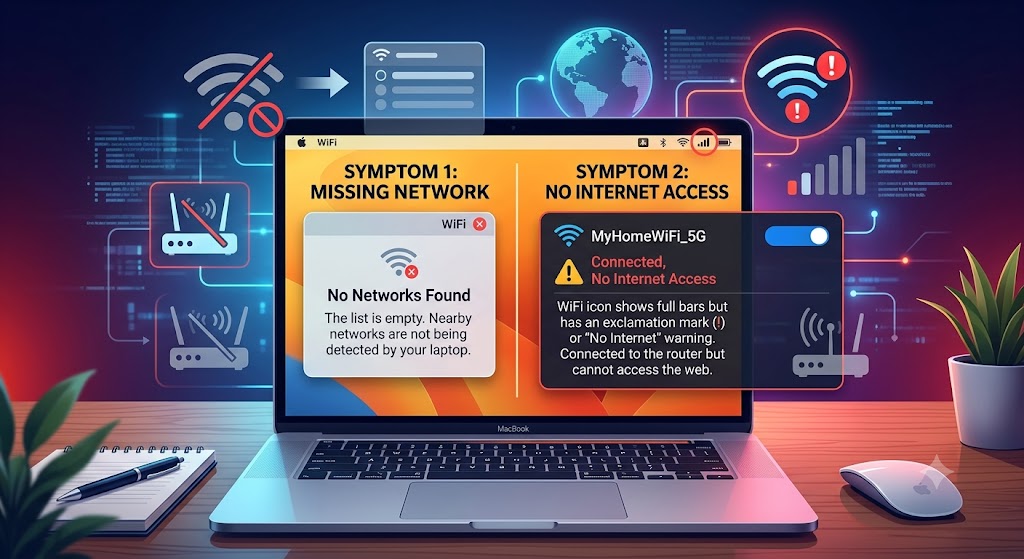
Not every WiFi problem looks the same. The symptoms your laptop displays can often help identify whether the issue is caused by software, hardware, your router, or your internet service.
| Symptom | Possible Cause |
|---|---|
| Laptop cannot find any WiFi networks | WiFi adapter disabled, faulty driver, hardware failure |
| WiFi network appears but won’t connect | Incorrect password, router issue, security settings |
| Connected to WiFi but no internet access | ISP outage, DNS issue, router problem |
| WiFi disconnects frequently | Weak signal, outdated driver, faulty WiFi card |
| WiFi icon is missing | Disabled network adapter or Windows issue |
| Internet works on other devices but not the laptop | Laptop software or hardware fault |
| Laptop only connects near the router | Weak wireless antenna or interference |
| WiFi stopped working after a Windows update | Driver compatibility issue or corrupted update |
| Laptop keeps asking for the WiFi password | Incorrect credentials or router authentication problem |
| WiFi works after restarting but fails again later | Driver conflicts, overheating, or hardware fault |
Understanding these symptoms can help you narrow down the cause and avoid unnecessary repairs.
Why Is My Laptop Not Connecting to WiFi?
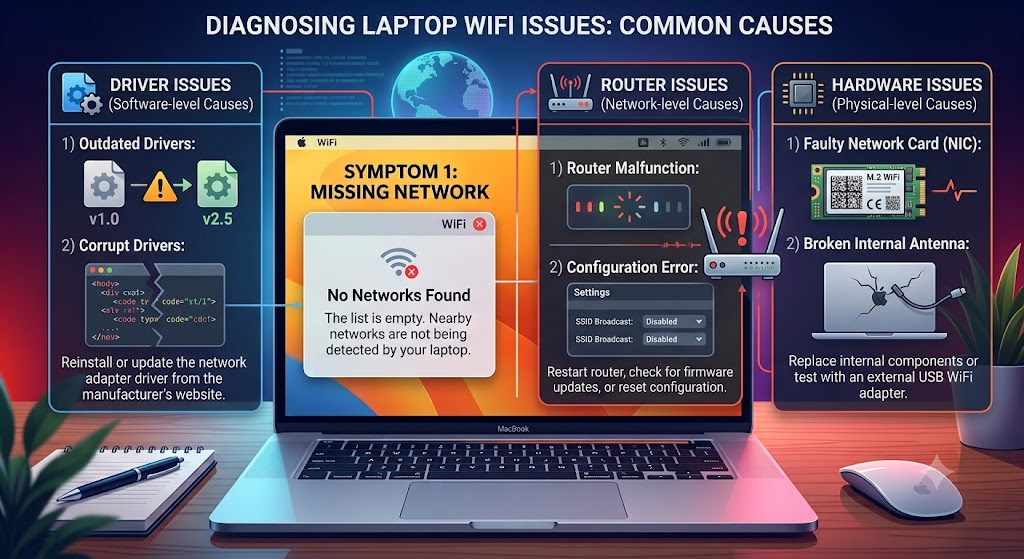
A laptop’s wireless connection depends on several components working together, including the WiFi adapter, wireless antenna, network drivers, operating system, router, modem, and your internet service provider. If any of these components develops a fault, your laptop may struggle to detect, connect to, or maintain a stable WiFi connection.
Sometimes the solution is as simple as restarting your router or reconnecting to the network. In other situations, the issue may involve corrupted drivers, damaged wireless hardware, motherboard faults, or software conflicts that require professional diagnosis.
Before assuming the worst, work through the most common causes one step at a time.
1. WiFi Has Been Turned Off
One of the simplest reasons your laptop won’t connect to WiFi is that the wireless function has been disabled.
Many laptops include a dedicated WiFi key or keyboard shortcut that can accidentally switch wireless networking off. In Windows, the WiFi adapter may also be disabled through system settings.
Signs
- No available WiFi networks appear.
- The WiFi icon is missing or replaced by an Ethernet symbol.
- Airplane Mode is turned off but wireless networks still don’t appear.
- Other devices connect to the same router without any issues.
How to Fix It
Make sure WiFi is enabled in Windows Settings.
Check whether your laptop has a physical WiFi switch or keyboard shortcut (such as Fn + F2, Fn + F5, or Fn + F12, depending on the manufacturer).
Restart your laptop after enabling WiFi. If the adapter still doesn’t appear, open Device Manager and check whether the wireless network adapter has been disabled. Fortunately, this is one of the easiest WiFi problems to resolve and usually doesn’t require any repairs.
2. Airplane Mode Is Enabled
Airplane Mode disables all wireless communications, including WiFi and Bluetooth. Many users accidentally enable it using a keyboard shortcut or through Windows Quick Settings without realising it.
Common Signs
- No wireless networks are visible.
- The Airplane icon appears in the taskbar.
- Bluetooth also stops working.
- Ethernet continues working normally.
How to Fix It
Open Quick Settings and ensure Airplane Mode is switched off. You can also check:
Settings → Network & Internet → Airplane Mode
Turn Airplane Mode off and wait a few seconds for available WiFi networks to appear. If WiFi still doesn’t return, restart the laptop and check whether the wireless adapter has been disabled.
3. Incorrect WiFi Password
Sometimes the problem isn’t your laptop at all – it’s simply using the wrong wireless password.
This often happens after changing your router password, replacing your broadband router, or attempting to connect to a different network with a similar name.
Symptoms
- Windows repeatedly asks for the password.
- The laptop attempts to connect before immediately disconnecting.
- Other devices using the correct password connect normally.
- The message “Can’t connect to this network” appears.
How to Fix It
Select Forget Network in Windows WiFi settings. Search for your WiFi network again.
Enter the correct password carefully, paying attention to uppercase and lowercase letters. If you’re unsure of the password, check the label on your router or log into the router’s administration settings.
Once the correct credentials are entered, your laptop should reconnect automatically whenever the network is available. If the connection still fails despite using the correct password, continue with the next troubleshooting steps, as the problem may involve Windows, your network adapter, or the router itself.
4. Your Router or Broadband Connection Has a Problem
Sometimes the issue isn’t your laptop at all. Your wireless router, modem, or broadband service may be temporarily unavailable, preventing your laptop from connecting to the internet.
Power outages, ISP maintenance, router firmware issues, or overheating can all interrupt your wireless connection.
Common Signs
- Other devices also cannot access the internet.
- Your laptop connects to WiFi but shows “No Internet”.
- The router’s internet light is red or flashing.
- Web pages fail to load on every connected device.
- Restarting the laptop doesn’t solve the issue.
How to Fix It
Restart both your modem and wireless router by unplugging them from the power supply for around 60 seconds before turning them back on.
Wait a few minutes for the connection to fully re-establish. Try connecting another device, such as a smartphone, to the same WiFi network. If none of your devices have internet access, the problem is likely with your broadband provider rather than your laptop. If only your laptop cannot connect while other devices work normally, continue with the troubleshooting steps below.
5. Outdated or Corrupted WiFi Drivers
Your wireless driver allows Windows to communicate with the laptop’s WiFi hardware. If the driver becomes outdated, corrupted, or incompatible after an update, your laptop may fail to detect or connect to wireless networks.
Driver-related issues are among the most common causes of WiFi problems on Windows laptops.
Symptoms
- WiFi disappears after a Windows update.
- The wireless adapter shows a warning icon in Device Manager.
- WiFi disconnects randomly.
- Windows reports that no wireless adapter is installed.
- The connection works only after restarting the laptop.
How to Fix It
Open Device Manager and expand Network Adapters.
Locate your wireless adapter. Right-click the adapter and choose Update Driver. If updating doesn’t help, uninstall the driver and restart the laptop. Windows will usually reinstall a compatible version automatically.
For the best results, download the latest driver directly from your laptop manufacturer’s support website. Keeping your drivers up to date can improve both connection stability and wireless performance.
6. A Recent Windows Update Caused the Problem
Windows updates improve security and system stability, but occasionally they introduce compatibility issues with wireless drivers. Many users notice WiFi problems immediately after installing a major Windows update.
Common Signs
- WiFi stopped working after installing updates.
- The wireless adapter disappears from Device Manager.
- Available networks no longer appear.
- Internet worked perfectly before the update.
How to Fix It
Check for any additional driver updates through Windows Update. If the issue started immediately after a recent update, uninstall the latest quality update through Windows Recovery or Windows Update History.
You can also restore your laptop to a previous restore point if one is available.
If your laptop has become unstable following a Windows update or is experiencing broader performance issues, our guide How to Fix a Slow Laptop? explains additional optimisation steps that may help restore overall system stability.
7. The Network Adapter Has Been Disabled
Your laptop’s wireless network adapter can sometimes become disabled due to software changes, driver conflicts, BIOS settings, or accidental configuration changes. When this happens, Windows cannot communicate with the WiFi hardware even though it is physically installed.
Symptoms
- No WiFi icon appears in Windows.
- Device Manager shows the adapter as disabled.
- Troubleshooting reports that wireless capability is turned off.
- Other networking features continue working normally.
How to Fix It
Open Device Manager. Expand Network Adapters.
If your wireless adapter has a small downward arrow, right-click it and select Enable Device. You should also check Settings > Network & Internet to ensure WiFi is enabled.
If the adapter repeatedly disables itself after restarting, the issue may indicate a failing driver or hardware fault requiring further diagnosis.
8. Weak WiFi Signal or Wireless Interference
Even if your laptop detects your WiFi network, a weak signal can prevent a stable connection.
Walls, metal furniture, neighbouring wireless networks, and electronic devices such as microwaves or cordless phones can all interfere with WiFi performance.
Warning Signs
- WiFi works only when you’re close to the router.
- Internet speed is extremely slow.
- The connection drops frequently.
- Video calls buffer or disconnect.
- Other rooms have poor signal strength.
How to Fix It
Move closer to your wireless router and test the connection. Restart the router and reposition it in a more central, open location if possible. Disconnect unnecessary devices that may be using large amounts of bandwidth. If your home has several dead zones, consider installing a WiFi extender or mesh WiFi system to improve coverage.
If your laptop continues to lose its connection even when placed next to the router, the problem may lie with the laptop’s wireless hardware rather than the network itself.
9. Incorrect Network Settings or DNS Problems
Sometimes your laptop connects to the WiFi network successfully but still cannot access the internet. In many cases, incorrect network settings, corrupted DNS information, or an IP address conflict is responsible.
These issues commonly occur after changing routers, installing VPN software, or making manual network configuration changes.
Common Symptoms
- Connected to WiFi but no internet access.
- Websites fail to load while the WiFi icon shows as connected.
- Error messages such as “No Internet, Secured” appear.
- Other devices connected to the same network work normally.
- Some websites load while others do not.
How to Fix It
Restart your router and laptop. Open Command Prompt as Administrator and renew your IP address if you’re comfortable using Windows networking tools.
You can also reset your network settings through Settings > Network & Internet > Advanced Network Settings > Network Reset.
If the problem continues, changing your DNS server to a trusted public DNS provider may also improve connectivity. Most network configuration issues can be resolved without replacing any hardware.
10. Faulty Internal WiFi Card
Every laptop contains a wireless network card that allows it to communicate with WiFi networks. Like any hardware component, this card can fail over time due to age, overheating, liquid damage, electrical faults, or physical impact.
Unlike software problems, a faulty WiFi card usually prevents the laptop from detecting or maintaining wireless connections regardless of the network you’re using.
Signs
- No wireless networks are detected.
- The WiFi adapter disappears from Device Manager.
- Driver reinstallations do not solve the issue.
- External USB WiFi adapters work normally.
- The problem remains after reinstalling Windows.
Can You Fix It Yourself?
Usually not. Replacing an internal WiFi card requires partial disassembly of the laptop. Depending on the model, the technician may need to remove the bottom cover, battery, cooling system, or keyboard to access the wireless module.
At iExpert Repairs, our technicians diagnose faulty WiFi adapters and replace defective wireless cards using high-quality compatible parts for all major laptop brands.
11. Motherboard or Internal Hardware Failure
If you’ve tried every software fix and your laptop still won’t detect or connect to WiFi, the problem may involve the motherboard or other internal components.
The motherboard controls communication between the processor, wireless adapter, memory, storage, and other essential hardware. Damage to these circuits can prevent the wireless adapter from functioning correctly.
Common Symptoms
| Symptom | Possible Hardware Fault |
|---|---|
| WiFi adapter not detected | Motherboard communication failure |
| WiFi fails after liquid damage | Short circuit |
| WiFi stops working after a drop | Internal hardware damage |
| Wireless card works intermittently | Motherboard or connector issue |
| Multiple hardware problems occur together | Motherboard failure |
Because motherboard repairs often require advanced diagnostics and micro-soldering equipment, they should only be carried out by qualified technicians.
Is Your Laptop, Router, or Internet Service Actually Causing the Problem?
One of the biggest mistakes people make when their laptop won’t connect to WiFi is assuming the laptop is always at fault. In reality, the issue could be caused by your router, broadband provider, Windows settings, or even temporary network congestion.
Before paying for a repair, it’s worth carrying out a few simple checks to identify where the problem actually lies. Doing so can save both time and money and may help you avoid replacing parts that are working perfectly.
1. Compare the Symptoms
| Situation | Most Likely Cause |
|---|---|
| Laptop connects to WiFi but websites won’t load | Broadband provider, DNS, or router issue |
| Other devices also have no internet | Router or ISP outage |
| Only your laptop cannot connect | Laptop software or hardware issue |
| Laptop connects to your phone’s hotspot but not your home WiFi | Router configuration or security settings |
| Laptop cannot detect any WiFi networks | Wireless adapter, driver, or hardware fault |
2. Test Your Laptop with a Mobile Hotspot
One of the quickest ways to narrow down the cause is by connecting your laptop to your smartphone’s mobile hotspot. If the laptop connects successfully to the hotspot, the wireless hardware inside your laptop is usually working correctly. This suggests the issue is more likely related to your home router, broadband connection, or network settings.
However, if the laptop cannot connect to either your home WiFi or a mobile hotspot, the problem is far more likely to involve the wireless adapter, network drivers, Windows configuration, or internal hardware.
| Test Result | What It Usually Means |
|---|---|
| Connects to mobile hotspot | Home router or broadband issue |
| Cannot connect to any WiFi network | Laptop software or hardware fault |
| Connects after restarting only | Driver or Windows problem |
| Disconnects from every network | Faulty WiFi adapter or motherboard issue |
3. Could Battery Saver Be Disabling Your WiFi?
Many Windows laptops automatically reduce power consumption when running on battery. In some cases, these power-saving features temporarily switch off the wireless adapter, causing the WiFi connection to drop unexpectedly.
If your laptop connects normally while plugged into the charger but regularly disconnects when running on battery power, review your Power Management settings and disable any option that allows Windows to turn off the wireless adapter to save energy.
4. Connected to WiFi but the Internet Is Still Slow?
A successful WiFi connection doesn’t always mean your internet is performing properly. If websites load slowly, video calls keep buffering, or downloads take much longer than expected, the problem may be related to signal strength, network congestion, or software rather than the wireless connection itself.
| Possible Cause | Recommended Solution |
|---|---|
| Weak WiFi signal | Move closer to the router |
| Too many connected devices | Disconnect unused devices |
| Router congestion | Restart the router |
| Background downloads | Pause Windows updates and downloads |
| VPN or proxy software | Disable temporarily and test again |
| Outdated network driver | Install the latest driver |
5. Does Your Windows Version Matter?
Different versions of Windows can experience different types of wireless connectivity problems. Older operating systems may no longer receive driver updates, while newer versions occasionally introduce compatibility issues after major updates.
| Windows Version | Common WiFi Issue |
|---|---|
| Windows 11 | Driver compatibility after major updates |
| Windows 10 | Network reset or driver conflicts |
| Windows 8.1 | Older wireless driver support |
| Windows 7 | Unsupported security protocols and outdated drivers |
6. Expert Insight from iExpert Repairs
Based on thousands of laptop repairs completed across the UK, our technicians have found that most WiFi connectivity problems are not caused by failed hardware. In many cases, the issue is resolved through driver updates, Windows network repairs, router configuration changes, or correcting software settings without replacing any internal components.
However, laptops that have suffered liquid damage, accidental drops, repeated overheating, or electrical faults are significantly more likely to require hardware repairs such as WiFi card replacement, antenna repair, or motherboard diagnostics.
For this reason, we always recommend identifying the exact cause before replacing parts. A professional diagnosis not only saves money but also ensures the correct repair is carried out the first time.
What We See Most Often?
Based on repairs completed by our technicians during the past year, the most common causes of laptop WiFi problems were:
- Cause | Approximate Frequency
- Driver or Windows issue | 42%
- Router or network configuration | 24%
- Faulty WiFi card | 16%
- Damaged wireless antenna | 8%
- Motherboard fault | 6%
- Other hardware issues | 4%
This shows that most WiFi problems can be resolved without replacing the entire laptop.
Step-by-Step Troubleshooting Checklist
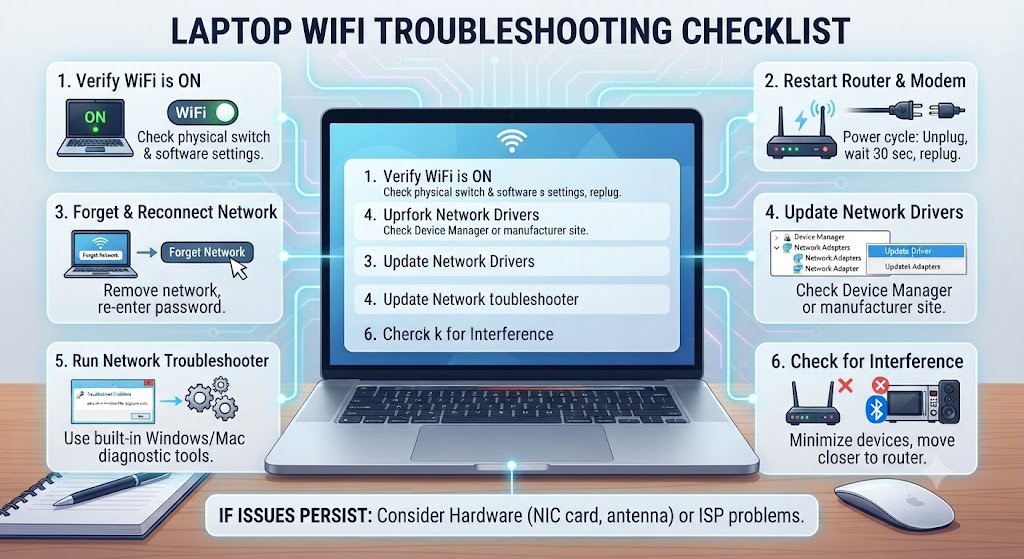
Before arranging a repair, work through the following checklist.
| Step | Check |
|---|---|
| Restart your laptop | ✓ |
| Restart your router and modem | ✓ |
| Turn WiFi on | ✓ |
| Disable Airplane Mode | ✓ |
| Forget and reconnect to the WiFi network | ✓ |
| Check the correct WiFi password | ✓ |
| Update or reinstall WiFi drivers | ✓ |
| Run Windows Network Troubleshooter | ✓ |
| Reset network settings | ✓ |
| Test another WiFi network | ✓ |
| Connect using a USB WiFi adapter (if available) | ✓ |
If your laptop still refuses to connect after completing these checks, the issue is likely related to internal hardware that requires professional diagnosis.
When Should You Seek Professional Laptop Repair?
While many WiFi problems can be fixed at home, some faults require specialist tools and technical expertise. You should arrange a professional inspection if:
- Your laptop cannot detect any WiFi networks.
- The wireless adapter is missing from Device Manager.
- WiFi stopped working after liquid damage.
- The laptop has been dropped or physically damaged.
- Driver updates and network resets do not solve the problem.
- The laptop connects using Ethernet but never through WiFi.
- An external USB WiFi adapter works, but the internal adapter does not.
- You suspect a motherboard or internal hardware fault.
At iExpert Repairs, we diagnose and repair WiFi connectivity issues on all major laptop brands, including HP, Dell, Lenovo, ASUS, Acer, Microsoft Surface, gaming laptops, and MacBooks. Whether the issue involves a faulty wireless card, damaged antenna, motherboard fault, or software corruption, our technicians use premium OEM-grade parts and professional diagnostic equipment to restore reliable wireless performance.
How Much Does It Cost to Fix Laptop WiFi Problems in the UK?
One of the first questions people ask when their laptop won’t connect to WiFi is, “How much will it cost to repair?” The answer depends on the underlying cause of the problem.
In many cases, WiFi issues are software-related and can be resolved through driver updates, network configuration, or operating system repairs. However, if the fault is caused by a damaged wireless card, broken internal antenna, liquid damage, or a motherboard failure, professional repair may be required.
The good news is that many WiFi-related repairs are significantly more affordable than replacing the entire laptop. A professional diagnosis can help identify the exact issue and prevent unnecessary replacement of working components.
Typical Laptop WiFi Repair Costs in the UK
The table below provides a general estimate of common laptop WiFi repair costs across the UK in 2026.
| Repair Required | When It’s Usually Needed | Typical UK Price |
|---|---|---|
| Software diagnosis and network repair | Windows networking errors, driver issues | £40-£90 |
| WiFi driver installation or repair | Corrupted or outdated wireless drivers | £40-£80 |
| Internal WiFi card replacement | Faulty or failed wireless adapter | £60-£150 |
| WiFi antenna repair | Weak signal or damaged antenna cable | £70-£160 |
| Motherboard repair | Internal communication or circuit faults | £150-£450+ |
| Liquid damage repair | WiFi failure after liquid exposure | £90-£350+ |
Please note: These are estimated UK repair prices for 2026. The final cost depends on your laptop model, replacement part availability, and the complexity of the repair.
Is It Worth Repairing a Laptop That Won’t Connect to WiFi?
For most users, the answer is yes.
A laptop that won’t connect to WiFi doesn’t necessarily have a major hardware fault. Many devices only require a software repair, wireless driver update, network reset, or replacement WiFi card to restore full functionality.
Replacing a laptop can cost hundreds or even thousands of pounds, particularly if you own a business laptop, gaming laptop, or MacBook. In comparison, repairing the existing device is often the more affordable and environmentally responsible option.
If your laptop is also experiencing charging problems, frequent shutdowns, or poor battery life, these issues may be related to the overall health of the device. Our guide Why Is My Laptop Battery Not Charging? explains how power-related faults can sometimes affect system stability and wireless performance.
Should You Repair or Replace Your Laptop?
- Situation | Best Option
- Laptop less than 5 years old | Repair
- Only WiFi has stopped working | Repair
- Motherboard badly damaged | Compare repair cost
- Repair exceeds laptop value | Replace
- Very old Windows 7 laptop | Consider upgrading
Which WiFi Problems Can You Safely Fix Yourself?
Not every wireless connection problem requires professional repair. There are several troubleshooting steps that are completely safe to try before arranging a repair.
However, once the issue involves internal hardware or motherboard components, it’s usually best to stop troubleshooting and seek professional assistance.
| Safe Checks You Can Try at Home | Situations That Usually Need Professional Repair |
|---|---|
| Restart your laptop | Internal WiFi card failure |
| Restart your router | Motherboard faults |
| Turn WiFi on | Liquid damage |
| Disable Airplane Mode | Damaged wireless antenna |
| Forget and reconnect to the network | Hardware replacement |
| Update WiFi drivers | Internal component repair |
| Run Windows Network Troubleshooter | Electrical or circuit faults |
| Reset network settings | Persistent hardware-related connectivity issues |
Trying these basic checks first can often restore your wireless connection without the need for repairs.
When Should You Stop Troubleshooting?
Many users continue restarting their laptop or reinstalling drivers repeatedly, hoping the WiFi connection will suddenly return. Unfortunately, if the problem is caused by failing hardware, repeated troubleshooting is unlikely to resolve it.
You should stop DIY troubleshooting and arrange a professional inspection if you notice any of the following:
- The WiFi adapter no longer appears in Device Manager.
- Your laptop cannot detect any wireless networks.
- The problem started after liquid damage or a physical drop.
- Windows has been reinstalled but WiFi still doesn’t work.
- External USB WiFi adapters work while the internal adapter does not.
- The laptop has multiple hardware faults occurring at the same time.
These symptoms often indicate hardware failure that requires specialist diagnostic equipment.
Why Professional Diagnosis Saves Money?
Many users replace the WiFi card assuming it has failed, only to discover the real problem is a damaged antenna cable, incorrect BIOS settings, corrupted Windows installation, or a motherboard fault.
Professional diagnostics identify the exact cause before any parts are replaced, helping you avoid unnecessary repair costs.
Could Overheating Be Affecting Your WiFi Connection?
Although overheating doesn’t directly disable WiFi in every case, excessive heat can affect internal components, including the wireless adapter, motherboard, and processor.
Over time, high temperatures may lead to unstable wireless connections, unexpected disconnects, or complete hardware failure. Warning signs include:
- The cooling fan constantly runs at high speed.
- The laptop feels unusually hot.
- WiFi disconnects during heavy workloads.
- The laptop becomes slow before losing its wireless connection.
- Unexpected shutdowns occur while using the internet.
If your laptop frequently overheats, it’s important to address the cooling problem before it causes further hardware damage.
Professional Laptop WiFi Repair Services
If you’ve tried all the troubleshooting steps in this guide and your laptop still won’t connect to WiFi, it’s likely that the problem requires professional diagnosis.
At iExpert Repairs, we repair WiFi and network-related faults on all major laptop brands, from everyday home laptops to business devices, gaming laptops, and MacBooks. Every repair begins with a thorough diagnostic process to identify the exact cause before any work is carried out.
Whether the issue involves a faulty WiFi card, damaged wireless antenna, motherboard fault, driver corruption, or software-related networking problem, our technicians use premium OEM-grade replacement parts and professional repair procedures to restore reliable wireless connectivity.
WiFi Hardware Repairs by Experienced Technicians
If testing confirms that your laptop’s internal wireless hardware has failed, replacing the faulty component is often the quickest and most cost-effective solution.
Our laptop repair service covers:
- Faulty internal WiFi card replacement
- Wireless antenna repairs
- Motherboard diagnostics and repair
- Driver and software troubleshooting
- Windows network repairs
- Liquid damage diagnostics
- General laptop hardware repairs
Many common repairs can be completed the same day, subject to parts availability, helping you get back online with minimal disruption.
Specialist Repairs for HP, Dell, Lenovo and MacBook Laptops
Every laptop manufacturer uses different wireless hardware, internal layouts, and repair procedures. That’s why model-specific experience is essential for accurate diagnosis and long-lasting repairs.
Our technicians provide specialist repair services for:
- HP Laptop Repair – including Pavilion, Envy, ProBook, EliteBook and Omen models.
- Dell Laptop Repair – including Inspiron, Latitude, XPS, Precision and Alienware devices.
- Lenovo Laptop Repair – covering ThinkPad, IdeaPad, Yoga and Legion laptops.
- ASUS Laptop Repair – including VivoBook, ZenBook, ExpertBook, TUF Gaming and ROG models.
- Acer Laptop Repair – Aspire, Swift, Nitro and Predator series.
- MacBook Repair – MacBook Air and MacBook Pro models with Retina and Liquid Retina displays.
- Microsoft Surface Laptop Repair – Surface Laptop and Surface Book devices.
Using high-quality replacement parts and manufacturer-recommended repair procedures helps ensure dependable performance after every repair.
Nationwide UK Laptop Repair Service
Whether you’re based in London, Birmingham, Manchester, Liverpool, Leeds, Glasgow, Bristol, Sheffield, or anywhere else in the UK, you can access our professional repair services without visiting us in person.
Our nationwide mail-in repair process is simple:
- Request a personalised repair quote.
- Securely package your laptop.
- Send it to our repair centre.
- Our technicians diagnose and repair the fault.
- Your laptop is fully tested before being returned via tracked delivery.
This convenient service allows customers throughout the UK to benefit from expert laptop repairs, regardless of their location.
FAQs About Laptop WiFi Problems
1. Why is my laptop not connecting to WiFi even though the password is correct?
If your password is correct but your laptop still won’t connect, the issue may be caused by outdated WiFi drivers, incorrect network settings, router problems, a disabled wireless adapter, or faulty internal hardware. Restarting both your router and laptop is a good place to start before trying more advanced troubleshooting.
2. Why can’t my laptop find any WiFi networks?
If no wireless networks appear, your WiFi adapter may be disabled, the wireless driver could be corrupted, Airplane Mode might be enabled, or the internal WiFi card may have failed.
3. Why is my laptop connected to WiFi but has no internet access?
This usually indicates a router, ISP, DNS, or IP configuration issue rather than a fault with the WiFi connection itself. Restarting the router and resetting your network settings often resolves the problem.
4. Can a Windows update stop my laptop from connecting to WiFi?
Yes. Occasionally, Windows updates can install incompatible network drivers or change system settings, preventing your laptop from connecting to wireless networks until the driver is updated or the update is removed.
5. How do I reset my laptop’s WiFi settings?
Windows allows you to perform a Network Reset through Settings > Network & Internet > Advanced Network Settings > Network Reset. This reinstalls your network adapters and restores the default networking configuration.
6. Why does my laptop keep disconnecting from WiFi?
Frequent disconnections may be caused by weak signal strength, outdated drivers, router interference, power management settings, or a failing internal WiFi adapter.
7. How do I know if my laptop’s WiFi card is faulty?
If your laptop cannot detect any wireless networks, the WiFi adapter disappears from Device Manager, driver updates don’t help, and a USB WiFi adapter works normally, the internal WiFi card may need replacing.
8. Can a damaged router cause WiFi problems on my laptop?
Yes. A faulty router, outdated firmware, overheating, or broadband service interruptions can prevent your laptop from connecting even if the laptop itself is working correctly.
9. Why does my laptop only connect to WiFi near the router?
A weak wireless signal, damaged internal antenna, interference from walls or electronic devices, or a failing WiFi adapter can all reduce wireless range.
10. Is it safe to update WiFi drivers myself?
Yes. Updating drivers through your laptop manufacturer’s official website or Windows Update is generally safe and can resolve many wireless connectivity issues.
11. Can malware affect my laptop’s WiFi connection?
Yes. Certain types of malware can modify network settings, interfere with internet access, or affect system performance, making it difficult to maintain a stable wireless connection.
12. How much does it cost to repair laptop WiFi problems in the UK?
Software-related repairs typically cost between £40 and £90, while replacing an internal WiFi card generally ranges from £60 to £150. More complex motherboard repairs may cost considerably more depending on the laptop model.
13. Can I use a USB WiFi adapter instead of repairing my laptop?
Yes. A USB WiFi adapter can provide a temporary or permanent solution if the internal wireless card has failed, although replacing the original hardware is usually the better long-term option.
14. Why did my laptop stop connecting to WiFi after I dropped it?
A physical impact can damage the internal WiFi card, wireless antenna, motherboard, or other components. Even if there is no visible external damage, the laptop should be professionally inspected.
15. Can overheating affect my laptop’s WiFi performance?
Yes. Excessive heat can affect the motherboard, wireless adapter, and other internal components, leading to unstable wireless connections or complete hardware failure over time.
Conclusion
A laptop that won’t connect to WiFi can interrupt work, online learning, video calls, gaming, and everyday browsing, but it doesn’t always indicate a serious hardware problem. In many cases, the issue can be resolved by enabling WiFi, restarting your router, updating network drivers, resetting Windows network settings, or correcting a simple configuration error.
However, if your laptop continues to experience connectivity problems after basic troubleshooting, the cause may be a faulty WiFi card, damaged wireless antenna, motherboard issue, or another internal hardware fault that requires professional attention. Identifying the root cause early can help prevent more expensive repairs and keep your laptop performing reliably for longer.
If you’ve also noticed slow performance, overheating, charging problems, black screen issues, or your laptop failing to turn on, these problems may be connected. Resolving them promptly can improve your laptop’s stability, reliability, and overall lifespan.
Back to posts

