
Why Is My Laptop Fan So Loud? (Quick Answer)
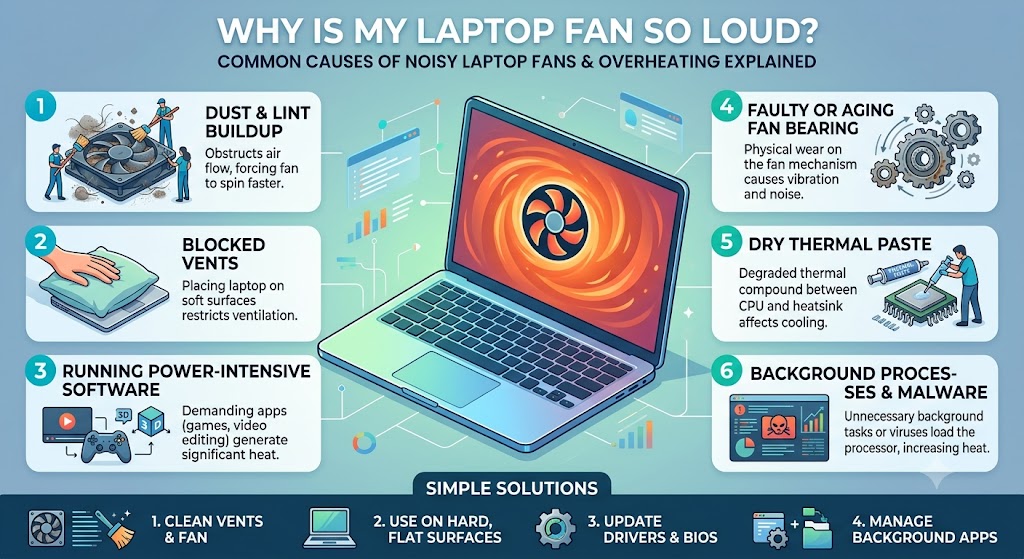
If your laptop fan is loud, it’s usually because the cooling system is working harder than normal to remove excess heat. Common causes include dust blocking the vents, high CPU or GPU usage, too many background programs, outdated drivers, malware, failing fan bearings, dried thermal paste, or poor airflow. In many cases, cleaning the cooling system and reducing system load solves the problem, but persistent loud fan noise may indicate that the cooling hardware needs professional repair.
Is It Normal for a Laptop Fan to Be Loud?
Not always.
Every laptop contains one or more cooling fans designed to remove heat from the processor, graphics chip and other internal components. During demanding activities such as gaming, video editing, software development or running multiple applications, the fan naturally spins faster to keep temperatures under control.
However, if your laptop fan suddenly becomes much louder during light tasks like web browsing, watching videos or working on documents, it usually indicates that something is forcing the cooling system to work harder than it should.
Ignoring persistent fan noise can eventually lead to overheating, slower performance, unexpected shutdowns and, in severe cases, permanent damage to internal components.
Signs Your Laptop Fan Noise Could Be a Problem
A loud fan is often accompanied by other warning signs that shouldn’t be ignored.
| Symptom | Possible Cause |
|---|---|
| Fan constantly running at high speed | High CPU usage or overheating |
| Laptop feels extremely hot | Blocked airflow or cooling failure |
| Slow performance | Thermal throttling |
| Unexpected shutdowns | Critical overheating |
| Grinding or rattling sounds | Worn or damaged fan bearings |
| Fan speed constantly changes | Software or driver issues |
| Fan remains loud after startup | Background processes or hardware fault |
If your laptop has also started running slowly, it’s worth reading our guide on How to Fix a Slow Laptop?, as overheating and poor performance often occur together.
How Does a Laptop Cooling System Work?

Understanding how your cooling system works makes it much easier to identify why the fan has become noisy. A typical laptop cooling system consists of:
- Cooling fan
- Heat sink
- Heat pipes
- Air vents
- Thermal paste
- Temperature sensors
When the processor or graphics chip begins producing heat, the thermal paste transfers that heat into the heat sink through copper heat pipes. The cooling fan then pushes hot air out through the exhaust vents while drawing cooler air into the laptop.
If any part of this process becomes less efficient, the fan must work significantly harder to maintain safe operating temperatures.
What Happens When the Cooling System Can’t Keep Up?
When cooling efficiency drops, your laptop automatically increases fan speed to protect sensitive components. This usually happens in stages:
| Temperature Condition | Laptop Response |
|---|---|
| Slight temperature increase | Fan speed increases slightly |
| Moderate heat | Fan becomes clearly audible |
| High temperature | Fan runs at maximum speed |
| Critical temperature | CPU performance is reduced (thermal throttling) |
| Dangerous temperature | Laptop may shut down automatically |
Thermal throttling protects your processor but also makes the laptop feel much slower than usual.
If you’ve noticed both excessive heat and reduced battery life, the issue may also be linked to battery health. Our guide on Why Is My Laptop Battery Not Charging? explains how power-related problems can contribute to higher system temperatures.
Why You Shouldn’t Ignore a Loud Laptop Fan
Many people continue using their laptop because “it’s still working.” Unfortunately, this can make the problem much worse. A constantly overworked cooling system can lead to:
- Higher internal temperatures
- Reduced processor performance
- Faster battery degradation
- Premature SSD and motherboard wear
- Unexpected crashes
- Automatic shutdowns
- Shorter overall laptop lifespan
In repair workshops, we often see laptops that initially only had excessive fan noise but later required expensive motherboard or cooling system repairs because the warning signs were ignored.
Early diagnosis is almost always faster, cheaper and easier than repairing damage caused by prolonged overheating.
Common Situations Where Laptop Fans Become Loud
A noisy fan doesn’t always indicate a fault. Some activities naturally generate much more heat than others. Your laptop fan may become noticeably louder while:
- Playing modern PC games
- Editing 4K videos
- Rendering 3D graphics
- Running virtual machines
- Using AI software
- Performing Windows updates
- Installing large applications
- Running antivirus scans
- Connecting multiple external displays
- Charging while performing demanding tasks
In these situations, temporary fan noise is completely normal. However, if the fan continues running loudly long after these tasks have finished, further investigation is recommended.
1. Dust Build-Up Inside the Cooling System
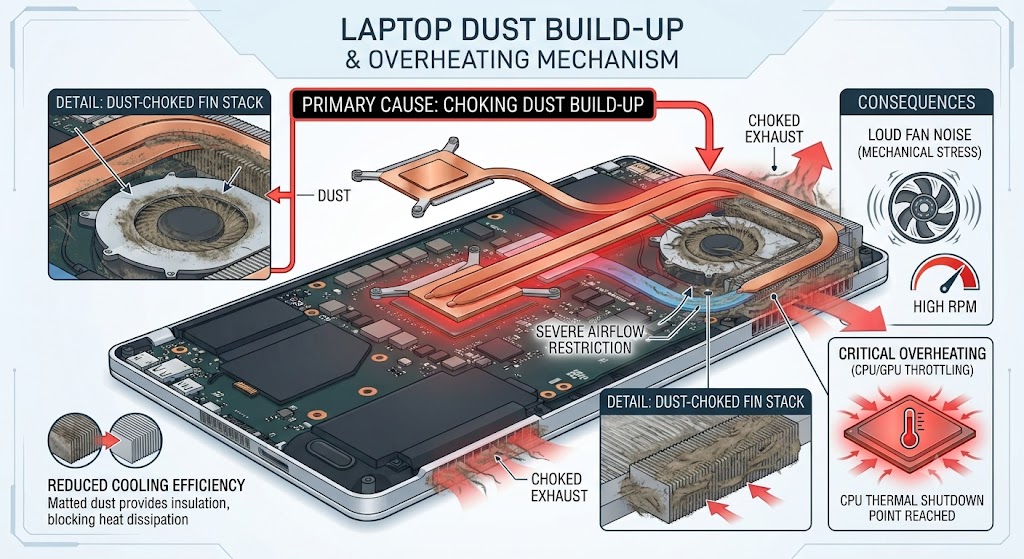
The most common reason a laptop fan suddenly becomes loud is dust. Even if your laptop looks clean from the outside, fine dust particles gradually collect inside the cooling system, especially around the fan blades, heat sink and air vents.
As the dust layer becomes thicker, airflow is restricted and hot air can no longer escape efficiently. To compensate, the fan spins much faster and stays active for longer periods, creating the loud humming or whirring noise many users notice.
This problem is especially common in laptops that are more than a year old or are regularly used on beds, carpets, sofas or other soft surfaces where dust and fibres can easily be drawn into the cooling vents.
Common Signs
- Fan becomes louder every month.
- Laptop feels unusually warm underneath.
- Airflow from the vents feels weak.
- Performance drops during everyday tasks.
- Fan continues running even when the laptop is idle.
How to Fix It
Start by turning the laptop off and disconnecting the charger. Inspect the cooling vents for visible dust and gently clean them using compressed air. Avoid inserting sharp objects into the vents, as this can damage the fan blades.
If the laptop has not been cleaned internally for several years, a professional internal cleaning is often the safest and most effective solution.
2. High CPU Usage
Your laptop fan automatically speeds up whenever the processor begins generating more heat. Sometimes this is expected, but in many cases unnecessary background activity is responsible.
Applications such as Google Chrome with dozens of open tabs, video editing software, games, Windows updates and cloud synchronisation tools can all place heavy demand on the processor. Even a single application consuming excessive CPU resources can cause the cooling fan to run continuously at maximum speed.
How to Check CPU Usage
On Windows:
Ctrl + Shift + Esc → Task Manager → Processes
Look for applications consistently using a high percentage of CPU resources. On macOS:
Activity Monitor → CPU
Sort processes by CPU usage to identify any software consuming unusually high system resources.
How to Fix It
- Close programs you no longer need.
- Reduce the number of browser tabs.
- Restart the laptop.
- Disable unnecessary startup applications.
- Update resource-intensive software.
3. Too Many Background Programs
Many users only look at the applications they can see on the screen, but dozens of background processes may be running without their knowledge.
Examples include:
- Cloud backup software
- Antivirus scans
- Windows indexing
- Driver update utilities
- Messaging applications
- RGB control software
- Printer services
- Software launchers
Individually these consume little power, but together they can keep the processor constantly busy.
Signs
- Fan becomes loud shortly after startup.
- CPU usage remains high while the laptop appears idle.
- Battery drains faster than usual.
- Laptop becomes warm without heavy use.
Fix
Disable unnecessary startup applications through Task Manager or System Settings and uninstall software you no longer use.
4. Malware or Hidden Background Activity
A laptop that suddenly develops loud fan noise without any obvious reason may have unwanted software running in the background.
Certain types of malware secretly consume processor resources by mining cryptocurrency, displaying hidden advertisements or performing other malicious activities. This significantly increases CPU temperatures, forcing the cooling fan to run constantly.
Warning Signs
- Fan runs loudly even when no applications are open.
- CPU usage remains unusually high.
- Laptop becomes slower than normal.
- Battery drains rapidly.
- Frequent pop-ups or unexpected browser behaviour.
What to Do
- Run a full Windows Security scan.
- Update your antivirus software.
- Remove suspicious applications.
- Check browser extensions.
- Install the latest Windows security updates.
Removing malicious software often restores normal processor temperatures almost immediately.
5. Blocked Air Vents
Laptop cooling systems depend on unrestricted airflow. If the intake or exhaust vents are blocked, hot air becomes trapped inside the chassis, forcing the fan to work continuously.
Many users unknowingly block the vents by using their laptop on:
- Beds
- Sofas
- Cushions
- Blankets
- Carpets
- Their lap for extended periods
Soft materials prevent cool air from entering the laptop and dramatically reduce cooling efficiency.
Best Practice
Always place your laptop on a hard, flat surface such as a desk or table. If you regularly perform demanding tasks like gaming, video editing or programming, using a quality laptop cooling stand can further improve airflow.
6. Dried or Worn Thermal Paste
Thermal paste sits between the processor and the heat sink, helping transfer heat away from the CPU efficiently. Over time, especially after several years of use, this material begins to dry out and lose its effectiveness.
When this happens:
- Heat transfer becomes inefficient.
- Processor temperatures rise quickly.
- Cooling fan operates at much higher speeds.
- Laptop performance may decrease due to thermal throttling.
Signs That Thermal Paste May Need Replacing
| Symptom | Likely Cause |
|---|---|
| Fan always loud | Poor heat transfer |
| CPU temperature rises rapidly | Dried thermal paste |
| Laptop overheats under light use | Reduced cooling efficiency |
| Performance drops after a few minutes | Thermal throttling |
Replacing thermal paste requires partial disassembly of the laptop and should usually be performed by an experienced technician to avoid damaging delicate internal components.
7. Outdated Drivers or BIOS
Your laptop’s BIOS and system drivers play an important role in temperature management and fan control. Manufacturers regularly release updates that improve cooling performance, optimise fan curves and fix bugs affecting thermal management.
An outdated BIOS can sometimes cause the fan to run unnecessarily fast even when temperatures are normal.
Recommended Updates
- BIOS
- Chipset drivers
- Graphics drivers
- Windows updates
- Manufacturer support software
Download updates directly from your laptop manufacturer’s official website to avoid compatibility issues.
8. Demanding Software and Games
Modern software places much greater demand on laptop hardware than standard office work. Activities that commonly increase fan noise include:
- AAA gaming
- Video editing
- 3D rendering
- Artificial intelligence applications
- CAD software
- Large spreadsheet calculations
- Virtual machines
- Live streaming
During these workloads, louder fan operation is completely normal because the processor and graphics chip generate significantly more heat. However, if fan noise continues long after you’ve closed these applications, another cooling issue is likely present.
At iExpert Repairs, we frequently find that laptops suffering from persistent loud fan noise have more than one contributing factor – for example, dust build-up combined with ageing thermal paste or high background CPU usage. Identifying the exact cause early can prevent overheating from developing into more serious hardware faults.
9. Worn or Failing Fan Bearings
If your laptop fan produces a grinding, rattling, buzzing or clicking sound instead of a smooth airflow noise, the fan itself may be wearing out.
Laptop cooling fans contain small bearings that allow the blades to rotate smoothly. After years of continuous use, these bearings can wear down, causing the fan to become noisy even when the laptop isn’t particularly hot. Unlike dust or software-related issues, a worn fan won’t improve with cleaning alone.
Common Symptoms
- Grinding or scraping noises.
- Clicking sounds while the fan is spinning.
- Fan speed constantly fluctuates.
- Loud noise immediately after startup.
- Noise becomes worse over time.
Can You Continue Using the Laptop?
It is possible for a short period, but it isn’t recommended. A failing fan can eventually stop spinning altogether, preventing the cooling system from removing heat. This significantly increases the risk of overheating and potential damage to the processor or motherboard.
If the fan is physically damaged, replacing it is usually the safest long-term solution. At iExpert Repairs, we replace faulty cooling fans using high-quality compatible parts and thoroughly test the cooling system before returning the device.
10. Faulty Temperature Sensors
Modern laptops rely on multiple temperature sensors to monitor the CPU, GPU and motherboard. These sensors constantly report temperatures to the BIOS, which automatically adjusts fan speed.
If a sensor begins sending incorrect readings, the laptop may incorrectly assume it is overheating and force the fan to run at maximum speed, even when internal temperatures are normal.
Possible Signs
- Fan stays at full speed after startup.
- Laptop feels cool despite loud fan noise.
- Temperature-monitoring software shows unrealistic readings.
- Fan speed changes suddenly without heavy workload.
Because faulty sensors are integrated into the motherboard, diagnosis usually requires professional testing.
11. Charging Can Increase Fan Noise
Many people notice that their laptop fan becomes louder while charging. This is completely normal to some extent.
Charging the battery generates additional heat, and if you’re simultaneously running demanding software, the cooling system has to remove heat from both the processor and the battery.
This Is Usually Normal When
- Gaming while charging.
- Editing videos.
- Running large software updates.
- Using external monitors.
- Rendering graphics.
It May Indicate a Problem If
- The fan remains extremely loud long after charging finishes.
- The laptop becomes unusually hot around the battery.
- Charging is inconsistent.
- The battery drains unusually quickly.
12. Motherboard or Power Component Problems
Although less common, certain motherboard faults can also cause excessive fan activity.
Problems involving the charging circuit, voltage regulators, processor power delivery or graphics components may generate additional heat that forces the cooling fan to operate continuously. These issues cannot normally be diagnosed without specialist equipment.
Possible Symptoms
- Loud fan despite low CPU usage.
- Frequent blue screen errors.
- Unexpected shutdowns.
- Burning smell.
- Charging problems.
- Laptop fails to boot consistently.
Board-level repairs should always be carried out by experienced technicians because modern laptop motherboards contain delicate surface-mounted components that require specialist repair equipment.
How to Fix a Loud Laptop Fan?
Once you’ve identified the likely cause, the next step is resolving it safely. Start with the simplest fixes before considering hardware repairs.
Step 1: Restart Your Laptop
A simple restart can clear temporary software glitches, background processes and stuck system services that may be causing unnecessary processor activity.
Many users notice quieter fan operation immediately after restarting.
Step 2: Close Resource-Heavy Applications
Open Task Manager (Windows) or Activity Monitor (Mac) and identify applications consuming excessive CPU resources. Close programs that are no longer needed, especially:
- Video editors
- Games
- Browser tabs
- Virtual machines
- Large downloads
- Background synchronisation tools
Reducing processor workload immediately lowers heat production.
Step 3: Clean the Air Vents
Use compressed air to remove dust from the intake and exhaust vents. Hold the can upright and apply short bursts rather than continuous airflow.
Never insert metal objects into the vents or attempt to force the fan blades to rotate at high speed, as this can damage the cooling system.
Step 4: Place the Laptop on a Hard Surface
Always use your laptop on a desk or table. Avoid:
- Beds
- Cushions
- Blankets
- Sofas
- Thick carpets
Good airflow alone can reduce internal temperatures by several degrees.
Step 5: Reduce Startup Applications
Many unnecessary applications launch automatically every time Windows starts. Disabling unused startup programs reduces processor usage and helps the fan return to normal operating speeds more quickly.
Windows
Task Manager → Startup Apps
Disable applications you don’t need immediately after booting.
Step 6: Scan for Malware
Run a complete antivirus scan using Windows Security or another trusted security solution. Hidden malware often keeps the processor under constant load, resulting in continuous fan noise. Removing malicious software frequently restores normal cooling performance.
Step 7: Update Windows, Drivers and BIOS
Installing the latest software updates can improve thermal management and correct fan-control bugs. Check for updates to:
- Windows
- BIOS
- Graphics drivers
- Chipset drivers
- Manufacturer utilities
Always download BIOS updates directly from your laptop manufacturer’s official support website.
Step 8: Monitor CPU Temperatures
Temperature-monitoring software can help determine whether your laptop is genuinely overheating. As a general guide:
| CPU Temperature | Condition |
|---|---|
| 35-50°C | Excellent at idle |
| 50-70°C | Normal everyday use |
| 70-85°C | Heavy workload |
| Above 90°C | Excessive heat requiring attention |
Consistently high temperatures suggest the cooling system requires cleaning or repair.
Step 9: Replace Thermal Paste (Advanced)
If your laptop is several years old and continues overheating after cleaning, dried thermal paste may be reducing heat transfer.
Replacing thermal paste can lower processor temperatures significantly, but because it involves dismantling the cooling assembly, it’s generally recommended for experienced technicians.
Step 10: Replace the Cooling Fan
If the fan produces grinding, clicking or rattling sounds even after cleaning, the fan motor has likely reached the end of its lifespan. Replacing the cooling fan restores quiet operation and prevents future overheating.
Which Fix Works Best?
| Problem | Recommended Solution |
|---|---|
| Dust inside vents | Clean cooling system |
| High CPU usage | Close demanding applications |
| Too many startup programs | Disable unnecessary startup apps |
| Malware | Perform a full antivirus scan |
| Outdated BIOS | Install latest updates |
| Dried thermal paste | Replace thermal compound |
| Grinding fan noise | Replace cooling fan |
| Constant overheating | Professional cooling system inspection |
| Motherboard fault | Board-level diagnosis and repair |
In many cases, a combination of cleaning, software optimisation and proper airflow is enough to solve the problem. However, if the fan remains excessively loud despite these steps, the issue is likely hardware-related and should be professionally diagnosed before overheating causes more expensive damage.
When Is a Loud Laptop Fan a Serious Problem?
A laptop fan that occasionally becomes louder during demanding tasks is completely normal. However, if the noise is persistent or accompanied by other symptoms, it may indicate a more serious issue that requires attention.
You should arrange a professional inspection if you notice any of the following:
- The fan remains at maximum speed even when the laptop is idle.
- The laptop becomes too hot to touch.
- Performance slows down significantly after a few minutes of use.
- The laptop shuts down unexpectedly.
- You hear grinding, clicking or rattling noises.
- The fan stops spinning intermittently.
- Warning messages about high CPU temperatures appear.
- The laptop freezes or crashes during everyday tasks.
Ignoring these warning signs can allow excessive heat to damage the processor, graphics chip, SSD, battery or even the motherboard, resulting in far more expensive repairs.
Can You Continue Using a Laptop With a Loud Fan?
It depends on the cause. If the fan only becomes louder while gaming, editing videos or running demanding software, and the noise returns to normal afterwards, there is usually no cause for concern.
However, if the fan is constantly loud during light tasks such as browsing the internet or checking emails, it’s best to investigate the problem as soon as possible. Continuing to use an overheating laptop for extended periods can reduce component lifespan and increase the risk of hardware failure.
Laptop Fan Noise Troubleshooting Checklist
Before booking a repair, work through this simple checklist.
| Check | Completed |
|---|---|
| Restarted the laptop | ✓ |
| Closed unnecessary applications | ✓ |
| Checked CPU usage | ✓ |
| Cleaned the air vents | ✓ |
| Scanned for malware | ✓ |
| Installed Windows updates | ✓ |
| Updated BIOS and drivers | ✓ |
| Used the laptop on a hard surface | ✓ |
| Checked CPU temperatures | ✓ |
| Listened for grinding or rattling noises | ✓ |
If you’ve completed these steps and the fan is still unusually loud, a hardware inspection is recommended.
How to Prevent Your Laptop Fan From Becoming Loud Again
Regular maintenance can significantly reduce fan noise and help extend your laptop’s lifespan.
1. Keep the Cooling Vents Clean
Dust is one of the biggest causes of overheating. Cleaning the vents regularly helps maintain proper airflow and prevents the fan from working harder than necessary.
2. Avoid Blocking Airflow
Always place your laptop on a flat, solid surface. Soft materials such as beds, blankets and cushions block the cooling vents and trap heat inside the device.
3. Limit Unnecessary Background Programs
Running dozens of applications simultaneously increases processor workload and heat generation. Close software you aren’t actively using.
4. Keep Windows and Drivers Updated
Software updates often include improvements to power management, cooling performance and fan control.
5. Monitor Laptop Temperatures
If you regularly use your laptop for gaming, editing or professional workloads, checking system temperatures occasionally can help you spot cooling issues before they become serious.
6. Schedule Professional Internal Cleaning
For laptops used daily, especially in dusty environments, an internal cleaning every 12 to 18 months can remove accumulated dust, improve airflow and reduce fan noise.
Professional Laptop Fan Repair Across the UK
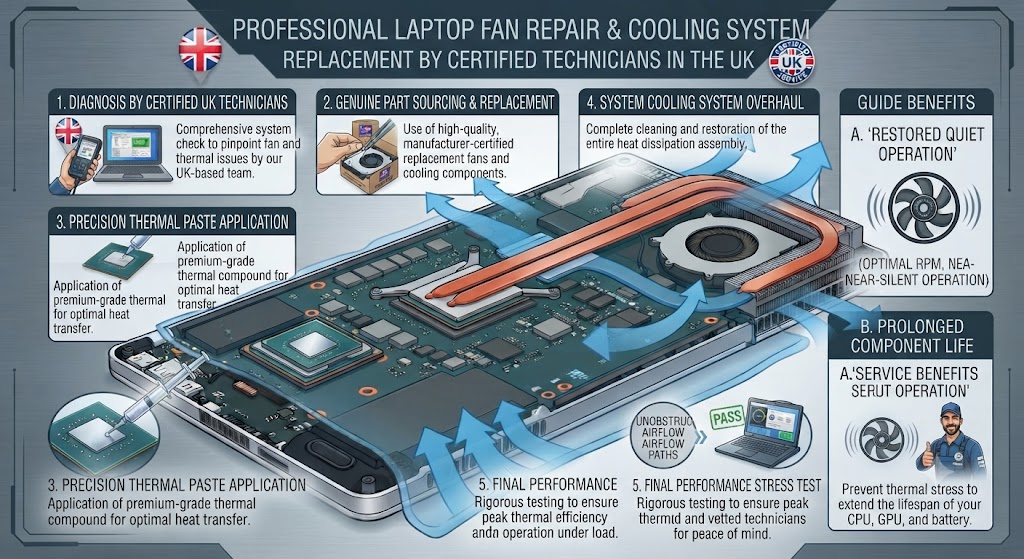
If your laptop fan continues making excessive noise after basic troubleshooting, professional repair is often the safest solution.
At iExpert Repairs, our certified technicians diagnose the root cause rather than simply replacing parts unnecessarily. Whether the problem is a blocked cooling system, worn fan bearings, dried thermal paste or a motherboard fault, we carry out a full inspection before recommending the most cost-effective repair.
Our laptop repair services include:
- Cooling fan replacement
- Internal dust removal
- Thermal paste replacement
- Heat sink servicing
- BIOS diagnostics
- Motherboard repair
- Charging circuit repairs
- Full overheating diagnostics
- Performance optimisation
We repair all major laptop brands, including Apple MacBook, HP, Dell, Lenovo, ASUS, Acer, Microsoft Surface, MSI, Samsung and many others.
If the excessive fan noise is being caused by a broader hardware issue, our dedicated Laptop Repair service provides comprehensive diagnostics and repairs for customers across the UK. For brand-specific support, you can also book repairs for HP Laptop Repair, Dell Laptop Repair, Lenovo Laptop Repair, or MacBook Repair, depending on your device model.
Whether you visit our Essex repair centre or use our secure nationwide mail-in service, every repair is completed using premium-quality replacement parts and backed by a 12-month warranty for added peace of mind.
Why Is My Laptop Fan So Loud? – FAQs
1. Why is my laptop fan so loud all of a sudden?
A laptop fan can suddenly become loud if the system detects higher-than-normal temperatures. This may happen because of dust blocking the cooling vents, high CPU usage, multiple background applications, Windows updates, gaming, video editing, malware or a failing cooling fan. If the fan remains noisy even when the laptop is idle, it’s a good idea to inspect the cooling system or have the device professionally diagnosed.
2. Is it normal for a laptop fan to be loud?
Yes, but only under certain conditions. It’s perfectly normal for your laptop fan to become louder while gaming, editing videos, rendering graphics or running demanding software. However, if the fan stays loud during light tasks such as browsing the web or checking emails, there may be an underlying cooling or hardware issue that needs attention.
3. Why is my laptop fan loud even when I’m not using it?
If your laptop fan continues running loudly while the device is idle, background processes may be consuming system resources. Windows updates, antivirus scans, cloud synchronisation, malware or unnecessary startup applications can all increase processor activity and cause the cooling fan to run continuously.
4. Can dust make my laptop fan louder?
Yes. Dust is one of the most common reasons for excessive fan noise. Over time, dust accumulates inside the cooling system, reducing airflow through the heat sink and vents. As temperatures rise, the fan spins faster to compensate, making it much louder than normal.
5. How do I stop my laptop fan from being so loud?
Start by closing unnecessary applications, cleaning the cooling vents, checking CPU usage, updating Windows and drivers, scanning for malware and ensuring the laptop is placed on a hard surface with good airflow. If these steps don’t reduce the noise, the cooling fan or thermal paste may need professional attention.
6. Why is my laptop fan loud after a Windows update?
Some Windows updates temporarily increase processor usage while installing files, rebuilding indexes or performing background optimisation. During this process, the cooling fan may run faster. If the fan remains loud for several days after the update has completed, investigate other possible causes such as software conflicts or outdated drivers.
7. Can overheating cause a loud laptop fan?
Absolutely. Overheating is one of the primary reasons a laptop fan becomes noisy. As internal temperatures increase, the cooling system automatically raises fan speed to remove excess heat and protect sensitive components from damage.
8. Why is my gaming laptop fan always loud?
Gaming laptops are designed to handle powerful processors and graphics cards that generate significant heat. During gaming, the cooling fans often operate at high speeds to maintain safe temperatures. However, if the fan becomes unusually loud during light use, the cooling system may require cleaning or servicing.
9. Can malware cause my laptop fan to run constantly?
Yes. Certain types of malware secretly consume CPU resources by running hidden processes in the background. This increases processor temperatures and forces the cooling fan to work harder. Running a full antivirus scan can help identify and remove malicious software.
10. How can I check if my laptop fan is faulty?
Signs of a faulty laptop fan include grinding noises, clicking sounds, rattling, inconsistent fan speeds, overheating despite low CPU usage or the fan failing to spin altogether. These symptoms usually indicate worn bearings or mechanical failure, which often requires fan replacement.
11. Why is my laptop fan loud while charging?
Charging generates additional heat inside the laptop. If you’re simultaneously using demanding applications, the processor and battery produce even more heat, causing the fan to spin faster. This is generally normal unless the fan remains excessively loud after charging has finished.
Back to posts

