Introduction
Laptop overheating is one of the most common issues affecting both Windows laptops and MacBooks. While it’s normal for a laptop to become warm during demanding tasks such as gaming, video editing, or running multiple applications, excessive heat is never something you should ignore. If left unresolved, overheating can reduce performance, shorten the lifespan of internal components, trigger unexpected shutdowns, and in severe cases, cause permanent hardware damage.
Many users first notice the problem when the laptop feels unusually hot, the cooling fan becomes loud, or the system starts running much slower than usual. These symptoms are often linked to thermal throttling, a safety feature that reduces processor speed to protect critical components from excessive temperatures. If you’ve already experienced poor performance alongside overheating, our guide on How to Fix a Slow Laptop? Complete Troubleshooting & Performance Guide explains how heat and system performance are often closely connected.
Fortunately, most overheating problems can be resolved without replacing your laptop. Dust blocking the cooling vents, worn thermal paste, excessive background applications, outdated software, or a failing cooling fan are among the most common causes. Simple maintenance and targeted troubleshooting can often restore normal temperatures and improve overall performance.
Based on our experience completing more than 2,500 laptop repairs across the UK, overheating is one of the most common issues we diagnose. In many cases, the problem is caused by dust build-up, ageing thermal paste, or restricted airflow—issues that can often be resolved before they lead to permanent hardware damage when addressed early.
Whether you own a Dell, HP, Lenovo, ASUS, Acer, Microsoft Surface, Samsung, MSI, Toshiba, or Apple MacBook, this guide explains why laptops overheat, how to fix the problem safely, when professional repair is recommended, and how to prevent overheating from happening again.
Tools You May Need
Before opening your laptop or performing any internal maintenance, it’s helpful to have the correct tools. Using suitable equipment reduces the risk of damaging sensitive components and makes the repair process much safer.
You may need:
- Compressed air can
- Soft anti-static brush
- Precision screwdriver set
- High-quality thermal paste
- Microfibre cloth
- Laptop cooling pad (optional)
- Anti-static wrist strap (recommended)
If you are not comfortable opening your laptop, it’s best to seek professional assistance to avoid accidental damage.
Why Is My Laptop Overheating?
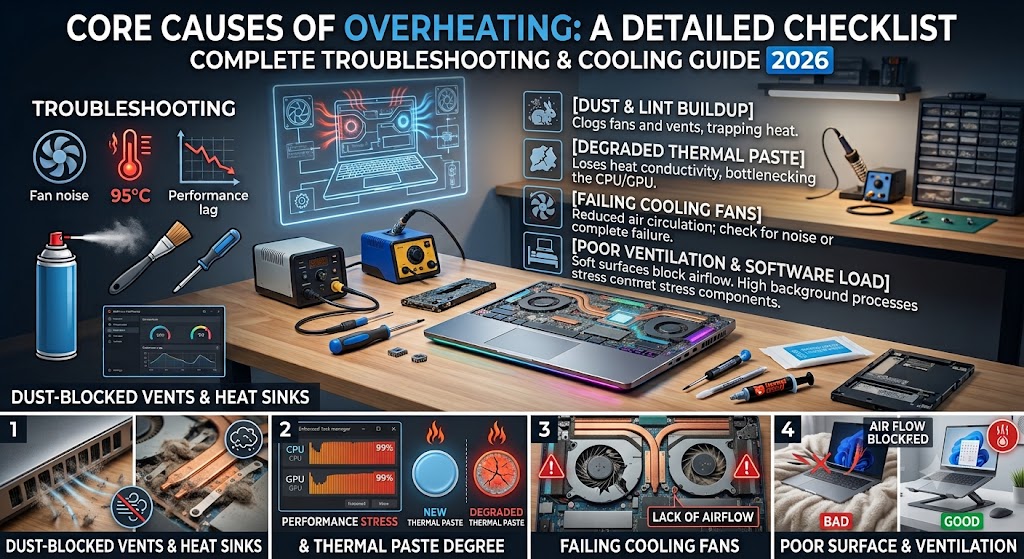
A laptop overheats when its cooling system can no longer remove heat as quickly as the processor (CPU), graphics chip (GPU), and other internal components generate it. Every laptop produces heat during normal operation, but modern devices are designed to keep temperatures within a safe operating range using cooling fans, heat pipes, heatsinks, ventilation systems, and thermal interface materials.
Overheating occurs when this balance is disrupted. Dust accumulation, blocked air vents, failing cooling fans, ageing thermal paste, demanding software, malware, or even high room temperatures can prevent heat from escaping efficiently. As temperatures continue to rise, the laptop automatically slows down the processor through thermal throttling to reduce heat output and protect sensitive hardware.
This is why an overheating laptop often becomes noticeably slower, applications begin freezing, games lose performance, and the cooling fan runs at maximum speed for extended periods. If these warning signs are ignored, excessive heat may eventually damage the motherboard, battery, SSD, graphics chip, or processor, resulting in far more expensive repairs.
The good news is that overheating is usually a symptom of an underlying problem rather than a fault itself. Identifying the root cause allows you to apply the correct solution instead of relying on temporary fixes that only reduce temperatures for a short time.
Quick Answer: How Can You Stop a Laptop from Overheating?
Most laptop overheating problems can be resolved by improving airflow, reducing unnecessary system load, cleaning the cooling system, and ensuring all hardware and software are functioning correctly.
| Solution | Difficulty | Effectiveness |
|---|---|---|
| Restart your laptop | Easy | Moderate |
| Close unnecessary background applications | Easy | High |
| Clean dust from cooling vents | Easy | High |
| Place the laptop on a hard, flat surface | Easy | Moderate |
| Update Windows or macOS | Easy | Moderate |
| Update device drivers | Medium | Moderate |
| Scan for malware and viruses | Easy | High |
| Replace dried thermal paste | Advanced | Excellent |
| Replace a faulty cooling fan | Advanced | Excellent |
| Use a laptop cooling pad | Easy | Moderate |
| Reduce CPU and GPU workload | Easy | Moderate |
| Book a professional laptop repair | Professional | Best Long-Term Solution |
If your laptop continues overheating after following these steps, the problem may involve worn cooling components, internal hardware failure, or motherboard-related issues. In these situations, arranging a professional Laptop Repair service is usually the safest and most cost-effective solution.
Common Signs Your Laptop Is Overheating
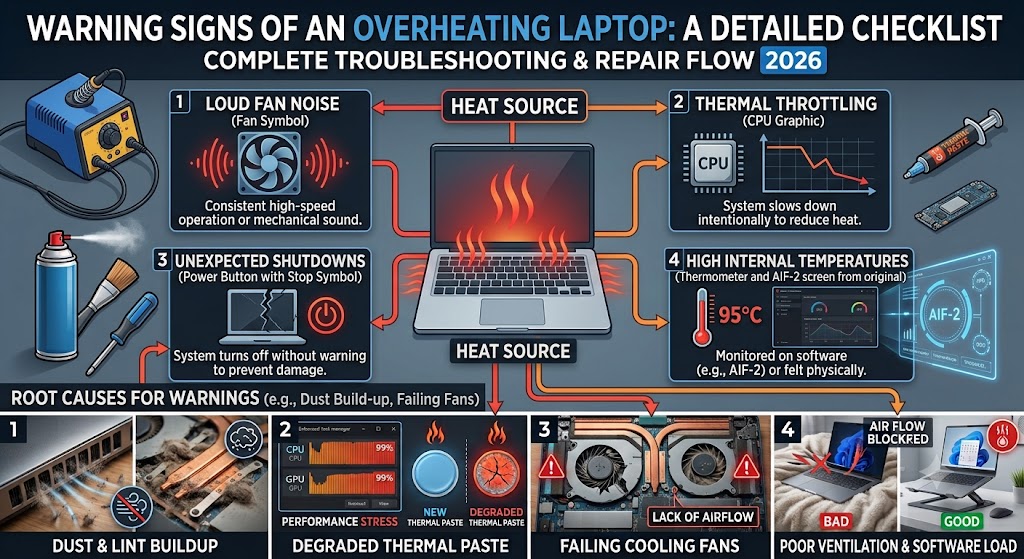
Laptop overheating rarely happens without warning. In most cases, your device shows several symptoms before the problem becomes serious. Recognising these early warning signs allows you to fix the issue before it causes permanent hardware damage or expensive repairs.
Some users notice only a warm keyboard or louder fan noise, while others experience random shutdowns, severe lag, or even blue screen errors. If your laptop regularly displays several of the following symptoms, excessive heat is likely affecting its performance.
Typical signs of an overheating laptop include:
- The bottom of the laptop becomes extremely hot.
- Cooling fans run constantly at high speed.
- The laptop feels much slower than normal.
- Games lose FPS or begin stuttering.
- Programs freeze or stop responding.
- Unexpected shutdowns or automatic restarts.
- Blue Screen of Death (Windows) or kernel panic (Mac).
- Battery drains faster than usual.
- Keyboard area becomes uncomfortably warm.
- Loud fan noise even during light tasks.
- Performance drops after only a few minutes of use.
Many of these symptoms are also associated with poor system performance. If your laptop has become slow as well as hot, our “How to Fix a Slow Laptop?” explains additional optimisation techniques that may help improve overall performance.
Is Laptop Overheating Dangerous?
Yes. Occasional warmth is completely normal, but persistent overheating should never be ignored.
Modern laptops contain sensitive electronic components designed to operate within safe temperature limits. When these temperatures are exceeded for prolonged periods, the system automatically activates protective mechanisms to reduce heat output. This process, known as thermal throttling, lowers CPU and GPU performance to prevent permanent damage.
Although thermal throttling protects the hardware, it also makes your laptop noticeably slower.
Ignoring overheating for weeks or months may eventually lead to:
- Permanent motherboard damage
- CPU or GPU degradation
- SSD or hard drive failure
- Battery swelling or reduced battery lifespan
- Cooling fan failure
- Unexpected data loss
- Frequent crashes and system instability
The earlier overheating is diagnosed, the lower the risk of expensive hardware repairs.
What Temperature Is Too Hot for a Laptop?
Laptop temperatures vary depending on the model, workload, and cooling design. Gaming laptops naturally run hotter than office laptops, while thin ultrabooks often have less cooling capacity than larger models.
The following temperature ranges provide a useful general guide.
| Laptop Temperature | Status |
|---|---|
| 30°C-50°C | Normal when idle |
| 50°C-70°C | Normal during everyday use |
| 70°C-85°C | High but acceptable during heavy workloads |
| 85°C-95°C | Very hot – investigate cooling |
| Above 95°C | Potentially dangerous if sustained |
If your CPU regularly exceeds 90-95°C, the cooling system should be inspected as soon as possible.
What Causes a Laptop to Overheat?
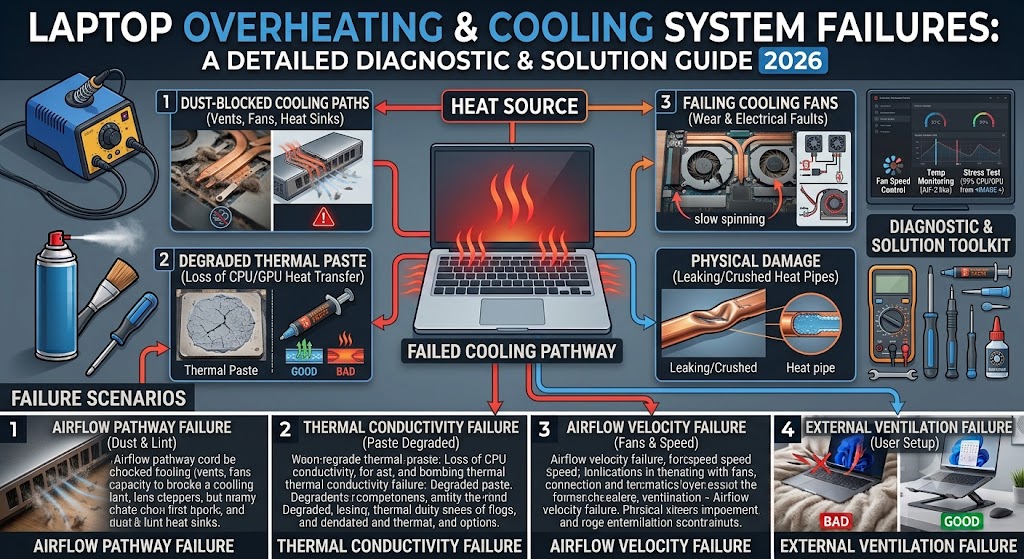
Laptop overheating is rarely caused by a single fault. In most cases, several smaller issues combine to reduce cooling efficiency until temperatures rise beyond safe operating limits.
Understanding the real cause helps you choose the correct solution instead of relying on temporary fixes.
1. Dust Build-up Inside the Laptop
Dust is one of the biggest causes of laptop overheating. As the cooling fan pulls air into the laptop, it also draws in tiny particles of dust, pet hair, and other debris. Over time these particles accumulate around the cooling fan, heat sink, and ventilation channels.
Eventually airflow becomes restricted, preventing hot air from escaping efficiently. Common symptoms include:
- Constant fan noise
- High temperatures
- Reduced performance
- Sudden shutdowns
Professional internal cleaning usually restores proper airflow and significantly reduces operating temperatures.
2. Blocked Air Vents
Every laptop relies on intake and exhaust vents to circulate cool air. Using the laptop on a bed, sofa, blanket, pillow, or even your lap can block these vents almost completely.
Without sufficient airflow, internal temperatures increase rapidly. For the best cooling performance:
- Always place the laptop on a hard surface.
- Keep side and rear vents unobstructed.
- Leave enough space around the laptop for airflow.
A simple change in usage habits often reduces overheating considerably.
3. Faulty or Failing Cooling Fan
Cooling fans wear out over time. A damaged fan may:
- Spin slowly
- Produce grinding noises
- Stop spinning completely
- Fail intermittently
Without adequate airflow, heat remains trapped inside the chassis, causing temperatures to rise very quickly. If your fan sounds unusually loud, makes clicking noises, or stops unexpectedly, replacement is usually recommended.
4. Old or Dried Thermal Paste
Thermal paste sits between the processor and the heatsink. Its purpose is to transfer heat efficiently away from the CPU and GPU. After several years, thermal paste gradually dries out and loses effectiveness.
Poor heat transfer causes:
- Higher processor temperatures
- Constant thermal throttling
- Reduced performance
- Frequent overheating
Replacing old thermal paste is one of the most effective professional maintenance procedures for older laptops.
5. High CPU or GPU Usage
Running demanding software naturally generates more heat. Common examples include:
- Video editing
- 3D rendering
- CAD software
- Gaming
- Programming environments
- Virtual machines
- AI software
- Large spreadsheets
The harder the processor works, the more heat it produces. Monitoring CPU usage helps identify applications consuming excessive resources unnecessarily.
6. Too Many Background Applications
Many users don’t realise dozens of applications continue running even after they’re closed. Cloud storage, messaging apps, update services, browser processes, and unnecessary utilities all consume CPU time and memory.
This constant background activity increases heat production while reducing battery life and overall performance. Closing unnecessary applications helps reduce processor load immediately.
7. Gaming and Heavy Workloads
Gaming pushes both the CPU and graphics processor close to their maximum capacity. Even modern gaming laptops often reach temperatures above 80°C during intensive sessions.
If the cooling system is dirty or the thermal paste has deteriorated, temperatures may rise beyond safe operating limits. Reducing graphics settings, limiting frame rates, and improving airflow often lowers temperatures without affecting gameplay significantly.
8. Malware or Virus Activity
Malware doesn’t only compromise security. Some malicious software secretly uses processor resources for activities such as cryptocurrency mining, spam distribution, or unauthorised background processes.
This hidden workload generates continuous heat even when the laptop appears idle.Running a full malware scan is recommended whenever overheating begins suddenly without an obvious explanation.
9. Outdated Drivers or BIOS
Many people overlook software when investigating overheating. Updated graphics drivers, chipset software, firmware, and BIOS releases often include:
- Improved fan control
- Better power management
- Enhanced thermal optimisation
- Stability improvements
Keeping your laptop fully updated helps the cooling system operate more efficiently. Always download drivers directly from your laptop manufacturer’s official support page.
10. Hot Room Temperatures
Your laptop can only cool itself if the surrounding air is cooler than its internal components. Using a laptop in:
- Direct sunlight
- Hot vehicles
- Poorly ventilated rooms
- Heatwaves
- Warm offices
makes cooling much more difficult. Whenever possible:
- Keep the room well ventilated.
- Avoid direct sunlight.
- Use air conditioning or a fan during hot weather.
Lower ambient temperatures improve cooling performance immediately.
What Happens If You Ignore Laptop Overheating?
Many people continue using an overheating laptop because it still appears to function normally. However, excessive heat causes gradual wear that becomes more expensive to repair over time.
Ignoring overheating can result in:
- Reduced processor lifespan
- Graphics chip failure
- Motherboard damage
- Battery swelling
- SSD corruption
- Data loss
- Random shutdowns
- Slower overall performance
- Shorter laptop lifespan
Addressing overheating early is almost always cheaper than repairing the damage caused by prolonged excessive temperatures.
How to Fix Laptop Overheating: Step-by-Step Solutions
Laptop overheating can usually be resolved without replacing the device. In many cases, a combination of routine maintenance, software optimisation, and improved airflow is enough to restore safe operating temperatures.
The following troubleshooting methods are arranged from the simplest solutions to more advanced repairs. Working through them in order helps identify the root cause while avoiding unnecessary expense.
1. Restart Your Laptop
Many users leave their laptops running for several days without performing a full restart. During this time, background services, temporary files, and memory usage continue to build up, placing additional strain on the processor.
Restarting your laptop:
- Clears temporary memory
- Stops unnecessary background tasks
- Resets CPU usage
- Refreshes Windows or macOS services
Although a restart will not fix hardware-related overheating, it often reduces temperatures caused by excessive software activity.
If the laptop continues running hot after restarting, continue with the following troubleshooting steps.
2. Close Unnecessary Background Programs
Background applications are one of the most common causes of unnecessary CPU usage.
Programs such as:
- Google Chrome with dozens of tabs
- Microsoft Teams
- Discord
- Dropbox
- OneDrive
- Adobe Creative Cloud
- Steam
- Spotify
continue consuming processor resources even when you’re not actively using them.
Windows
Open Task Manager (Ctrl + Shift + Esc) and sort applications by CPU usage.
macOS
Open Activity Monitor and identify processes consuming unusually high resources. Close software you don’t currently need. Reducing processor workload immediately lowers heat generation while improving battery life and overall system responsiveness.
3. Improve Airflow Around Your Laptop
Even a perfectly functioning cooling system cannot work efficiently if airflow is restricted. For the best cooling performance:
- Place the laptop on a flat, solid desk.
- Avoid beds, cushions, sofas, or blankets.
- Leave space around side and rear air vents.
- Keep the room well ventilated.
Using your laptop on soft surfaces blocks cooling vents and traps hot air inside the chassis, causing temperatures to rise rapidly. Sometimes simply moving the laptop onto a desk can reduce temperatures by several degrees.
4. Clean Dust from Cooling Vents
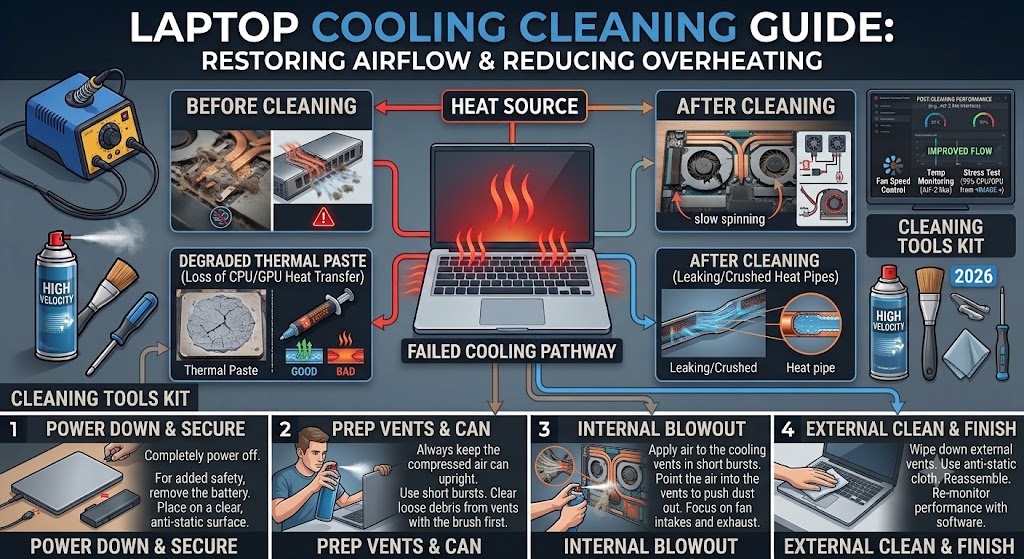
Dust gradually blocks ventilation channels, reducing airflow and forcing cooling fans to work harder. If dust is visible around the vents:
- Switch off the laptop.
- Disconnect the charger.
- Use compressed air to remove loose dust.
- Blow air through both intake and exhaust vents.
Avoid inserting sharp objects into ventilation openings, as they may damage internal components. If the laptop has not been cleaned internally for several years, professional servicing is recommended.
5. Reduce CPU Usage
A processor operating continuously near 100% utilisation naturally produces large amounts of heat. Common causes include:
- Software updates
- Video editing
- Browser tabs
- Background synchronisation
- Malware
- Faulty applications
Identify which programs consume the most CPU resources and close any unnecessary processes. If CPU usage remains abnormally high while the laptop is idle, further investigation may be required.
6. Scan for Malware and Viruses
Malicious software often runs silently in the background while consuming processor power and system memory. Some malware even performs cryptocurrency mining without the user’s knowledge, causing laptops to become unusually hot.
Run a complete system scan using trusted antivirus software. Removing malware not only improves security but often restores normal temperatures and better overall performance.
7. Update Windows or macOS
Operating system updates frequently include:
- Better power management
- Improved fan control
- Bug fixes
- Security improvements
- Performance optimisation
Installing the latest Windows or macOS updates helps your laptop manage processor workloads more efficiently. Restart the laptop after installing updates to ensure all system improvements are applied correctly.
8. Update Device Drivers
Outdated drivers can increase processor workload and prevent hardware from operating efficiently. Pay particular attention to:
- Graphics drivers
- Chipset drivers
- Storage drivers
- BIOS firmware
- Power management drivers
Always download drivers from your laptop manufacturer’s official support website rather than third-party sources. Updated drivers often improve thermal management while reducing system instability.
9. Clean Temporary Files
Temporary files occupy storage space and contribute to unnecessary background activity. Use:
Windows
- Disk Cleanup
- Storage Sense
macOS
- Storage Management
Regular maintenance helps Windows and macOS operate more efficiently while reducing unnecessary processor activity.
10. Adjust Power Settings
Many laptops operate using maximum performance profiles even when high performance isn’t required. Switching to a balanced power plan can reduce processor heat considerably.
Windows
Settings → Power & Battery → Power Mode → Balanced
macOS
Enable Low Power Mode when performing light everyday tasks. This reduces unnecessary processor boost behaviour while improving battery life.
11. Use a Laptop Cooling Pad
A quality cooling pad improves airflow underneath the laptop by supplying additional cool air. Cooling pads are particularly useful for:
- Gaming laptops
- Video editing
- Graphic design
- Long working sessions
While a cooling pad will not repair faulty hardware, it can reduce operating temperatures by several degrees during demanding workloads.
12. Reduce Gaming Graphics Settings
Gaming places extreme demands on both the processor and graphics card. Lowering:
- Resolution
- Shadow quality
- Texture quality
- Ray tracing
- Maximum FPS
reduces heat generation significantly. Limiting frame rates often lowers temperatures without noticeably affecting gameplay.
13. Check Cooling Fan Operation
If your cooling fan:
- Stops spinning
- Spins slowly
- Makes grinding noises
- Produces rattling sounds
it may no longer be cooling the laptop effectively. Fan failure should be addressed quickly because continued overheating may damage expensive internal components. Professional replacement is recommended if the fan is physically damaged.
14. Replace Old Thermal Paste
Thermal paste gradually dries out after several years of use. Once it loses effectiveness, heat can no longer transfer efficiently between the processor and heatsink.
Replacing thermal paste typically:
- Reduces CPU temperatures
- Improves sustained performance
- Minimises thermal throttling
- Extends hardware lifespan
Because incorrect application may damage components, this procedure is generally recommended for experienced technicians.
15. Update Your BIOS (Advanced Users)
Laptop manufacturers occasionally release BIOS updates that improve:
- Fan control
- Thermal management
- Processor efficiency
- Hardware compatibility
Only install BIOS updates supplied by your laptop manufacturer. Interrupting a BIOS update may permanently damage the motherboard. If you’re unsure, seek professional assistance.
16. Monitor Laptop Temperatures
Monitoring software allows you to determine whether overheating has actually been resolved. Normal temperatures vary depending on workload.
As a general guide:
| Usage | Typical Temperature |
|---|---|
| Idle | 30-50°C |
| Web Browsing | 45–65°C |
| Office Work | 50-70°C |
| Gaming | 70-85°C |
| Heavy Rendering | 75-90°C |
Consistently exceeding 90-95°C indicates further investigation is required.
When DIY Fixes Are Not Enough
While many overheating issues can be resolved through routine maintenance, some problems require specialist tools and technical expertise.
Professional diagnosis is recommended if your laptop:
- Continues overheating after completing all troubleshooting steps
- Shuts down unexpectedly
- Produces burning smells
- Displays screen artefacts
- Makes loud grinding fan noises
- Has liquid damage
- Frequently crashes during gaming
- Shows motherboard-related faults
- Has a swollen battery
- Suffers from repeated thermal throttling
Attempting complex repairs without the proper equipment can cause additional damage and increase repair costs.
At iExpert Repairs, our certified technicians diagnose overheating issues affecting Macbooks, Dell, HP, Lenovo, ASUS, Acer, Microsoft Surface, Samsung, MSI, Toshiba, and Apple MacBook devices. We provide professional Laptop Repair services across the UK, including cooling system cleaning, fan replacement, thermal paste renewal, motherboard diagnostics, SSD upgrades, RAM upgrades, battery replacement, and advanced board-level repairs using premium OEM-grade parts backed by a comprehensive warranty.
Professional Laptop Repair Services in the UK
While many overheating issues can be resolved through routine maintenance and software optimisation, some problems require professional diagnosis and repair. If your laptop continues overheating despite following the troubleshooting steps in this guide, the underlying issue may involve failing hardware rather than software.
At iExpert Repairs, our certified technicians diagnose and repair overheating issues affecting all major laptop brands, including Dell, HP, Lenovo, ASUS, Acer, Microsoft Surface, Samsung, MSI, Toshiba, and Apple MacBook.
Our professional laptop overheating repair services include:
- Internal cooling system cleaning
- Cooling fan replacement
- Thermal paste replacement
- Heat sink repair and replacement
- SSD upgrades
- RAM upgrades
- Motherboard diagnostics and repair
- Battery replacement
- Charging port repairs
- Windows and macOS optimisation
- Virus and malware removal
- Data recovery
Using professional diagnostic equipment allows us to identify the exact cause of overheating, ensuring only the necessary repairs are completed. Every qualifying repair is carried out using premium OEM-grade replacement parts and is backed by a 12-month warranty for complete peace of mind.
Whether you visit our repair centre or use our secure nationwide UK mail-in service, our goal is to restore your laptop to safe operating temperatures and reliable long-term performance.
Laptop Overheating Repair Cost in the UK
The cost of repairing an overheating laptop depends on the underlying fault. Simple maintenance is generally less expensive than replacing damaged hardware components.
| Repair Service | Estimated UK Cost |
|---|---|
| Internal Cooling System Cleaning | £40-£80 |
| Virus & Malware Removal | £50-£90 |
| Thermal Paste Replacement | £60-£120 |
| Cooling Fan Replacement | £70-£150+ |
| SSD Upgrade | £80-£200+ |
| RAM Upgrade | £60-£180+ |
| Battery Replacement | £70-£180+ |
| Motherboard Diagnostics | Varies by fault |
For an accurate quotation, iExpert Repairs provides professional diagnostics before recommending the most suitable repair solution, ensuring you only pay for the repairs your laptop genuinely requires.
How to Prevent Laptop Overheating
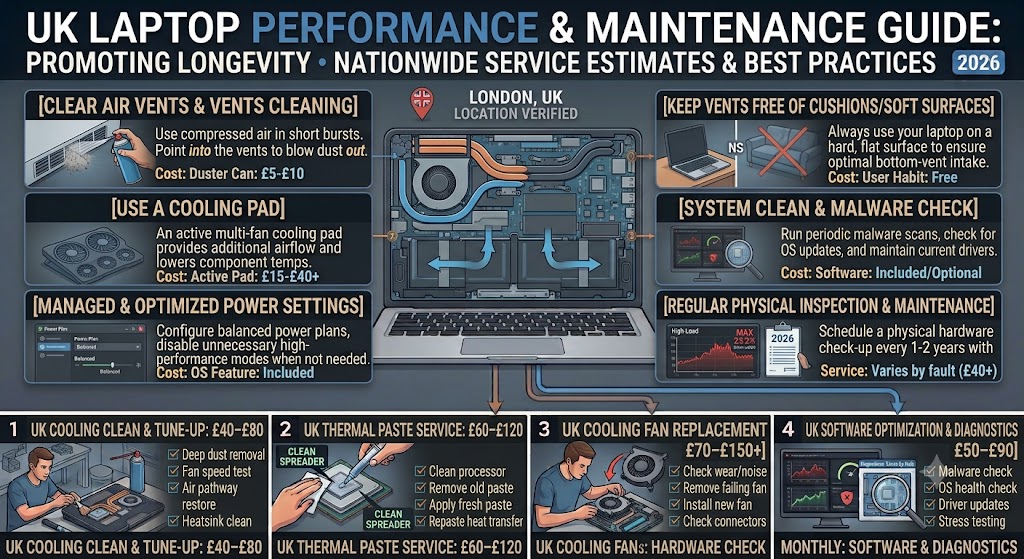
Preventing overheating is far easier and less expensive than repairing heat-related hardware damage. Regular maintenance and sensible usage habits help keep your laptop running cooler, quieter, and more efficiently.
Follow these best practices:
- Keep air vents free from dust and debris.
- Use your laptop on a hard, flat surface.
- Avoid blocking ventilation openings.
- Clean the cooling system every 12–24 months.
- Keep Windows or macOS fully updated.
- Install the latest device drivers.
- Close unnecessary background applications.
- Scan for malware regularly.
- Avoid filling your SSD or hard drive completely.
- Restart your laptop regularly.
- Replace thermal paste on older laptops when necessary.
- Consider using a cooling pad during heavy workloads.
- Avoid exposing your laptop to direct sunlight or excessively hot environments.
Following these maintenance habits can significantly reduce the risk of overheating while extending the lifespan of your laptop.
Common Mistakes to Avoid When Fixing an Overheating Laptop
Many overheating issues become worse because users unknowingly make simple mistakes during troubleshooting. Avoiding these common errors can help protect your laptop from unnecessary damage.
- Blocking the air vents by using the laptop on a bed or sofa.
- Using a household vacuum cleaner to clean internal components.
- Applying too much thermal paste.
- Ignoring loud or unusual fan noises.
- Delaying internal cleaning for several years.
- Installing BIOS updates incorrectly.
- Continuing to use the laptop after repeated thermal shutdowns.
- Covering ventilation openings while gaming or charging.
Following safe maintenance practices helps extend your laptop’s lifespan and reduces the risk of costly repairs.
FAQs About Laptop Overheating
1. Why is my laptop overheating even when I’m not gaming?
Overheating during light use is often caused by dust build-up, excessive background applications, malware, failing cooling fans, outdated drivers, or deteriorated thermal paste rather than demanding software.
2. Is it normal for a laptop to get hot?
Yes. It’s completely normal for a laptop to become warm while charging, streaming videos, gaming, or running demanding software. However, excessive heat, loud fan noise, or unexpected shutdowns indicate a problem that should be investigated.
3. Can overheating permanently damage a laptop?
Yes. Prolonged overheating may damage the motherboard, processor, graphics chip, SSD, battery, or other internal components if left unresolved.
4. How do I know if my laptop fan is failing?
Common signs include grinding noises, rattling sounds, unusually loud operation, intermittent fan activity, or a fan that stops spinning altogether.
5. Can dust really cause overheating?
Absolutely. Dust restricts airflow through the cooling system, preventing heat from escaping efficiently and forcing internal temperatures to rise.
6. Should I replace the thermal paste?
If your laptop is several years old and continues overheating despite cleaning, replacing the thermal paste may significantly improve cooling performance.
7. Is a cooling pad worth buying?
Cooling pads improve airflow and can lower temperatures during demanding workloads, particularly on gaming laptops. However, they should not be considered a replacement for repairing faulty cooling hardware.
8. Can malware cause laptop overheating?
Yes. Malware often consumes processor resources in the background, increasing CPU usage and generating unnecessary heat.
9. Why does my laptop become slow when it gets hot?
Modern processors automatically reduce their speed through thermal throttling to prevent hardware damage, resulting in noticeably slower performance.
For additional performance optimisation tips, see our How to Fix a Slow Laptop? Complete Troubleshooting & Performance Guide.
10. What temperature is too hot for a laptop?
Sustained temperatures above 90-95°C generally indicate that the cooling system requires inspection or repair.
11. Can a full SSD or hard drive cause overheating?
A nearly full storage drive doesn’t directly generate heat, but it can slow system performance and increase overall workload, indirectly contributing to higher operating temperatures.
12. Does replacing an HDD with an SSD reduce heat?
Yes. SSDs consume less power and produce less heat than traditional mechanical hard drives, improving both performance and cooling efficiency.
13. Why is my laptop fan so loud?
The cooling fan works harder when internal temperatures increase. Dust build-up, demanding applications, poor airflow, or failing cooling components are the most common causes.
14. How often should I clean my laptop?
External vents should be cleaned regularly, while professional internal cleaning is generally recommended every 12 to 24 months, depending on usage and environment.
15. Should I repair or replace an overheating laptop?
If your laptop is only a few years old, repairing the cooling system or upgrading components is usually far more cost-effective than replacing the entire device.
16. Can overheating reduce battery life?
Yes. High temperatures accelerate battery degradation and may eventually lead to swelling or reduced battery capacity.
17. Which laptop brands does iExpert Repairs repair?
We repair all major brands, including MacBook, Dell, HP, Lenovo, ASUS, Acer, Microsoft Surface, Samsung, MSI, Toshiba, and many other Windows and macOS laptops.
18. Do you provide a warranty on laptop repairs?
Yes. All qualifying repairs completed by iExpert Repairs include a 12-month warranty covering both replacement parts and workmanship.
19. How long does laptop overheating repair take?
Repair times depend on the fault. Internal cleaning and thermal paste replacement are often completed on the same day, while more complex hardware repairs may require 24-48 hours.
Conclusion
Laptop overheating is a common problem, but it should never be ignored. While it’s normal for laptops to become warm during demanding tasks, excessive temperatures can reduce performance, shorten component lifespan, and eventually lead to costly hardware failures.
Fortunately, many overheating issues can be resolved through simple maintenance such as cleaning dust from the cooling system, improving airflow, closing unnecessary background applications, updating Windows or macOS, scanning for malware, and replacing ageing thermal paste when required.
However, if your laptop continues overheating despite following these troubleshooting steps, the issue may involve failing cooling components, motherboard faults, or other hardware problems that require professional diagnosis.
At iExpert Repairs, we provide trusted Laptop Repair services throughout the UK for all major laptop brands. From cooling fan replacement and thermal paste renewal to SSD upgrades, RAM upgrades, motherboard repairs, battery replacement, software optimisation, and data recovery, our certified technicians use premium OEM-grade parts backed by a comprehensive 12-month warranty to restore reliable performance and safe operating temperatures.
Back to posts