
A flickering phone screen is one of the most frustrating issues smartphone users experience. One moment your display looks perfectly normal, and the next it starts flashing, dimming unexpectedly, or rapidly changing brightness without any input.
Sometimes the problem only appears when you lower the screen brightness. In other cases, the display may flicker constantly, show horizontal lines, flash green, or even become completely unusable.
The good news is that screen flickering doesn’t always mean your phone needs a new display. Many cases are caused by temporary software glitches, problematic apps, outdated operating systems, incorrect display settings, or battery-related power issues. However, if the flickering started after dropping the phone, exposing it to water, or following a strong impact, the issue could involve damaged display components or internal hardware.
Understanding the real cause is important because applying the wrong fix may waste time or even make the problem worse.
In this guide, we’ll explain:
- Why phone screens flicker
- How to identify whether it’s a software or hardware issue
- Step-by-step troubleshooting methods
- When professional repair is the best solution
- How iExpert Repairs helps customers across the UK restore damaged smartphone displays quickly and safely
Quick Answer
If your phone screen is flickering, the most common causes include:
- Software bugs after an update
- Display settings or adaptive brightness problems
- Faulty third-party apps
- OLED display behaviour at low brightness
- Battery or power management issues
- Loose display connectors
- Physical screen damage
- Water damage
- Faulty display hardware
If the flickering only started recently, basic troubleshooting such as restarting the phone, updating the operating system, or removing a problematic app may solve the issue. However, if your screen continues flickering after a drop or liquid exposure, professional diagnosis is usually required.
Warning Signs You Shouldn’t Ignore
Although many cases of screen flickering are caused by software issues, some symptoms can indicate a more serious hardware fault that requires immediate attention. Ignoring these warning signs may lead to further damage or complete display failure.
If you notice any of the following, it’s best to stop troubleshooting and arrange a professional inspection:
- The screen started flickering after your phone was dropped.
- Green, white, or purple lines appear on the display.
- The touchscreen has become slow or unresponsive.
- The screen randomly turns black before coming back on.
- Flickering becomes more frequent or severe over time.
- Your phone has recently been exposed to water or moisture.
Backing up your important data as soon as possible is also recommended, especially if the display is becoming increasingly unstable.
Introduction
A flickering phone screen can be frustrating, making it difficult to use your device for everyday tasks such as messaging, browsing, watching videos, or working. Sometimes the screen flashes occasionally, while in other cases it may constantly blink, dim unexpectedly, show coloured lines, or become completely unreadable. The good news is that screen flickering doesn’t always mean you need a new display. In many cases, the problem is caused by software bugs, faulty apps, incorrect display settings, or temporary system glitches that can be fixed without replacing any parts.
However, if the flickering started after a drop, water exposure, or physical impact, it may indicate a damaged display or internal hardware fault. In this complete UK guide, we’ll explain why your phone screen is flickering, the most common causes, step-by-step fixes you can try at home, and when it’s time to seek professional repair from experienced technicians.
What Does Screen Flickering Actually Mean?
Screen flickering happens when the display refreshes incorrectly or receives unstable signals from either the software or the hardware controlling the screen.
Depending on the underlying cause, flickering may look different from one phone to another.
Some users notice:
- Rapid flashing between bright and dark
- Green or white screen flickering
- Horizontal or vertical lines appearing briefly
- Random brightness changes
- Display flashing while charging
- Screen flickering only when unlocking the phone
- Flickering after installing a software update
- Display blinking during gaming or video playback
Because these symptoms can point to very different problems, it’s important to identify when the flickering occurs rather than focusing only on what it looks like.
Can Screen Flickering Get Worse?
Yes. In many cases, screen flickering starts as a minor inconvenience before developing into a more serious hardware problem. If the underlying cause is a damaged OLED panel, loose display connector, failing battery, or internal motherboard fault, the issue may gradually become worse over time.
Ignoring persistent flickering can sometimes lead to:
- Complete display failure
- Green or purple lines appearing on the screen
- Black spots or dead pixels
- Touchscreen responsiveness issues
- Random black screens
- Difficulty accessing important data
If the flickering continues despite basic troubleshooting or becomes more severe, arranging a professional diagnosis early can often prevent additional damage and reduce repair costs.
What Causes a Phone Screen to Flicker?
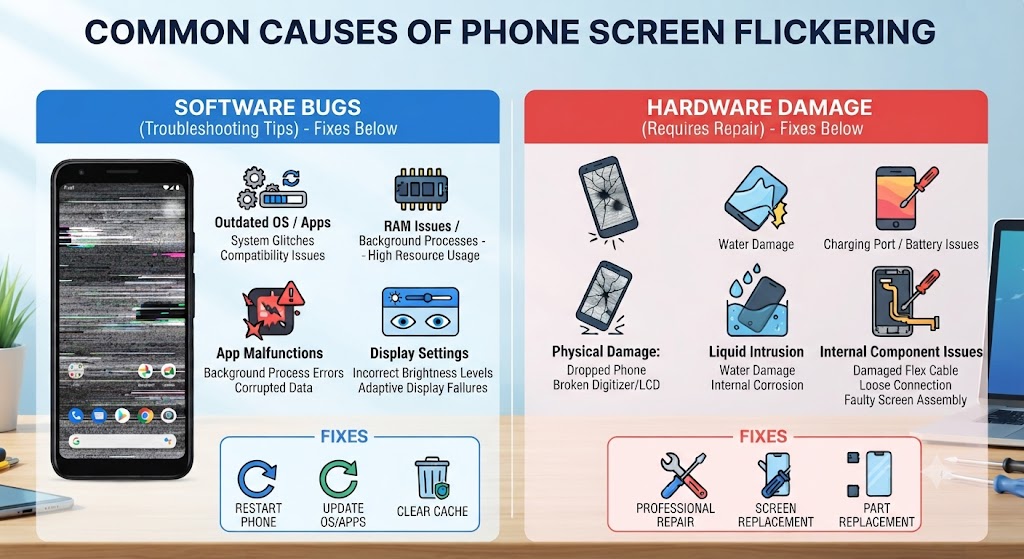
There isn’t a single reason why a phone display starts flickering. In our repair experience, the issue usually falls into one of two categories:
- Software-related problems, which can often be fixed at home.
- Hardware-related faults, which usually require professional repair.
Before replacing the screen, it’s worth understanding which category your phone falls into.
Software-Related Causes
Software problems are often temporary and may appear after installing a system update, downloading a faulty app, or changing display settings.
Common software causes include:
1. A Recent Software Update
Operating system updates occasionally introduce display bugs that affect specific phone models. If the flickering started immediately after updating your device, the issue may be software-related rather than physical damage.
This is also why keeping your device updated with future bug-fix releases is important.
2. Faulty or Incompatible Apps
Not every app is fully optimised for every Android version or iOS release.
Some poorly coded applications continuously refresh the display, overload the graphics processor, or conflict with system settings, causing temporary flickering.
If the problem only appears while using one particular app, uninstalling or updating it may resolve the issue.
3. Display Brightness Settings
Modern smartphones automatically adjust brightness using ambient light sensors.
Although this feature improves battery life, incorrect brightness calibration or adaptive brightness bugs may cause noticeable flickering, especially on OLED displays.
Some users only notice the problem at very low brightness levels.
4. Display Driver or GPU Software Errors
The operating system constantly communicates with your display using graphics drivers.
If those drivers become corrupted after an interrupted update or software conflict, your screen may:
- Flash randomly
- Refresh incorrectly
- Blink during animations
- Freeze before flickering
5. Battery Power Management Issues
A weak battery doesn’t only reduce battery life.
When the battery struggles to deliver stable voltage, especially on older devices, the display may begin flickering during heavy use or when the battery percentage becomes very low.
If you’ve also noticed your battery draining unusually quickly, our guide “Why Is My Phone Battery Draining So Fast?” explains how battery health can affect overall phone performance.
Hardware-Related Causes
If software troubleshooting doesn’t solve the problem, the issue may involve physical damage inside the device. These repairs usually require specialist equipment and replacement parts.
1. Physical Impact or Accidental Drops
One of the most common causes we see at iExpert Repairs is accidental impact damage. Even when the front glass appears intact, the OLED panel underneath can develop invisible damage that causes:
- Continuous flickering
- Green lines
- White flashes
- Black patches
- Touchscreen instability
If your display has also become difficult to control, our guide explains how screen damage often affects both the display and touch functionality.
2. Loose Display Connector
Inside every smartphone, delicate ribbon cables connect the display to the motherboard. A heavy drop can partially loosen these connectors without cracking the screen.
Symptoms often include:
- Flickering when moving the phone
- Screen randomly turning black
- Display returning after pressing the frame
- Intermittent flashing
This type of fault requires internal inspection by an experienced technician.
3. Water or Moisture Damage
Liquid exposure doesn’t always stop a phone from working immediately. Moisture can slowly corrode display connectors and internal circuits over time, causing intermittent flickering days or even weeks after contact with water.
If your phone has recently been exposed to rain, spilled drinks, or humidity, it’s worth reading our guide before attempting further troubleshooting.
4. Display Panel Failure
OLED and AMOLED displays contain millions of tiny pixels. As displays age – or after suffering impact damage -these pixels can begin failing, leading to:
- Persistent flickering
- Green tint
- White flashing
- Screen burn
- Dead areas
- Colour distortion
Unfortunately, display panel failure usually cannot be repaired through software and often requires a complete screen replacement.
Is It More Likely to Be a Software Issue or Hardware Damage?
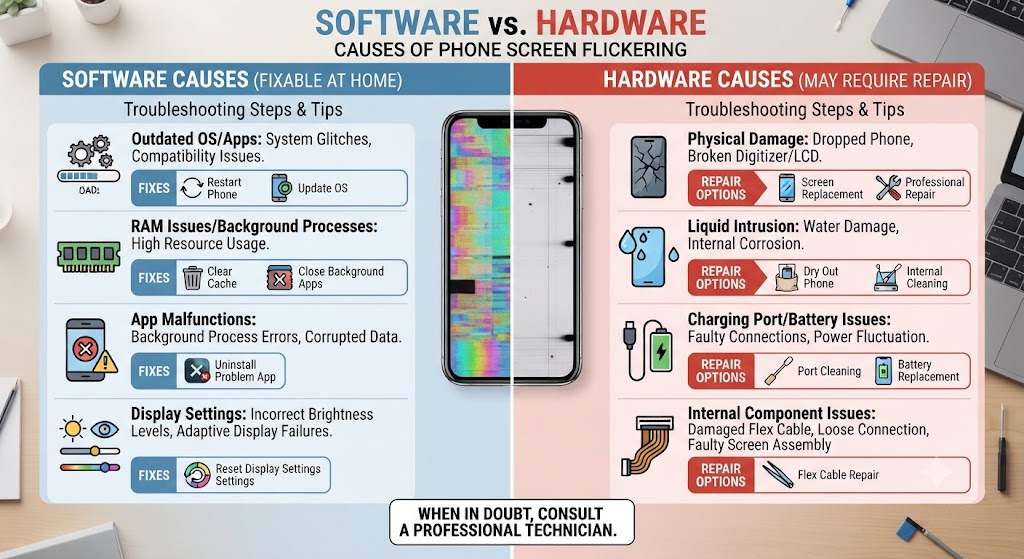
One of the first questions customers ask our technicians is whether screen flickering is something they can fix themselves. Rather than assuming the worst, compare how and when the problem started.
| If this sounds familiar… | It’s more likely to be… | A sensible next step |
|---|---|---|
| The flickering began after a software update | Software issue | Check for newer updates, restart the device, and install any available bug fixes. |
| It only happens while using one app | App-related problem | Update or remove the app to see if the issue disappears. |
| The screen started flickering after being dropped | Hardware damage | Avoid putting pressure on the display and arrange a professional inspection. |
| Flickering appeared after contact with water | Internal moisture damage | Power off the device if possible and have it checked before corrosion spreads. |
| The display flickers only at very low brightness | Display settings or OLED behaviour | Test different brightness levels and disable adaptive brightness temporarily. |
| The screen flashes alongside coloured lines or touch problems | Display or connector fault | Back up your data and book a repair as soon as possible. |
The way the issue started often tells you more than the flickering itself. Paying attention to recent updates, accidental drops, or exposure to moisture can save time and help you choose the right solution.
Is It Safe to Keep Using a Flickering Phone?
It depends on what’s causing the problem.
If the flickering is linked to a temporary software glitch or an app conflict, you can usually continue using your phone while working through the troubleshooting steps in this guide.
However, if the flickering started after a drop, liquid exposure, or is accompanied by coloured lines, black spots, or touchscreen problems, continuing to use the device could make the damage worse. In these situations, it’s a good idea to back up your data and have the phone professionally inspected as soon as possible.
Acting early can often prevent a small display issue from turning into a more expensive repair.
How to Fix a Flickering Phone Screen
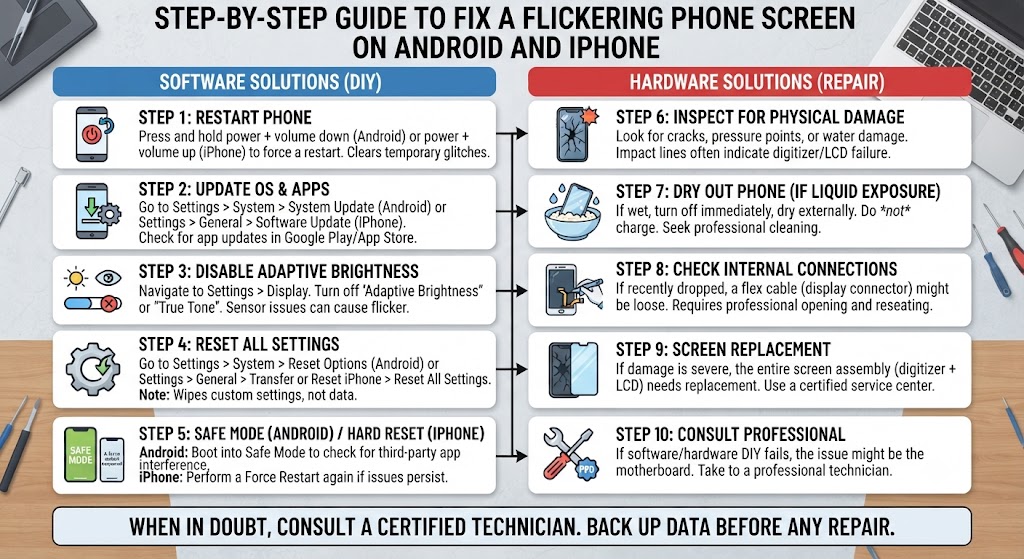
If your phone screen is flickering, don’t assume the display needs replacing straight away. In our experience at iExpert Repairs, many flickering issues are resolved with a few simple troubleshooting steps – especially when the problem is software-related.
Work through the following solutions in order. After each step, use your phone for a few minutes to see whether the flickering has stopped before moving on.
1. Restart Your Phone
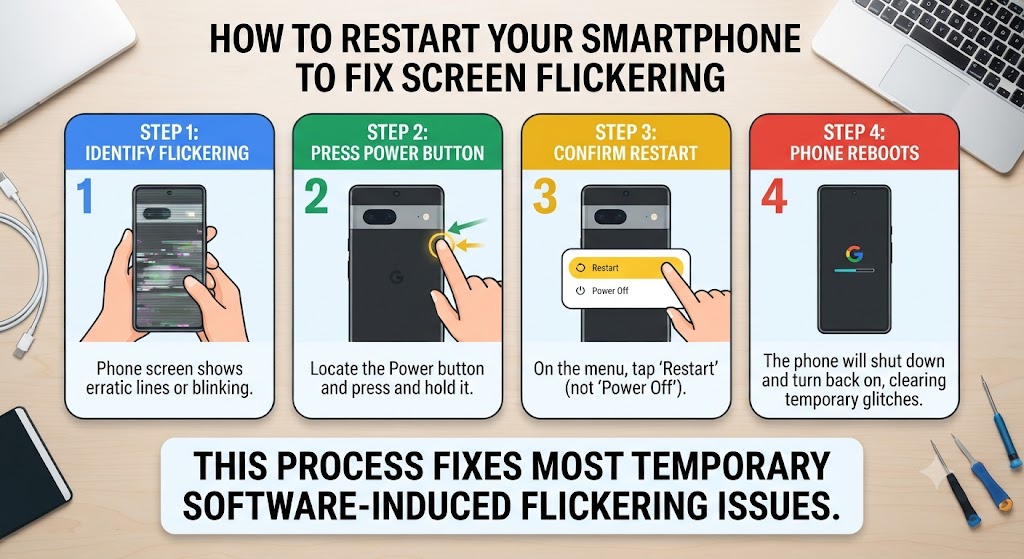
It may sound obvious, but restarting your phone is often the quickest way to clear temporary software glitches affecting the display.
During normal use, background processes, apps, and system services can become unstable. A restart refreshes these processes and may restore normal screen behaviour.
To restart your phone:
Android
- Hold the Power button.
- Tap Restart.
- Wait for the phone to reboot.
iPhone
- Press and hold the Side button with either Volume button.
- Slide to power off.
- Turn the device back on after 30 seconds.
If the flickering disappears after restarting but returns later, the cause is likely software rather than hardware.
2. Check for Software Updates
Manufacturers regularly release updates that fix display bugs, graphics driver issues, and compatibility problems. If your screen started flickering shortly after a recent update, it’s worth checking whether a newer patch has already been released.
Android
Go to:
Settings → Software Update → Download and Install
iPhone
Go to:
Settings → General → Software Update
Install any available updates before continuing with further troubleshooting.
3. Restart in Safe Mode (Android)
Safe Mode temporarily disables third-party apps. If your phone stops flickering in Safe Mode, one of your installed apps is almost certainly causing the problem.
Common offenders include:
- Screen filter apps
- Battery-saving applications
- Custom launchers
- Display enhancement apps
- Game optimisation tools
Remove recently installed apps one at a time until the issue disappears.
4. Remove Recently Installed Apps
Think back to when the flickering first started. Ask yourself:
- Did I install a new app?
- Did I download an APK?
- Did I install a game?
- Did I add a battery optimisation app?
- Did I install a screen recorder?
If the answer is yes, uninstall the newest app first. Many display problems begin after installing poorly optimised software rather than because of hardware failure.
5. Turn Off Adaptive Brightness
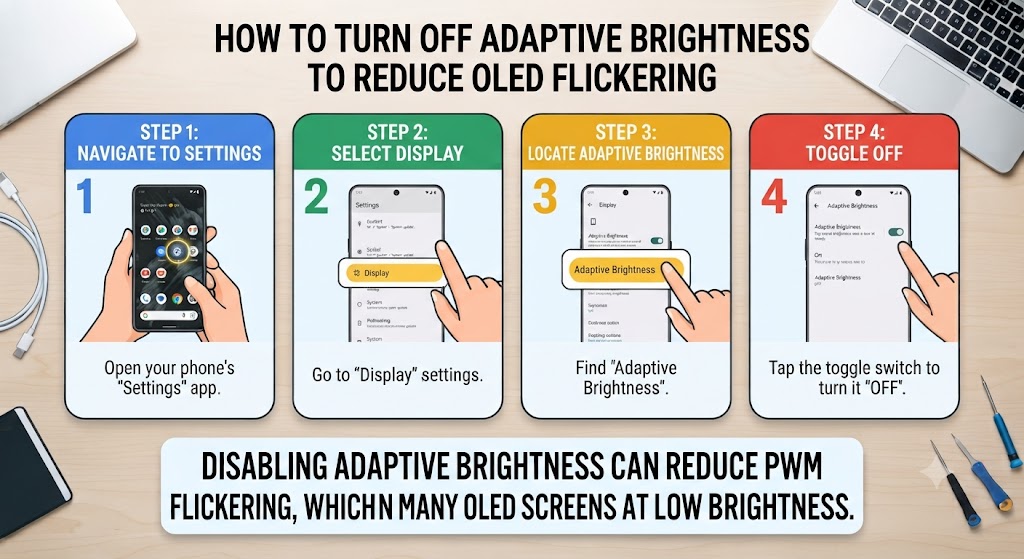
Adaptive Brightness constantly changes screen brightness based on surrounding light. Although useful, it occasionally causes flickering on OLED displays.
Try disabling it temporarily.
Android
Settings → Display → Adaptive Brightness → Off
iPhone
Settings → Accessibility → Display & Text Size
Turn off Auto-Brightness. Use the phone for a while afterwards. If the flickering disappears, you’ve likely identified the cause.
6. Increase Screen Brightness
Many OLED and AMOLED displays naturally use Pulse Width Modulation (PWM) to control brightness. Some users notice flickering only when brightness is set very low.
Try increasing brightness to around 60-80%.
If the flickering disappears at higher brightness but returns at lower levels, the behaviour may be linked to OLED dimming rather than a damaged display. However, if the flickering becomes more severe over time, professional inspection is still recommended.
7. Let Your Phone Cool Down
Overheating affects more than just battery performance. Excessive heat can temporarily reduce display stability, causing:
- Brightness fluctuations
- Random flashing
- Display lag
- Temporary flickering
Allow the phone to cool naturally.
Avoid:
- Direct sunlight
- Wireless charging while gaming
- Heavy gaming sessions
- Charging under pillows or blankets
8. Check Whether Flickering Happens While Charging
Some users notice screen flickering only when the charger is connected. This can happen because of:
- A damaged charging cable
- A faulty charger
- Poor-quality third-party accessories
- Charging port damage
- Battery voltage instability
Try using:
- The original charger
- A different charging cable
- Another wall adapter
9. Look for Signs of Physical Damage
Even a small drop can damage the display beneath the outer glass.
Carefully inspect your phone for:
- Hairline cracks
- Bent corners
- Green lines
- Purple patches
- Black spots
- Loose screen edges
- Flickering when pressure is applied
If you notice any of these symptoms, the issue is unlikely to be solved with software troubleshooting.
10. Back Up Your Data Before the Screen Gets Worse
If the display is becoming increasingly unstable, don’t wait until it stops working altogether.
Back up:
- Photos
- Videos
- Contacts
- Documents
- Messages
- Authentication apps
A display that flickers today may become completely black tomorrow. Protecting your data early can prevent unnecessary stress later.
Device-Specific Fixes
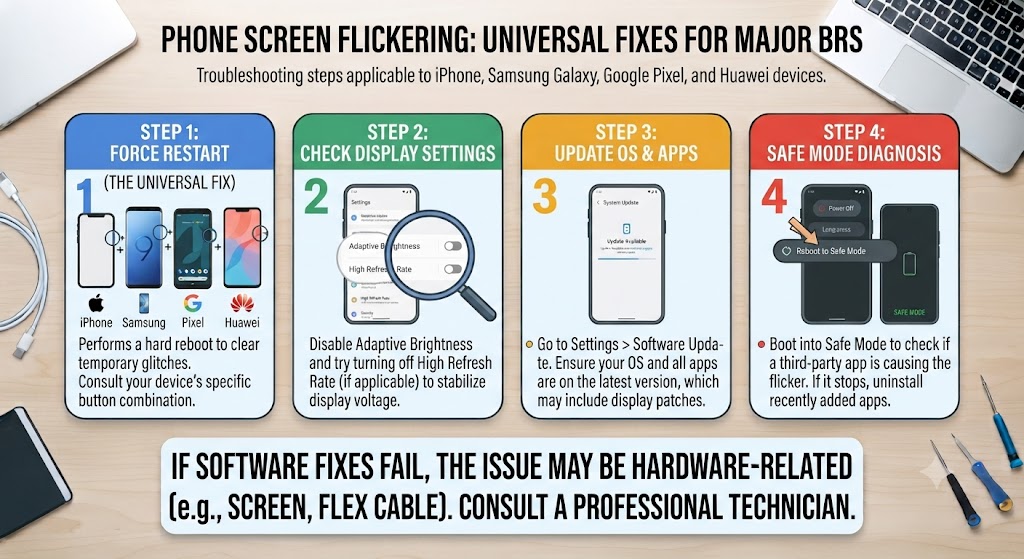
Although screen flickering affects every smartphone brand, the underlying causes can vary depending on the device. Here are a few brand-specific checks worth trying.
1. iPhone Screen Flickering
Recent iPhone models use advanced OLED displays that occasionally experience software-related display bugs after iOS updates. Try the following:
- Install the latest version of iOS.
- Disable Auto-Brightness temporarily.
- Turn off Reduce White Point (if enabled).
- Restart the device.
- Check whether the flickering started after a recent drop.
If Face ID, touch response, or brightness control also behave unusually, the display assembly may have been damaged.
Our iPhone Repairs service covers screen replacements, display diagnostics, battery repairs, charging issues, and water damage using premium-quality replacement parts.
2. Samsung Screen Flickering
Samsung Galaxy devices often use AMOLED displays. Flickering may occur because of:
- Adaptive Brightness
- High refresh rate conflicts
- Software bugs
- OLED ageing
- Impact damage
Try:
- Switching from 120Hz to 60Hz temporarily.
- Updating One UI.
- Restarting in Safe Mode.
- Removing recently installed apps.
If green lines appear alongside flickering, professional diagnosis is strongly recommended.
Our Samsung Repairs service includes genuine-quality display replacements, battery repairs, charging port repairs, and motherboard diagnostics.
3. Google Pixel Screen Flickering
Google Pixel phones occasionally experience display issues after Android updates.
Start by:
- Installing all available updates.
- Restarting the phone.
- Testing Safe Mode.
- Turning Adaptive Brightness off.
- Checking whether the issue only occurs at low brightness.
If the display remains unstable after software troubleshooting, the screen or internal connector may require replacement. Our Google Pixel Repairs team regularly repairs Pixel displays, charging ports, batteries, and water-damaged devices.
4. Huawei Screen Flickering
Huawei devices are generally reliable, but older models may develop display issues caused by ageing components or accidental damage.
Recommended checks include:
- Updating EMUI (if updates are available).
- Restarting the device.
- Removing recently installed apps.
- Testing different brightness levels.
Persistent flickering after a drop or liquid exposure usually indicates hardware damage rather than a software fault.
Our Huawei Phone Repairs service includes screen replacements, battery repairs, charging port repairs, and complete hardware diagnostics.
When Does a Flickering Screen Need Professional Repair?
Not every flickering screen can be fixed at home. If you’ve worked through the troubleshooting steps in this guide and the problem keeps returning, it’s likely that the issue lies inside the phone rather than within its software.
At iExpert Repairs, we regularly diagnose phones that appeared to have a simple display glitch but were actually suffering from internal hardware damage. In many cases, customers delayed getting the device checked, only for the screen to deteriorate further over the following days.
Professional diagnostics become especially important when the flickering is accompanied by other symptoms such as touch issues, coloured lines, black spots, or random screen blackouts.
Common Mistakes That Make Screen Flickering Worse
When trying to fix a flickering phone screen, it’s easy to make mistakes that can worsen the problem. Avoiding these common errors can help protect your device and reduce the risk of more expensive repairs.
Avoid:
- Continuing to use the phone after a significant drop.
- Ignoring signs of water or moisture damage.
- Pressing firmly on the screen to stop the flickering.
- Using low-quality chargers or charging cables.
- Installing unofficial apps or software from untrusted sources.
- Delaying a professional inspection when the flickering becomes more frequent or severe.
If the problem persists after basic troubleshooting, professional diagnosis is usually the safest and most cost-effective solution.
Signs Your Phone Needs Professional Repair
If you notice any of the following, it’s time to stop troubleshooting and arrange a professional inspection.
- The screen continues to flicker after restarting the device.
- Flickering began after the phone was dropped.
- The display flashes green, white, or purple.
- Horizontal or vertical lines have appeared.
- The touchscreen is no longer responding correctly.
- The screen turns black before coming back on.
- Flickering only gets worse over time.
- The phone has been exposed to water or excessive moisture.
- Brightness changes randomly, even after resetting the device.
- The display occasionally goes completely blank.
These symptoms usually indicate a damaged display panel, loose internal connector, battery-related power issue, or motherboard fault.
How iExpert Repairs Diagnoses Screen Flickering
Finding the real cause of screen flickering isn’t as simple as replacing the display.
Our technicians follow a structured diagnostic process to avoid unnecessary repairs and ensure customers only pay for the work their device actually needs.
A typical inspection includes:
- Checking for software faults and recent system updates.
- Testing the display under different brightness levels.
- Inspecting the OLED or LCD panel for damage.
- Examining internal display connectors.
- Looking for signs of liquid damage or corrosion.
- Testing battery health and power delivery.
- Running hardware diagnostics on the motherboard where required.
This thorough approach allows us to identify whether a simple software solution is enough or whether a component replacement is the safer long-term option.
Common Screen Flickering Repairs We Carry Out
Depending on the cause, repairing a flickering screen may involve different solutions. Some of the most common repairs we perform include:
| Problem identified | Typical repair |
|---|---|
| Corrupted software or firmware | Software repair or operating system refresh |
| Damaged OLED or LCD display | Complete screen replacement |
| Loose display connector | Internal reconnection and testing |
| Water damage | Professional cleaning, corrosion removal, and component repair |
| Battery delivering unstable power | Battery replacement |
| Charging or motherboard fault affecting the display | Advanced hardware diagnostics and repair |
Because every phone model is different, we always recommend diagnosing the device before replacing any parts.
How Much Does It Cost to Fix a Flickering Phone Screen in the UK?
The cost depends entirely on what is causing the flickering.
For example, a software issue may not require any replacement parts at all, while a damaged OLED display is usually more expensive to repair than a standard LCD screen.
Several factors affect the final repair cost, including:
- Your phone’s make and model.
- Whether the device uses an OLED or LCD display.
- The extent of the damage.
- Whether additional components have been affected.
- The quality of the replacement parts required.
Rather than guessing the problem, it’s usually more cost-effective to have the phone professionally diagnosed first. This helps avoid replacing parts unnecessarily and ensures the correct repair is carried out the first time.
We Repair All Major Smartphone Brands
Whether your screen is flickering occasionally or has become almost impossible to use, our technicians repair a wide range of smartphones, including:
- Apple iPhone
- Samsung Galaxy
- Google Pixel
- Huawei
- OnePlus
- Oppo
- Xiaomi
- Sony Xperia
- Motorola
- Other Android smartphones
We also repair tablets, iPads, MacBooks, and Windows laptops for customers across the UK.
Why Choose iExpert Repairs?
Choosing the right repair centre matters just as much as choosing the right repair. At iExpert Repairs, we focus on quality workmanship, honest advice, and fast turnaround times so you can get back to using your device with confidence.
Here’s what customers can expect:
- Certified technicians with years of hands-on repair experience.
- Premium-quality replacement parts.
- Same-day repairs available for many common faults.
- UK-wide Mail-in Repair Service.
- Walk-in repairs for local customers.
- 12-month warranty on eligible repairs.
- Transparent pricing with no hidden surprises.
- Excellent customer reviews and trusted service across the UK.
Whether you’re dealing with a minor display issue or a completely unusable screen, our team will identify the fault and recommend the most appropriate repair.
Tips to Prevent Phone Screen Flickering
While not every display fault can be prevented, a few good habits can significantly reduce the risk of future problems. Try to:
- Keep your phone updated with the latest software.
- Avoid installing apps from unknown sources.
- Use a high-quality protective case and tempered glass.
- Avoid exposing your phone to excessive heat.
- Keep the charging port clean and use reliable chargers.
- Prevent water or moisture from entering the device.
- Don’t ignore small display issues, as they often become worse over time.
- Back up important data regularly in case hardware failure develops unexpectedly.
Taking these precautions can help extend the life of both your display and your device.
FAQs About Why Is My Phone Screen Flickering?
1. Why is my phone screen flickering?
A phone screen can flicker due to software bugs, faulty apps, display setting conflicts, battery issues, a damaged screen, loose display connectors, or water damage. Identifying when the flickering started can help determine whether it’s a software or hardware problem.
2. Can a flickering phone screen fix itself?
In some cases, yes. If the flickering is caused by a temporary software glitch, restarting the phone or installing a software update may resolve the issue. However, if the problem is caused by physical damage or a failing display, it usually requires professional repair.
3. Is screen flickering a sign that my phone is broken?
Not always. Screen flickering can be caused by both software and hardware issues. While some cases are easy to fix, persistent flickering after a drop or water exposure often indicates internal damage that should be inspected by a technician.
4. Why does my phone screen flicker after I dropped it?
A drop can damage the display panel or loosen the internal display connector, even if the outer glass isn’t cracked. If the flickering started immediately after an impact, the phone should be professionally diagnosed.
5. Why does my phone screen flicker only at low brightness?
Many OLED and AMOLED displays use Pulse Width Modulation (PWM) to control brightness. Some users notice flickering at lower brightness levels because of this technology. If the flickering becomes more noticeable over time, it could also indicate a developing display fault.
6. Can a software update cause screen flickering?
Yes. Occasionally, operating system updates introduce display bugs that affect certain phone models. Checking for the latest software updates or installing bug-fix releases may resolve the issue.
7. Can a bad battery cause my phone screen to flicker?
Yes. A worn-out or failing battery may struggle to provide stable power to the display, especially on older devices. This can sometimes result in screen flickering, random brightness changes, or unexpected shutdowns.
8. How do I know if my phone screen flickering is caused by hardware?
If the flickering started after a drop, water damage, or physical impact-or if you notice coloured lines, black spots, or touch problems-it is more likely to be a hardware issue than a software problem.
9. Will resetting my phone fix a flickering screen?
A factory reset may help if the flickering is caused by corrupted software or system settings. Before resetting your device, back up your important data. If the problem continues after the reset, professional repair may be required.
10. Why does my phone screen flicker while charging?
Screen flickering during charging can be caused by a faulty charger, damaged charging cable, battery problems, charging port issues, or unstable power delivery. Testing with a genuine charger is a good first step.
11. Can overheating make a phone screen flicker?
Yes. Excessive heat can affect your phone’s performance and temporarily cause the display to flicker or behave unpredictably. Allowing the device to cool down may resolve the issue if overheating is the cause.
12. Is a flickering screen covered under warranty?
It depends on the cause. Manufacturing defects may be covered under the manufacturer’s warranty, while accidental damage, liquid damage, or impact-related faults are usually excluded. Check your warranty terms or speak with your repair provider for guidance.
13. Should I continue using my phone if the screen is flickering?
If the flickering is minor and temporary, you may be able to use the device while troubleshooting. However, if the problem is getting worse or the screen becomes difficult to read or use, back up your data and have the phone inspected as soon as possible.
14. Can water damage cause screen flickering?
Yes. Moisture can corrode internal display connectors and other components, leading to intermittent or persistent flickering. In many cases, the symptoms appear hours or even days after the phone comes into contact with liquid.
15. Do Android and iPhone screens flicker for the same reasons?
Many causes are similar, including software bugs, display damage, battery issues, and water exposure. However, the exact troubleshooting steps may vary depending on the device model and operating system.
16. Can a loose screen connector cause flickering?
Yes. A loose or partially disconnected display cable can interrupt communication between the screen and the motherboard, resulting in intermittent flickering, flashing, or a blank display.
17. When should I seek professional repair for a flickering screen?
If the flickering continues after restarting the phone, installing software updates, and trying the troubleshooting steps in this guide – or if it started after a drop or water damage – it’s best to have the device professionally diagnosed.
18. Where can I get a phone screen repaired in the UK?
If your phone screen continues to flicker despite troubleshooting, iExpert Repairs offers professional diagnostics and repair services for iPhone, Samsung Galaxy, Google Pixel, Huawei, and many other smartphone brands.
Our experienced technicians use premium-quality parts, provide UK-wide mail-in repairs, offer walk-in services for local customers, and back eligible repairs with a 12-month warranty, giving you peace of mind that your device is repaired to a high standard.
Final Thoughts
A flickering phone screen can be worrying, but it doesn’t always mean your device needs an expensive repair. In many cases, the problem is linked to software glitches, display settings, or app conflicts that can be resolved with a few simple troubleshooting steps.
However, if the flickering began after your phone was dropped, exposed to water, or is accompanied by coloured lines, touch issues, or random black screens, it’s important not to ignore the warning signs. Continuing to use a damaged device may cause the problem to worsen over time and could even lead to complete display failure.
The safest approach is to identify whether the issue is software or hardware-related before replacing any parts. Working through the troubleshooting steps in this guide can help you rule out common software causes and decide when professional diagnosis is the best option.
At iExpert Repairs, our experienced technicians diagnose and repair flickering screens on iPhones, Samsung Galaxy devices, Google Pixel phones, Huawei smartphones, and many other brands. Whether the problem is caused by a damaged display, loose internal connector, battery issue, water damage, or motherboard fault, we’ll identify the exact cause and recommend the most appropriate repair.
Back to posts

