
If your phone camera isn’t working, start by restarting your device, force closing the Camera app, checking camera permissions, updating your software, cleaning the camera lens, and removing any third-party camera apps that may be causing conflicts. If the camera still shows a black screen, crashes repeatedly, won’t focus, or displays a “Camera Failed” error after these steps, the issue is likely hardware-related and should be diagnosed by a professional repair technician.
Introduction
A phone camera that suddenly stops working can be incredibly frustrating, especially when you rely on it for everyday tasks like taking photos, scanning QR codes, joining video calls, or capturing important moments. Whether you’re using an iPhone, Samsung Galaxy, Google Pixel, Huawei, or another Android device, camera problems can happen unexpectedly and range from minor software glitches to more serious hardware faults.
The good news is that not every camera issue requires a costly repair. In many cases, simple troubleshooting steps – such as restarting your phone, checking app permissions, updating your software, or clearing the camera app’s cache – can restore normal functionality within minutes. However, if your camera displays a black screen, won’t focus, keeps crashing, or stopped working after a drop or water exposure, the problem may require professional attention.
In this comprehensive UK guide, we’ll explain the most common reasons why a phone camera stops working, walk you through proven step-by-step fixes, and help you determine when it’s time to seek expert repair. By the end, you’ll have a clear understanding of how to diagnose the issue and get your phone camera working again as quickly as possible.
Why Is My Phone Camera Not Working?
Smartphone cameras have become one of the most important features of modern devices. Whether you’re capturing family moments, scanning QR codes, attending video meetings, or creating social media content, a faulty camera can quickly become frustrating.
Fortunately, not every camera problem means your phone needs an expensive repair. Many issues are caused by temporary software glitches, outdated operating systems, insufficient storage, incorrect app permissions, or conflicts created by third-party applications. In many cases, these problems can be fixed in just a few minutes without any technical knowledge.
However, cameras can also fail because of physical damage. A dropped phone, water exposure, internal connector damage, or a defective camera module may require professional repair to restore full functionality.
Understanding the difference between a software issue and a hardware fault is the first step towards fixing your device efficiently and avoiding unnecessary costs.
Common Signs Your Phone Camera Has a Problem
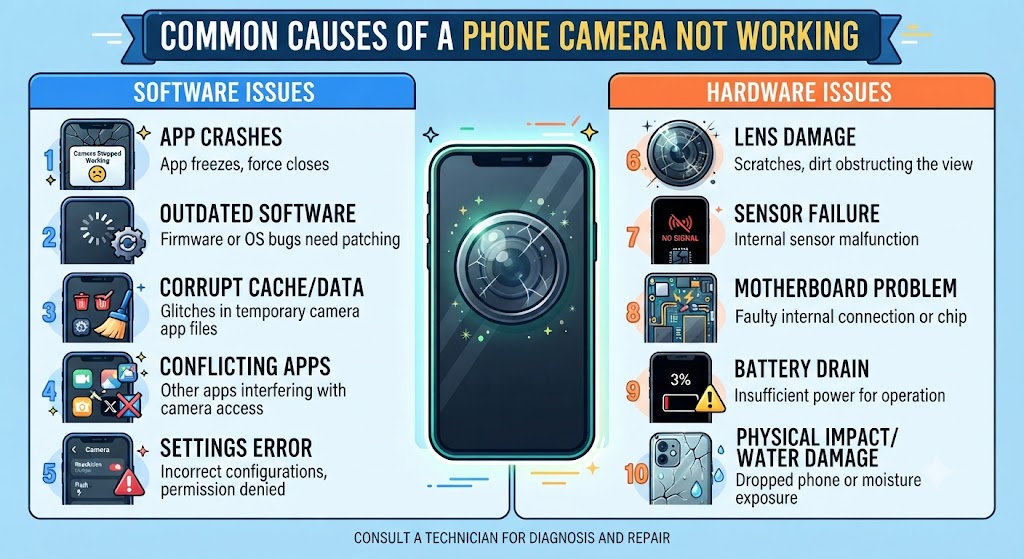
Camera issues don’t always look the same. Some problems appear suddenly, while others develop gradually over time. Here are the most common symptoms users experience:
- Camera app won’t open.
- Camera app keeps crashing.
- Black screen when opening the camera.
- “Camera Failed” or “Cannot Connect to Camera” error.
- Rear camera isn’t working.
- Front camera isn’t working.
- Photos appear blurry.
- Camera refuses to focus.
- Flash isn’t working correctly.
- Camera freezes during use.
- Phone becomes hot whenever the camera is opened.
- Video recording suddenly stops.
- Camera shakes or vibrates continuously.
- Lens appears foggy after water exposure.
- Camera quality has become noticeably worse.
Some of these symptoms indicate software problems, while others point towards damaged hardware that requires professional diagnosis.
What Causes a Phone Camera to Stop Working?
There are several reasons why your phone camera might suddenly stop working. In many cases, the problem is something simple, such as a software glitch or an app conflict, which can often be fixed at home in just a few minutes. However, if your phone has recently been dropped, exposed to water, or suffered physical damage, the issue could be related to the camera hardware itself.
Before attempting any repairs, it’s helpful to understand what’s causing the problem. Identifying the root cause will save you time and help you avoid unnecessary troubleshooting.
Here are some of the most common reasons a smartphone camera stops working:
| Possible Cause | Type of Issue | Can You Fix It Yourself? |
|---|---|---|
| Camera app glitch | Software | Usually |
| Outdated operating system | Software | Yes |
| Corrupted camera app cache | Software | Yes |
| Camera permissions disabled | Software | Yes |
| Insufficient or full storage | Software | Yes |
| Conflict with a third-party camera app | Software | Yes |
| Water or liquid damage | Hardware | Usually not |
| Phone dropped or suffered impact damage | Hardware | Usually not |
| Loose or damaged camera connector | Hardware | No |
| Faulty camera module | Hardware | No |
| Motherboard or internal circuit damage | Hardware | No |
Expert Tip: If your camera stopped working immediately after your phone was dropped or came into contact with water, there’s a strong chance the problem is hardware-related. While basic troubleshooting is still worth trying, repeated restarts or reinstalling apps won’t fix physical damage. In these situations, it’s best to have the device professionally diagnosed to prevent further issues.
15 Proven Ways to Fix a Phone Camera That Isn’t Working
Before assuming your phone needs a repair, work through the troubleshooting steps below. These solutions resolve the majority of software-related camera problems and can often restore normal functionality within minutes.
1. Restart Your Phone
It may sound simple, but restarting your device is often the quickest and most effective fix for temporary camera issues.
Modern smartphones run dozens of background processes simultaneously. Occasionally, the Camera app can freeze due to a temporary software conflict or memory error. A restart clears active processes, refreshes system resources, and allows the camera service to load correctly.
How to restart your phone
Android
- Press and hold the Power button.
- Tap Restart.
- Wait for the device to reboot.
- Open the Camera app again.
iPhone
- Press and hold the Side button with either Volume button.
- Slide to power off.
- Wait around 30 seconds.
- Turn the phone back on and test the camera.
If the camera works normally after restarting, the problem was most likely a temporary software glitch rather than a hardware failure.
2. Force Close the Camera App
Sometimes the Camera app remains partially active in the background even after you’ve closed it. This can prevent it from launching properly the next time you open it.
Force closing the app completely resets its current session without affecting your photos or settings.
Android
- Open Settings
- Tap Apps
- Select Camera
- Tap Force Stop
- Reopen the Camera app
iPhone
- Swipe up from the bottom (or double-press the Home button on older models).
- Swipe the Camera app away.
- Launch the Camera app again.
This simple step often resolves issues such as:
- Camera freezing
- Camera opening to a black screen
- App crashing immediately after launch
- Camera becoming unresponsive
3. Check Camera Permissions
One of the most overlooked reasons why a phone camera stops working is that camera permissions have been accidentally disabled.
Many apps – including WhatsApp, Instagram, Snapchat, TikTok, Zoom, Microsoft Teams, and even the default Camera app – require permission to access your phone’s camera.
If these permissions are turned off, the camera may fail to launch or display a blank screen.
On Android
- Open Settings
- Go to Apps
- Select Camera
- Tap Permissions
- Ensure Camera permission is enabled
On iPhone
- Open Settings
- Scroll down to the affected app
- Tap Camera
- Toggle camera access on
After enabling permissions, restart the app and check whether the camera functions normally.
4. Clear the Camera App Cache (Android)
Over time, the Camera app stores temporary files, known as cache, to help it load faster and improve performance. However, these files can sometimes become corrupted, leading to problems such as camera crashes, freezing, or a black screen. Clearing the cache is a safe troubleshooting step that often resolves these issues without deleting your photos or videos.
How to Clear the Camera App Cache
- Open Settings.
- Tap Apps.
- Select Camera.
- Tap Storage.
- Choose Clear Cache.
Once you’ve cleared the cache, reopen the Camera app and check whether the issue has been resolved.
5. Update Your Phone’s Software
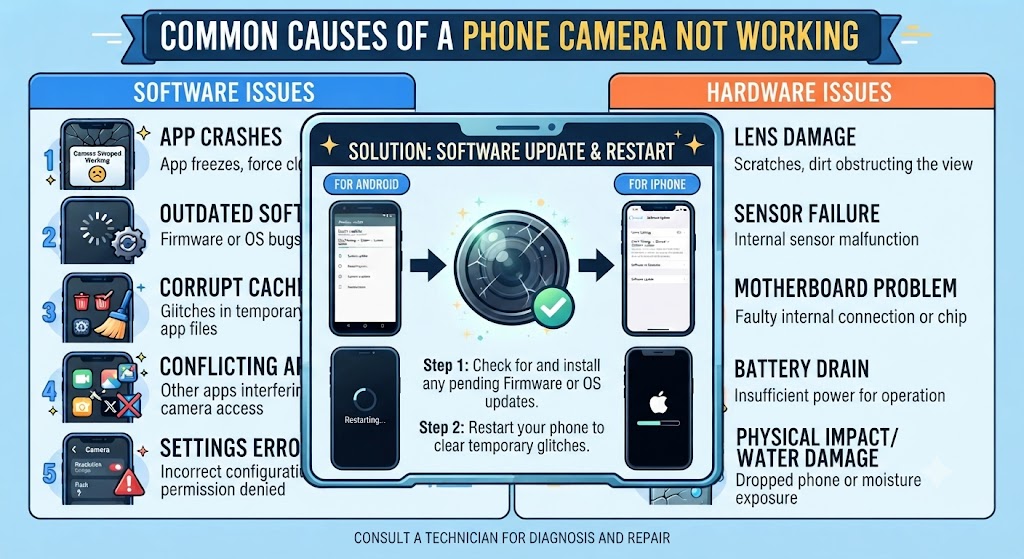
Software updates don’t just introduce new features – they also fix bugs, improve system stability, and resolve compatibility issues that may affect your phone’s camera. If you’re running an outdated version of Android or iOS, installing the latest update could restore your camera’s functionality.
On Android
- Open Settings.
- Tap Software Update.
- Select Download and Install.
On iPhone
- Open Settings.
- Tap General.
- Select Software Update.
After installing the update, restart your phone and test the Camera app again.
6. Update the Camera App
If you’re using a third-party camera application or your phone’s camera app receives updates through the app store, keeping it up to date is essential. Developers regularly release updates to fix bugs, improve compatibility, and enhance overall performance.
Visit the Google Play Store or Apple App Store, search for your Camera app, and install any available updates before testing the camera again.
7. Check Your Phone Storage
A phone with very little available storage may struggle to save photos, record videos, or even launch the Camera app properly. When storage is almost full, your device can experience performance issues that affect multiple apps, including the camera.
Check Available Storage
Android
- Settings → Storage
iPhone
- Settings → General → iPhone Storage
Delete unnecessary apps, duplicate photos, old videos, or downloaded files to free up space.
If you also notice that your phone becomes hot or the battery drains unusually fast while using the camera, the problem may not be limited to the camera itself.
8. Remove Third-Party Camera Apps
Some third-party camera apps, beauty filters, or QR scanner applications can interfere with your phone’s default Camera app. If the problem started after installing a new app, it’s worth checking whether that app is causing a conflict.
Uninstall any recently installed camera-related apps, restart your phone, and then open the default Camera app to see if the issue has been resolved.
9. Restart Your Phone in Safe Mode (Android)
Safe Mode temporarily disables all third-party applications, allowing you to determine whether another app is interfering with the Camera app. If your camera works normally in Safe Mode, it’s a strong indication that a recently installed app is causing the problem.
How to Enter Safe Mode
- Press and hold the Power button.
- Press and hold Power Off.
- Tap Safe Mode.
Open the Camera app while in Safe Mode and check if it functions correctly.
10. Remove Your Phone Case or Lens Protector
Phone cases and camera lens protectors are designed to protect your device, but if they’re damaged, poorly fitted, or misaligned, they can affect photo quality and autofocus performance. Dust trapped around the camera lens can also interfere with image clarity.
Remove both the case and any lens protector, clean the camera area, and test the camera again.
Physical damage around the camera housing can impact image quality and autofocus performance. If your device has a cracked rear panel, our “How to Fix a Cracked Phone Back Glass?” guide explains how this type of damage can affect your phone and when a repair is recommended.
11. Clean the Camera Lens
A dirty camera lens is one of the simplest – and most commonly overlooked – causes of blurry photos. Fingerprints, dust, and pocket lint can all reduce image quality, making your camera appear faulty when it simply needs cleaning.
Use a clean microfibre cloth and gently wipe the lens in circular motions. Avoid using tissues, abrasive materials, or household cleaning products, as these may scratch the lens coating.
12. Test Both Front and Rear Cameras
Testing both cameras helps you determine whether the problem affects the entire camera system or just one camera module. This information can also help identify whether the issue is software-related or caused by damaged hardware.
Switch between the front and rear cameras using the Camera app.
- If only one camera doesn’t work, the camera module may be faulty.
- If both cameras fail, the issue is more likely related to software or the motherboard.
13. Reset Camera Settings
Incorrect camera settings can sometimes cause unexpected issues, especially after software updates or accidental configuration changes. Resetting the Camera app restores all settings to their default values without deleting your photos or videos.
Open the Camera Settings menu and select Reset Settings if the option is available on your device.
14. Reset All Phone Settings
If you’ve tried the previous troubleshooting steps and your phone camera still isn’t working, resetting your phone’s settings may help. Sometimes, incorrect system configurations, disabled permissions, or changes made after a software update can interfere with the Camera app. Resetting your settings restores these system preferences to their default values without deleting your personal data, such as photos, videos, contacts, or apps.
Keep in mind that this process will reset settings like Wi-Fi passwords, Bluetooth connections, privacy permissions, keyboard preferences, and network settings, so you’ll need to configure them again afterwards.
Once the reset is complete, restart your phone and open the Camera app to check whether the issue has been resolved. If the camera still doesn’t work, the problem is more likely to be hardware-related rather than caused by your phone’s settings.
15. Perform a Factory Reset (Last Resort)
A factory reset should only be used as a last resort after you’ve tried all other troubleshooting methods and your phone camera still isn’t working. This process completely erases your device and reinstalls the operating system, making it one of the most effective ways to rule out serious software problems that may be causing the camera to crash, show a black screen, freeze, or fail to open.
Before performing a factory reset, back up all important data, including photos, videos, contacts, messages, and documents. Once the reset begins, everything stored on the phone will be removed and cannot be recovered unless it has been backed up.
After the reset is complete, set up the phone as new and test the Camera app before restoring your backup. If the camera works normally, the issue was likely caused by corrupted software or system settings. However, if the camera still doesn’t work after a factory reset, the problem is likely hardware-related, such as a faulty camera module, damaged connector, or motherboard issue, and the device should be professionally diagnosed by a qualified repair technician.
Android Camera Not Working
If your Android phone camera isn’t working, the problem could be related to software, app conflicts, corrupted cache files, or, in some cases, faulty hardware. Brands such as Samsung, Google Pixel, Huawei, OnePlus, Xiaomi, Oppo, and Motorola may experience camera issues for different reasons, but the troubleshooting process is generally the same.
Start by restarting your phone, clearing the Camera app cache, checking for software updates, and ensuring the Camera app has the necessary permissions. If the issue persists, try opening the camera in Safe Mode to determine whether a third-party app is causing the problem.
If your Android phone still displays a black screen or shows a “Camera Failed” error after completing these steps, the issue may require professional diagnosis.
iPhone Camera Not Working
If your iPhone camera is not working, there’s no need to assume the camera module has failed straight away. In many cases, the problem is caused by a temporary iOS bug, incorrect camera settings, outdated software, or an app conflict that can be resolved without replacing any hardware. Whether you’re using an iPhone 13, iPhone 14, iPhone 15, or a newer model, many camera-related issues can be fixed by following a few simple troubleshooting steps.
Start by closing the Camera app completely and restarting your iPhone. Next, check whether a new iOS update is available, as Apple frequently releases software updates to fix camera bugs, improve stability, and enhance overall device performance. You should also confirm that camera permissions are enabled for any apps that need access to the camera, such as FaceTime, WhatsApp, Instagram, Snapchat, or Zoom.
It’s also a good idea to test both the front (selfie) camera and the rear camera separately. If only one camera isn’t working while the other functions normally, the issue may be limited to a specific camera module. However, if neither camera opens or both display a black screen, the problem could be related to iOS, system software, or internal hardware.
If your iPhone camera stopped working after being dropped or exposed to water, carefully inspect the area around the rear camera for cracks, dents, or signs of impact damage. Even if the back glass appears only slightly damaged, the force of the impact may have affected the camera module, image stabilisation system, or internal connectors.
Samsung Camera Not Working
If your Samsung phone camera is not working, you’re not alone. Many Samsung Galaxy users occasionally experience issues such as a black camera screen, the “Camera Failed” error, blurry photos, or the Camera app crashing unexpectedly. These problems can affect popular models, including the Galaxy S series, Galaxy A series, Galaxy Z Fold, and Galaxy Z Flip devices.
In many cases, the issue is caused by a temporary software glitch, corrupted camera cache, outdated One UI software, or a conflict with another app. Start by restarting your Samsung phone, clearing the Camera app cache, checking for the latest software update, and ensuring the Camera app has all the required permissions.
If the problem continues, try opening your phone in Safe Mode. If the camera works normally in Safe Mode, a third-party application is likely interfering with the Camera app. You should also check whether your phone has sufficient storage available, as low storage space can sometimes prevent the camera from functioning correctly.
If your Samsung phone was recently dropped or exposed to water, inspect the camera housing for any visible signs of damage. Physical impact can damage the camera module, image stabilisation system, or internal connectors, leading to issues that software troubleshooting cannot resolve.
If your Samsung camera still isn’t working after trying these steps, a professional diagnosis is recommended. Our technicians can identify whether the issue is caused by a faulty camera module, damaged flex cable, charging board, or motherboard, ensuring the correct repair is carried out.
Why Does My Phone Camera Show a Black Screen?
A black screen is one of the most common camera problems reported by smartphone users. Instead of displaying the camera preview, the Camera app opens to a completely black screen or freezes indefinitely.
This issue is usually caused by one of the following:
- A temporary software glitch
- Corrupted Camera app data
- Outdated system software
- A third-party app conflict
- A failed camera module
- Internal hardware damage
How to Fix a Black Camera Screen
- Restart your phone.
- Force close the Camera app.
- Clear the Camera app cache (Android).
- Update your operating system.
- Remove recently installed camera apps.
- Restart in Safe Mode (Android).
- Test both front and rear cameras.
If none of these solutions work, the camera hardware may need replacing.
Why Does My Camera App Keep Crashing?
If your Camera app opens and immediately closes, freezes while taking photos, or crashes every time you launch it, the problem is often software-related. Corrupted app data, low storage space, outdated software, or conflicts with other applications can all cause the Camera app to become unstable.
Start by updating your phone and clearing the Camera app cache. If the crashes continue, uninstall any recently installed camera or photo editing apps and restart your device.
If your phone has also become noticeably slower or begins overheating while using the camera, it may indicate a wider system issue. In that case, you may also find our Why Is My Phone Overheating? Causes & Fixes Explained guide helpful for identifying the underlying cause.
Why Is My Phone Camera Blurry?
Blurry photos don’t always mean your camera is damaged. In many cases, poor image quality is caused by a dirty lens, an incorrectly fitted lens protector, or the camera struggling to focus properly.
Start by cleaning the lens with a clean microfibre cloth and removing any protective film or damaged lens protector. If photos remain blurry after cleaning, test the camera in good lighting and compare both the front and rear cameras.
If only one camera produces blurry images, the camera module may have been damaged by a previous drop or impact.
Why Won’t My Phone Camera Focus?
If your camera struggles to focus or constantly switches between blurry and sharp images, the issue may be caused by dirt on the lens, a faulty autofocus system, or physical damage to the camera module.
Try these quick fixes:
- Clean the camera lens.
- Remove the phone case or lens protector.
- Tap the screen to manually focus.
- Move closer or further away from the subject.
- Restart the Camera app.
- Test the camera in bright lighting.
If autofocus still doesn’t work after trying these steps, the camera module may need replacing.
What Does “Camera Failed” Mean?
The “Camera Failed” error is commonly seen on Android devices, particularly Samsung phones, although it can appear on other brands as well. This message usually indicates that the Camera app was unable to communicate with the camera hardware or complete the startup process.
Possible causes include:
- Corrupted Camera app files
- Software bugs
- System update issues
- Faulty camera hardware
- Loose internal camera connector
- Motherboard faults
If the error continues after restarting your phone, clearing the cache, and installing the latest software update, it’s likely that the problem requires professional repair.
Is It a Software Problem or a Hardware Fault?
One of the most common questions people ask is whether their phone camera issue is caused by software or damaged hardware. Understanding the difference can save you time and help you decide whether you can fix the problem yourself or need professional assistance.
| Signs of a Software Issue | Signs of a Hardware Issue |
|---|---|
| Camera works after restarting | Camera stopped working after a drop |
| Camera app crashes occasionally | Black screen all the time |
| Issue started after a software update | Cracked camera glass or back panel |
| Camera works in Safe Mode | Camera rattles or makes unusual noises |
| Clearing cache fixes the issue | Autofocus never works |
| Factory reset resolves the problem | Camera still doesn’t work after a factory reset |
If your troubleshooting points towards a hardware fault, continuing to repeat software fixes is unlikely to solve the problem. At that stage, a professional diagnosis is the safest and most effective option.
Average Phone Camera Repair Costs in the UK
If your phone camera issue turns out to be hardware-related, the repair cost will depend on your device model and the component that needs replacing. Premium smartphones such as the latest iPhones and Samsung Galaxy models generally cost more to repair than older or mid-range devices. The prices below provide a general estimate of what you can expect to pay for common phone camera repairs in the UK.
| Repair Type | Average UK Price |
|---|---|
| Camera Glass Replacement | £29-£69 |
| Rear Camera Module Replacement | £59-£149 |
| Front (Selfie) Camera Replacement | £49-£119 |
| Camera Flex Cable Repair | £39-£89 |
| Camera Connector Repair | £49-£99 |
| Motherboard Camera Circuit Repair | £89-£249 |
| Water Damage Camera Repair | £69-£199 |
| Professional Camera Diagnostic | Free-£30 |
Please Note: These prices are approximate and may vary depending on your phone model, the extent of the damage, and the replacement parts required. At iExpert Repairs, every device undergoes a full diagnostic assessment before any repair is carried out, ensuring you receive an accurate quotation with no hidden costs.
FAQs About Phone Camera Problems
1. Why is my phone camera not working?
Your phone camera may stop working due to software glitches, outdated operating system, corrupted app cache, disabled camera permissions, insufficient storage, or physical damage caused by drops or water exposure. Identifying the underlying cause is the first step towards fixing the problem.
2. How do I fix a phone camera that won’t open?
Start by restarting your phone, force closing the Camera app, checking camera permissions, clearing the app cache (Android), updating your software, and freeing up storage space. If the camera still won’t open, the issue may require professional diagnosis.
3. Why is my phone camera showing a black screen?
A black camera screen is commonly caused by a software bug, corrupted app data, outdated software, or a faulty camera module. If basic troubleshooting doesn’t resolve the issue, the problem may be hardware-related.
4. Why does my Camera app keep crashing?
The Camera app may crash because of corrupted cache files, insufficient storage, outdated software, or conflicts with third-party apps. Updating your device and clearing the Camera app cache usually resolves software-related crashes.
5. How do I fix a blurry phone camera?
Clean the camera lens with a microfibre cloth, remove any damaged lens protector, and test the camera in good lighting. If photos remain blurry after cleaning, the autofocus system or camera module may require repair.
6. Why won’t my phone camera focus?
Autofocus problems can be caused by dirt on the lens, a damaged camera module, software glitches, or an obstructed lens protector. Cleaning the lens and restarting the Camera app are good places to start.
7. What does the “Camera Failed” error mean?
The “Camera Failed” error usually means your phone cannot communicate with the camera hardware. It may be caused by corrupted software, failed updates, a damaged camera module, or an internal hardware fault.
8. Why is my Android camera not working?
An Android camera may stop working because of corrupted cache files, outdated software, disabled permissions, third-party app conflicts, or hardware damage. Clearing the Camera app cache and checking for software updates are recommended first steps.
9. Why is my iPhone camera not working?
An iPhone camera can stop working due to iOS bugs, incorrect settings, app conflicts, or physical damage. Restarting the device, updating iOS, and testing both the front and rear cameras can help identify the cause.
10. Why is my Samsung camera not working?
Samsung camera problems are often caused by software issues, corrupted cache files, outdated One UI software, or physical damage. Restarting the device, clearing the Camera app cache, and installing the latest software updates can often resolve the issue.
11. Can a software update fix camera problems?
Yes. Software updates often include bug fixes, security improvements, and camera performance enhancements. Installing the latest Android or iOS update can resolve many camera-related issues.
12. Can low storage stop my phone camera from working?
Yes. If your phone’s storage is almost full, the Camera app may struggle to save photos or videos, and in some cases it may fail to open or crash unexpectedly.
13. Can water damage affect my phone camera?
Yes. Even if the screen looks fine, a hard impact can damage the camera module, autofocus system, image stabilisation components, or internal connectors, causing the camera to stop working.
15. Should I perform a factory reset if my camera isn’t working?
A factory reset should only be considered after you’ve tried all other troubleshooting methods. Always back up your data first, as the process will erase everything stored on your phone.
16. How do I know if my phone camera has a hardware problem?
If the camera stopped working after a drop, water damage, or continues to show a black screen or “Camera Failed” error even after a factory reset, the issue is likely hardware-related.
17. Is it safe to clear the Camera app cache?
Yes. Clearing the Camera app cache only removes temporary files and does not delete your photos, videos, or personal data. It’s one of the safest troubleshooting steps for Android devices.
18. When should I seek professional phone camera repair?
If you’ve completed all recommended troubleshooting steps and your camera still doesn’t work, or if your phone has suffered physical or liquid damage, it’s best to have it professionally diagnosed to prevent further damage.
19. How long does a phone camera repair usually take?
Most camera repairs can be completed within the same day or within 24-48 hours, depending on your phone model and whether replacement parts are readily available.
20. Can iExpert Repairs fix phone camera problems?
Yes. At iExpert Repairs, our certified technicians diagnose and repair a wide range of smartphone camera issues, including faulty camera modules, autofocus problems, black screen errors, water damage, and software-related faults. We repair major brands including Apple, Samsung, Google Pixel, Huawei, OnePlus, and many other Android devices using high-quality replacement parts, with every repair backed by a 12-month warranty.
Why Choose iExpert Repairs for Phone Camera Repairs?
Choosing the right repair provider is just as important as identifying the problem itself. At iExpert Repairs, we combine experienced technicians, premium-quality replacement parts, and a customer-focused service to deliver reliable repairs across the UK.
Here’s why customers trust us:
- Over 10 years of smartphone repair experience.
- Certified technicians trained to repair all major phone brands.
- High-quality replacement parts.
- Comprehensive diagnostics before every repair.
- Most repairs completed with a fast turnaround.
- 12-month warranty on repairs.
- Nationwide UK mail-in repair service.
- Transparent pricing with no hidden costs.
Whether you own an iPhone, Samsung Galaxy, Google Pixel, Huawei, OnePlus, or another Android device, our team has the expertise to diagnose and repair a wide range of camera-related issues.
Conclusion
A phone camera that isn’t working doesn’t always mean an expensive repair is necessary. In many cases, the problem can be resolved by restarting your device, clearing the Camera app cache, updating your software, checking permissions, or freeing up storage space. These simple troubleshooting steps often fix temporary software issues and restore normal camera functionality.
However, if your phone camera stopped working after being dropped, exposed to water, or continues to display a black screen, blurry images, autofocus problems, or a “Camera Failed” error even after completing all the recommended fixes, the issue is likely hardware-related. In these situations, professional diagnosis is the safest and most effective solution.
By following the troubleshooting methods outlined in this guide, you can identify whether the problem is software or hardware-related and take the appropriate next step. Acting quickly can also help prevent further damage and increase the chances of a successful repair.
Back to posts

