
Introduction
Bluetooth is one of the most useful features on modern smartphones. Whether you’re connecting wireless earbuds, smartwatches, speakers, car infotainment systems, keyboards, or fitness trackers, Bluetooth makes everyday tasks quicker and more convenient.
However, it can be incredibly frustrating when your phone Bluetooth is not connecting. Your device may fail to discover nearby accessories, repeatedly disconnect, refuse to pair, or display connection errors without any obvious reason.
The good news is that most Bluetooth problems can be fixed without replacing your phone. In many cases, the issue is caused by a temporary software glitch, incorrect settings, outdated system software, or interference from previously paired devices. In more serious cases, damaged Bluetooth hardware or motherboard faults may require professional repair.
In this comprehensive UK guide, our technicians explain the most common reasons why Bluetooth stops working, the best troubleshooting methods for both Android and iPhone devices, and when it’s time to seek professional assistance from iExpert Repairs.
Quick Answer: How Do You Fix a Phone Bluetooth That Won’t Connect?
If your phone’s Bluetooth isn’t connecting, start by turning Bluetooth off and back on, restarting your phone, ensuring the accessory is in pairing mode, and forgetting then reconnecting the device. Updating your phone’s software, resetting network settings, and checking for hardware damage can also resolve the issue. If Bluetooth still doesn’t work after these steps, the problem may require professional diagnosis and repair.
Why Is My Phone Bluetooth Not Connecting?
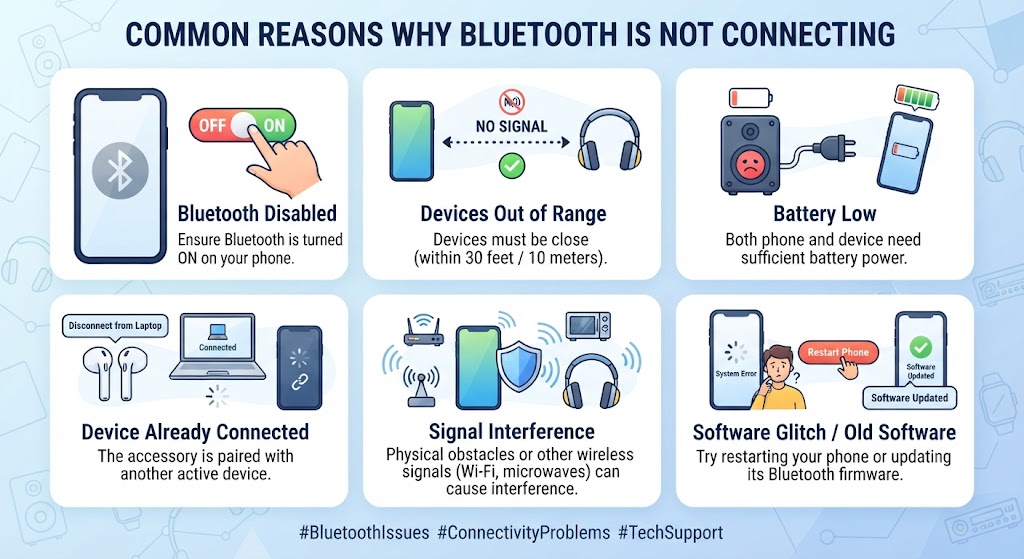
Bluetooth problems don’t always mean your phone is faulty. In fact, most connection issues are caused by simple software settings that can be corrected in just a few minutes.
Modern smartphones rely on several components working together to establish a stable Bluetooth connection. If any one of these fails, pairing may become slow, unreliable, or impossible.
Some of the most common causes include:
- Bluetooth has been accidentally disabled.
- The device you’re connecting to isn’t in pairing mode.
- Too many previously paired devices are stored.
- Software bugs after a recent system update.
- Outdated Android or iOS software.
- Airplane Mode interfering with wireless connections.
- Low battery on either device.
- Bluetooth cache corruption (Android).
- Interference from nearby wireless devices.
- Physical damage after a drop or water exposure.
- Faulty Bluetooth antenna or internal hardware.
In our repair centre, we often find that customers assume Bluetooth has failed permanently when the issue is actually caused by incorrect settings or temporary software conflicts. That’s why it’s always worth completing a few simple troubleshooting steps before considering a repair.
Common Signs Your Phone Has Bluetooth Problems
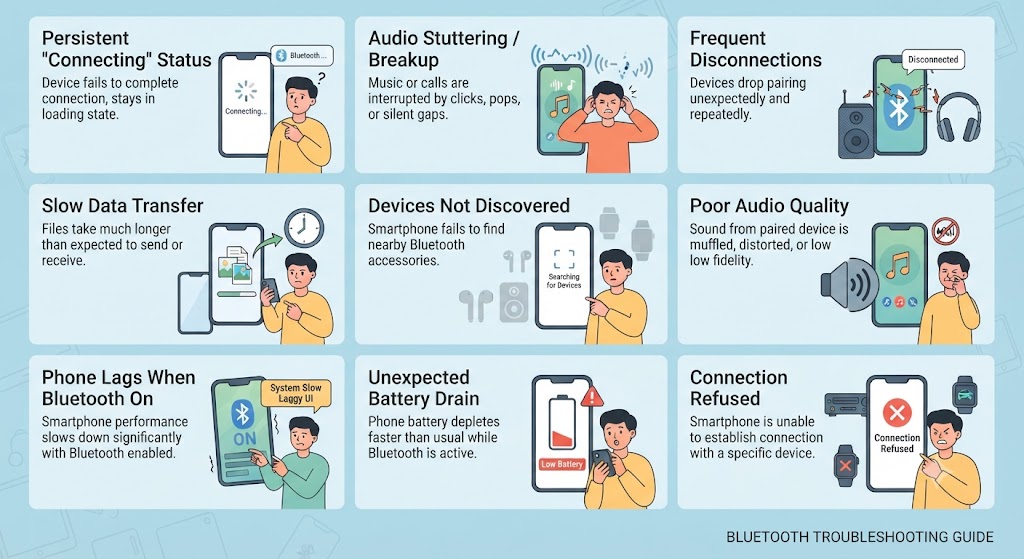
Bluetooth faults don’t always appear the same way. Some phones fail to detect nearby devices, while others connect successfully but disconnect a few seconds later.
You may be dealing with a Bluetooth issue if you notice any of the following symptoms:
- Your phone cannot find Bluetooth devices.
- Pairing requests continuously fail.
- Wireless earbuds connect but produce no sound.
- Bluetooth disconnects randomly.
- Your smartwatch frequently loses connection.
- Your car refuses to recognise your phone.
- Audio stutters or cuts out during playback.
- Bluetooth remains stuck on “Connecting…”
- Previously paired devices suddenly stop working.
- Bluetooth switches itself off unexpectedly.
If several of these symptoms occur together, the issue is more likely to require deeper troubleshooting rather than simply reconnecting the device.
Real Repair Example from Our Workshop
One customer recently brought in an iPhone that could no longer connect to any Bluetooth devices after being dropped. They had already tried restarting the phone, resetting the network settings, and updating iOS, but the issue remained.
After carrying out a full diagnostic inspection, our technicians found that the impact had damaged the internal Bluetooth antenna. Once the faulty component was replaced and the device was tested, Bluetooth connectivity was fully restored.
Cases like this highlight why it’s important to complete software troubleshooting first. If none of the recommended fixes work, the problem may be caused by damaged internal hardware that requires professional repair.
Is the Problem With Your Phone or the Bluetooth Device?
Before changing settings on your phone, it’s worth confirming where the problem actually lies.
A simple way to identify the cause is to test your phone with another Bluetooth accessory. For example, if your wireless earbuds won’t connect, try pairing your phone with a Bluetooth speaker or smartwatch instead.
Likewise, connect the original accessory to another phone. If it works perfectly with a different device, the issue is likely with your phone. If it still refuses to connect, the accessory itself may be faulty.
This quick comparison can save a lot of unnecessary troubleshooting and helps identify whether the problem is device-specific or phone-related.
Before You Start Troubleshooting
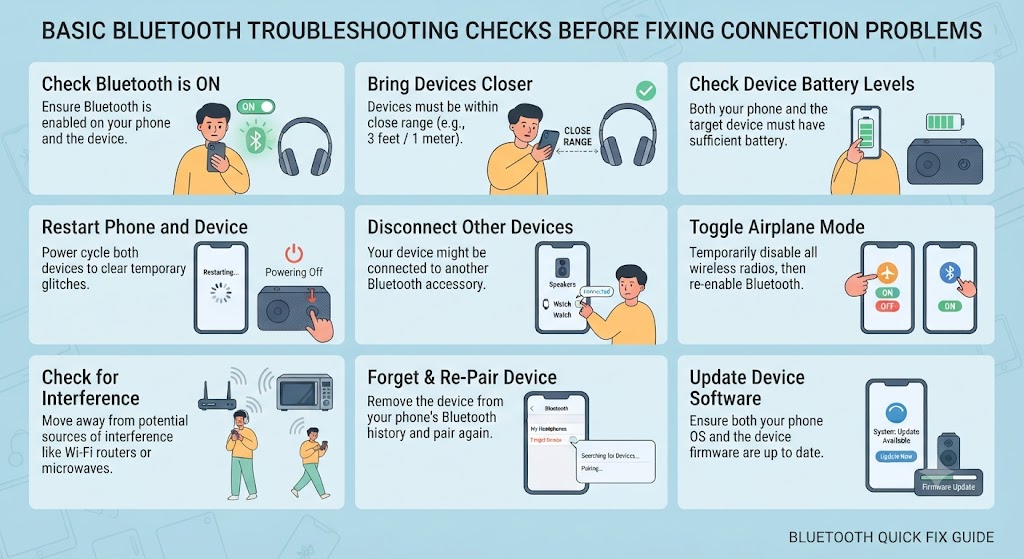
Before moving on to more advanced fixes, check these basic points:
- Bluetooth is switched on.
- Airplane Mode is turned off.
- The accessory has sufficient battery power.
- The accessory is in pairing mode.
- Your phone is within Bluetooth range.
- No other device is currently connected to the accessory.
Many Bluetooth issues are resolved simply by correcting one of these basic settings.
How to Fix Phone Bluetooth Not Connecting: Step-by-Step Solutions
If your phone’s Bluetooth won’t connect, don’t panic. In most cases, the problem can be resolved without professional repair. Start with the simplest solutions first before moving on to more advanced troubleshooting.
Follow the steps below in order. After completing each one, try reconnecting your Bluetooth device to see if the issue has been resolved.
1. Turn Bluetooth Off and Back On

This may sound obvious, but it’s often the quickest fix.
Bluetooth services can occasionally become unresponsive due to temporary software glitches. Restarting Bluetooth refreshes the connection and clears minor communication errors.
How to do it:
On Android
- Open Settings
- Tap Bluetooth or Connected Devices
- Turn Bluetooth Off
- Wait 10–15 seconds
- Turn it On again
On iPhone
- Open Settings
- Tap Bluetooth
- Switch Bluetooth Off
- Wait a few seconds
- Turn it back On
Now try pairing your device again.
2. Restart Your Phone
A simple restart fixes more Bluetooth issues than many people realise.
Restarting clears temporary system bugs, refreshes wireless services, and restarts background processes that may be preventing Bluetooth from working correctly.
If your phone has also been freezing, slowing down, or restarting unexpectedly, the Bluetooth issue may be part of a wider software problem. In that case, we recommend reading our “My Phone Keeps Restarting – How to Fix It?” before continuing.
How to restart:
- Hold the Power button.
- Select Restart.
- Wait for the phone to reboot completely.
- Turn Bluetooth back on and reconnect your device.
3. Make Sure the Bluetooth Device Is in Pairing Mode
Many users assume Bluetooth is broken when the accessory simply isn’t ready to pair. Different devices enter pairing mode in different ways.
Examples include:
- Holding the power button for several seconds.
- Pressing a dedicated Bluetooth button.
- Opening the charging case (for many wireless earbuds).
- Resetting the accessory before pairing again.
If the accessory isn’t discoverable, your phone won’t detect it regardless of its Bluetooth settings. Always check the manufacturer’s instructions if you’re unsure how to activate pairing mode.
4. Forget the Device and Pair Again
Sometimes your phone remembers outdated connection information, preventing a successful Bluetooth connection. Removing the saved device and pairing it again often fixes this issue.
Android
- Open Settings
- Bluetooth
- Tap the connected device
- Select Forget or Unpair
iPhone
- Settings
- Bluetooth
- Tap the (i) icon
- Choose Forget This Device
Now reconnect the accessory as though it were new.
5. Check the Distance Between Devices
Bluetooth isn’t designed for long-range communication.
Although many modern devices advertise ranges of up to 10 metres, walls, furniture, metal objects, and wireless interference can significantly reduce signal strength.
For the most reliable connection:
- Keep both devices within one or two metres.
- Remove physical obstacles.
- Avoid crowded areas with many Bluetooth devices.
- Stay away from Wi-Fi routers when pairing.
If Bluetooth disconnects only when you move away, the issue may simply be signal interference rather than a fault with your phone.
6. Disable Airplane Mode
Airplane Mode disables many wireless communication services, including Bluetooth on some devices. Although certain phones allow Bluetooth to be re-enabled while Airplane Mode is active, this doesn’t always work correctly.
To avoid connection issues:
- Turn Airplane Mode completely off.
- Wait a few seconds.
- Re-enable Bluetooth.
- Try connecting again.
7. Charge Both Devices
Low battery levels can affect Bluetooth performance more than many people realise.
Some smartphones automatically reduce background activity when battery levels become critically low, while certain Bluetooth accessories enter power-saving modes that limit connectivity.
Before continuing, ensure:
- Your phone has at least 20% battery.
- Wireless earbuds or headphones are fully charged.
- Smartwatches and speakers have sufficient battery power.
If your phone’s battery drains unusually fast, it may indicate a separate issue. You may also find our guide “Why Is My Phone Battery Draining So Fast?” guide helpful.
8. Remove Old Bluetooth Connections
Phones can store dozens of paired Bluetooth devices over time. Although this usually isn’t a problem, an overloaded Bluetooth list may occasionally create pairing conflicts.
If you no longer use older devices, remove them. Examples include:
- Old headphones
- Previous car systems
- Unused smartwatches
- Bluetooth keyboards
- Portable speakers
Keeping only the devices you actually use helps your phone manage Bluetooth connections more efficiently.
9. Check for Software Updates
Outdated software is a surprisingly common cause of Bluetooth compatibility issues. Manufacturers regularly release updates that improve Bluetooth stability, security, and compatibility with newer accessories.
Android
Settings → Software Update
iPhone
Settings → General → Software Update
Install any available updates before troubleshooting further.
Bluetooth Version Compatibility Issues
Sometimes the problem isn’t your phone or the Bluetooth accessory itself – it’s a compatibility issue between different Bluetooth versions.
Most modern smartphones support the latest Bluetooth standards and are backward compatible. However, some older accessories may struggle to connect properly, especially if they’re running outdated firmware or have limited compatibility with newer devices.
If you’re having trouble pairing a specific device, try the following:
- Check whether your phone is running the latest Android or iOS version.
- Update the accessory’s firmware if the manufacturer provides updates.
- Test the accessory with another phone to see if the issue is device-specific.
- Check the manufacturer’s compatibility information if the accessory is several years old.
If the accessory works with other phones but not yours, a software update or compatibility fix may resolve the issue.
10. Restart the Bluetooth Accessory
Sometimes the problem isn’t your phone at all. Wireless earbuds, speakers, car infotainment systems, and fitness trackers can all develop temporary software glitches.
- Turn the accessory off completely.
- Wait around 30 seconds.
- Turn it back on.
- Place it into pairing mode again.
- Then reconnect it to your phone.
This simple reset frequently restores normal communication between both devices.
Common Buyer/User Mistake
One of the biggest mistakes people make is repeatedly tapping Connect while the device is already attempting to pair. Doing this can interrupt the pairing process and create additional connection errors.
Instead, allow each pairing attempt to complete before trying again. If it fails, restart both devices and repeat the process calmly rather than making multiple connection attempts in quick succession.
Advanced Bluetooth Troubleshooting
If you’ve already tried the basic fixes and your phone’s Bluetooth still isn’t connecting, it’s time to move on to more advanced troubleshooting. These solutions can resolve deeper software issues and help determine whether the problem is caused by software or faulty hardware.
11. Clear the Bluetooth Cache (Android Only)
Android phones store temporary Bluetooth data (cache) to speed up future connections. Over time, this cached data can become corrupted, causing pairing failures or random disconnections.
Clearing the Bluetooth cache doesn’t delete your personal files, but you may need to reconnect previously paired Bluetooth devices.
How to Clear the Bluetooth Cache
- Open Settings.
- Go to Apps.
- Tap Show System Apps (if available).
- Find Bluetooth.
- Select Storage & Cache.
- Tap Clear Cache.
Restart your phone and try pairing your Bluetooth device again.
Note: Menu names vary slightly between Android manufacturers such as Samsung, Google Pixel, Huawei, Xiaomi and OnePlus.
12. Reset Network Settings
If Bluetooth still refuses to connect, resetting your network settings can often resolve hidden software conflicts. This process resets:
- Bluetooth settings
- Wi-Fi settings
- Mobile network settings
- Saved wireless connections
It does not erase your photos, apps or personal files.
Android
Settings → System → Reset Options → Reset Wi-Fi, Mobile & Bluetooth
iPhone
Settings → General → Transfer or Reset iPhone → Reset → Reset Network Settings
After the reset, reconnect your Bluetooth accessories.
13. Check Bluetooth Permissions
Some apps require Bluetooth permissions to communicate with accessories.
If these permissions have been denied, certain devices may fail to pair correctly.
Check that Bluetooth permissions are enabled for apps such as:
- Smartwatch apps
- Fitness trackers
- Wireless printer apps
- Car connectivity apps
- Smart home applications
Keeping permissions updated can prevent unnecessary pairing problems.
14. Is the Problem Related to Water Damage?
Bluetooth problems sometimes appear after a phone has been exposed to water or excessive moisture.
Even if the phone seems to work normally, moisture can damage internal Bluetooth components over time.
Common warning signs include:
- Bluetooth stopped working after rain.
- The phone was dropped into water.
- Wireless connections fail after liquid exposure.
- Other features such as charging or speakers also stopped working.
If your device has recently been exposed to liquid, we recommend reading our “Water Damaged Phone Repair” guide before attempting further troubleshooting.
Water damage should be diagnosed as quickly as possible because corrosion inside the phone can become worse over time.
15. Could It Be a Hardware Problem?
Not every Bluetooth issue is caused by software.
If your phone has been dropped recently or suffered impact damage, internal hardware may be responsible. Possible hardware faults include:
- Damaged Bluetooth antenna
- Faulty motherboard
- Loose internal connectors
- Damaged wireless communication chip
- Previous poor-quality repairs
- Water-damaged internal components
Unlike software issues, these problems usually require professional diagnostic equipment.
16. Factory Reset Your Phone (Last Resort)
If none of the troubleshooting methods have worked, performing a factory reset may help resolve deep software issues affecting Bluetooth connectivity. A factory reset restores your phone to its original settings, removing software conflicts, corrupted system files, and misconfigured settings that may be preventing Bluetooth from working properly.
Before resetting your phone:
- Back up your important photos, contacts, and files.
- Make sure you know your Apple ID or Google account credentials.
- Charge your phone to at least 50% battery.
After the reset, set up your phone as new and test Bluetooth before restoring all your apps and data.
Important: If Bluetooth still doesn’t work after a factory reset, the issue is likely caused by faulty hardware, such as a damaged Bluetooth antenna or motherboard component. In this situation, a professional diagnostic inspection is recommended.
Signs You May Need Professional Repair
If you notice any of the following symptoms, it’s unlikely that restarting your phone will solve the problem:
- Bluetooth won’t switch on at all.
- Bluetooth keeps turning itself off.
- No Bluetooth devices can be detected.
- Bluetooth stopped working after a phone repair.
- Bluetooth failed after water damage.
- Bluetooth disconnects constantly despite resetting everything.
- Other wireless features such as Wi-Fi are also failing.
When several of these symptoms occur together, professional diagnosis is recommended.
Software Problem vs Hardware Problem
| Software Problems | Hardware Problems |
|---|---|
| Bluetooth settings are not configured correctly. | The Bluetooth antenna is damaged and cannot send or receive signals properly. |
| Your iPhone is running an outdated version of iOS. | The motherboard or Bluetooth chip has developed a fault. |
| Temporary software bugs or corrupted system files are affecting Bluetooth. | Water or liquid has damaged the internal Bluetooth components. |
| A pairing issue is preventing your iPhone from connecting to other devices. | The iPhone has been dropped or physically damaged, affecting the Bluetooth hardware. |
Understanding the difference helps avoid unnecessary repairs and ensures the correct solution is applied.
Can You Fix Bluetooth Yourself?
Many Bluetooth issues can be resolved at home by following the troubleshooting steps in this guide. However, DIY repairs involving the phone’s internal components are not recommended unless you have the correct tools and technical experience.
Modern smartphones contain delicate components that can be easily damaged during disassembly. Attempting to repair the Bluetooth antenna or motherboard without proper equipment may result in further damage and higher repair costs.
How to Prevent Bluetooth Problems
While many Bluetooth issues can be fixed through troubleshooting, a few simple habits can help prevent them from happening again.
Here are some practical tips to keep your phone’s Bluetooth working reliably:
- Keep your Android or iPhone updated with the latest software.
- Remove old or unused paired Bluetooth devices regularly.
- Keep your Bluetooth accessories updated with the latest firmware, if updates are available.
- Avoid exposing your phone to water, excessive moisture, or extreme temperatures.
- Restart your phone occasionally to refresh system services.
- Keep both your phone and Bluetooth accessories sufficiently charged.
- Avoid installing apps from untrusted sources that may interfere with system settings.
Following these simple practices can improve Bluetooth performance, reduce connection issues, and help extend the life of your device.
Why Choose iExpert Repairs?
If troubleshooting hasn’t solved the problem, our experienced technicians can perform a full diagnostic assessment to identify the exact cause of the fault. At iExpert Repairs, we repair Bluetooth-related faults on a wide range of devices, including:
Why customers choose us:
- Certified repair technicians
- High-quality replacement parts
- Same-day repairs available on many devices
- 12-month warranty on eligible repairs
- Competitive UK pricing
- Walk-in and UK-wide Mail-In Repair Service
- Friendly after-sales support
Whether your issue is software-related or caused by damaged internal hardware, our technicians will recommend the most cost-effective repair solution.
FAQs About Phone Bluetooth Not Connecting
1. Why is my phone Bluetooth not connecting?
Your phone’s Bluetooth may not connect due to temporary software glitches, outdated system software, pairing issues, Bluetooth cache problems, low battery, or hardware damage. Restarting your phone, forgetting the Bluetooth device, and reconnecting it usually resolves the problem. If the issue persists, professional diagnostics may be required.
2. How do I fix Bluetooth pairing problems on my phone?
Start by turning Bluetooth off and back on, restarting your phone, placing the accessory in pairing mode, and removing old Bluetooth connections. If that doesn’t work, update your phone’s software or reset your network settings before trying again.
3. Why won’t my phone find Bluetooth devices?
If your phone cannot detect nearby Bluetooth devices, ensure the accessory is in pairing mode, Bluetooth is enabled, Airplane Mode is turned off, and both devices are close together. Software bugs or damaged Bluetooth hardware can also prevent device discovery.
4. Why does my Bluetooth keep disconnecting?
Frequent Bluetooth disconnections are commonly caused by software conflicts, wireless interference, outdated firmware, low battery levels, or damaged Bluetooth components. Updating your phone and reconnecting the device often fixes intermittent connection issues.
5. Can a software update fix Bluetooth issues?
Yes. Manufacturers regularly release Android and iOS updates that improve Bluetooth stability, compatibility, and performance. Installing the latest software update can resolve many Bluetooth connection problems.
6. Should I reset my network settings to fix Bluetooth?
Yes. Resetting network settings can resolve hidden Bluetooth configuration issues without deleting your personal files. However, it will remove saved Wi-Fi passwords and previously paired Bluetooth devices, which you’ll need to reconnect afterwards.
7. How do I know if my phone has a Bluetooth hardware problem?
If Bluetooth won’t switch on, constantly turns itself off, cannot detect any devices after troubleshooting, or stopped working after a drop or water damage, the problem may be hardware-related. A professional diagnostic inspection can confirm the exact cause.
8. Can water damage stop Bluetooth from working?
Yes. Water damage can affect the Bluetooth antenna, motherboard, or other internal components. Even if your phone appears to function normally, corrosion inside the device may gradually cause Bluetooth connectivity problems.
9. Why won’t my Bluetooth headphones connect to my phone?
Your headphones may not be in pairing mode, could already be connected to another device, or your phone may have stored outdated pairing information. Forgetting the device and pairing it again usually resolves the issue.
10. Does restarting my phone fix Bluetooth problems?
In many cases, yes. Restarting your phone refreshes wireless services, clears temporary software glitches, and restarts Bluetooth processes that may have stopped responding correctly.
11. Why is Bluetooth working on other devices but not my phone?
If the same Bluetooth accessory connects successfully to another phone, the issue is likely with your phone rather than the accessory. This may indicate incorrect settings, software corruption, or internal hardware faults.
12. Can Bluetooth problems be repaired?
Yes. If software troubleshooting doesn’t solve the issue, professional technicians can diagnose and repair Bluetooth-related hardware faults, including damaged antennas, faulty wireless chips, or motherboard problems.
13. How much does Bluetooth repair cost in the UK?
The cost depends on the cause of the fault and your phone model. Minor software issues may not require any hardware repair, while motherboard or Bluetooth chip repairs vary in price. A professional diagnostic assessment is the best way to determine the repair cost.
14. Is it safe to repair a phone with Bluetooth issues?
Yes, provided you choose a trusted repair specialist. Experienced technicians can safely diagnose Bluetooth faults and replace damaged components using high-quality parts where required, helping restore reliable wireless connectivity.
15. When should I seek professional phone repair for Bluetooth issues?
If you’ve completed all troubleshooting steps and Bluetooth still won’t connect, repeatedly disconnects, won’t switch on, or stopped working after physical or water damage, it’s time to seek professional repair. Early diagnosis can often prevent further damage and reduce repair costs.
Final Thoughts
Bluetooth connectivity problems can be frustrating, but in most cases, they don’t mean your phone is permanently damaged. Issues such as incorrect settings, software glitches, outdated operating systems, or pairing conflicts are often easy to fix with a few simple troubleshooting steps.
However, if you’ve worked through all the solutions in this guide and your phone still won’t connect to Bluetooth devices, the problem may be hardware-related. Faults such as a damaged Bluetooth antenna, motherboard issues, or water damage require professional diagnosis and repair.
The key is not to ignore persistent Bluetooth problems. Delaying repairs can sometimes lead to additional issues, especially if the fault is caused by liquid damage or internal component failure. Identifying the cause early can save both time and repair costs.
Back to posts

