
Quick Answer: How do you fix a phone?
The best way to fix a phone is to first identify whether the problem is software- or hardware-related. Start with simple troubleshooting steps such as restarting the device, updating the software, checking battery health, cleaning the charging port, freeing up storage, and testing with an original charger. If your phone has a cracked screen, water damage, battery failure, charging port issues, or motherboard faults, professional repair is usually the safest and most cost-effective solution. Most common smartphone repairs can be completed on the same day by certified technicians using high-quality replacement parts.
Expert Tip: Avoid opening your phone yourself unless you have the proper tools and repair experience. Modern smartphones are sealed devices, and incorrect DIY repairs can cause further damage or void any remaining warranty.
Introduction
A smartphone has become much more than a communication device. It stores your memories, helps you work remotely, manages your finances, provides navigation, and keeps you connected with family, friends, and colleagues. So when your phone suddenly stops working properly, it can disrupt your entire day.
Whether you’re dealing with a cracked screen, battery problems, charging issues, overheating, water damage, camera failures, speaker problems, or software glitches, many phone issues can often be diagnosed and, in some cases, resolved without immediately replacing the device.
The challenge is knowing which problems you can safely fix yourself and which require professional attention. Attempting the wrong repair can sometimes turn a simple issue into an expensive motherboard repair.
Why Do Phones Stop Working?
Modern smartphones contain thousands of tiny electronic components working together inside an incredibly compact design. Even a minor fault can affect the entire device. Some issues develop gradually over months, while others occur instantly after a drop, software update, or exposure to water.
The most common causes include:
- Physical impact damage
- Battery wear
- Charging port contamination
- Liquid damage
- Faulty software updates
- Component ageing
- Manufacturing defects
- Excessive heat
- Third-party accessories
- Motherboard failures
Fortunately, not every issue requires expensive repairs. In fact, experienced technicians estimate that many smartphone problems originate from software settings, dirt build-up, worn accessories, or batteries reaching the end of their lifespan.
Understanding the real cause is the first step toward finding the right solution.
Signs Your Phone Needs Attention
Ignoring small issues often leads to larger and more expensive repairs later. Watch for warning signs such as:
| Symptom | Possible Cause |
|---|---|
| Phone won’t turn on | Battery, charging IC, motherboard |
| Screen cracked | Physical impact |
| Battery drains quickly | Battery degradation |
| Device overheats | Background apps or hardware fault |
| Charging is inconsistent | Dirty or damaged charging port |
| No sound | Speaker failure or software issue |
| Camera won’t focus | Camera module damage |
| Random restarts | Software corruption or battery fault |
| Touchscreen not responding | Digitiser damage |
| Wi-Fi keeps disconnecting | Network settings or antenna issue |
Recognising these symptoms early can prevent further damage and reduce repair costs.
Before You Attempt Any Phone Repair
One of the biggest mistakes people make is trying random internet fixes without first protecting their data. Before troubleshooting your smartphone, follow these essential preparation steps.
1. Back Up Your Data
If your phone still powers on, create a complete backup immediately. Protect items such as:
- Photos
- Videos
- Contacts
- Messages
- Documents
- Notes
- Passwords
- App data
A hardware failure can occur unexpectedly, making data recovery much more difficult.
2. Remove Accessories
Before inspecting your phone, remove:
- Protective case
- Screen protector (only if severely damaged)
- SIM card
- Memory card
- External accessories
Sometimes accessories themselves interfere with charging, signal strength, or button functionality.
3. Inspect the Device Carefully
Take a few minutes to examine the phone under good lighting. Check for:
- Cracks
- Bent frame
- Water inside cameras
- Loose buttons
- Dirt in charging port
- Speaker blockage
- Swollen battery
- Burn marks
- Corrosion
Many faults become obvious after a simple visual inspection.
4. Identify Whether the Issue Is Software or Hardware
This is one of the most important steps in smartphone diagnostics.
| Software Problems | Hardware Problems |
|---|---|
| Apps crashing | Broken screen |
| Slow performance | Water damage |
| Update failures | Dead battery |
| Bluetooth bugs | Charging port damage |
| Wi-Fi glitches | Camera failure |
| Phone freezing | Speaker damage |
Knowing the difference saves time and prevents unnecessary repairs.
How to Diagnose Your Phone Correctly?
Professional technicians rarely begin by replacing parts immediately. Instead, they follow a structured diagnostic process to isolate the fault before carrying out any repair. A simple diagnosis often includes checking:
- Battery health
- Charging voltage
- Screen functionality
- Internal sensors
- Software logs
- Storage health
- Network connectivity
- Speaker output
- Camera performance
- Physical damage
Following a logical process helps avoid replacing perfectly functional components.
Start With the Simplest Fixes First
Many smartphone problems can be resolved within minutes without opening the device. Begin with these quick checks:
1. Restart Your Phone
Restarting clears temporary memory, refreshes system processes, and resolves many software glitches.
2. Check Available Storage
Nearly full storage can cause:
- Slow performance
- Camera failures
- App crashes
- Update errors
Aim to keep at least 10-20% of your storage free for optimal performance.
3. Install Software Updates
Manufacturers regularly release updates that fix:
- Performance issues
- Battery bugs
- Security vulnerabilities
- Camera improvements
- Connectivity problems
Always install updates from official sources.
4. Remove Recently Installed Apps
If problems started immediately after installing a new application, uninstall it temporarily to see whether the issue disappears. Poorly optimised apps often cause:
- Battery drain
- Overheating
- Freezing
- Random restarts
5. Test With Original Accessories
A surprising number of charging problems are caused by:
- Cheap USB cables
- Low-quality charging adapters
- Damaged charging bricks
Whenever possible, test using the original manufacturer-approved charger.
Understanding the Most Common Smartphone Problems
Over the past decade, our technicians have repaired thousands of smartphones across the UK. While every device is different, certain faults appear far more frequently than others.
The most common smartphone repair requests include:
- Cracked screens
- Battery replacement
- Charging port repairs
- Water damage recovery
- Camera repairs
- Speaker replacement
- Microphone issues
- Software troubleshooting
- Back glass replacement
- Motherboard diagnostics
Each of these issues requires a different repair approach. Some can be safely addressed at home, while others demand specialist tools, genuine-quality replacement parts, and professional expertise.
For example, if your phone refuses to charge, it’s worth reading our dedicated guide on Why Is My Phone Not Charging? Guide, where we explain charging faults, battery problems, charging port issues, and practical solutions in greater detail. Likewise, if your device has suffered physical damage, our Mobile Phone Repair Guide provides a complete overview of the professional repair process, helping you understand what to expect before booking a repair.
How to Fix a Phone That Won’t Turn On
One of the most worrying smartphone problems is pressing the power button and getting no response. A phone that won’t turn on doesn’t always mean it’s permanently damaged. In many cases, the issue is caused by a drained battery, a software crash, a faulty charging accessory, or a damaged charging port rather than a major hardware failure.
Before assuming your device needs replacing, work through the following troubleshooting steps. These simple checks can often restore your phone without the need for professional repairs.
1. Check Whether the Battery Is Completely Drained
If your battery has been fully discharged, your phone may need several minutes before showing any sign of life. Try the following:
- Connect the phone to an original or high-quality charger.
- Leave it charging for 20-30 minutes.
- Avoid using wireless charging if it isn’t responding.
- Check whether the charging icon appears.
Sometimes the battery is so deeply discharged that the display remains black for several minutes before charging begins.
2. Perform a Force Restart
If your phone has frozen because of a software crash, a normal press of the power button may not work. A force restart can often solve the issue.
General methods include:
- iPhone: Press Volume Up, then Volume Down, then hold the Side Button.
- Samsung Galaxy: Hold the Power and Volume Down buttons together.
- Google Pixel: Hold the Power button for around 30 seconds.
- Huawei: Hold the Power button until the device restarts.
A forced restart refreshes the operating system without deleting your personal data.
3. Inspect the Charging Port
Dust, pocket lint, and debris often prevent proper charging. Carefully inspect the charging port using a torch. Look for:
- Dust build-up
- Bent connector pins
- Moisture
- Corrosion
- Loose charging socket
Never use metal objects to clean the port. Instead, use compressed air or a soft plastic cleaning tool. If your phone only charges when the cable is held at a certain angle, the charging port may need professional replacement.
If you’re already experiencing charging issues, our guide on Why Is My Phone Not Charging? explains how to diagnose charging faults in greater detail before deciding whether a repair is required.
4. Look for Physical Damage
Carefully inspect your phone for visible signs of damage. Common indicators include:
- Cracked display
- Bent frame
- Swollen battery
- Water inside the camera lenses
- Burn marks
- Loose buttons
Even if the screen remains black, the phone may still be running in the background. Signs include:
- Vibrations
- Notification sounds
- Incoming calls
- Charging sounds
If these are present, the display may have failed rather than the phone itself.
5. Try Recovery or Safe Mode
Sometimes software corruption prevents Android phones from booting correctly. Booting into Recovery Mode or Safe Mode can help identify whether the problem is caused by a third-party application or a failed software update.
Possible fixes include:
- Clearing the cache partition
- Removing problematic apps
- Installing pending updates
- Performing a factory reset (only after backing up data)
Factory resetting should always be considered a last resort because it erases personal data stored on the device.
Common Reasons a Phone Won’t Turn On
| Possible Cause | Symptoms | Recommended Solution |
|---|---|---|
| Flat battery | No response at all | Charge for 30 minutes |
| Faulty charger | Battery not charging | Test another charger |
| Charging port damage | Intermittent charging | Clean or replace charging port |
| Software crash | Black screen | Force restart |
| Screen failure | Phone vibrates but display stays black | Screen replacement |
| Water damage | Random behaviour | Professional cleaning |
| Motherboard fault | Completely dead phone | Advanced diagnostics |
How to Fix a Phone That Won’t Charge
Charging issues are among the most common smartphone repair requests received by technicians across the UK. Fortunately, many of these problems have straightforward solutions that don’t require replacing the device.
Before booking a repair, try the following checks.
1. Test a Different Charger
Charging accessories wear out over time. Replace both:
- Charging cable
- Power adapter
If another charger works normally, your phone is likely not the problem.
2. Clean the Charging Port
Pocket lint can block the charging connector surprisingly quickly. Use:
- Compressed air
- Soft anti-static brush
- Plastic cleaning pick
Avoid:
- Pins
- Needles
- Screwdrivers
These can permanently damage the charging contacts.
3. Check for Moisture Warnings
Many smartphones stop charging automatically when moisture is detected. If you recently exposed your phone to:
- Rain
- Humidity
- Water splashes
Allow it to dry naturally before attempting to charge again. Never use hairdryers or direct heat.
4. Update the Software
Charging bugs occasionally appear after operating system updates. Installing the latest software version can resolve:
- Slow charging
- Charging interruptions
- Incorrect battery percentage readings
Know When the Charging Port Needs Repair
Professional repair is usually required if:
- Cable feels loose
- Charging constantly disconnects
- Device only charges at certain angles
- Port is visibly damaged
- Cleaning doesn’t solve the issue
Certified technicians can replace the charging port using premium-quality components while fully testing charging performance before returning your device.
How to Fix a Phone Battery That Drains Quickly
Battery life naturally declines as smartphones age, but excessive battery drain can also result from software issues, background activity, poor charging habits, or failing hardware. If your phone no longer lasts through the day, don’t assume the battery immediately needs replacing. A few simple adjustments can often improve performance significantly.
Start by checking which apps are consuming the most power through your phone’s battery usage settings. Social media apps, GPS services, video streaming platforms, and games are common causes of rapid battery drain. Closing unnecessary background apps and reducing screen brightness can also help extend battery life.
Other practical ways to improve battery performance include:
- Enable Battery Saver or Low Power Mode.
- Turn off Bluetooth, GPS, and Wi-Fi when not needed.
- Reduce screen timeout duration.
- Disable background app refresh for non-essential apps.
- Keep your operating system updated.
- Avoid exposing your phone to excessive heat.
If your battery continues to drain unusually fast even after optimisation, it may have reached the end of its lifespan. Most smartphone batteries begin to lose capacity after 2–3 years of regular use and may require replacement.
Signs You May Need a New Battery
| Symptom | Likely Cause | Recommended Action |
|---|---|---|
| Battery drains within hours | Battery wear | Battery health check |
| Phone shuts down unexpectedly | Weak battery cells | Battery replacement |
| Device becomes hot while charging | Battery degradation | Professional inspection |
| Battery percentage jumps suddenly | Software or battery fault | Diagnostics required |
| Swollen battery | Safety hazard | Stop using the phone immediately |
How to Fix a Cracked Phone Screen?
A cracked screen is one of the most common smartphone problems. While a small crack may seem harmless at first, it can quickly worsen over time and affect your phone’s display, touch sensitivity, and even its internal components.
Minor cosmetic damage may allow you to continue using the device temporarily, but deep cracks can expose the display to dust, moisture, and accidental pressure, increasing the likelihood of complete screen failure. Before replacing the screen, assess the extent of the damage.
1. Check the Severity of the Damage
Ask yourself the following questions:
- Is the touch screen still responsive?
- Are there black spots or coloured lines on the display?
- Is the glass lifting from the frame?
- Does the display flicker?
- Are sharp glass fragments exposed?
- Can you still unlock and use the phone normally?
If the damage is limited to the outer glass, the phone may still function correctly for a short period. However, if the OLED or LCD panel underneath has been damaged, professional screen replacement is usually required.
2. Temporary Steps to Prevent Further Damage
Until you arrange a repair, you can minimise additional damage by following these precautions:
- Apply a temporary screen protector if the glass is stable.
- Avoid placing pressure on the damaged display.
- Keep the phone away from water and dust.
- Back up your important data as soon as possible.
- Avoid placing the phone in a pocket with keys or coins.
These measures won’t repair the screen but can help prevent the damage from becoming worse.
3. When Should You Replace the Screen?
Professional screen replacement is recommended if:
- The display remains black.
- Touch is partially or completely unresponsive.
- The screen flickers continuously.
- Green, purple, or white lines appear.
- The glass is severely shattered.
- Parts of the display are missing.
Modern smartphones use advanced OLED and AMOLED displays that require specialist tools for safe replacement.
If your device has suffered display damage, our guides Phone Touch Screen Not Responding? guide and How Much to Replace iPhone Screen guide provide detailed advice on repair options and expected costs.
DIY vs Professional Screen Repair
| DIY Repair | Professional Repair |
|---|---|
| Suitable only for experienced users | Recommended for most smartphones |
| Risk of damaging Face ID or fingerprint sensors | Professional calibration included |
| No repair warranty | 12-month warranty available |
| Requires specialist tools | Certified technicians use premium-quality parts |
| Higher risk of accidental damage | Fully tested before return |
How to Fix a Phone Touchscreen That Is Not Responding
An unresponsive touchscreen makes even the simplest tasks difficult. Fortunately, touch issues are not always caused by hardware damage. Software glitches, insufficient storage, faulty apps, moisture, or screen protectors can also affect touch performance.
Begin by identifying when the issue occurs. For example:
- Does touch stop working after unlocking?
- Is only part of the screen affected?
- Does the issue appear after installing an app?
- Does the phone respond after restarting?
These observations help determine whether the fault is software- or hardware-related.
1. Restart the Device
Restarting clears temporary system errors that may interfere with touchscreen responsiveness. If your screen is completely frozen, perform a force restart using your device’s button combination.
2. Remove the Screen Protector
Low-quality or damaged tempered glass protectors sometimes reduce touch sensitivity. Temporarily remove the protector and test the display again.
4. Free Up Storage
Phones with extremely low storage often experience:
- Touch lag
- App crashes
- Slow animations
- Frozen screens
Aim to keep at least 10-20% of your storage free.
5. Check for Software Updates
Manufacturers frequently release updates that improve:
- Display responsiveness
- Touch calibration
- System stability
- Bug fixes
Keeping your phone updated reduces the risk of software-related touch issues.
6. When Is Screen Replacement Necessary?
Professional repair is recommended if:
- Touch no longer works after a drop.
- The display has visible cracks.
- Only sections of the screen respond.
- Ghost touches appear.
- The phone selects items without being touched.
How to Fix a Phone That Keeps Overheating?
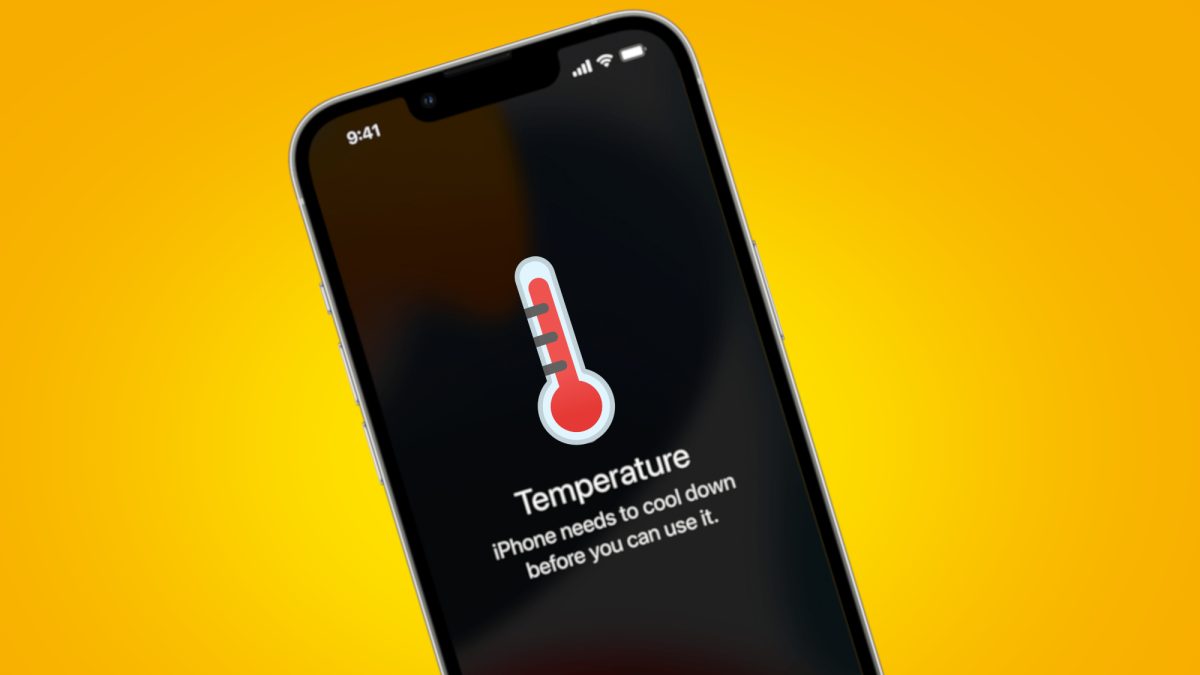
It’s normal for smartphones to become slightly warm during gaming, video editing, or fast charging. However, excessive heat can damage the battery, reduce performance, and shorten your device’s lifespan.
If your phone frequently overheats during normal use, investigate the cause before permanent damage occurs.
1. Common Causes of Overheating
The most common reasons include:
- Gaming for extended periods.
- High screen brightness.
- Background apps.
- Faulty batteries.
- Poor signal strength.
- Charging while using the phone.
- Malware.
- Hot weather.
2. Ways to Cool Down Your Phone
Follow these simple steps:
- Remove the protective case temporarily.
- Close unnecessary apps.
- Reduce display brightness.
- Turn off unused features such as Bluetooth and GPS.
- Avoid direct sunlight.
- Pause gaming while charging.
- Restart the device.
These actions often reduce internal temperatures within a few minutes.
3. When Overheating Requires Professional Repair
Seek professional assistance if:
- The phone becomes extremely hot every day.
- The battery begins swelling.
- Performance drops significantly.
- Charging causes excessive heat.
- The device shuts down automatically.
Persistent overheating may indicate battery degradation or internal hardware faults.
How to Fix a Phone Camera That Is Not Working?
Modern smartphone cameras contain advanced sensors, image stabilisation systems, autofocus motors, and AI processing features. Even a minor fault can prevent the camera from functioning correctly.
Common camera problems include:
- Black camera screen.
- Blurry photos.
- Camera app crashes.
- Autofocus not working.
- Camera shaking.
- Flash not working.
1. Basic Camera Troubleshooting
Before considering repairs:
- Restart the phone.
- Update the Camera app.
- Clean the camera lens using a microfibre cloth.
- Remove any bulky case blocking the lens.
- Check storage space.
- Install pending software updates.
Many software-related camera issues can be resolved with these simple steps.
2. When Camera Repair Is Needed
Professional camera replacement may be required if:
- The lens is cracked.
- Water has entered the camera module.
- Autofocus has completely failed.
- Images remain blurry after cleaning.
- The camera app cannot detect the hardware.
Our detailed article How to Fix a Phone Camera Not Working? explains camera diagnostics, common faults, and repair options for iPhone, Samsung Galaxy, Google Pixel, Huawei, and other smartphone brands.
Expert Advice Before Booking a Repair
Before replacing any smartphone component, it’s important to identify the root cause rather than guessing. Many problems that appear to require expensive repairs are actually caused by software bugs, worn charging accessories, or simple maintenance issues. Following a structured troubleshooting process can save both time and money.
However, if your phone has suffered water damage, severe impact damage, battery swelling, motherboard faults, or complete display failure, continuing to use it may cause further internal damage. In these situations, it’s safest to stop using the device and have it inspected by certified smartphone repair specialists.
At iExpert Repairs, our technicians carry out professional diagnostics before recommending any repair. Whether you own an iPhone, Samsung Galaxy, Google Pixel, Huawei, or another Android device, every repair uses premium-quality replacement parts, includes comprehensive testing, and is backed by a 12-month warranty. With our convenient UK-wide mail-in repair service, same-day repairs, and Fix Now, Pay Later with Klarna, getting your smartphone back to full working order has never been easier.
How to Fix Phone Speaker Problems?
If you can’t hear calls, music sounds distorted, or your loudspeaker suddenly stops working, don’t assume the speaker has failed. Many speaker problems are caused by software settings, dirt buildup, or moisture rather than damaged hardware.
Start with the simplest troubleshooting steps before considering a repair.
1. Check the Volume Settings
It sounds obvious, but many speaker issues are caused by incorrect settings.
Make sure:
- Media volume is turned up.
- Silent Mode is disabled.
- Do Not Disturb is turned off.
- Bluetooth audio isn’t connected to another device.
Restart the phone after adjusting the settings.
2. Clean the Speaker Grilles
Over time, dust, pocket lint, and debris can block the speaker openings.
Clean carefully using:
- A soft anti-static brush
- Compressed air
- A clean microfibre cloth
Avoid inserting metal objects into the speaker, as they can permanently damage the delicate speaker mesh.
3. Test Different Audio Sources
Try:
- Playing YouTube videos
- Making a phone call
- Using speakerphone
- Listening with headphones
This helps determine whether the issue affects the loudspeaker, earpiece, microphone, or software.
4. When Does the Speaker Need Repair?
Professional repair is usually required if:
- No sound comes from the speaker.
- Audio crackles continuously.
- Sound is extremely quiet.
- Water has entered the speaker.
- The phone was dropped before the problem started.
If your phone’s audio isn’t working correctly, our detailed guide How to Fix Phone Speaker Issues explains every possible cause and solution.
How to Fix Phone Wi-Fi Problems?
Wi-Fi issues can prevent you from browsing the internet, downloading apps, streaming videos, or using online services.
Fortunately, many connection problems can be fixed within a few minutes.
1. Restart Your Router and Phone
This simple step often resolves temporary connection problems.
Restart:
- Your smartphone
- Your Wi-Fi router
- Your broadband modem (if separate)
Then reconnect.
2. Forget the Network
If your phone repeatedly disconnects:
- Open Wi-Fi Settings.
- Select your network.
- Tap Forget Network.
- Reconnect using your password.
This refreshes the connection settings.
3. Check for Software Updates
Wi-Fi bugs occasionally appear after operating system updates.
Installing the latest software often resolves:
- Random disconnections
- Slow Wi-Fi speeds
- Authentication errors
4. Reset Network Settings
If the problem continues:
- Reset Wi-Fi settings.
- Reset Bluetooth settings.
- Reset Mobile Network settings.
This won’t delete your personal data but will remove saved network connections.
How to Fix Phone Bluetooth Problems?
Bluetooth allows smartphones to connect with wireless headphones, speakers, smartwatches, and vehicles. When Bluetooth stops working, the problem is often software-related.
Try these solutions:
- Restart Bluetooth.
- Restart your phone.
- Remove old paired devices.
- Pair again from scratch.
- Update your phone software.
- Ensure the accessory battery isn’t flat.
If none of these steps help, there may be an issue with the phone’s Bluetooth antenna or motherboard.
How to Fix a Water-Damaged Phone?
Water damage is one of the most serious smartphone problems because moisture can affect the battery, charging port, display, cameras, speakers, and motherboard. Quick action significantly improves the chances of a successful repair.
1. What to Do Immediately
If your phone gets wet:
- Turn it off immediately.
- Remove the SIM card.
- Remove any protective case.
- Dry the exterior with a soft cloth.
- Keep the device upright.
Avoid charging the phone until it has been professionally inspected or has completely dried.
2. What You Should Never Do
Avoid these common mistakes:
- Don’t use a hairdryer.
- Don’t place the phone on a radiator.
- Don’t charge it immediately.
- Don’t shake the phone.
- Don’t put it in rice.
Rice cannot remove moisture trapped inside modern smartphones and may leave dust particles inside the charging port.
3. Why Professional Cleaning Matters
Liquid damage often causes corrosion inside the device. Professional technicians can:
- Disassemble the phone safely.
- Remove corrosion.
- Clean internal components.
- Test the motherboard.
- Replace damaged parts if required.
For more detailed advice, read Water Damaged Phone Repair.
DIY Repair or Professional Repair?
Some smartphone problems are safe to troubleshoot yourself, while others require specialist tools and technical expertise.
| Issue | DIY Troubleshooting | Professional Repair Recommended |
|---|---|---|
| Restarting the phone | ✔ | |
| Cleaning charging port | ✔ | |
| Software updates | ✔ | |
| Removing unnecessary apps | ✔ | |
| Battery replacement (modern phones) | ✔ | |
| Screen replacement | ✔ | |
| Charging port replacement | ✔ | |
| Camera replacement | ✔ | |
| Water damage | ✔ | |
| Motherboard repair | ✔ |
Attempting complex repairs without the correct tools may cause additional damage and increase repair costs.
Why choose iExpert Repairs to fix your phone?
When your smartphone needs expert attention, choosing an experienced repair provider makes all the difference. At iExpert Repairs, we provide trusted smartphone repair services for customers throughout the UK.
Our services include:
- iPhone Repairs
- Samsung Repairs
- Google Pixel Repairs
- Huawei Phone Repairs
- Screen Replacement
- Battery Replacement
- Charging Port Repairs
- Camera Repairs
- Water Damage Repair
- Software Diagnostics
Why customers choose us:
- Over 10 years of repair experience.
- Certified smartphone technicians.
- Premium-quality replacement parts.
- Same-day repairs on most devices.
- 12-month repair warranty.
- UK-wide Mail-in Repair Service.
- Free tracked return delivery.
- Fix Now, Pay Later with Klarna available at checkout.
Whether you’re in London, Birmingham, Manchester, Glasgow, Liverpool, Leeds, Sheffield, Bristol, or anywhere else in the UK, our convenient mail-in service makes professional smartphone repairs simple and reliable.
How to Fix a Phone: FAQs
1. Can I fix my phone myself?
Yes, you can fix some common phone problems yourself, such as restarting a frozen device, updating the software, clearing storage, cleaning the charging port, or replacing a faulty charging cable. However, hardware issues like cracked screens, battery replacement, water damage, charging port repairs, and motherboard faults should be handled by certified repair technicians to avoid further damage.
2. What is the most common phone problem?
The most common smartphone problems include cracked screens, battery drain, charging issues, overheating, water damage, touchscreen problems, speaker faults, camera issues, and software glitches. Most of these problems can be diagnosed through basic troubleshooting before deciding whether professional repair is needed.
3. How do I know if my phone has a hardware or software problem?
Software problems usually cause app crashes, freezing, slow performance, or system errors and can often be resolved with updates or resets. Hardware problems typically involve physical damage, charging port failures, battery issues, broken screens, or faulty internal components that require professional repair.
4. Why won’t my phone turn on even after charging?
If your phone won’t turn on after charging, the battery may be completely discharged, the charging port may be damaged, the charger could be faulty, or there may be a software crash or motherboard issue. Try using a different charger, performing a force restart, and checking for visible damage before seeking professional diagnostics.
5. How can I fix a phone that won’t charge?
Start by testing another charging cable and adapter, cleaning the charging port, restarting the phone, and checking for software updates. If your phone still won’t charge or only charges at certain angles, the charging port or battery may require replacement by a qualified technician.
6. Why is my phone battery draining so quickly?
Rapid battery drain can be caused by background apps, high screen brightness, outdated software, poor network coverage, excessive gaming, or an ageing battery. Optimising your settings may improve battery life, but older batteries often need replacing after two to three years of regular use.
7. Is it worth repairing a cracked phone screen?
In most cases, yes. Replacing a cracked screen is usually much more affordable than buying a new smartphone, especially for premium devices like iPhones, Samsung Galaxy phones, and Google Pixel models. Repairing the screen also helps prevent further internal damage caused by dust or moisture.
8. Can a water-damaged phone be repaired?
Yes, many water-damaged phones can be repaired if action is taken quickly. Turn the device off immediately, avoid charging it, and have it inspected by professional technicians as soon as possible. Early cleaning and corrosion removal greatly increase the chances of a successful repair.
9. Why is my phone overheating?
Phones commonly overheat because of intensive gaming, prolonged camera use, background apps, charging while in use, high temperatures, or battery problems. If your device overheats regularly during normal use, it should be professionally inspected to prevent long-term damage.
10. How much does phone repair cost in the UK?
The cost of phone repair in the UK depends on the device model and the type of repair required. Screen replacements, battery replacements, charging port repairs, and camera repairs all vary in price. Requesting a professional diagnostic is the best way to receive an accurate repair quote.
11. How long does a phone repair usually take?
Many common smartphone repairs, including screen and battery replacements, can often be completed on the same day. More complex repairs, such as water damage recovery or motherboard repairs, may take longer depending on the extent of the damage and the availability of replacement parts.
12. Do professional phone repairs come with a warranty?
Most reputable repair providers offer a warranty on their repairs. At iExpert Repairs, most repairs are backed by a 12-month warranty, giving customers added confidence in the quality of the replacement parts and workmanship.
Final Thoughts
Learning how to fix a phone starts with identifying the real cause of the problem rather than guessing. Many issues, including charging problems, battery drain, overheating, connectivity errors, and software glitches, can often be resolved with safe troubleshooting techniques. However, hardware faults such as cracked screens, water damage, failed batteries, charging port issues, and motherboard problems should be handled by experienced professionals to avoid further damage.
If you’ve worked through the troubleshooting steps in this guide and your phone still isn’t functioning correctly, professional diagnostics can help identify the issue quickly and prevent unnecessary repair costs.
At iExpert Repairs, our certified technicians repair thousands of smartphones every year using premium-quality parts and industry-approved repair procedures. Every repair is thoroughly tested, backed by a 12-month warranty, and supported by our convenient UK-wide mail-in service. Whether you own an iPhone, Samsung Galaxy, Google Pixel, Huawei, or another smartphone, we’re here to help you get back up and running with fast, reliable, and affordable repairs.
Back to posts

