
Why Is My iPad Wi-Fi Not Working?
If your iPad won’t connect to Wi-Fi, keeps disconnecting, shows “Unable to Join Network”, or connects without internet access, the problem could be caused by:
- Temporary software bugs
- Incorrect Wi-Fi settings
- Router or broadband issues
- Outdated iPadOS
- VPN or network configuration conflicts
- Weak Wi-Fi signal
- DNS or IP address problems
- Hardware damage to the Wi-Fi antenna
- Previous liquid damage
- Logic board faults
Fortunately, many Wi-Fi issues can be fixed at home without losing your data. However, persistent connectivity problems may require professional diagnostics.
Introduction
An iPad without a stable internet connection quickly becomes frustrating. Whether you’re attending online classes, joining Zoom meetings, streaming Netflix, browsing Safari, gaming, or using cloud-based apps, reliable Wi-Fi is essential.
Many users assume their iPad is broken when Wi-Fi suddenly stops working. In reality, the issue is often caused by something much simpler, such as incorrect network settings, a temporary software bug, or your home router.
However, if your iPad has recently been dropped, exposed to liquid, or repaired using low-quality replacement parts, the problem may involve the internal Wi-Fi antenna or logic board.
At iExpert Repairs, we’ve helped thousands of customers across the UK diagnose Wi-Fi connectivity issues on every generation of iPad. In this guide, we’ll explain the most common causes, show you how to fix them step by step, and help you decide when professional repair is the better option.
If your tablet is also experiencing charging problems, our guide on Why Is My iPad Not Charging? can help you diagnose power-related faults before they become more serious.
Quick Answer:Why Is My iPad Wi-Fi Not Working?
If your iPad Wi-Fi is not working, the issue is usually caused by a software glitch, incorrect network settings, router problems, an outdated version of iPadOS, or internal hardware damage. In most cases, you can fix the problem by restarting your iPad, restarting your Wi-Fi router, forgetting and reconnecting to the network, resetting network settings, or updating iPadOS. If your iPad still won’t connect to Wi-Fi after trying these fixes – especially if it was dropped or exposed to liquid – the fault may be with the Wi-Fi antenna, wireless IC, or logic board, and professional iPad Wi-Fi repair may be required.
Signs Your iPad Has a Wi-Fi Problem
Not every Wi-Fi issue looks the same. Understanding the symptoms can help narrow down the underlying cause.
Common signs include:
- iPad won’t detect nearby Wi-Fi networks.
- Wi-Fi button is greyed out.
- Connected to Wi-Fi but no internet access.
- Internet disconnects every few minutes.
- Apps say “No Internet Connection.”
- Safari pages won’t load.
- FaceTime calls constantly disconnect.
- Slow download speeds.
- Streaming buffers frequently.
- Unable to join known networks.
- Wi-Fi password repeatedly rejected.
- Wi-Fi works only when standing near the router.
If you’re also experiencing display issues, such as a black screen or an unresponsive touchscreen, we recommend reading our Why Is My iPad Screen Black? and iPad Screen Not Responding? troubleshooting guides, as some hardware failures can affect multiple components.
Why Is My iPad Wi-Fi Not Working?
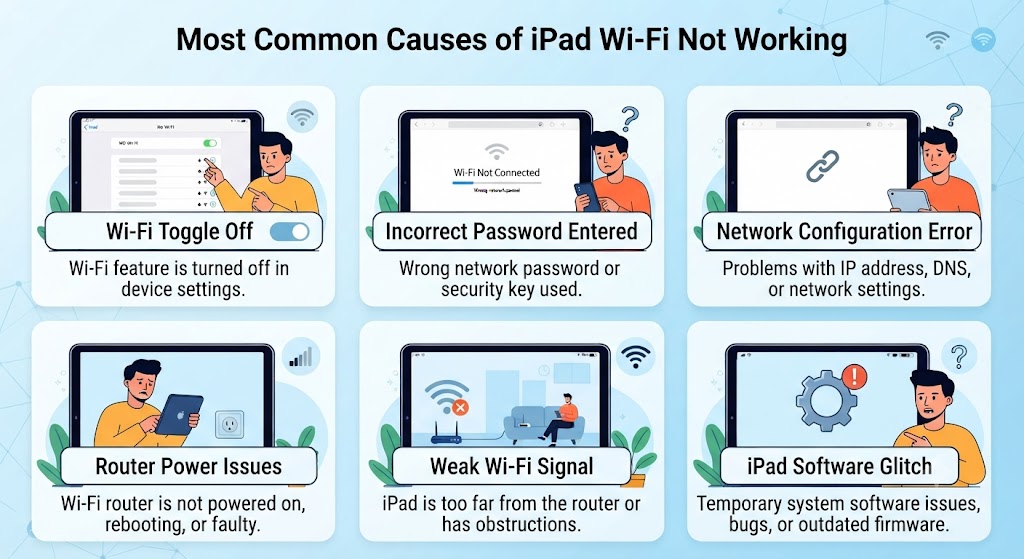
There isn’t one single cause behind Wi-Fi problems. Below are the most common reasons we encounter during professional iPad repairs.
1. Temporary Software Glitch
This is by far the most common reason. After an iPadOS update or prolonged use without restarting, background services responsible for wireless communication may stop responding correctly.
Symptoms include:
- Wi-Fi disconnecting randomly
- Slow browsing
- Network disappears unexpectedly
- Unable to reconnect after sleep mode
Fortunately, this usually resolves after restarting the device.
2. Your Router Is the Real Problem
Many users blame the iPad when the router is actually causing the issue. Possible router problems include:
- ISP outages
- Firmware bugs
- Router overheating
- Too many connected devices
- DHCP conflicts
- Weak signal strength
Before changing settings on your iPad, test whether other devices such as your phone or laptop can connect to the same Wi-Fi network.
If every device struggles to connect, the issue is likely your broadband or router rather than the iPad.
3. Weak Wi-Fi Signal
Walls, furniture, mirrors, thick floors and electronic appliances can all weaken wireless signals. You may notice:
- Wi-Fi works in one room only.
- Streaming constantly buffers.
- Signal drops while walking around the house.
- Downloads take much longer than usual.
Modern homes with multiple floors often require Wi-Fi extenders or mesh networking systems to provide reliable coverage.
4. Incorrect Network Settings
Corrupted saved network settings can prevent your iPad from communicating properly with your router. Examples include:
- Incorrect DNS servers
- Invalid IP addresses
- Old network profiles
- Static IP conflicts
- Broken VPN configurations
Resetting network settings often fixes these issues without affecting your photos, apps, or personal files.
5. Outdated iPadOS
Apple regularly releases software updates that include:
- Wi-Fi stability improvements
- Security patches
- Driver updates
- Bug fixes
- Better router compatibility
Running an older version of iPadOS may cause compatibility issues with newer Wi-Fi routers that support advanced wireless standards.
Always install the latest stable version when available.
6. VPN or Security Apps
VPN applications are useful for privacy but can sometimes interrupt internet connectivity. Signs include:
- Wi-Fi connects but websites won’t load.
- Certain apps lose internet access.
- Slow browsing.
- Random disconnections.
Temporarily disabling the VPN helps determine whether it’s causing the issue.
7. Incorrect Date and Time
Although it sounds unusual, incorrect date and time settings can interfere with secure internet connections. This commonly affects:
- Safari
- App Store
- iCloud
- Banking apps
- Email services
Enabling Set Automatically usually resolves this problem.
8. Hardware Damage
If your iPad has recently been:
- Dropped
- Bent
- Repaired previously
- Exposed to liquid
- Suffered impact damage
…the internal Wi-Fi antenna, antenna cable, or logic board may have been damaged. Unlike software issues, hardware faults usually require professional diagnostics and repair.
At iExpert Repairs, our technicians use advanced diagnostic tools to identify whether the problem lies with the antenna, wireless chip, charging circuitry, or motherboard before recommending a repair.
How to Fix an iPad That Won’t Connect to Wi-Fi?
The good news is that many Wi-Fi problems can be fixed at home without specialist tools. Work through these solutions in order.
Fix 1. Restart Your iPad
Restarting refreshes background processes and reloads the wireless drivers.
Steps
- Press and hold the Power button together with either Volume button.
- Drag the power slider.
- Wait around 30 seconds.
- Turn the iPad back on.
- Try reconnecting to Wi-Fi.
This simple step solves a surprising number of connectivity issues.
Fix 2. Restart Your Wi-Fi Router
Power cycling your router clears temporary network errors.
Steps
- Switch the router off.
- Unplug it from the wall.
- Wait 60 seconds.
- Plug it back in.
- Allow it to fully reconnect.
- Test your iPad again.
If multiple devices in your home have lost internet access, this should always be your first troubleshooting step.
Fix 3. Forget the Wi-Fi Network
Saved network settings occasionally become corrupted.
Here’s how:
- Open Settings
- Tap Wi-Fi
- Select the information icon beside your network
- Tap Forget This Network
- Reconnect using your Wi-Fi password
This creates a fresh connection between your iPad and router.
Fix 4. Reset Network Settings
If restarting your iPad and reconnecting to your Wi-Fi network hasn’t solved the problem, resetting your network settings is often the next best step.
This removes saved Wi-Fi networks, Bluetooth pairings, VPN settings and network configurations without deleting your photos, apps or personal files.
How to Reset Network Settings
- Open Settings.
- Tap General.
- Select Transfer or Reset iPad.
- Tap Reset.
- Choose Reset Network Settings.
- Enter your passcode if prompted.
- Restart your iPad and reconnect to your Wi-Fi network.
Many persistent connectivity problems are resolved after resetting corrupted network configurations.
Fix 5. Check for an iPadOS Update
Apple frequently releases software updates that improve wireless stability, fix known bugs and enhance compatibility with modern routers.
To check for updates:
- Open Settings.
- Go to General > Software Update.
- Download and install any available updates.
- Restart your iPad after installation.
If your iPad struggles with other software-related issues, you may also find our guide on Why Is My iPad Not Turning On? helpful, as outdated software can contribute to several startup and performance problems.
Fix 6. Turn Wi-Fi Off and Back On
Sometimes the wireless radio simply needs to reconnect.
Steps
- Open Settings > Wi-Fi.
- Turn Wi-Fi off.
- Wait around 30 seconds.
- Turn Wi-Fi back on.
- Reconnect to your network.
Although simple, this often restores a stable connection.
Fix 7. Disable VPN or Security Apps
VPN services can occasionally interfere with your internet connection. Try temporarily disabling:
- VPN applications
- Network security apps
- Firewall utilities
- Private DNS services
If Wi-Fi works normally afterwards, the VPN configuration may need updating or reinstalling.
Fix 8. Disable Private Wi-Fi Address (If Necessary)
Apple includes a privacy feature called Private Wi-Fi Address, which changes your device’s MAC address. While useful for privacy, some older routers may struggle to recognise it.
To disable it:
- Open Settings > Wi-Fi.
- Tap the next to your connected network.
- Turn Private Wi-Fi Address off.
- Reconnect to the network.
Only do this on trusted home or office networks.
Fix 9. Renew the IP Address
Sometimes your router assigns an invalid IP address. To renew it:
- Open Settings > Wi-Fi.
- Tap the beside your network.
- Scroll down.
- Tap Renew Lease.
- Confirm the action.
This requests a fresh IP address from your router.
Fix 10. Check Date & Time Settings
Incorrect date and time settings can affect secure internet services.
Go to:
Settings > General > Date & Time
Enable:
Set Automatically
This helps ensure secure connections with Apple services and websites.
Fix 11. Test Another Wi-Fi Network
One of the easiest ways to identify the source of the problem is to connect your iPad to another network. Try using:
- Mobile hotspot
- Friend’s Wi-Fi
- Office network
- Public Wi-Fi
If your iPad connects successfully
The problem is probably your home router or broadband connection.
If it fails everywhere
The issue is more likely to be with the iPad itself.
Fix 12. Restart Your Router Properly
Many people simply press the router’s power button, but a complete restart is more effective.
Recommended method
- Turn the router off.
- Disconnect the power cable.
- Wait 60–90 seconds.
- Plug it back in.
- Wait until all indicator lights become stable.
- Test your iPad again.
If every device in your home has Wi-Fi problems, contact your broadband provider before assuming your iPad requires repair.
Fix 13. Reset All Settings
If none of the previous solutions work, resetting all settings may help. Unlike a factory reset, this does not erase your apps, photos or documents.
It simply restores system settings to their defaults. Go to:
Settings > General > Transfer or Reset iPad > Reset > Reset All Settings
Why Does My iPad Keep Disconnecting from Wi-Fi?
An iPad that connects successfully but keeps dropping the connection usually points to one of several common issues. Possible causes include:
- Weak Wi-Fi signal
- Router firmware problems
- Interference from nearby devices
- VPN conflicts
- Power-saving software behaviour
- Hardware faults affecting the Wi-Fi antenna
If your internet disconnects repeatedly even when you’re close to the router, professional diagnostics may be worthwhile.
Why Won’t My iPad Find Any Wi-Fi Networks?
If your Wi-Fi list is completely empty, the issue is more serious than a simple password problem.
Possible causes include:
- Wi-Fi radio failure
- Internal antenna damage
- Logic board fault
- Software corruption
- Hardware failure following a drop
If the Wi-Fi toggle is greyed out, hardware damage becomes much more likely.
Could the Router Be Causing the Problem?
Absolutely. During diagnostics at iExpert Repairs, we often discover that the iPad itself is functioning perfectly. Router-related problems include:
- Outdated firmware
- Faulty DHCP settings
- Dual-band configuration issues
- MAC address filtering
- Channel congestion
- ISP outages
Testing another device on the same network helps determine whether the issue is with the router or the iPad.
Model-Specific Wi-Fi Problems
Although Wi-Fi issues can affect any iPad, certain models tend to experience particular problems more frequently.
1. iPad Pro
Older iPad Pro models occasionally develop antenna connector issues following accidental drops. Users may notice:
- Weak signal strength
- Slow downloads
- Frequent disconnections
If your device has also suffered display damage, you may wish to read our guide on How Much to Fix iPad Screen?, as impact damage can sometimes affect more than just the display.
2. iPad Air
Many iPad Air models continue to perform reliably for years.
However, ageing batteries and outdated software can contribute to connectivity problems.
If your tablet is also experiencing rapid battery drain or charging issues, our How Much Does an iPad Battery Replacement Cost? guide explains when replacing the battery becomes worthwhile.3.
3. iPad mini
The compact design of the iPad mini makes it more portable, but repeated drops can occasionally loosen internal antenna connections. Symptoms may include:
- Weak signal
- Random Wi-Fi loss
- Slow browsing
4. Standard iPad
Standard iPads generally experience software-related Wi-Fi problems rather than hardware failures. Updating iPadOS and resetting network settings often restores normal operation.
When Is It a Hardware Problem?
Software fixes won’t help if physical components inside the iPad have failed. Warning signs include:
- Wi-Fi switch is permanently greyed out.
- No networks appear anywhere.
- Device has suffered liquid damage.
- Wi-Fi stopped working immediately after being dropped.
- Bluetooth also fails.
- Wi-Fi works only when pressure is applied to the device.
- Signal is extremely weak compared with other devices.
These symptoms usually require professional diagnostics.
At iExpert Repairs, we inspect the Wi-Fi antenna, antenna cable, wireless IC, charging circuitry and logic board before recommending any repair. This ensures customers only pay for the repair they actually need.
Can iPad Liquid Damage Affect Wi-Fi?
Yes. Even a small amount of moisture can corrode delicate internal components responsible for wireless communication. Sometimes the problem appears days or even weeks after the device was exposed to liquid.
Common symptoms include:
- Intermittent Wi-Fi
- Weak signal
- Bluetooth problems
- Unexpected restarting
- Charging issues
If your iPad has been exposed to water, it’s important to avoid charging it until it has been professionally inspected.
When Should You Seek Professional iPad Wi-Fi Repair?
If you’ve tried all the troubleshooting steps in this guide and your iPad still won’t connect to Wi-Fi, it’s time to have the device professionally diagnosed.
While many wireless issues are software-related, persistent problems often point to failing internal hardware. Continuing to use a faulty iPad or repeatedly resetting it without identifying the real cause may waste time and, in some cases, allow the issue to become worse.
We recommend professional diagnostics if:
- The Wi-Fi toggle is permanently greyed out.
- Your iPad cannot detect any wireless networks.
- Wi-Fi stopped working immediately after a drop.
- The device has suffered liquid damage.
- Bluetooth and AirDrop have also stopped working.
- Your iPad frequently loses connection even when other devices remain connected.
- Network settings have been reset but the issue persists.
At iExpert Repairs, every device undergoes a full diagnostic assessment before any repair is recommended. Our technicians identify whether the problem is caused by software corruption, antenna damage, a faulty Wi-Fi IC, or a logic board issue, ensuring you only pay for the repair your device actually needs.
Common Hardware Faults That Affect iPad Wi-Fi
Although software issues are more common, these hardware faults are regularly seen during professional repairs.
| Hardware Fault | Common Symptoms |
|---|---|
| Damaged Wi-Fi antenna | Weak signal or frequent disconnections |
| Loose antenna connector | Wi-Fi works intermittently |
| Faulty Wi-Fi/Bluetooth IC | Wi-Fi toggle greyed out or no networks detected |
| Logic board damage | Wi-Fi, Bluetooth and AirDrop all stop working |
| Liquid damage | Unstable wireless connectivity and random failures |
A proper diagnostic test is the safest way to determine which component has failed.
How Much Does iPad Wi-Fi Repair Cost in the UK?
The cost of repairing an iPad’s Wi-Fi depends on the underlying fault rather than the iPad model alone.
| Repair Type | Estimated UK Price |
|---|---|
| Diagnostic Inspection | Often free or £20-£40 (frequently deducted from the repair cost) |
| Wi-Fi Antenna Repair | £50-£90 |
| Antenna Cable Replacement | £40-£80 |
| Wi-Fi IC / Board-Level Repair | £90-£180+ |
| Logic Board Repair | £120-£250+ |
Please note: Actual pricing varies depending on the iPad model, the extent of the damage and the replacement parts required.
DIY Repair vs Professional Repair
Although online repair tutorials may make iPad repairs appear straightforward, Wi-Fi hardware repairs are highly specialised.
| DIY Repair | Professional Repair |
|---|---|
| Risk of damaging the display or logic board | Performed by trained technicians |
| No specialist diagnostic equipment | Advanced diagnostic tools used |
| No warranty | 12-month warranty on eligible repairs |
| Higher chance of accidental damage | Reliable, tested repairs |
| Time-consuming | Fast turnaround for most repairs |
Unless the issue is clearly software-related, attempting to repair internal Wi-Fi components at home is generally not recommended.
Why Choose iExpert Repairs?
Thousands of customers across the UK trust iExpert Repairs for reliable iPad repairs because we focus on accurate diagnostics, quality workmanship and transparent pricing.
Here’s what you can expect:
- Certified technicians with experience repairing all iPad generations
- Professional diagnostics before any repair begins
- Premium-quality replacement parts
- Same-day repairs for many common faults
- UK-wide secure mail-in repair service
- Competitive pricing with no hidden costs
- 12-month warranty on eligible repairs
- Friendly customer support throughout the repair process
Whether you own an iPad, iPad Air, iPad mini or iPad Pro, our technicians can diagnose and repair a wide range of software and hardware faults.
FAQs About iPad Wi-Fi Problems
1. Why is my iPad not connecting to Wi-Fi?
Your iPad may not connect to Wi-Fi because of incorrect network settings, outdated iPadOS, router issues, weak signal strength, or internal hardware faults such as a damaged Wi-Fi antenna.
2. How do I fix Wi-Fi not working on my iPad?
Start by restarting your iPad and router, forgetting the Wi-Fi network, resetting network settings, updating iPadOS, and checking your router configuration. If the issue continues, professional diagnostics may be required.
3. Why does my iPad keep disconnecting from Wi-Fi?
Frequent disconnections are commonly caused by weak signal strength, software bugs, outdated firmware, VPN conflicts, router interference, or a faulty Wi-Fi antenna.
4. Why won’t my iPad find any Wi-Fi networks?
If your iPad cannot detect any Wi-Fi networks, the cause may be disabled wireless settings, software corruption, or hardware problems affecting the Wi-Fi module.
5. Why is my iPad connected to Wi-Fi but has no internet?
This usually indicates a router, broadband, or DNS issue rather than a fault with the iPad itself. Testing another device on the same network can help identify the source of the problem.
6. What should I do if my iPad says “Unable to Join Network”?
Forget the saved network, restart your iPad and router, check the Wi-Fi password, update iPadOS, and reconnect. Persistent errors may require resetting network settings.
7. Can a software update fix iPad Wi-Fi problems?
Yes. Apple regularly releases iPadOS updates that improve wireless stability, security, and compatibility with newer routers.
8. Why is the Wi-Fi button greyed out on my iPad?
A greyed-out Wi-Fi option often indicates a hardware issue involving the Wi-Fi chip, antenna, or logic board, especially if restarting the device doesn’t resolve the problem.
9. Can resetting network settings fix Wi-Fi issues?
Yes. Resetting network settings removes corrupted Wi-Fi configurations, saved networks, VPN settings, and Bluetooth pairings without deleting your personal data.
10. Does resetting network settings erase my photos or apps?
No. It only resets network-related settings and does not remove your photos, apps, files, or personal information.
11. Can water damage stop my iPad from connecting to Wi-Fi?
Yes. Liquid exposure can damage the Wi-Fi antenna, wireless chip, or logic board, causing intermittent or complete loss of wireless connectivity.
12. Is it worth repairing an iPad with Wi-Fi problems?
In most cases, yes. If the issue is caused by a damaged antenna or wireless component, repairing the iPad is often more affordable than replacing the device.
13. How much does iPad Wi-Fi repair cost in the UK?
The cost depends on the fault and model. Simple antenna repairs are generally less expensive than board-level repairs involving the Wi-Fi IC or logic board.
14. How long does an iPad Wi-Fi repair take?
Many Wi-Fi repairs can be completed the same day, while more complex hardware repairs may take one to three working days.
15. Do all iPad models experience Wi-Fi problems?
Yes. Wi-Fi issues can affect iPad, iPad Air, iPad mini, and iPad Pro models due to software bugs, ageing hardware, accidental damage, or network configuration issues.
16. Can a damaged Wi-Fi antenna be replaced?
Yes. A damaged internal Wi-Fi antenna or antenna cable can usually be replaced by a qualified repair technician.
17. Should I repair or replace my iPad?
If the repair cost is reasonable and your iPad still meets your needs, repairing it is usually the most cost-effective option. Older devices with multiple faults may be better replaced with a professionally refurbished model.
18. Can a faulty router cause iPad Wi-Fi problems?
Yes. Router firmware issues, broadband outages, incorrect settings, or interference can prevent your iPad from connecting even when the tablet is functioning correctly.
19. Why is my iPad Wi-Fi slow even with a strong signal?
Slow Wi-Fi speeds may result from network congestion, ISP issues, background downloads, outdated software, DNS problems, or router performance rather than the iPad itself.
20. When should I seek professional iPad Wi-Fi repair?
If your iPad still won’t connect after basic troubleshooting, the Wi-Fi toggle is greyed out, or the device has suffered accidental or liquid damage, it’s best to have it professionally diagnosed and repaired.
Final Verdict
A Wi-Fi problem doesn’t always mean your iPad has reached the end of its life. In many cases, issues such as incorrect network settings, temporary software glitches, outdated iPadOS, or router configuration problems can be resolved with a few simple troubleshooting steps.
However, if your iPad still won’t connect to Wi-Fi after trying the solutions in this guide, or if the problem started after a drop, liquid exposure, or physical damage, the fault may lie with the internal Wi-Fi antenna, wireless IC, or logic board. These hardware issues require professional diagnostics and specialist repair equipment to resolve safely.
The sooner you identify the cause, the better your chances of avoiding further damage and restoring your iPad to full working condition.
Back to posts

